


Share:


Table of Contents
Creating a TikTok Ads product feed is essential for WooCommerce store owners looking to leverage TikTok's growing eCommerce capabilities. This structured data file allows businesses to showcase their products through in-feed ads and TikTok Shopping, connecting them with a vast audience and enhancing sales opportunities.
- A TikTok product feed is a structured file containing essential product details like names, prices, and images, enabling effective advertising on TikTok.
- Businesses need a TikTok for Business account, an active WooCommerce store, and a compatible product feed plugin to create and manage their product feeds.
- The product feed must be formatted correctly, typically in CSV or XML, to ensure TikTok can accurately display and update product information.
- Optimizing the product feed with high-quality images, accurate pricing, and regular updates is crucial for maximizing engagement and sales.
- Integrating the TikTok Pixel allows for tracking user interactions and measuring ad performance, further enhancing marketing strategies.
- Regularly scheduled updates of the product feed are recommended to maintain accuracy and reflect any changes in inventory or pricing.
Want to sell your WooCommerce products on TikTok? Learn how to create a TikTok product feed to showcase your products through in-feed ads and TikTok Shopping, quickly and easily, using a powerful WooCommerce product feed plugin.
TikTok has evolved beyond just trending dances and viral clips; it’s now emerging as a formidable eCommerce platform where businesses can connect with millions of potential customers. Thanks to features like TikTok Shopping and in-feed product ads, showcasing your WooCommerce products to a highly engaged audience has never been easier.
To make this work, you’ll need a product feed – a structured file that relays your product details, such as name, price, image, and availability, to TikTok. Setting up this feed is crucial for making your WooCommerce products easy to find and shop for on TikTok.
This guide covers everything you need: the exact fields TikTok requires, how to connect your platform, and how to fix the most common feed errors, plus a step-by-step WooCommerce walkthrough using the WebToffee Product Feed plugin.
A TikTok product feed is a structured data file that contains all the key details about the products in your WooCommerce store, like product names, images, prices, availability, and descriptions. Think of it as a digital catalog that TikTok reads to display your products in shoppable formats across its platform.
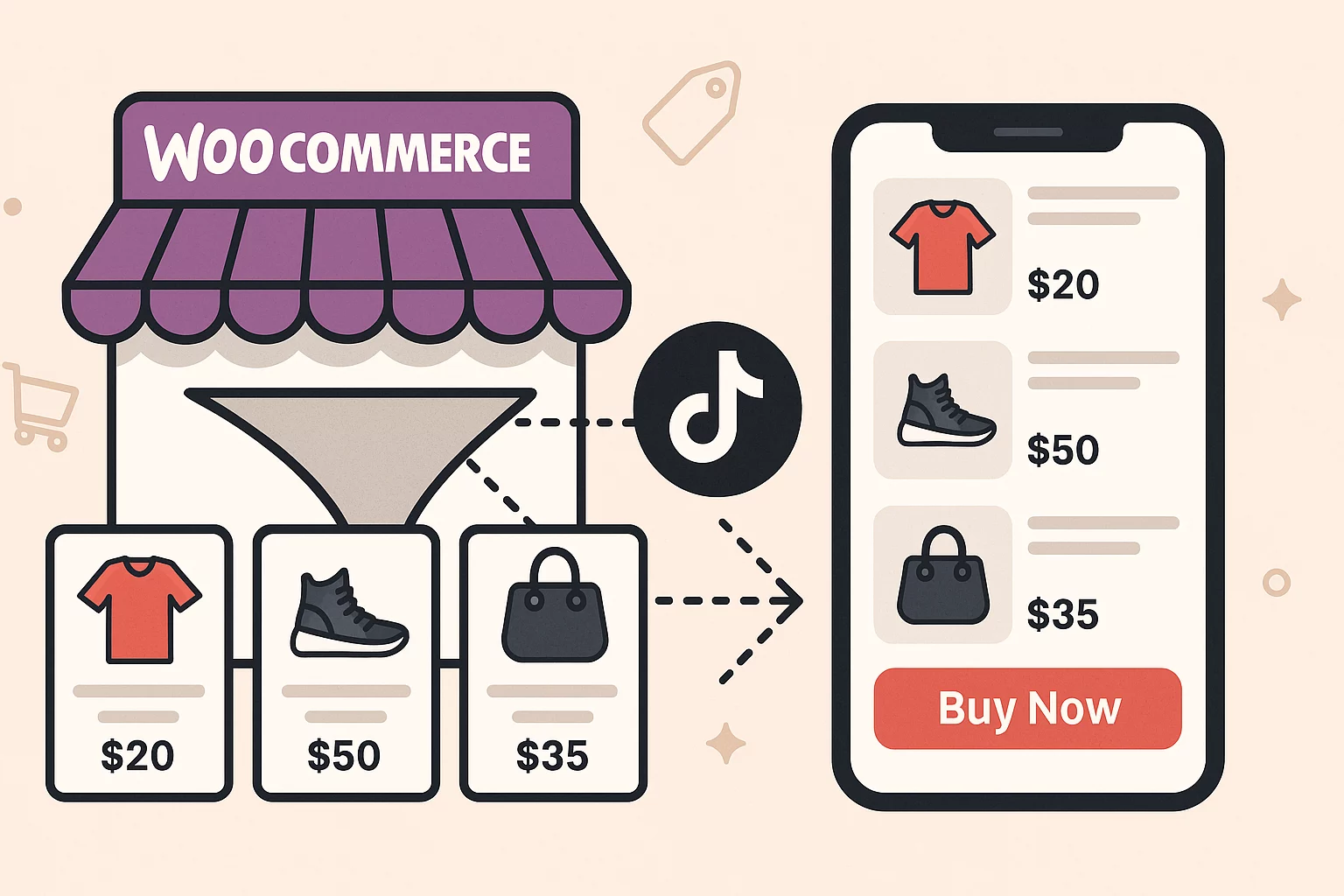
Once connected, TikTok uses your feed to:
- Display products in in-feed shoppable video ads
- Power the TikTok Shopping tab on your business profile
- Generate personalized Dynamic Showcase Ads for individual users
- Keep product details (price, stock) in sync automatically as your store changes
To work correctly, the product feed must be in a format TikTok supports, typically CSV or XML. These formats are structured so TikTok’s systems can read and organize your product data correctly. Using the correct format and including all required fields ensures your products display accurately and are eligible for promotion across TikTok’s advertising channels.
TikTok Product Feed vs Catalog vs Catalog Ads
These terms are closely connected, but they refer to different parts of the setup.
| Term | What it means |
|---|---|
| TikTok product feed | The file or feed URL that sends product information from WooCommerce to TikTok |
| TikTok catalog | The collection of products stored and managed in TikTok Ads Manager |
| TikTok Catalog Ads | Ads that use product information, images, and videos from the catalog |
| TikTok Shop | TikTok’s native commerce platform for selling products within TikTok |
A product feed does not create ads on its own. It first populates a TikTok catalog. You can then connect that catalog to a Catalog Ads campaign.
TikTok Shop is also not required when you use a catalog as the product source. You can run Catalog Ads that direct shoppers to your WooCommerce website instead.
TikTok Catalog Ads vs TikTok Shop
TikTok Catalog Ads and TikTok Shop serve different purposes.
| TikTok Catalog Ads | TikTok Shop |
|---|---|
| Promote products through paid advertising | Sell products through TikTok’s marketplace |
| Can direct shoppers to a WooCommerce website | Supports checkout within TikTok |
| Uses a catalog in TikTok Ads Manager | Uses a TikTok Shop catalog |
| Does not require a TikTok Shop account | Requires seller registration and approval |
| Suitable for website sales and retargeting | Suitable for native TikTok commerce |
For this guide, we will focus on creating a WooCommerce product feed for TikTok Catalog Ads.
What Are TikTok Catalog Ads?
TikTok Catalog Ads use product information, images, and videos stored in a catalog to create personalized advertisements.
TikTok can match relevant products with users based on their interests and behavior. You can use these campaigns to reach new audiences, reconnect with previous website visitors, or promote selected product collections.
TikTok currently supports the following Catalog Ad formats:
- Carousel Ads: Display multiple catalog product images in a swipeable format.
- Single-video Ads: Combine a video with products from your catalog.
- Catalog video Ads: Automatically select product-related videos based on user interest.
Catalog Ads are available with Sales campaigns for Website, App, or Smart+ objectives
Before you can start showcasing your WooCommerce products on TikTok, a few key requirements need to be in place. These tools and accounts ensure a smooth setup and help you get the most out of your TikTok Shopping experience.
1. TikTok for Business Account
To run ads and set up a product catalog, you’ll need a TikTok for Business account. This gives you access to TikTok Ads Manager and Business Center, where you can manage your catalog, track performance, and set up shopping integrations.

Tip: Sign up at business.tiktok.com if you don’t already have an account.
2. WooCommerce Store with Published Products
You must have an active WooCommerce store with published products. Only live and visible products can be included in your TikTok product feed. Ensure your product details, such as images, prices, and stock status, are up to date.
3. A WooCommerce Product Feed Plugin
You need a product feed plugin to convert WooCommerce product data into a format that TikTok can process.
WebToffee Product Feed for WooCommerce lets you:
- Generate TikTok-compatible product feeds
- Map WooCommerce fields to TikTok attributes
- Filter products included in the feed
- Map WooCommerce categories
- Schedule automatic feed updates

Using this plugin simplifies the feed creation process and ensures accuracy across product listings.
4. TikTok Pixel (Optional)
TikTok Pixel is not required merely to upload products, but it is important for measuring and optimizing advertising performance. It can help you track actions such as:
- Product views
- Add-to-cart events
- Checkout activity
- Purchases
- Campaign conversions
For product-level tracking, the content IDs sent by your tracking setup should match the product IDs used in the TikTok catalog.
TikTok recommends around 36 product attributes in total. Nine are mandatory. Miss any of these and your products will be rejected or disapproved. The rest are optional but meaningfully improve matching, targeting, and ad performance.
Mandatory Fields
| Field | Description | Example |
|---|---|---|
| sku_id | Unique product identifier | example_item_435 |
| title | Product name (50–70 characters recommended) | Yellow V-Neck T-Shirt |
| description | Short product description | Made of pure cotton. Available in multiple sizes. |
| availability | Stock status | in stock / out of stock / preorder |
| condition | New, used, or refurbished | new / used / refurbished |
| price | Price with currency | 10.90 USD |
| link | URL to the specific product page | https://example.com/yellow-t-shirt |
| image_link | Primary product image URL | https://example.com/images/yellow-tshirt.jpg |
| brand | Brand name | Everlane |
Recommended Optional Fields
Although optional fields are not always required for feed approval, adding them gives TikTok more information about your products.
Recommended fields include:
| Attribute | Why it matters |
|---|---|
| google_product_category | Helps TikTok understand and classify the product |
| product_type | Preserves your own product-category structure |
| item_group_id | Groups related variations under one parent product |
| additional_image_link | Adds more product images |
| video_link | Supplies a product-level video |
| sale_price | Shows the discounted price |
| sale_price_effective_date | Defines when a promotional price applies |
| color | Describes the product color |
| size | Describes the product size |
| gender | Indicates the intended gender |
| age_group | Identifies the intended age range |
| material | Describes the product material |
| pattern | Describes a design or pattern |
| gtin | Provides a standardized global product identifier |
| mpn | Provides the manufacturer part number |
| custom_label_0–4 | Groups products for reporting and campaigns |
| Field | Purpose | Example |
|---|---|---|
| google_product_category | Helps TikTok understand and classify the product | Apparel & Accessories > Clothing > Shirts |
| sale_price | Shows the discounted price | 7.49 USD |
| additional_image_link | Extra product images (use 3–5) | https://example.com/images/2.jpg |
| video_link | Product video URL — see video section below | https://example.com/videos/tshirt.mp4 |
| item_group_id | Groups product variants (colors/sizes) under one parent | 435_t-shirts |
| color, size, material | Variant attributes | Yellow, M, Cotton |
| gender, age_group | Audience targeting fields | unisex, adult |
| gtin / mpn | Global product identifiers | 2314567790126 |
| shipping | Shipping cost/method by region | US:NY:Ground:3.99 USD |
| custom_label_0–4 | Free-form labels for segmentation (see optimization tips) | Trending, Under $25 |
Feed formats accepted: CSV, TSV, XML, or a Google Merchant Center feed (you can often reuse your Google Shopping feed with minor adjustments). CSV is the most widely supported and easiest to troubleshoot.
Follow these steps to generate and connect your WooCommerce product feed to TikTok using a product feed plugin (such as the WebToffee Product Feed for WooCommerce plugin):
Step 1: Install and Activate the WooCommerce Product Feed Plugin
After completing your purchase, log in to your WebToffee account and download the plugin file from the My Account section.
- In your WordPress dashboard, go to Plugins > Add New.
- Click on Upload Plugin, choose the downloaded ZIP file, and then click Install Now.
- Once the installation is complete, click Activate to start using the plugin.

Check out our plugin installation guide for a detailed walkthrough.
Step 2: Create a New TikTok Feed
Once the plugin is active, go to WebToffee Product Feed > Create new feed.
Configure the settings as mentioned below:
- Country: Select the target country where you will showcase your products.
- Channel: Choose TikTok Ads as the sales channel.
- File Name: Enter a name for your feed file
- Auto-Refresh Interval: Set how often the feed should automatically update (e.g., daily, twice a day).
- Cron Type: Choose between WordPress Cron (more straightforward setup) or Server Cron (more reliable for large stores) to schedule automatic feed refreshes.

Step 3: Filter Products for the TikTok Feed
You do not have to submit every WooCommerce product to TikTok. The Product Feed for WooCommerce plugin provides powerful and flexible filtering options that let you fine-tune exactly which products are included in your TikTok feed. This helps ensure that only the most relevant and ready-to-sell items are promoted on the platform. Here’s how you can refine your TikTok product feed:
Basic Filtering Options
- Categories & Tags: Include or exclude specific product categories or tags to align with your TikTok marketing goals.
- Exclude Specific Products: Manually remove individual products that you don’t want to feature in your TikTok Shopping feed.
- Exclude Out-of-Stock Products: Automatically filter out products that are unavailable, ensuring only in-stock items are displayed.
- Product Variations: Select specific variations—like sizes or colors—to be included, rather than listing all variations of a product.
- Product Types: Filter by product type, such as simple, variable, grouped, or external products, depending on what you want to showcase.

Advanced Filtering Options for TikTok Feed
For greater precision and customization, the plugin also offers Advanced Filtering, allowing you to create rule-based conditions to determine which products should be included in your TikTok feed. This is perfect for building dynamic, campaign-specific feeds that align with your promotional strategy.

These if-then conditions give you more control than basic filters, allowing you to automatically include or exclude products based on attributes such as price, stock status, categories, and more.
For example:
- Include products if the category is Shoes
- Exclude products if stock status is Out of stock
- Include products if the price is greater than $25
- Exclude products if the brand field is empty
This smart filtering helps ensure your TikTok feed is continually optimized with the most relevant and high-performing products.
Step 4: Map TikTok Attributes to WooCommerce Product Fields
In this step, you’ll match TikTok’s required feed attributes with the relevant fields from your WooCommerce store to ensure accurate and properly formatted product data.
This mapping is crucial for making sure your products appear correctly in your TikTok catalog and meet the platform’s data requirements.
The plugin takes care of the essentials by automatically mapping key fields like:
- Product title
- Price
- Product URL
- Availability
You also have full control to manually map additional or optional attributes such as:
- Brand
- Sale price
- Product condition
- Additional image links

Step 5: Map WooCommerce Store Categories to TikTok Product Categories
TikTok Ads uses Google product categories to structure and organize catalog listings across its platform. Mapping your WooCommerce store categories to these Google categories not only helps TikTok accurately classify your products but also boosts their visibility in TikTok ads and shopping placements.
Using the plugin, you can easily assign each of your store’s categories to the most relevant Google category through a convenient drop-down mapping tool. This step ensures your products are aligned with TikTok’s catalog requirements, improving discoverability in search results and targeted ads.

Step 6: Generate the TikTok Product Feed
You’re just one step away from going live! In this final stage, you’ll generate your fully configured TikTok product feed file, ready to be uploaded or linked to your TikTok catalog.
- Select a Batch Count – Decide how many products the plugin should process at a time during feed generation. If you’re unsure, it’s best to stick with the default value recommended by the plugin for smooth performance.
- Choose the File Type – TikTok supports standard feed formats like CSV, TSV, XML, and Google Sheets. For simplicity and compatibility, we recommend using CSV, as it is widely accepted and easy to manage and edit.
- Click Generate – Once everything is set, hit the Generate button. The plugin will now compile your TikTok product feed based on all the filters, mappings, and category settings that you have configured.

Once generated, you’ll see a confirmation message: “Feed generated successfully!”

What You Can Do Next
Once your TikTok product feed is generated, you have a few options to manage and refine it:
- Download the Feed: Save a copy of the generated feed file for review or to upload manually to your TikTok catalog.
- Edit Feed Configurations: Need to tweak your setup? You can go back and adjust settings, filters, field mappings, or category selections anytime.
- Go to Manage Feeds: Head over to the Manage Feeds section to view all existing feeds, check their status, regenerate them, or schedule updates.
- Copy Feed URL: Click the Copy URL button to get the direct link to your TikTok product feed. This URL can be used in the TikTok Business Center to enable automatic syncing.
Step 6: Connect Feed to TikTok Catalog Manager
Now, integrate your feed with TikTok’s Business tools:
- Go to TikTok Business Center > Assets > Catalog.
- Create a new catalog if you haven’t already.
- Under Data Sources, choose Data Feed.
- Paste your feed URL or upload the file manually.
- TikTok will fetch the product details and populate your catalog.
Once connected, TikTok will update your catalog at regular intervals based on the feed schedule.
1. Missing Required Fields
Cause: One or more required TikTok attributes are not mapped.
Fix: Confirm that all nine required fields are present and contain valid values.
2. Duplicate Product IDs
Cause: Multiple products or variations use the same SKU.
Fix: Assign a unique SKU to every product and variation.
3. Invalid Availability Values
Cause: The value exported from WooCommerce does not match TikTok’s accepted values.
TikTok accepts values such as:
- in stock
- available for order
- preorder
- out of stock
- discontinued
Map WooCommerce stock statuses to the corresponding accepted values.
4. Product Price Does Not Match the Website
Cause: The feed contains an outdated price, different currency, or incorrectly mapped sale price.
Fix:
- Regenerate the feed.
- Confirm that catalog currency matches the feed currency.
- Check regular-price and sale-price mappings.
- Increase feed-refresh frequency when prices change often.
5. Product Image Is Rejected
Cause: The image URL is inaccessible, unsupported, or too small.
Fix:
- Use publicly accessible image URLs.
- Use JPG or PNG images.
- Avoid blocked or password-protected URLs.
- Use clear, high-resolution product images.
- Check whether the URL loads outside WordPress.
For carousel ads, TikTok recommends square images of at least 500 × 500 pixels.
6. Products Are Not Updating
Cause: The plugin is not regenerating the feed, or TikTok’s scheduled import is not running.
Fix:
- Check the feed’s last-updated time.
- Review the WordPress or server cron configuration.
- Regenerate the feed manually.
- Verify that the feed URL remains accessible.
- Review the upload schedule in TikTok Catalog Manager.
7. Product Variations Appear as Unrelated Items
Cause: The variations have no shared item_group_id.
Fix: Give each variation a unique SKU while assigning the same group ID to all variations under the same parent product.
8. Catalog Events Are Not Matching Products
Cause: The product IDs sent through TikTok Pixel or Events API do not match the catalog’s sku_id values.
Fix: Use the same product-ID format in WooCommerce, the feed, and your tracking events.
Tips for Optimizing Your TikTok Product Feed
Creating a TikTok product feed is just the beginning—optimizing it ensures that your products stand out, perform well in ads, and drive more sales. Here are some practical tips to make the most of your TikTok Shopping catalog:
1. Use High-Quality Images and Engaging Titles
TikTok is a visual-first platform, so your product images need to be crisp, clear, and eye-catching. Use high-resolution images that showcase your product from multiple angles and in real-life contexts, if possible.
Also, write compelling and concise product titles. Avoid keyword stuffing. Focus on clarity and relevance to grab attention and boost engagement.
2. Keep Product Data Up to Date
Always ensure your product feed reflects the latest updates from your WooCommerce store. Outdated descriptions, discontinued items, or incorrect specs can lead to confusion and hurt user trust.
If you’re using a plugin that supports scheduled updates, set it to refresh your feed regularly (e.g., daily or weekly) to stay synced with your store.
3. Ensure Pricing and Availability Are Accurate
Nothing frustrates potential buyers more than clicking on a product ad only to find it’s out of stock or priced differently. Keep your pricing and stock availability fields accurate and up to date in your feed.
This not only improves the shopping experience but also ensures your ads comply with TikTok’s commerce policies.
4. Add TikTok Pixel for Performance Tracking
Install the TikTok Pixel on your WooCommerce store to gain powerful insights into how users interact with your ads and products. The Pixel helps you:
- Track key actions like views, clicks, add-to-carts, and purchases
- Measure campaign performance and ROI
- Build custom audiences for retargeting
The more data you collect, the more effectively you can optimize your TikTok marketing strategy.
Final Thoughts
Connecting your WooCommerce store to TikTok is a smart move if you’re looking to tap into one of the fastest-growing social commerce platforms. With its highly engaged user base and powerful shopping features, TikTok offers a unique opportunity to showcase your products to a wider audience and drive meaningful sales through visually rich, in-feed shopping experiences.
By creating a TikTok product feed using a plugin like the WebToffee Product Feed for WooCommerce, you can streamline your catalog management and ensure your product listings are always accurate and optimized for performance.
Whether you’re promoting seasonal collections, bestsellers, or flash sales, an automated product feed helps you stay agile and efficient.
A TikTok ads product feed is a structured file that sends product information from an online store to a TikTok catalog. It typically includes titles, descriptions, prices, availability, images, product URLs, brands, and product IDs.
No, a TikTok Shop account is not mandatory. You can use a product feed with TikTok Ads Manager to run dynamic product ads. However, if you want to enable full in-app checkout experiences, setting up TikTok Shop is recommended.
It’s best to schedule daily or weekly updates, especially if your inventory, pricing, or availability changes frequently. Most product feed plugins, like the one from WebToffee, allow you to automate these updates.
For scheduled catalog feeds, TikTok currently lists CSV, XML RSS, XML Atom, ZIP, and GZ as supported formats.
While some data fields may overlap, each platform has unique format and category requirements. It’s better to create separate feeds tailored to each channel using the plugin’s multi-channel support.
If the product is deleted or set to “unpublished,” it will be excluded from the next feed update, as long as you’ve scheduled automatic feed refreshes. This ensures your TikTok catalog stays accurate and up to date.
Yes! By integrating the TikTok Pixel with your WooCommerce store, you can track user interactions such as views, clicks, and purchases, helping you optimize ads and retarget more effectively.
Absolutely. Most plugins let you include product variations selectively, so you can showcase each size, color, or version as an individual item in the TikTok catalog.


Subcribe to our newsletter


