



Share:


Table of Contents
Shopify Sidekick is an integrated AI assistant within the Shopify admin that streamlines various store management tasks, from creating discounts to generating reports and content. Its ability to access store data and automate administrative actions significantly enhances efficiency for store owners, making it a vital tool for optimizing daily operations.
- Shopify Sidekick automates routine tasks like setting discounts, pulling sales reports, and writing product descriptions, saving time for store owners.
- It operates within the Shopify ecosystem, utilizing store data to provide tailored insights and actions while adhering to user permissions.
- Sidekick features proactive insights through Sidekick Pulse, offering recommendations based on store performance without user prompts.
- While it is a powerful assistant, Sidekick has limitations, such as not being able to interact with customers or external tools outside Shopify.
- Users can enhance Sidekick's effectiveness by providing specific prompts and maintaining a clear brand voice for content generation.
- The assistant is available on all Shopify plans at no additional cost, although some advanced features are restricted to higher-tier subscriptions.
Shopify Sidekick is the AI assistant built into every Shopify admin, and it does more than answer questions. Type “Set up a 20% off discount on all winter jackets for this weekend,” and a few seconds later the discount form fills in the right collection, percentage, and start and end dates. All that’s left is a quick review and a click to save.
Sidekick started out answering help-doc questions. Now it runs real tasks inside your store: pulling sales reports, building Shopify Flow automations, writing product copy, and even generating small custom apps. It still can’t do everything, though, and the gap between what it can and can’t do matters when you’re deciding how much of your workflow to hand over.
In this blog post, we will cover everything you need to know about Shopify Sidekick.
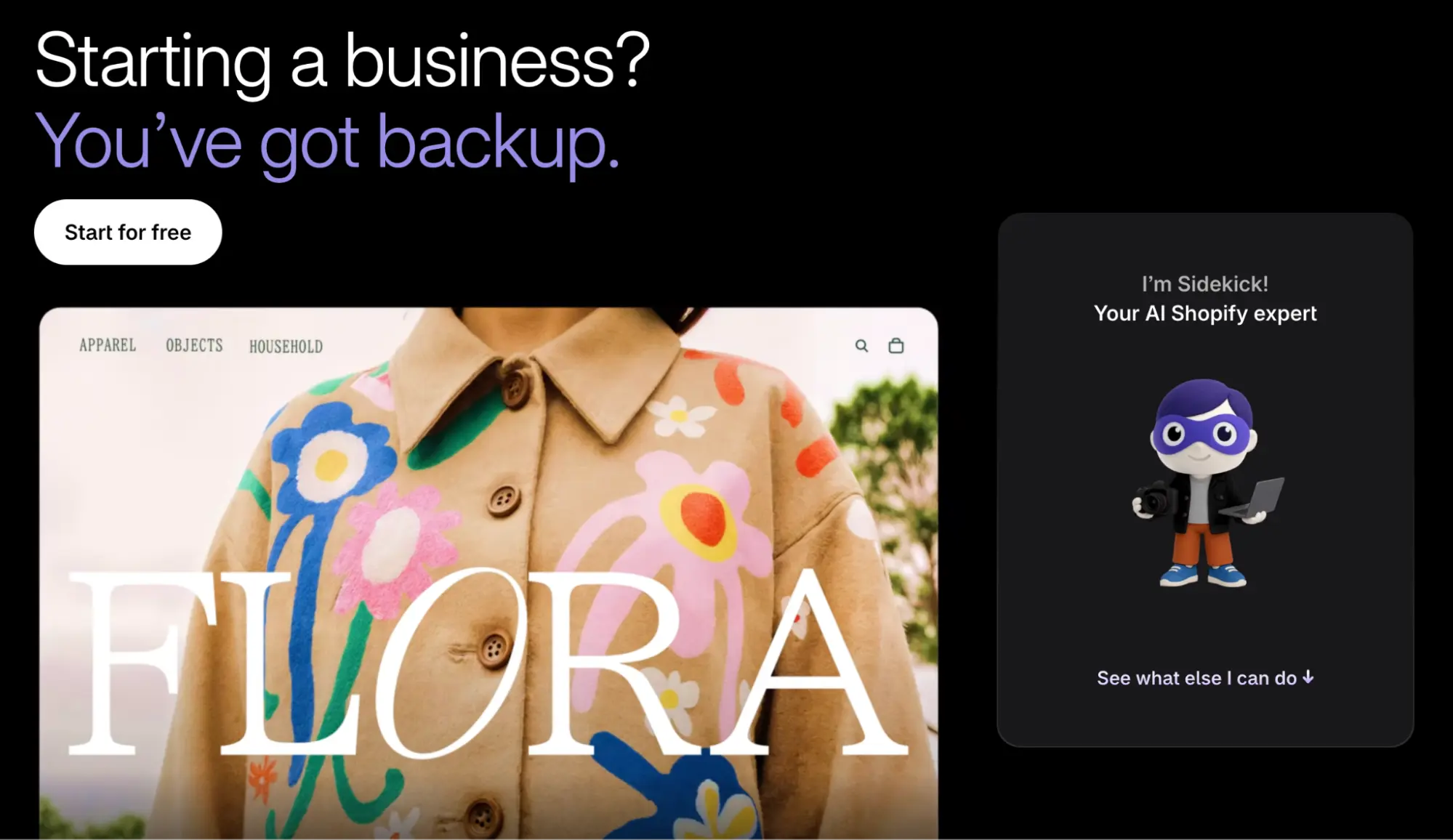
Shopify Sidekick is an AI assistant that lives inside your Shopify admin. You can open it anytime from the floating widget. Unlike a general chatbot, it has access to your store data and Shopify’s own documentation, so it can answer questions about your business and act on them too.
Sidekick doesn’t change anything on its own. It prepares the action, like a discount or a product update, and waits for you to review and approve it. It also follows staff permissions, so team members can only do what their admin role already allows.
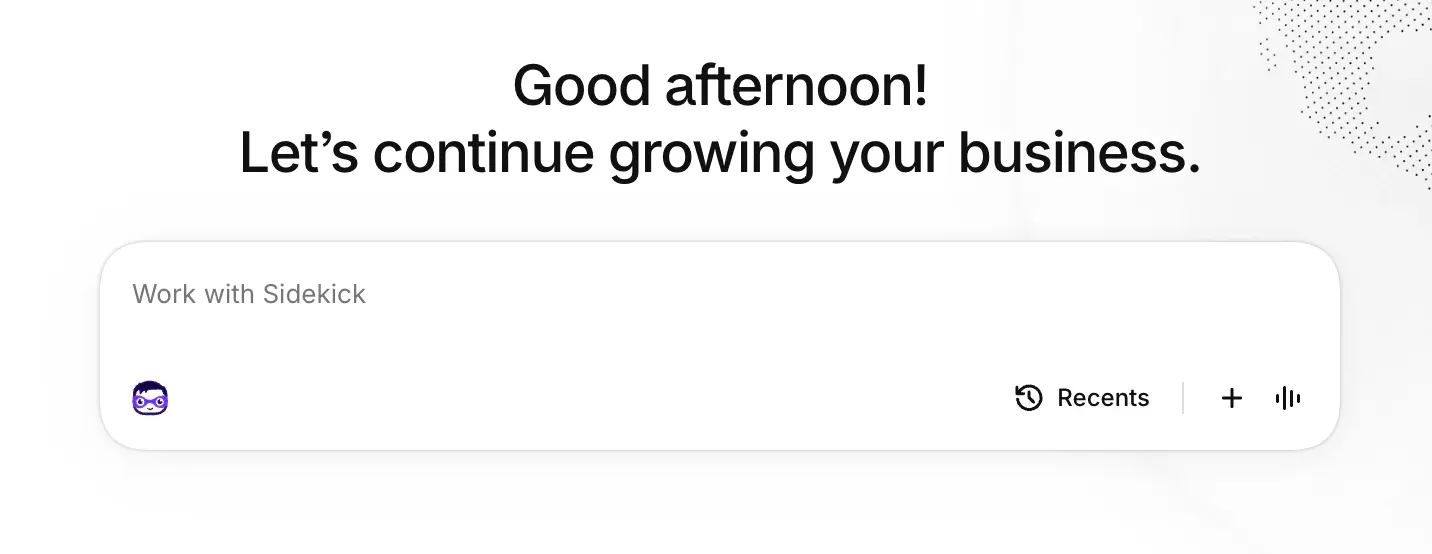
Sidekick comes with every Shopify plan, and there’s no separate subscription or add-on fee. There’s nothing to install or turn on either. It’s already in your admin.
That said, Shopify says features and usage limits vary by plan. Most everyday tasks, like pulling reports, writing product copy, and setting up discounts, work on any plan. The limits show up with heavier features. Custom app generation, for example, is only available on the Grow, Advanced, and Shopify Plus plans.
Here’s how to start using Shopify Sidekick:
- Log in to your Shopify admin.
- Click the purple glasses icon at the top of the screen.
- Type your question or task in plain language, like “Show me my top-selling products this month.”
You can open Sidekick from any page in your admin, on desktop or in the Shopify mobile app. If typing isn’t convenient, switch to voice mode and just talk to it. On desktop, screen sharing lets Sidekick see what you’re looking at and walk you through tasks step by step.
You can even ask quick questions by voice from an Apple Watch.
Sidekick handles six main jobs inside your store. Here’s what each one looks like in practice, with prompts you can copy and try.
1. Analytics and Reporting
This is where Sidekick saves the most time. You don’t have to dig through reports and filters. Just ask a question, and Sidekick writes the ShopifyQL query, pulls the data, and returns an answer, often with a chart. It covers sales, orders, customers, payments, fulfillments, payouts, and web performance.
It doesn’t stop at the numbers, either. Ask why sales dropped, and it looks at traffic, conversion, and product performance to point you toward the likely cause.
Try these:
- “Give me a weekly performance summary for my store.”
- “Which products had the biggest drop in sales compared to last month?”
- “What’s my average order value for returning customers vs. new customers?”
2. Admin Actions
Sidekick can fill in forms across your admin for you. That includes creating discounts, adding products, organizing collections, and setting up customers and B2B companies. Any field it fills in is highlighted in purple, so you can see exactly what changed. Nothing saves until you review it and click Save.
This is handy for tasks with lots of settings, like discounts with conditions, usage limits, and expiry dates.
Try these:
- “Create a 15% discount on the Summer collection that ends Sunday at midnight.”
- “Put all products tagged ‘eco-friendly’ into a new collection called Sustainable Picks.”
- “Add a new customer named Priya Nair with the email [email protected] and tag her as wholesale.”
3. Content and Images
Sidekick writes product descriptions, blog posts, emails, and store copy, and it can edit Shopify Messaging marketing campaigns. It also generates images from a text prompt, so you can create lifestyle shots or banner visuals without opening a separate design tool.
Treat what it gives you as a solid first draft. It gets you most of the way there, but your brand voice still needs a human touch.
Try these:
- “Write an SEO-friendly product description for this linen shirt. Keep it under 120 words and make the tone relaxed.”
- “Draft a blog post about how to style our new autumn collection.”
- “Create a banner image of a cozy reading nook with warm lighting for our home decor sale.”
4. Shopify Flow Automations
Describe an automation in plain English, and Sidekick builds the workflow in Shopify Flow. It can create new workflows and edit existing ones, so you don’t need to know how triggers, conditions, and actions fit together.
One requirement to note: the Shopify Flow app needs to be open in your admin for Sidekick to work on workflows.
Try these:
- “Tag every order over $200 as VIP.”
- “Email me when any product’s inventory drops below 10 units.”
- “Add a ‘repeat-buyer’ tag to customers after their third order.”
5. Custom App Generation
This is one of Sidekick’s bigger recent additions. Describe a tool you need, and Sidekick builds a small, single-purpose app that lives inside your admin. You can preview it, ask for changes, and install it for your team.
These apps are internal only. They work with your store’s admin data, like orders, products, customers, and discounts, but customers don’t see them, and they can’t touch your theme or checkout. App generation is only available on the Grow, Advanced, and Shopify Plus plans, with hourly and weekly limits.
Try these:
- “Build an app that recommends which products to reorder based on sales velocity.”
- “Create an app that shows me all orders waiting more than three days to ship.”
6. Proactive Insights with Sidekick Pulse
Everything above starts with you asking. Sidekick Pulse works the other way around. It looks at your store in the background and surfaces recommendations on your Shopify admin Home, so you might see a suggestion about a trend or an opportunity before you think to look for it.
There’s no prompt needed here. Check your admin Home regularly and act on the suggestions that make sense for your store.
Sidekick is genuinely useful, but it isn’t a do-everything AI. Knowing its limits upfront saves you from wasted prompts and helps you decide where other tools still fit.
1. It Mostly Stays Inside Shopify
Sidekick works with your Shopify data and admin. It can connect with third-party Shopify apps that have built Sidekick support, but it can’t reach into your external tools on its own. If your email platform, CRM, or ad accounts live outside Shopify, Sidekick won’t pull data from them or make changes there.
So a question like “Which Meta ad campaign drove the most revenue last month?” usually needs your ad platform’s own reporting, or a Shopify app that connects the two.
2. It Doesn’t Talk to Your Customers
Sidekick is built for you and your team, not your shoppers. It won’t answer customer questions, handle support chats, or interact with anyone visiting your store. It also won’t recommend products to shoppers or personalize what they see.
For anything customer-facing, you’ll still need dedicated apps.
3. It Diagnoses More Than It Redesigns
Sidekick is great at spotting problems, like a product page with lots of views but few add-to-carts. Fixing the storefront side is a different story, though. The apps it generates only work inside your admin and can’t touch your theme or checkout.
Page layouts, upsell placements, and on-site recommendations are still up to you and your storefront apps.
4. Its Answers Still Need a Second Look
Sidekick is fast, but it isn’t always right, especially on complex, multi-step requests. It might misread a vague prompt, pick the wrong date range, or write copy that doesn’t sound like your brand. That’s exactly why it asks for approval before saving anything.
Treat its output as a strong first draft and double-check numbers before you act on them.
5. Some Features Are Limited by Plan
The core assistant is free on every plan, but heavier features have limits. Custom app generation, for example, is only available on the Grow, Advanced, and Shopify Plus plans, and it has hourly and weekly caps.
Sidekick is only as good as the instructions you give it. A few small habits make a big difference in what comes back.
Be Specific With Your Prompts
Vague prompts get vague answers. The more context you give Sidekick about the time frame, the products, the tone, and the format, the less editing you’ll do later.
| Weak prompt | Strong prompt |
| “How are my sales?” | “Compare my total sales and orders for the last 30 days with the 30 days before. Highlight the three products with the biggest drop.” |
| “Write a product description.” | “Write a 100-word product description for our organic cotton hoodie. Mention the relaxed fit and brushed interior, and keep the tone friendly.” |
| “Make a discount.” | “Create a 20% discount on the Winter collection for returning customers only. It should end Sunday at 11:59 PM and be limited to one use per customer.” |
| “Help with marketing.” | “Draft three email subject lines for our BFCM sale, aimed at customers who haven’t ordered in 90 days.” |
Give Sidekick Your Brand Voice
Sidekick’s default writing style is clean but generic. To make its copy sound like your store, give it a short brand-voice brief before asking for content. Here’s a template you can fill in and paste:
Here’s how our brand writes. Use this for all content in this conversation:
Brand: [store name], selling [what you sell] to [who you sell to]

Tone: [for example: warm, playful, and straightforward]

Words and phrases we use: [for example: "small-batch," "made to last"]

Words we avoid: [for example: "cheap," "luxury," "best-in-class"]

Style rules: [for example: short sentences, no exclamation marks, speak to the reader as "you"]

Example of copy we like: [paste one product description you're happy with]
Sidekick remembers details from your conversations over time, so it may pick up your style as you use it. When the copy really matters, like a product launch or a homepage update, paste the brief anyway.
Keep the Conversation Going
You don’t have to get everything right in one prompt. If the first answer is close but not quite there, reply in the same chat with “make it shorter,” “focus on repeat customers,” or “show that as a chart.” Sidekick builds on what it already did, which is usually faster than starting over.
Save the Prompts You Use Every Week
If you ask for the same report every Monday, save it as a prompt so you can rerun it in a click instead of retyping it. Good candidates include:
- A weekly sales and traffic summary
- A low-stock check for your best sellers
- A monthly look at new vs. returning customer revenue
Over time, you’ll build a small library of prompts that runs your routine reporting.
Check the Numbers Before You Act
For anything that affects money, like pricing changes, big discounts, or inventory orders, cross-check Sidekick’s figures against your Analytics dashboard. It’s usually accurate, but a misread date range or filter can throw off the conclusion.
Is Shopify Sidekick free?
Yes. Sidekick comes with every Shopify plan at no extra cost, and there’s no separate subscription. Some features and usage limits depend on your plan. Custom app generation, for example, is only available on the Grow, Advanced, and Shopify Plus plans.
How do I turn on Shopify Sidekick?
You don’t need to. Sidekick is already built into your Shopify admin. Click the purple glasses icon at the top of any admin page to open it and start chatting.
Can Sidekick make changes to my store without my approval?
No. Sidekick prepares the change, like a discount or product update, and shows it to you first. Nothing is saved until you review it and approve it.
Does Sidekick use my store data to train AI models?
Shopify says store data is never used to train foundation models or shared with other merchants. Sidekick also follows staff permissions, so each team member can only see and do what their admin role already allows.
Does Shopify Sidekick work in other languages?
Yes. Sidekick adapts to your store’s admin language, and you can ask it questions in the language you’re most comfortable with.
Can I use Sidekick on mobile?
Yes. You can use Sidekick in the Shopify mobile app by typing or with voice mode. You can also ask it quick questions by voice from an Apple Watch.
Shopify Sidekick makes everyday store management easier by bringing AI directly into the Shopify admin. From pulling reports and creating discounts to writing content, building Flow automations, and generating custom internal apps, it can take a lot of repetitive work off your plate.
But Sidekick works best as an assistant, not as a replacement for your judgment. It still has limitations, especially when it comes to external tools, customer-facing interactions, storefront changes, and complex requests. Its output should also be reviewed before you act on it.
If you’re already running a Shopify store, there’s little reason not to experiment with it. Start with simple tasks such as weekly sales reports, product descriptions, or discount setup, then gradually use it for more complex workflows as you get comfortable with what it can do.
The key is to give Sidekick clear, specific instructions and treat its responses as a starting point. Used that way, it can help you spend less time navigating your Shopify admin and more time focusing on growing your store.


Subcribe to our newsletter


