


Share:


Table of Contents
WooCommerce related products are strategic product suggestions displayed to customers based on their current interests, enhancing the shopping experience and increasing sales potential. By effectively utilizing related products, including upsells and cross-sells, online stores can significantly boost average order value and improve customer satisfaction.
- Related products can be categorized into three types: category/tag-based suggestions, cross-sells, and upsells.
- Category and tag-based related products are automatically generated by WooCommerce, helping customers discover more items.
- Cross-sells require manual setup and suggest complementary products to what the customer is purchasing.
- Upsells recommend higher-value alternatives to the product being viewed, aiming to enhance customer satisfaction and revenue.
- Using a dedicated plugin like Related Products for WooCommerce allows for more control and customization of related product displays.
- Best practices include keeping recommendations relevant, optimizing placement, and limiting the number of suggestions to avoid overwhelming customers.
Every customer who lands on your product page is an opportunity — not just for that one sale, but for more. The problem is, most WooCommerce stores leave that opportunity sitting on the table because they either haven’t set up related products at all, or they’re relying on WooCommerce’s default behavior without realizing how limited it is.
This guide covers everything you need to show related products in WooCommerce — what they are, the three types you can use, how to set them up with WooCommerce’s built-in options, and how to go further with the Related Products for WooCommerce plugin by WebToffee.
Key Takeaways
- WooCommerce related products allow you to recommend WooCommerce linked products in the form of upsells & cross-sells.
- The Related Products for WooCommerce plugin by WebToffee lets you create custom-related product recommendations besides WooCommerce upsells and cross-sells.
- Display WooCommerce related products on single product pages using the free related products plugin.
Related products are product suggestions displayed to customers based on what they’re currently viewing or have in their cart. Think of it like walking into a coffee shop — you came for coffee, but right next to the register you notice cream, sugar, a nice mug, and a bag of beans. Without planning to, you leave with more than you came for.
That’s exactly what related products do in a WooCommerce store. They surface items that are relevant to what the customer is already interested in, making it easier to discover more and spend more — without feeling pushed.
WooCommerce supports related products in three different ways, each serving a slightly different purpose. Most successful stores use all three at once.
1. Category and Tag-Based Related Products
The simplest form of related products. WooCommerce automatically surfaces other products that share the same category or tag as the product being viewed — no manual linking required.
For example, if a customer is looking at a tent, WooCommerce might automatically suggest other products in the “Camping” category — sleeping bags, lanterns, or camp cookware.
These are useful for helping shoppers discover more of your catalog. They’re not as targeted as upsells or cross-sells, but because they generate automatically, they work even if you never manually link a single product.
2. Cross-Sells
Cross-sells are complementary products that pair naturally with what the customer is already buying. This is the WooCommerce equivalent of Amazon’s “Frequently Bought Together” section.
If a customer is buying a camera, a cross-sell might be an SD card, a camera bag, or a lens cleaning kit. The customer was going to need those things anyway; you’re just surfacing them at the right moment.
Cross-sells need to be set up manually. WooCommerce doesn’t generate them automatically.
3. Upsells
Upsells recommend a better, higher-value version of the product the customer is viewing, or a premium alternative. If someone is looking at a basic laptop, showing them a higher-spec model at a slightly higher price is an upsell.
The goal isn’t to make them spend more for the sake of it; it’s to help them find the version that actually fits their needs. Done right, upsells improve both revenue and customer satisfaction.
The reverse, which is recommending a more affordable option to a customer who might abandon due to price, is called a downsell. This is particularly useful for reducing cart abandonment on high-ticket items.
Like cross-sells, upsells require manual setup.
Can You Use All Three Types at Once?
Yes, and most stores should. It’s common to see category-based related products, upsells, and cross-sells all running on the same store simultaneously. Each type serves a different moment in the customer journey, so they complement rather than compete with each other.
Why Show Related Products in Your WooCommerce Store?
- Increases average order value (AOV): Customers who click on related product suggestions consistently spend more per order. Some estimates put conversion rate increases from related product suggestions at up to 70%.
- Improves product discovery: Many customers won’t browse beyond the product they came for. Related products surface items they didn’t know you stocked.
- Reduces cart abandonment: A well-placed cross-sell or downsell gives hesitant buyers a reason to stay and purchase rather than leave empty-handed.
- Helps move slow inventory: Pairing a slow-moving product as a cross-sell or related product with a bestseller is one of the fastest ways to clear stock without discounting.
- Keeps shoppers engaged longer: The more relevant suggestions you surface, the longer customers stay in your store — and the higher your conversion rate.
How to Show WooCommerce Related Products (Default Setup)
WooCommerce includes built-in upsell and cross-sell functionality through the Linked Products tab. Here’s how to set it up.
Step 1: Open the Product
Go to Products > All Products in your WordPress dashboard. Click on the product you want to add recommendations to.
Step 2: Go to Linked Products
Scroll down to the Product data section and click on the Linked Products tab.
You’ll see two fields:
- Upsells — products to recommend on the product page
- Cross-sells — products to recommend on the cart page
Step 3: Add Related Products
Start typing a product name in the relevant field. Select it from the suggestions that appear. You can add multiple products to each field.
Remember:
- Upsells should be similar to the current product but higher value or better spec
- Cross-sells should complement the current product — things the customer would logically buy alongside it
Step 4: Save & Publish the Product
Click Update to save.
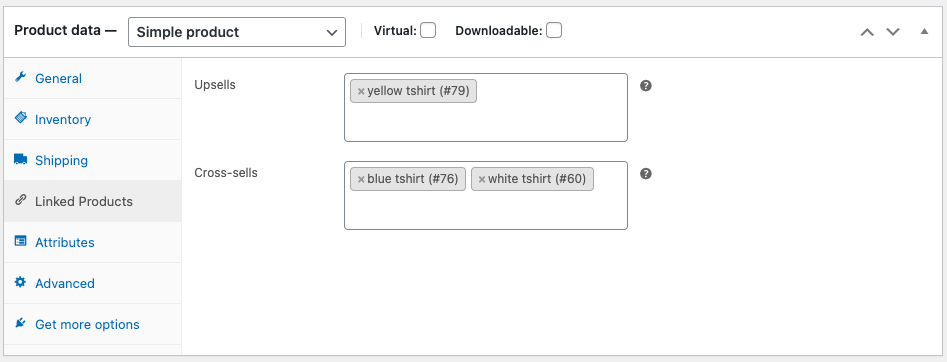
Your upsells will now appear on the product page, and cross-sells will appear on the cart page.


The Downside of WooCommerce’s Default Related Products
The built-in setup covers the basics, but it has real limitations:
- Category and tag-based related products are theme-dependent — not all themes display them, and you can’t always control where or how they appear
- No ability to create custom related product rules beyond manual product-by-product linking
- No global configuration — if you have hundreds of products, manual linking doesn’t scale
- Limited control over how many products display, in what order, or in what layout
For anything beyond the basics, you need a plugin.
How to Show Custom Related Products with the Related Products for WooCommerce Plugin
The Related Products for WooCommerce plugin by WebToffee is a free plugin that gives you full control over related product recommendations — globally or per product, by category, subcategory, tag, or custom selection.
Installing the Plugin
- Go to Plugins > Add New in your WordPress admin dashboard
- Search for Related Products for WooCommerce
- Click Install Now, then Activate
Show WooCommerce Related Products by Category
Case 1: Show Category-Based Related Products on All Product Pages (Global)
This sets a global rule — every product page will automatically recommend other products from the same category.
- Go to WooCommerce > Related Products
- Set the working mode to Custom related products
- Under Display products from, select Category
- Sort the related products by your preferred criteria — Popularity, Price, etc.
- Choose the display order — ascending or descending
- Check the Slider option if you want products to display in a slider format
- Set the number of products to display per page
- Click Save Changes

This adds a Related Products section to all product pages, automatically populated with items from the same category as the main product.
Case 2: Show Category-Based Related Products on Individual Product Pages (Local)
If you want to override the global setting for specific products:
- Go to Products > All Products and open the product you want to edit
- Click on Linked Products in the Product data widget
- In the Categories field, add the categories whose products should appear as recommendations
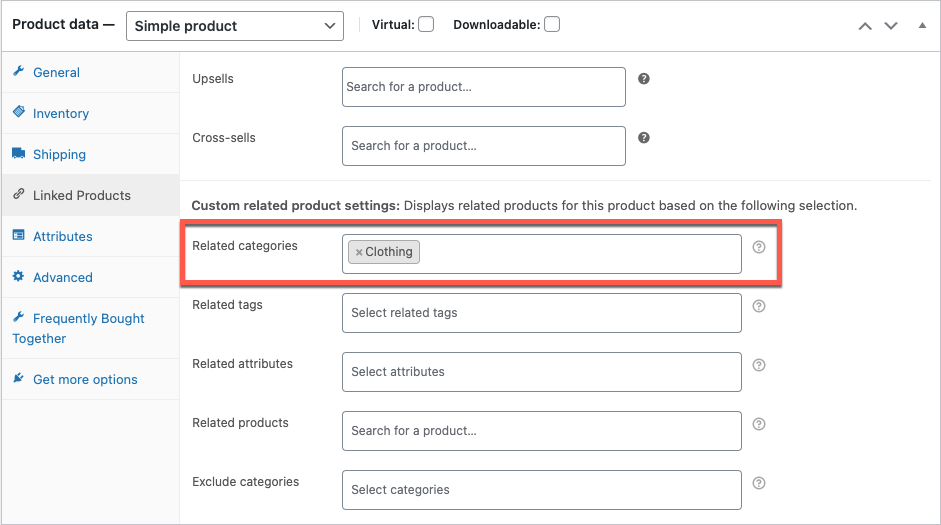
Only products belonging to the specified categories will show as related products for that item.
If both global and local product relations are configured, the local configuration takes precedence over the global one.
Show WooCommerce Related Products by Subcategory
The plugin also lets you relate products within specific subcategories — either globally or per product.
Case 1: Add Related Products by Subcategory to All Product Pages
To relate products by subcategory globally, insert the following code snippet into the functions.php file of your active theme:
Case 2: Add Related Products by Subcategory on Individual Product Pages
- Go to Products > All Products and open the product
- Click on Linked Products in the Product data widget
- In the Categories field, add the specific subcategories you want to relate to this product
Only products in the specified subcategory will appear in the related products widget for that item.
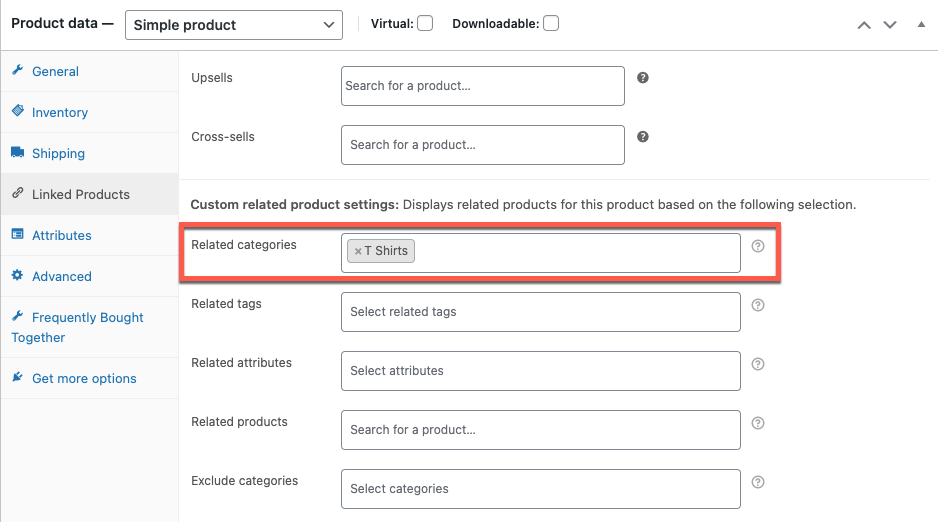
This is how a related products widget with products belonging to a specific category or subcategory will look like.
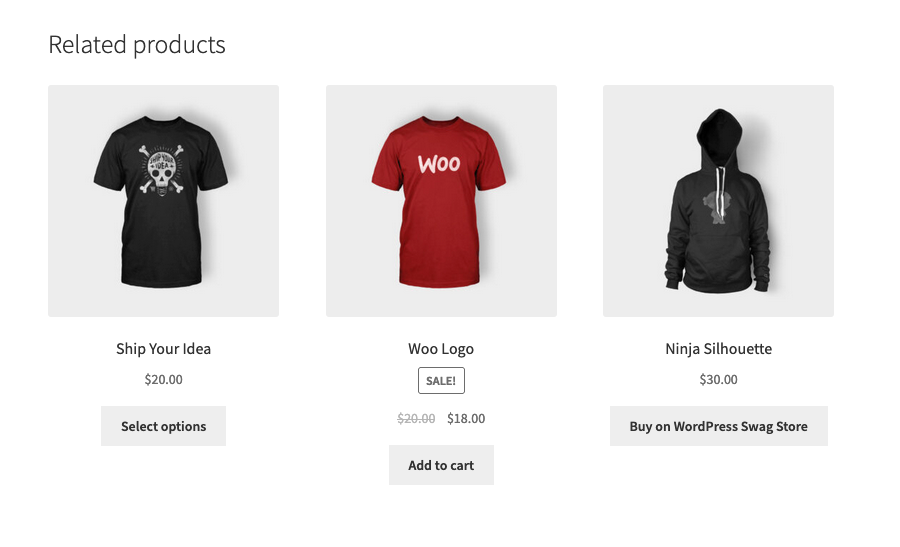
Similarly, this plugin helps you to recommend related products based on the same attributes.
How to Remove or Disable Related Products in WooCommerce
There are cases where you’d want to turn off related product suggestions — to reduce distractions on a high-converting product page, for example, or to focus attention on a specific upsell instead.
If you’re using the Related Products for WooCommerce plugin:
- Go to WooCommerce > Related Products in your WordPress dashboard
- Locate the Disable recommendation option and toggle it on
- Click Save Changes
Related product suggestions will no longer appear on product pages.
1. Keep It Relevant
The single most important factor in related product performance is relevance. A customer browsing a laptop should see laptop bags, cooling pads, or monitors — not phone cases. Irrelevant suggestions get ignored and can undermine trust. Use category, tag, or attribute-based rules to keep recommendations on point.
2. Use a Plugin for Scale
Manual linking works for small catalogs. Once you have more than a few dozen products, a plugin like WooCommerce Product Recommendations lets you automate recommendations globally so you’re not managing product links one by one.
3. Prioritize Placement
Where your related products appear matters as much as what they show. Upsells perform best near the “Add to Cart” button. Cross-sells on the cart page catch customers who’ve already committed to buying. Category-based recommendations work well below the product description for discovery. Test placement before assuming any default position is optimal.
4. Limit the Number of Recommendations
Three to six related products are the sweet spot for most stores. More than that creates decision fatigue, and customers end up clicking nothing. A focused set of highly relevant items consistently outperforms a large grid of loosely related ones.
5. Highlight Offers and Bundles
Labels like “Frequently Bought Together,” “Bundle & Save,” or “Complete the Look” make related product sections feel curated rather than algorithmic. If you’re offering a bundle discount, make it visible — customers are more likely to act on a related product if there’s a clear financial incentive.
6. Use High-Quality Images and Consistent Design
Related product sections that look like an afterthought get treated like one. Use the same image quality and aspect ratio as your main product images. Keep button styles and font sizes consistent with your product page design. A polished related products section builds trust and increases clicks.
7. Test and Optimize
Run A/B tests on your related product section titles — “You Might Also Like” vs. “Customers Also Bought” vs. “Complete Your Purchase” can produce meaningfully different click rates. Test layouts (grid vs. slider), number of products, and placement. Monitor which recommendations actually lead to additional purchases in WooCommerce Analytics and adjust accordingly.
8. Personalize Where Possible
If you’re using tools that support customer-specific data, tailor suggestions based on browsing history or past purchases. Personalized recommendations convert significantly better than generic ones — even small stores can approximate this by setting category-level rules that reflect what returning customers typically browse.
Frequently Asked Questions (FAQ)
WooCommerce related products are product suggestions that appear on product pages or the cart page based on shared categories, tags, or manual linking. They help customers discover more of your catalog and encourage additional purchases.
Upsells recommend a higher-value alternative to the product the customer is viewing — displayed on the product page. Cross-sells recommend complementary items to add alongside the main product — displayed on the cart page.
Downselling is recommending a more affordable alternative to a customer who may be about to abandon due to price. It’s the reverse of upselling and is particularly useful for reducing cart abandonment on high-ticket items.
Yes. They serve different purposes and display in different locations, so running all three simultaneously is common and recommended.
If you’re using the WebToffee Related Products for WooCommerce plugin, go to WooCommerce > Related Products, toggle on the Disable recommendation option, and click Save Changes.
No. You can relate any number of products to any product in your store. For display, we recommend showing 3–6 at a time to avoid overwhelming customers.
Related products are one of the most effective tools in a WooCommerce store — not because they’re complicated, but because they’re present at exactly the right moment in the customer’s journey. A well-placed upsell, a relevant cross-sell on the cart page, or a category-based recommendation below the product description can meaningfully increase your average order value without any additional advertising spend.
Start with WooCommerce’s built-in Linked Products setup, then use the Related Products for WooCommerce plugin to scale globally and add category-based logic that works across your entire catalog.
Have questions about setting up related products in your store? Drop them in the comments below.

Got any query? Please leave a comment or reach out to our support
Got any query? Please leave a comment or reach out to our support

Subcribe to our newsletter




Comments (6)
Marek
January 30, 2024
Hello,
how can I tune the slider settings so that it doesn’t move automatically or moves continuously in a loop?
Is it possible?
Regards,
Marek
Arjun
February 2, 2024
Hi Marek,
Thank you for reaching out. As of now, if you enable the slider option, it will work in a way that you can view all the listed products using the arrow icon in the slider. It is not a loop, or the products won’t move automatically in the loop.
Lisa
June 8, 2023
Hi,
This plugin is very useful ! Is it possible to add another section with other settings ? I have a section of related products based on an attribute, but i would like to have another one below only based on the category. Is it possible ?
Thanks !
Arjun
June 12, 2023
Hi Lisa,
Thank you for getting in touch with us. We understand your requirement. However, at the moment, our plugin does not include the specific features you have mentioned. However, we have another solution that might meet your needs. You can try our product recommendations plugin, which allows you to add multiple recommendation sections on the same page.
Loris
January 25, 2023
Hello,
I am looking for a plug-in that would allow me to suggest related products based on attributes like size and product categories. Based on tags is not sufficient as these ones are most of the time not structured.
Thanks in advance for your return.
Kind regards,
Loris
Mike
January 27, 2023
Hi Loris,
Thanks for reaching out.
Presently the plugin doesn’t offer any options to relate products globally based on the product attribute. However, you can set related attributes for individual products by going to the WooCommerce product edit page and adding “Realated attributes” located on the Linked Products section.