


Managing WordPress article comments and product discussions efficiently is crucial for maintaining engagement across online stores. The WordPress Comments Import & Export Plugin streamlines this process by allowing store administrators to export, import, and merge comments using a single CSV file. Whether transferring hundreds or thousands of comments between stores or simply updating existing discussions, this plugin saves significant time and effort compared to manual handling.
By creating or editing a CSV file using tools like Excel or Google Sheets, admins can seamlessly map and manage comment data for import. Additionally, the plugin offers advanced export options, including filtering by product name, comment date, or limiting the number of comments, and supports automated scheduling through Cron Jobs to export data to an FTP location. This article delves deeper into how the plugin works, its key features, and best usage practices for maximizing productivity.
Preparing the Comments CSV file
The plugin takes input from a CSV file. It maps each CSV file field to the WordPress comment or product discussion field that the admin would otherwise need to input manually.
Note: If there is an error in your import file, your import may not function as expected.
To get started, you must have a CSV file. You can create one, or you can export the WordPress comments or product discussions to get the format. You can also download Comment Import Export Sample CSV.
You must enter the comment details in a CSV file in structured format as given below:
- The first row must contain the column headers used to map the fields. The details about the WooCommerce mapping field are given below.
Column HeadingExplanationAccepted value or form Comment IDIdentification Number of the Comment Numerical Comment Post IDIdentification number of the Product Numerical Comment Author Name Name of the Comment Author Text Comment Author Email Email ID of Comment Author Text e.g. [email protected]
Comment Author IP Internet Protocol address of device of the comment Authore.g. 192.10.23.123 Comment DateDate on which the comment is posted MM/DD/YYYY H:i:s
e.g 9/6/2016 6:29:00 Comment Date(GMT)Date on which the comment is posted with Greenwich Mean Time MM/DD/YYYY H:ie.g. 9/6/2016 6:29
Comment Content Content of comment Text Comment Approved Indicates whether the comment is approved by the authorized person. 1 means the comment is approved and 0 means the comment is not approved. Numerical
Comment Parent The parent comment’s ID. And it will be 0 for parent comment. Child comments numerical value. Numerical Comment Type Type of the comment specifying whether it is WrodPress comment or WooDiscuz discussion. comment or wooDiscuz User ID The comment author’s ID if he is registered (0 otherwise) Numerical Comment Alter ID It is Comment ID and mandatory to import comments.Numerical
Import Comments
You can import WordPress comments or product discussions from a CSV file or merge them with an existing one by importing an updated CSV file. The Import Screen appears as shown below:

- Click Import Comments, and the window appears as shown below:
- Method 1: Select a file from your computer. Click Choose File to browse a required CSV file from your computer.
- Method 2: Provide FTP Details. If your CSV file is on the server, then to import it, you need to do FTP settings as given below:
- Select the checkbox to enable FTP import/export.
- Enter FTP Server Host/IP.
- Enter FTP User Name.
- Enter FTP Password.
- Enter FTP Server Path.
- Select the checkbox to use FTPS.

- You get the mapping file option(s) for auto-mapping only if you save the mapped fields with a user-defined file name while mapping the fields. Select the required mapping file from the Select a mapping file drop-down list as shown below:

- Enter the delimiter which separates the mapping values.
- Click Upload file and Import. The import window appears as shown below:

Note: While mapping fields, do not import Comments ID as it does not exist before importing comments. But for merging WordPress comments or product discussions, you need to map Comment ID to appropriate field.
- You can map the fields(Woocommerce fields) with column headings. You can map the fields(Woocommerce fields) with column headings( CSV file header). Map a particular field under Map to column by using drop-down list for that particular Column header as shown below:

- Select a required option from the drop-down list. Here, comment_post_ID is mapped to Comments Post ID.
Note: Mapping is very helpful if you are importing CSV from some other e-Commerce like Magento.
Evaluation field
It is used to fix/update the required value for the particular field. The settings to modify the field are as given below:
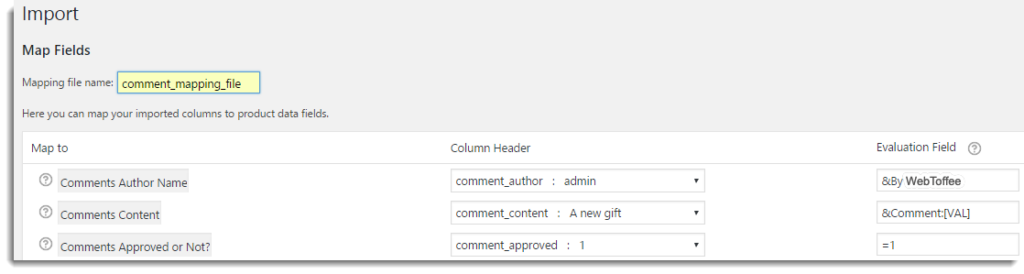
- Assign any required constant value to the field.
For Example: Suppose you want to assign 1 to comment_approved. Under the Evaluation field, write =1 in Comments Approved or Not? row. - Append any field by the required value.
For Example, Suppose you want to append comment_author by WebToffee. Under the Evaluation field, write &By WebToffee in the Comment Author Name row. - Prepend any field by required value.
For example, if you want to prepend comment_content by Comment: . Under the Evaluation field, write &Comment:[VAL] in the Comment Content row.
Note: Hover the mouse on. (Help), you can see the information about the Evaluation field.
- After mapping all the required fields, you can save these mapping and evaluation fields in a file (user-defined) by using the Mapping file name field. Click Submit. WordPress comments of the product are added to your online store. The import window appears as shown below:

Imported WordPress comments are as shown below:

Merge WordPress comment / Discussions
Suppose your existing WordPress comment / Discussion of the product got modified. To reflect that modified WordPress comment / Discussion of the product in your online store, you can update the current comments/Discussion by importing a modified CSV file.
Steps to merge:
- Select Merge comments if exists checkbox for modifying comments. It is shown as below:

- Click Import Comments, you get Merge WordPress Comments window.
- Browse the updated CSV file by clicking on Choose file or by FTP settings.
- You get the mapping file option(s) for auto-mapping only if you save the mapped fields in a user defined file while Mapping the fields. Select the required mapping file from the Select a mapping file drop-down list.
- Enter the delimiter which separates the values.Click Upload file and Import.Re-Map the fields if required.
- Click Submit.According to CSV file, the WordPress comments discussions get merged with existing ones. The window appears as shown below:
Note: If WordPress comments or discussions do not exist, they are imported as new.
Export Wordpress comments
If you export WordPress comments/discussions using this plugin, you get the CSV file containing the data about all the WordPress comments/discussions of the WooCommerce online store.
The window is as shown below:

- Limit: Enter the number of comments that you wish to export.
- From Date: Select the date you want to export the WordPress comments by clicking in this box.
To Date: Click in this box to select the date until which you want to export the WordPress comments / discussions. - WooDiscuz Comments: Select the checkbox to enable the export of WooDiscuz Comments.
Note: Once you select this checkbox, you can export only WooDiscuz Comments. To export WordPress comments, de-select the checkbox. - Products: Select the required product(s) for which you want to export the discussions.
- Delimiter: This field allows you to change the comma-separated file to a ‘|’ or ‘.’ separated file according to your requirements.
- Columns: Select the checkbox for required columns to export specific columns. With the Column Name field, you can modify the column header in CSV file. To do that, enter the required column name for the specific column.
- Click Export Comments, the CSV file gets auto-downloaded to your computer. The sample WordPress Comments CSV file is as shown below:

Note: You can download the Exported Sample CSV of WordPress Comments.
Export WordPress comments from Comments Page
You can directly download the specific details of WordPress comments from the Comments Page. To do that, navigate to Dashboard > Comments. The Comments listing page appears as shown below:

- Click Download to CSV button to export single comment details to CSV file under Export Column.
- To export details of multiple comments, select comments. From Bulk Action drop-down list, select Download as CSV and click Apply as shown below:

All the details about selected comments get auto-downloaded to CSV file.
Settings tab
Under the settings of the menu tab, you can set the FTP/auto-export settings to export the comments. The window appears as shown below:

- Select the checkbox to enable FTP import/export.
- Enter FTP Server Host/IP.
- Enter FTP User Name.
- Enter FTP Password.
- Select Use FTPS checkbox to connect securely.
- For automating Import and Export of comment, you can use the Cron job feature.
- How to automate the Export of WordPress Comments
- Choose the Enabled option to Automatically Export WordPress Comments to FTP Server Host/IP.
- Enter the required Start time for Exporting the comments.
- Enter the time Interval in minutes for exporting the comments.
- Click Save Settings to save/update settings.
- You can see the auto-exported CSV file of comments details on FTP server.
- How to automate Import of the WordPress Comments
- Choose Enabled option to Automatically Import WordPress Comments from FTP Server Host/IP.
- Enter the required Start time for importing the comments.
- Enter the time Interval in minutes for importing the comments.
- Select Update Comment if exist checkbox to merge existing comments with the updated details. The Merging of the comment is possible only if the Comment ID already exists in your online store. Otherwise, the comment is imported as a new.
- Click Save Settings to save/update settings.
- How to automate the Export of WordPress Comments
Check out our WordPress Comments Import & Export Plugin.

Caterina
September 22, 2025
Hello,
I have installed your wp comments import/export in my site (not a woocommerce shop) because I need to export comments.
I am trying different ways as per your documentation papers but what I got is an empty .cvs file.
I don’t understand what I am doing wrong.
thanks for pointing me to a troubleshooting resource or something else.
Hema
November 3, 2025
Hello Caterina,
Thanks for reaching out. Kindly contact customer support as we need more info to process your query. Our customer support agents will be able to assist you by looking into your site.
Simone
August 1, 2025
Hello I do it just you explain on the page but it also exports an empty cvs file…
Hema
September 1, 2025
Hi Simon,
Thanks for reaching out. Could you please confirm whether your file has only headers or if it’s completely blank? If it’s completely empty, please share a screenshot of your export settings with our support team so we can look into it further.
xraju.com
June 29, 2020
I feel this is among the such a lot significant info for me.
And i’m satisfied reading your article. But should commentary on few normal issues, The website taste is
wonderful, the articles is truly excellent : D. Just right task, cheers
Kovin
October 27, 2019
Hello thanks for this amazing explanation but is there a way to export from someone else is comments like from amazon or alibaba like I want to take lots of comments from there to my woocommerce is that possible with these plugins please?
Alan
October 28, 2019
Hi,
Our plugin development is exclusively based on WordPress/Woocommerce platform. It does not support exporting comments from the Amazon or Alibaba. If you are somehow able to create a CSV file with those comments then it can be imported to the Woocommerce using the plugin.
Mahaie
April 15, 2019
Hello,
I’ve just import comments on my new website and the oldest one appears first. I’d like that the first comment that appears is the more recent… how can I change the order ?
Thank you in advance
Alan
April 16, 2019
Hi,
By default, the comments are imported based on the comment_date. The comment with the latest date will be displayed first. Please make sure that the date is provided in the format YYYY-MM-DD h:m:s. If the issue still persists please reach us via support.
Fari
December 28, 2018
Hi
I just used your plugin for exporting comments from my old website, after that i created my new website, but during importing process it just fails. How can import them to the new site? Can you please explain it.
Thanks
Mark
December 31, 2018
Hi,
Could you please mention what error you are receiving during import. Kindly make sure that the importing CSV is having default date format(YYYY-MM-DD). If you are having custom date format you may please specify it in the evaluation field of date while importing. Please reach us via support.
Edison
July 16, 2018
Hi, how can I make it work on multisites? it seems that on my root domain ex. domain.com, the plugin is working but on other created sites ex. domain.com/site-one, it doesn’t export/download the csv, it just redirecting to site-one main dashboard.