


Adding custom code snippets is one of the most powerful ways to enhance or extend a plugin’s functionality. One of the easiest and safest ways to add custom code snippets is by using third-party plugins. This article discusses how to add a custom code snippet using the Code Snippets plugin.
Code Snippets
The Code Snippets plugin is a powerful tool that helps add custom code snippets to a WordPress website without modifying the theme’s files directly, thereby reducing the risk of compatibility issues and making updates smoother. To add a custom code using the Code Snippets plugin, follow these basic steps:
- Install and activate the Code Snippets plugin.
- On installation, a Snippets icon will appear on the WordPress dashboard.
- From the WordPress dashboard, navigate to Snippets > Add New
- In the Add New Snippet window, type in a suitable Title, Code, Description, and Tags in the space provided.
- Make sure that the Functions (PHP) tab is active.
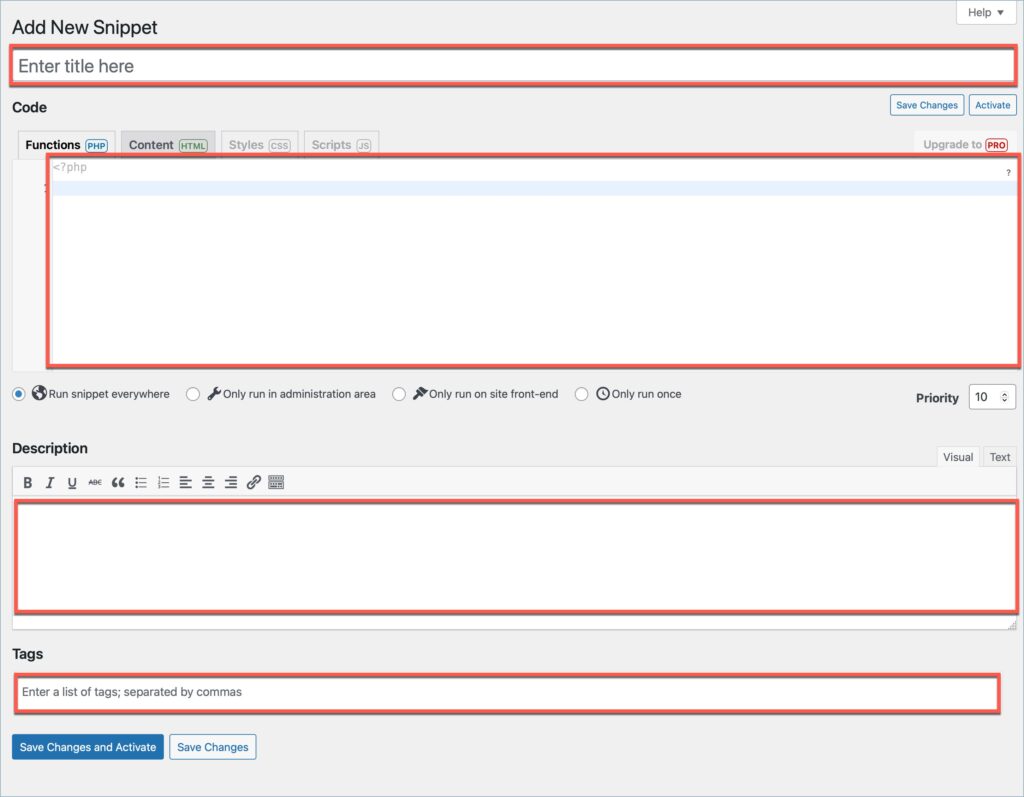
- Select the location to run the code snippet from the four options available.
- Run snippet everywhere: Executes the code throughout the site.
- Only run in administration area: Executes the code within the WordPress admin dashboard.
- Only run on site front-end: Executes the code only on the public-facing part of the website.
- Only run once: Executes the code only once.

- Click on Save Changes and Activate to save and activate the code snippet.

Example
So, let’s take an example of adding a custom code to alter the font size in a WooCommerce Address label.
- As an initial step, enter the title, code, description, and tags in the space provided, as shown below.
- Make sure the Functions (PHP) tab is active.
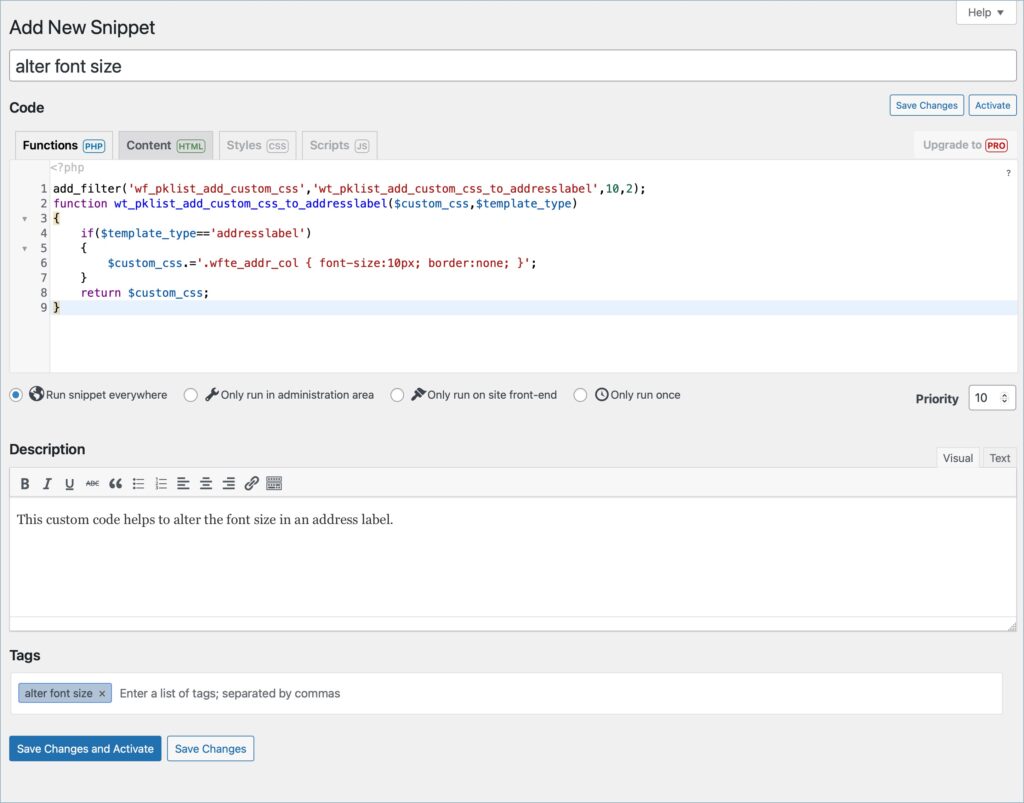
- Then, select the desired area to run the snippet.
- As a final step, click on Save Changes and Activate to save and activate the snippet.
Managing code snippets
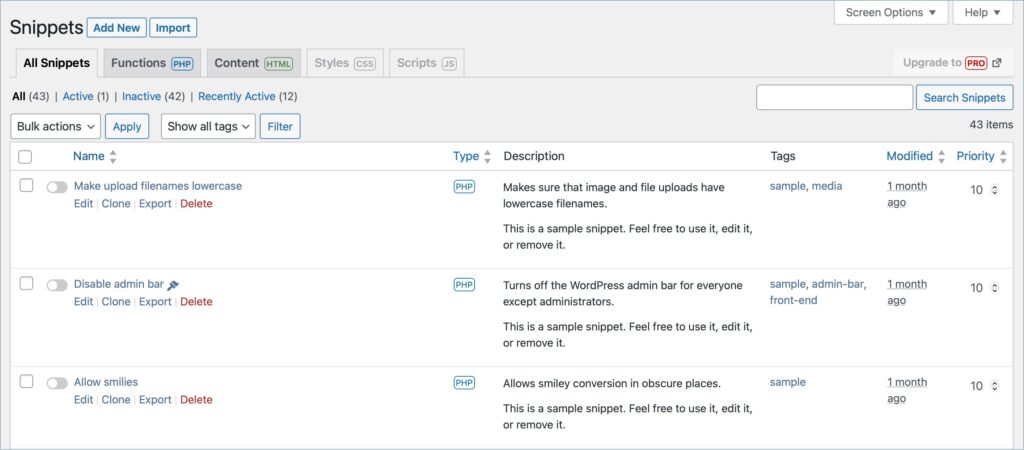
- To view and manage the snippets, navigate to Snippets > All Snippets.
- One can view, edit, clone, export, and delete snippets under the All Snippets tab.

Comments (2)
weiyang
February 6, 2024
it is not working on my website. Does the plugin need to be premium version to run code like that? I am trying to change the product table order by name in invoice. Please help
Sanjai Valsan
February 6, 2024
Hi Weiyang,
Thanks for reaching out!
The steps provided should work on the free version of the plugin as well. If you’re encountering issues with implementing the code to change the product table order by name in the invoice, we recommend reaching out to our customer support team for assistance. They’ll be able to help troubleshoot the problem and provide further guidance.