


The WebToffee’s Sequential Order Number for WooCommerce plugin provides store owners with the option to manually update or change the existing order number of an order. Thereby eliminating identical order numbers and enhancing better organization. Here are the detailed steps for manually updating an order number.
Steps to manually update WooCommerce order number
- From the WordPress dashboard, navigate to WooCommerce > Settings > Sequential Order Number Pro > Troubleshooting tools.
- Here, find the option named “Update the order number manually.”
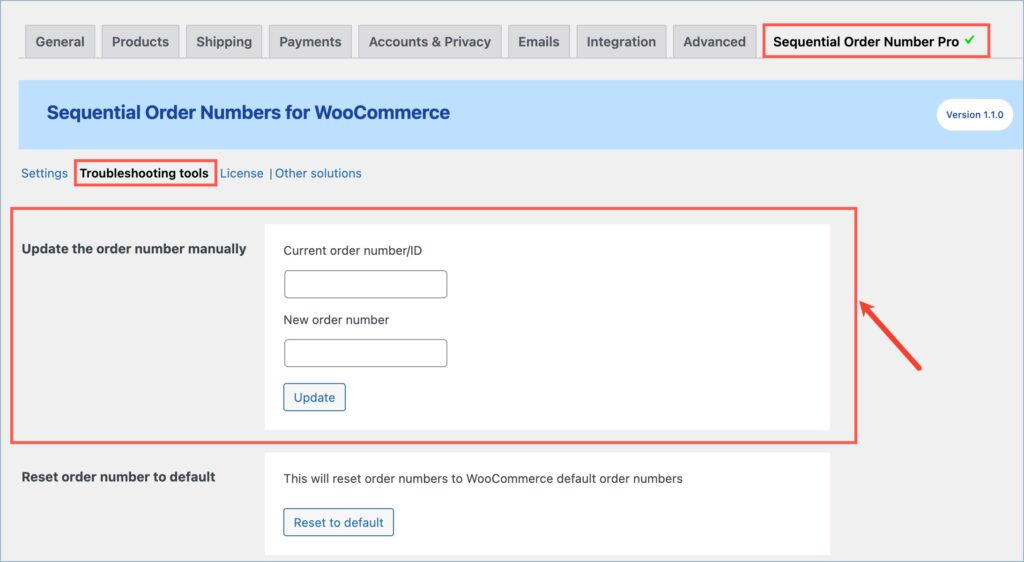
- Under the Current order number/ID text field, type in the existing or present order number that you wish to edit, as shown below.
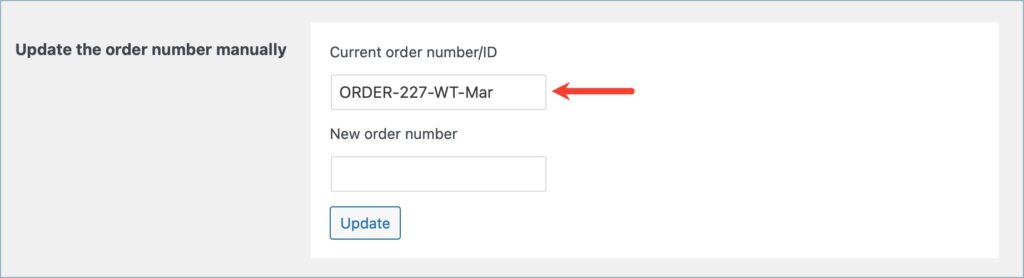
- Under the New order number text field, input your preferred new order number as shown below.

- Finally, click on the Update button to make the changes.

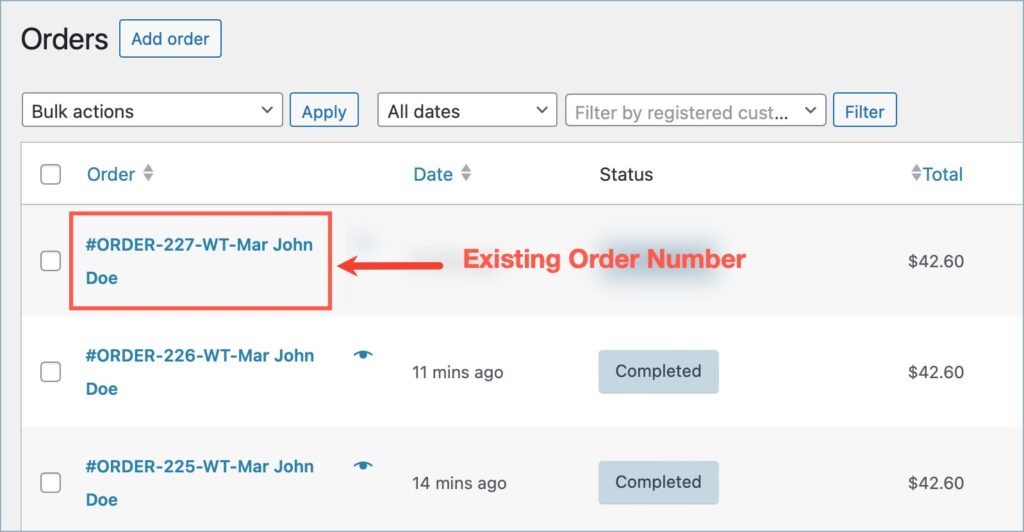
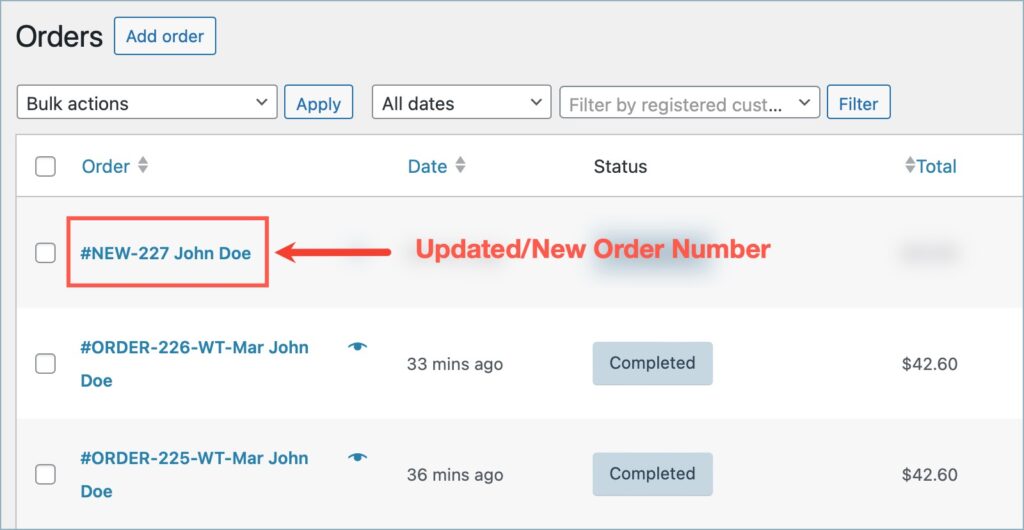
The images below depict the order listing page before and after updating an order number.
WebToffee’s Sequential Order Number for WooCommerce plugin makes it easy to manually update existing order numbers whenever needed. By using the Troubleshooting tools section, store owners can quickly replace duplicate or incorrect order numbers with a preferred new one, ensuring better organization and consistency in order management. Simply enter the current order number, provide the new one, and update the changes in just a few clicks.
Discover More:

Comments (2)
raman perumal
December 14, 2025
I am getting ‘Invalid order number /ID’ error message when I try to update order number manually. it used to work before. now suddenly not working. kindly fix it.
Yuval
December 26, 2025
Hi Raman,
Thank you for reaching out. The “Invalid order number / ID” error can occur due to site-specific factors or recent changes. Please contact our support team with the order details so we can look into this further.