


This is a complete documentation of the free Wishlist for WooCommerce plugin that allows you to simply add the Wishlist feature to your WooCommerce store.
Major Features of the Plugin
- Enable the wishlist option on Product and Shop pages.
- Enable wishlist for selected product categories
- Enable wishlist for logged in users only
- ‘My wishlist’ page for customers to view and manage their wishlists
- Choose ‘My wishlist’ table contents
- Choose the style and position of the ‘Add to wishlist’ option
- View wishlist count for products in your store
- Option to remove an item from Wishlist after adding to cart
- Option to enable ‘Add all to cart’ button in the wishlist
- Option to redirect to cart after adding an item to the cart from the wishlist page
Installation of the plugin
Install the plugin either from the WordPress plugin directory or as a zip downloaded from the WordPress.org website. You can learn more about the installation procedure by reading the article How to Install a Free Plugin from WordPress.
Getting started
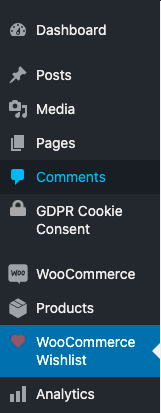
To get started with the plugin, open the WooCommerce Wishlist tab on your WordPress dashboard.
General Settings
To enable Wishlist in your WooCommerce store, go to the WooCommerce Wishlist tab on your WordPress dashboard.
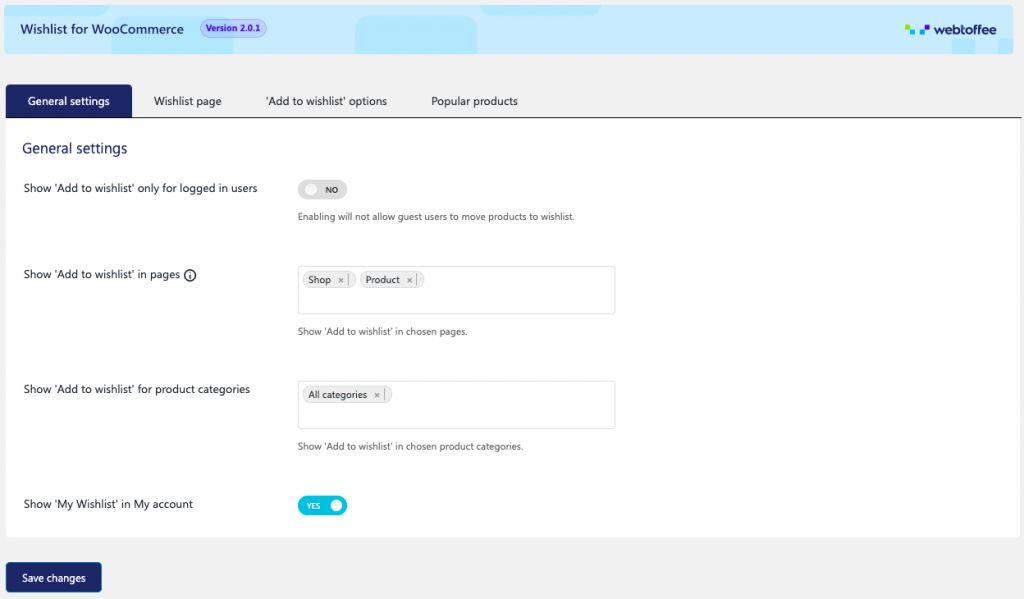
- Show ‘Add to Wishlist’ only for logged-in users – Toggle ‘Yes’ to disable the ‘Add to wishlist’ option for guest users.
- Show ‘Add to Wishlist’ in Pages – Wishlist can be enabled for items in both shop and product pages. You can choose as per your preference.
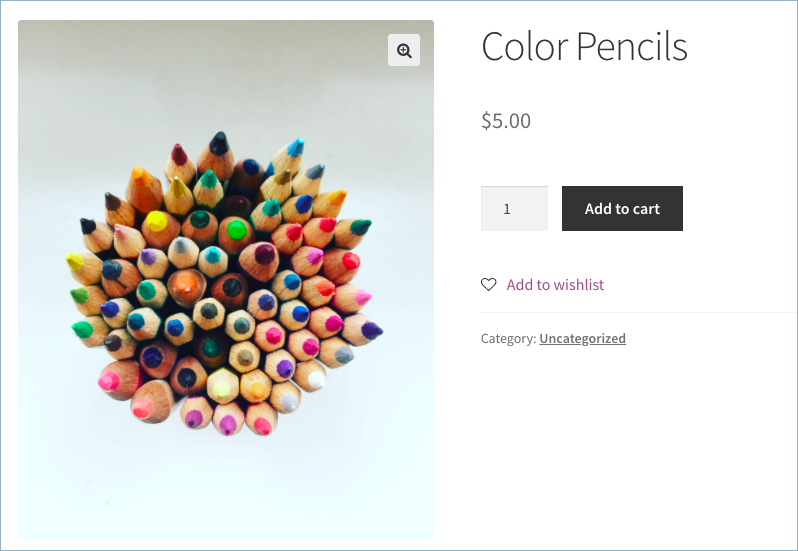
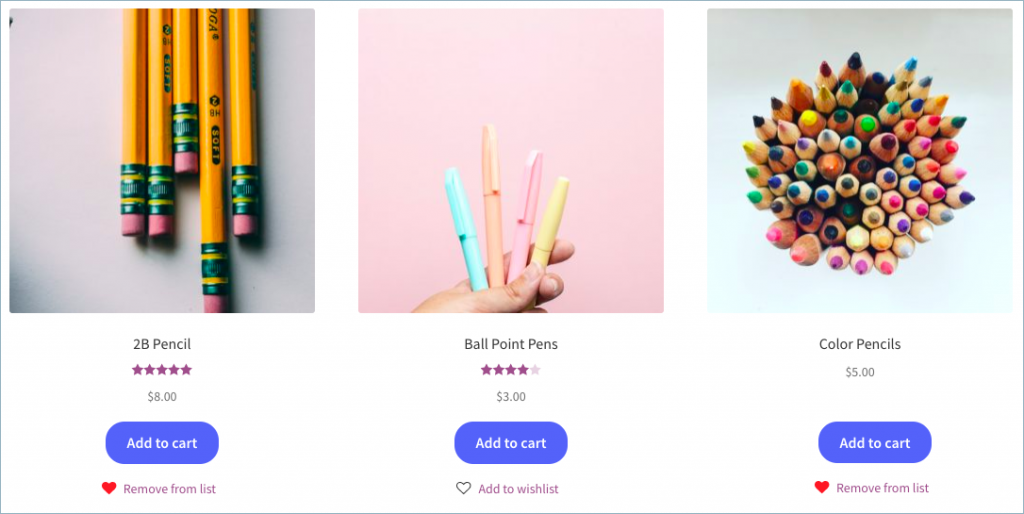
- Show ‘Add to wishlist’ for product categories – You can choose to show ‘Add to wishlist’ for selected product categories or all categories.
- Show ‘My Wishlist’ in my account – ‘My Wishlist’ will be displayed on my account page by default. If you don’t prefer it, you can toggle it off.
Click Save Changes button to save the settings.
Wishlist Page
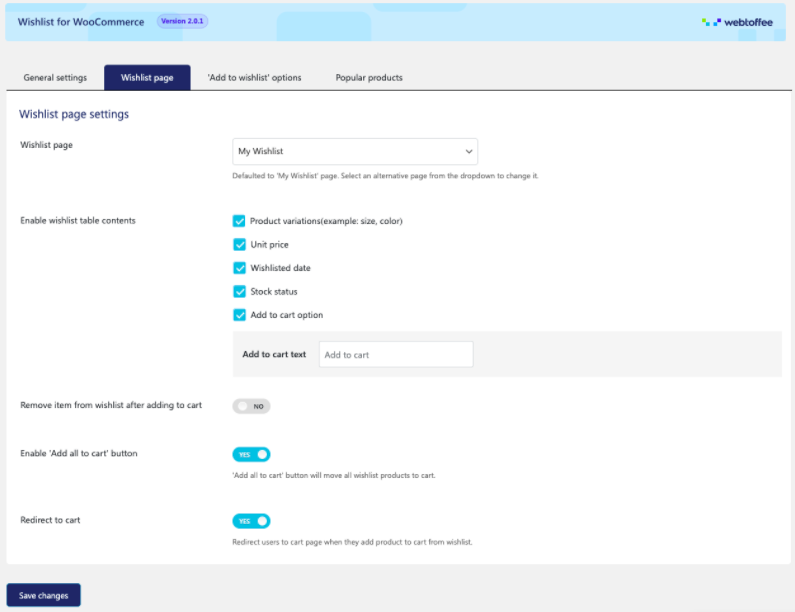
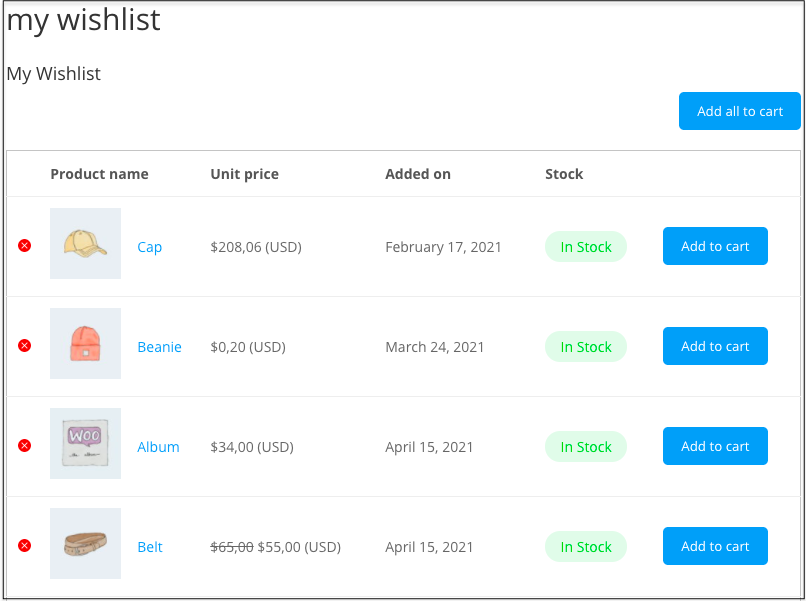
Wishlist pages help a customer to view the products that they have added to their Cart. On activation of the plugin, a Wishlist page will be automatically created on your website where your customers can view and manage all the products they have added.
- Wishlist Page: The drop-down lists all the pages available on your website. If you wish to choose a page other than the default one (My Wishlist -created by the plugin) you can do it here.
- Enable Wishlist table contents – Here, one can select the product data that should be displayed on the Wishlist page.
- Remove item from Wishlist after adding to cart – When you toggle ‘Yes’ items once added to the cart will be removed from Wishlist.
- Enable ‘Add all to cart’ button – the ‘Add all to cart’ button will move all Wishlist products to the cart. Choose to either enable or disable it on the Wishlist page.
- Redirect to cart – Redirect users to the cart page when they move a product to cart by clicking the ‘Add to cart’ button across it. Disable redirection by toggling it off.
Click Save changes to save all your Wishlist page configurations.
Following is a screenshot, and a Wishlist page (with products added).
Change wishlist table title
To change the default title of the wishlist table, add the following code snippet to the function.php file of the plugin.
add_filter( 'wishlist_table_heading', 'change_wishlist_table_heading' );
function change_wishlist_table_heading($title){
	$title = 'New Heading';
	return $title;
}
‘Add to Wishlist’ Options
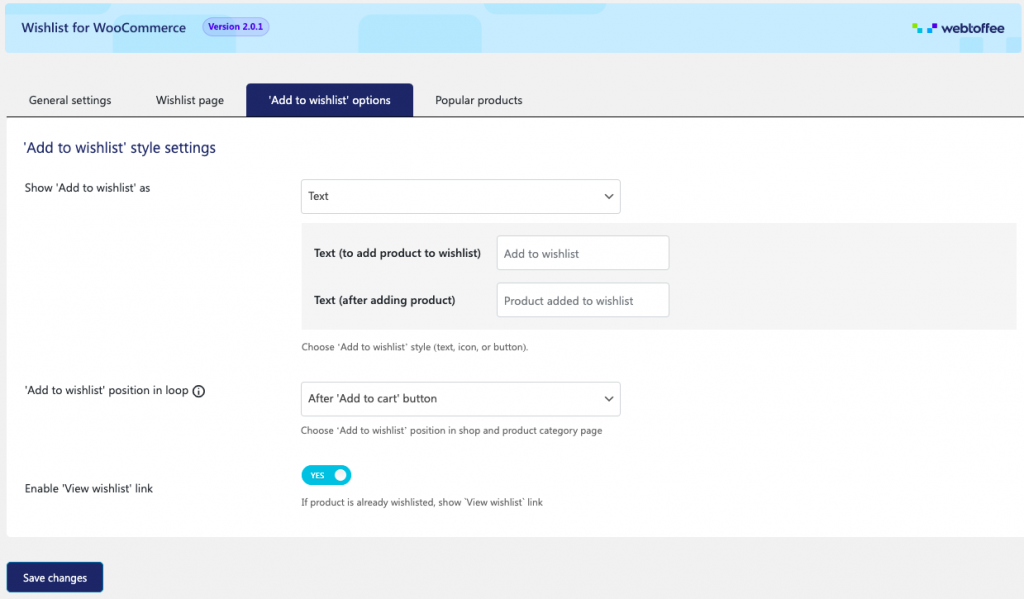
Here you can choose the style and position of the ‘Add to Wishlist’ option.
- Show button as – Three options are available in the drop-down for you to choose from – Text, Icon, and Normal button (based on your active theme).
- ‘Add to Wishlist’ position in loop – ‘Loop’ refers to WooCommerce shop and product category pages.
Here you can choose where you want to display the ‘Add to Wishlist button on the loop from the drop-down. Options available are – after the ‘Add to Cart’ button, and in the top right corner of the product thumbnail.
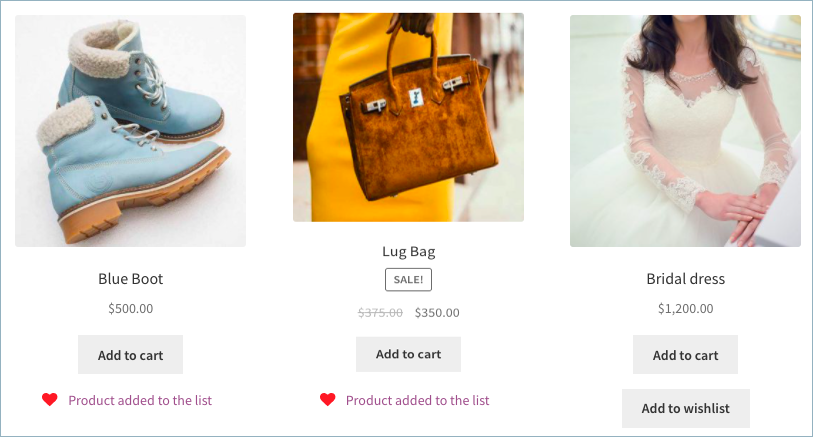
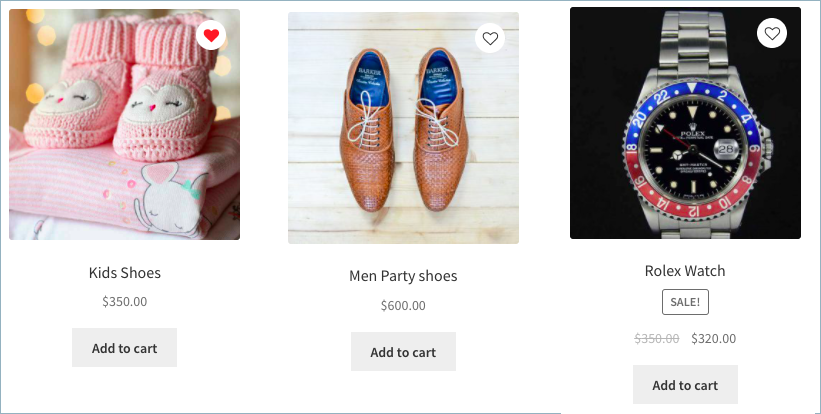
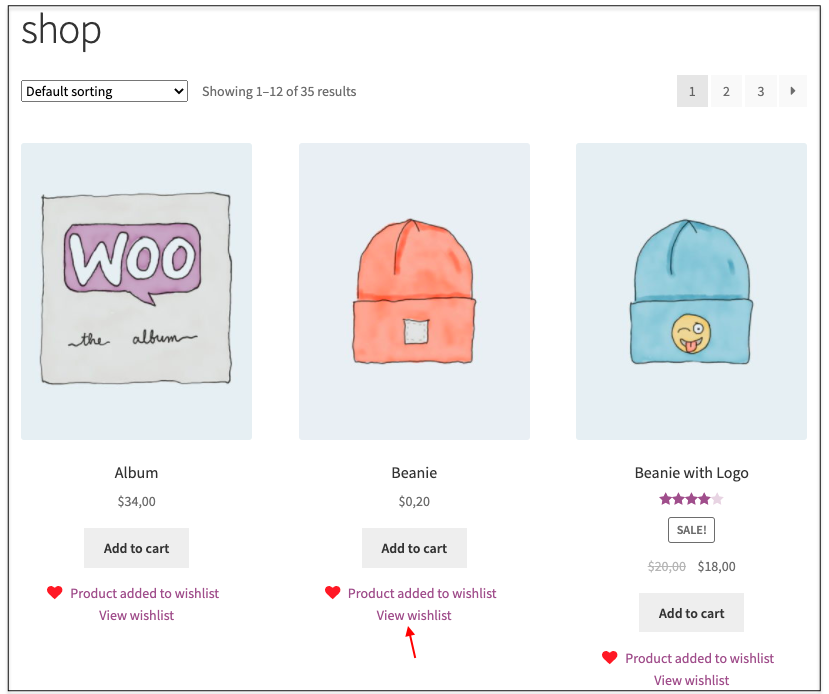
- Enable ‘View Wishlist’ link – If the product is already wish listed, it will show the `View Wishlist`link. If you don’t want to show it, you can disable it by toggling it off.
Popular Products
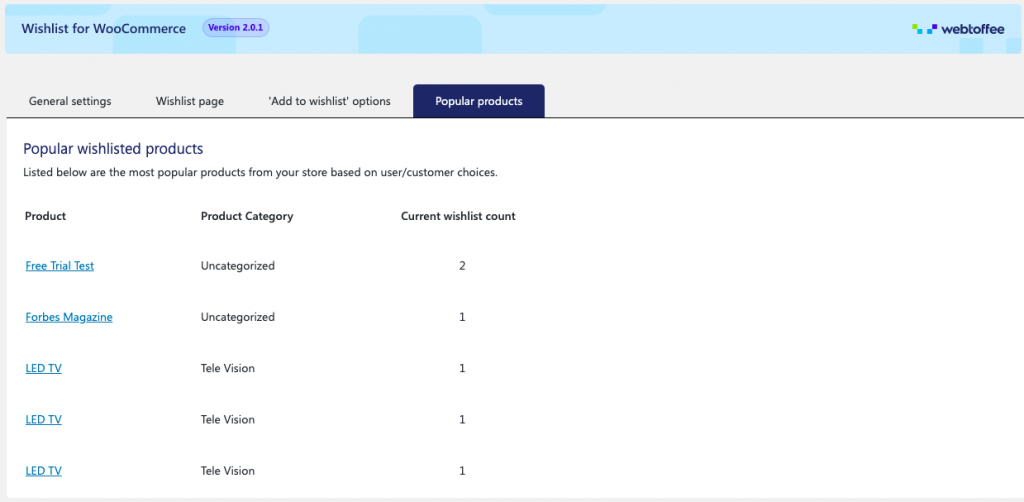
The popular products section helps a store admin view the most wish-listed products in their store. It displays the product name, category, and the number of times that wish-listed by the user.
This section gives great insight into customers’ choices and helps devise better marketing strategies for the store.
Conclusion
Wishlist is one of the important features of any eCommerce store. It helps the store owner to understand the most and least popular products in their store while helping customers with a great purchase experience.
If you haven’t added the Wishlist feature to your store, do it now with the WebToffee Wishlist plugin.

Chris
October 23, 2025
Hallo,
Das ist eine gute Beschreibung.
Meine Frage:
Ich möchte die gefüllte Wunschliste gern per Whatsapp versenden.
Welche Möglichkeit seht ihr da? Wie kann das gelöst werden?
Vielen Dank im voraus für euer Feedback.
Viele Grüße
Chris
Sanjai Valsan
October 29, 2025
Hi Chris,
Thank you for reaching out,
Currently, sharing a filled wish list directly via WhatsApp isn’t supported in the plugin. That said, this is a great idea, and we’ll consider adding such a sharing option in future versions of the plugin.
margherita
July 8, 2025
Hi, i need to override the wishlist-account-view-frontend.php template, how can i do?
Sanjai Valsan
July 10, 2025
Hi Margherita,
Thank you for reaching out. At the moment, the wishlist-account-view-frontend.php template file cannot be overridden. However, we appreciate your interest in this functionality and will definitely consider it for a future update.
Esther van Hulsen
July 1, 2025
Hi!
This is a great plugin. But, how do I get the heart icon in the top menu bar? Right now it says “My Wishlist”, but I would like it to be just a heart.
Best,
Esther
Sanjai Valsan
July 10, 2025
Hi Esther,
Thank you so much for the kind words!
Yes, you can definitely replace the “My Wishlist” text with just a heart icon in the top menu. This can be done using a small code snippet. Since it might require a bit of customization based on your theme, we recommend reaching out to our support team so they can assist you with the exact implementation.
Steve
March 31, 2025
Hi, is there a way to display this in an elementor single product template? It shows on the default woo product page but I cant get it to show on a custom template
Arjun
April 11, 2025
Hi Steve,
Thanks for reaching out! Currently, the feature you’re referring to isn’t compatible with Elementor single product templates. While it functions as expected on the default WooCommerce product page, integration with custom templates built via Elementor isn’t supported at this time.
Ed H
January 23, 2023
Hi. Is there a shortcode for adding this to a page?
Mark
March 9, 2023
Hi Ed,
We currently do not have shortcode support for wishlist. Sorry to let you down.
Shravani
August 11, 2022
I have installed and activated, made all the changes on settings but still wishlist is not visible on website.
I cannot see anything related to this on website.
Please help!
Mike
August 15, 2022
Hi Sharvani,
Normally the Wishlist for WooCommerce menu will be displayed on the WP-admin panel after successful installation of the plugin. However, since you are experiencing issues, you may kindly raise a support ticket via this link by sharing your WooCommerce system status report (WooCommerce>status>system status report). We will address it there.
Lauren
May 25, 2022
Hi,
We’re using the free version of this plugin, is there any way to change colours on this? e..g change the heart color – make it similar to the examples you show.
Thanks
Mark
May 27, 2022
Hi Lauren,
Currently, there is no filter available to modify it. We are planning to add in next update.
Ton Hermans
May 12, 2022
Hi,
is it possible to add a hearth icon in a header with counting
(i can do a little bit of programming with php snippets, when i find a starting point)
i love that you are doing on webtoffee <3
Greetings Ton Hermans
Mark
May 27, 2022
Hi Tom,
We understand your requirement. However, currently, the plugin does not have any filters to do so. We will add this to the backlog and introduce an option in the future.
Vincenze
December 21, 2021
The plugin works well, but how can we display it on a customize product page made with elementor plugin ?
Regards
Mike
January 18, 2022
Hi Vincenze,
Thanks for reaching out to us. We understand your requirement. Presently our plugin doesn’t offer such customizations. However, the improvement is already in our development pipeline and will be achieved in a near future. Thanks for understanding.
Varun
December 21, 2021
Dear team, can our users create multiple wishlists?
Mark
January 3, 2022
Hi Varun,
Sorry to let you down, but currently we do not have an option to set multiple wishlists. Moreover, having multiple wishlists isn’t a common practice. Would you care to elaborate on your business model so that we can explore the same and get some insights? You can write to us directly through this forum.
Ankita
December 21, 2020
The plugin is good but how it is useful to manage wishlist at admin level? As we can’t see which Products are added by user in wishlist , even we can’t see products having no. Of wishlists to identify the need of product. Any help for this possible through this plugin?
Reply soon please
Haritha
February 11, 2021
Hi Ankita,
We are adding more features to the plugin to make it more useful and help get useful insights like the ones you have mentioned. We are planning to add them in the coming versions of the plugin.