


Share:


Table of Contents
You can add custom order or product metadata to WooCommerce invoices and other order documents using code or a dedicated plugin like WebToffee’s WooCommerce PDF Invoices plugin. Trusted by over 90,000 users, this plugin allows you to include existing order meta fields or create new custom metadata to display on invoices, packing slips, and credit notes.
To add custom order meta in WooCommerce, install and activate the plugin, then go to Invoice/Packing > Invoice > Advanced in your WordPress dashboard. From there, you can create custom fields for orders, products, or attributes without writing any code. Once configured, update the settings to display the custom order or product fields on your WooCommerce documents.
In this guide, we’ll walk you through the step-by-step process of adding custom order metadata to WooCommerce invoices and other order documents.
Key Takeaways
- Default WooCommerce invoice templates may lack specific information, so it’s important to customize them with relevant product and order metadata to improve clarity and professionalism.
- Including detailed metadata on WooCommerce invoices helps customers better understand their purchases, building trust and improving their overall experience.
- The WooCommerce PDF Invoice & Packing Slip plugin by WebToffee makes it easy to add order or product metadata to invoices, allowing you to create professional and personalized documents.
If you are a WooCommerce store owner, you would have noticed that the normal invoice templates don’t include all the necessary information about your products and orders. This is because the product and order-related information can be domain-specific. For example, the product data pertaining to a shoe seller might not be the same as that of a grocery seller.
Adding order/product metadata to your invoices can help your customers better understand their purchases and enhance your business’s professionalism.
Fortunately, the WooCommerce PDF Invoice and Packing Slip plugin by WebToffee makes adding order/product metadata to your WooCommerce invoice easy.
Now, let take a look at the key steps to add custom order meta in WooCommerce invoices.
Note: To access all invoice and order customization features, you’ll need both the free PDF Invoices & Packing Slips plugin and the premium add-on. The premium add-on works alongside the free version and cannot function on its own.
Step 1: Install Free and Pro WooCommerce PDF Invoice Plugin
From your WordPress dashboard,
- Go to Plugins > Add New Plugin.
- Search for “WooCommerce PDF Invoices” plugin.
- Then, install and activate the plugin.
- Next, install the premium version of the WooCommerce PDF invoice and packing slips plugin to include custom meta fields in invoices and packing slips.
Step 2: Add Order Meta to WooCommerce Invoices
To add or edit order meta data for WooCommerce invoices,
- Go to Invoice/Packing > Invoice > Advanced from the WordPress dashboard.
- Move to the Order meta fields section.
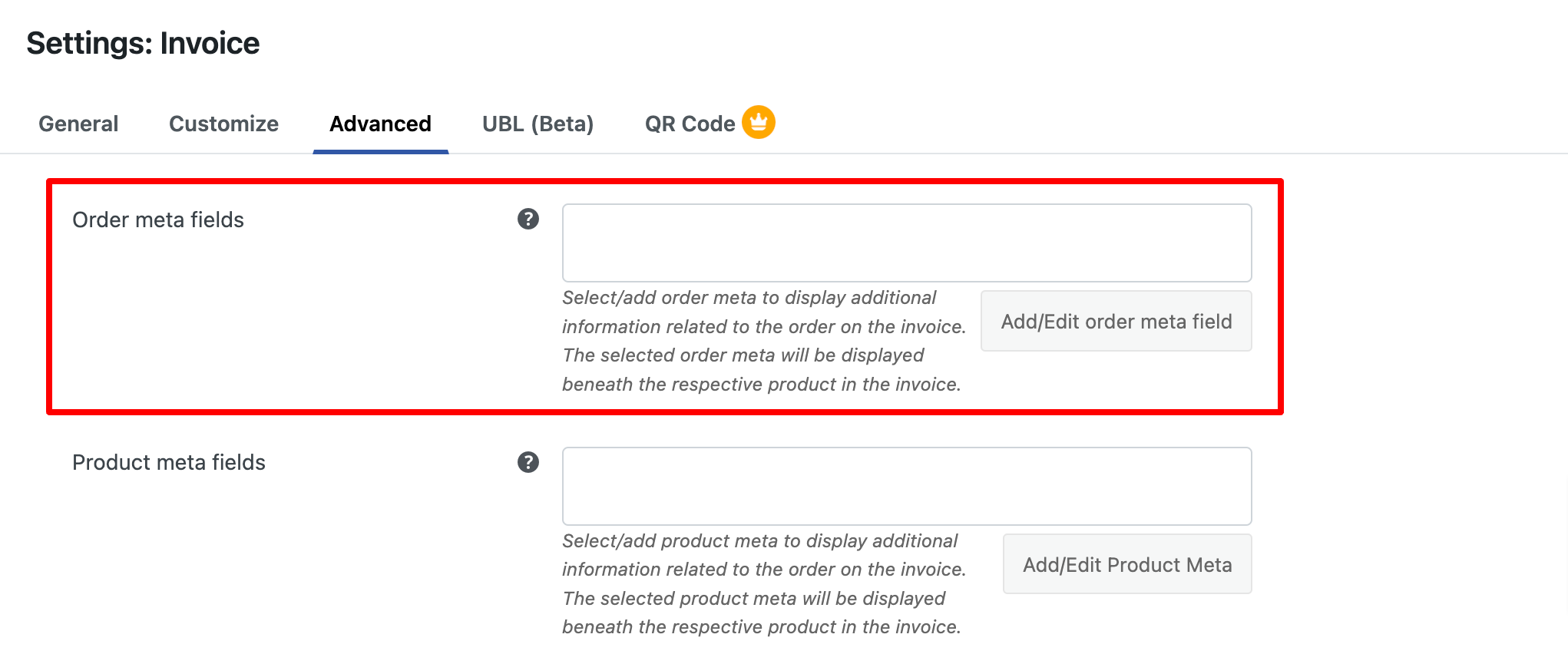
Here, you can choose or add custom order metadata to include additional fields about the order on the invoice. The selected metadata will appear below each respective product on the WooCommerce invoice.
To add other custom order meta fields in WooCommerce invoices (probably from another third-party plugin) other than the ones displayed in the drop-down,
- Click on the Add/Edit order meta field button to customize order meta fields.
- In the popup that appears, enter the Field Name and its corresponding Meta Key.
- Click Save to add the order metadata.
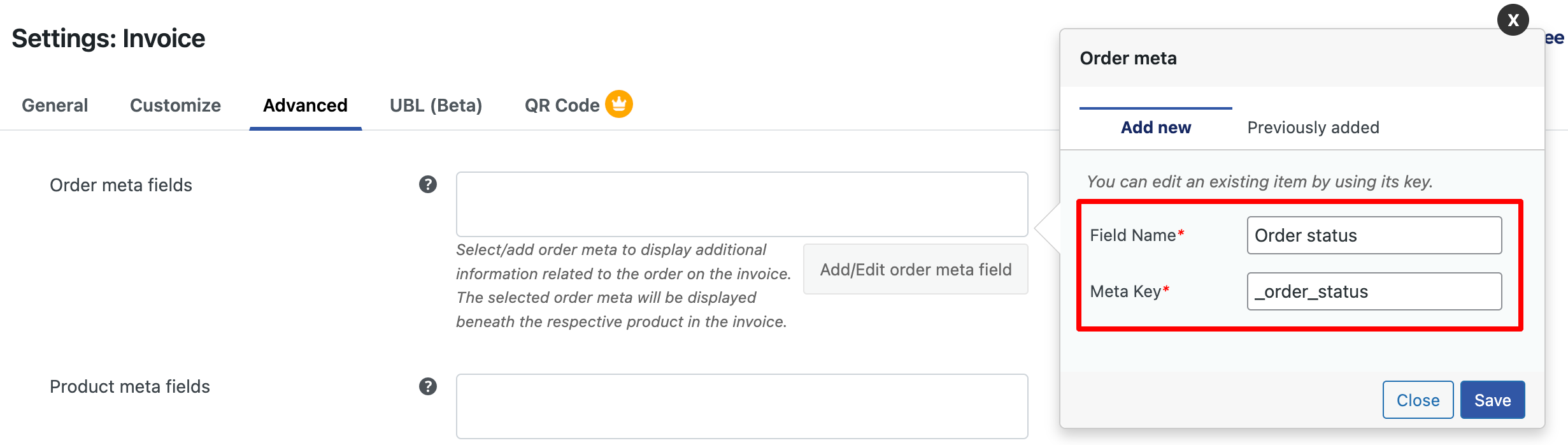
Likewise, additional order information can be appended to the invoice via the order meta fields.
For example, to add a custom field for VAT number in the invoice populated from the plugin EU VAT Number for WooCommerce, you will have to key in an appropriate field name and its corresponding meta key in the checkout meta key fetcher pop-up as shown below:

Sample Invoice With Custom Order Meta Fields
The invoice with its order meta EU VAT Number will be as shown below:

To easily add custom product fields to your WooCommerce invoices,
- Go to Invoice/Packing > Invoice > Advanced.
- From the Product meta fields, click the Add/Edit Product Meta button to customize product meta fields.
- Enter the field name and the respective meta key into the popup that appears
- Click on the Save button.

A sample invoice with a product metadata weight will be as shown below:

To add custom product attributes to invoices,
- Click the Add/Edit Product Attribute button for adding additional product meta data.
- Enter the field name and the respective meta key in the popup.
- Click Save.

- Save the changes by clicking on Update Settings.
The following is an example of a WooCommerce invoice with the custom product attribute.

Note: The configured order meta keys can be found under the Custom Fields section on the WooCommerce Orders page. Similarly, product meta keys are available in the Custom Fields section of the individual product page.
Now that you’ve seen how to add custom order and product metadata to WooCommerce invoices, applying the same changes to other documents, such as packing slips and credit notes, is just as simple using the same plugin.
To add or edit order and product meta fields in packing slips, go to Invoice/Packing > Packing slip > Advanced. The available custom field settings are identical to those in invoices. Once configured, click Update Settings to apply the changes.
Similarly, to add custom meta fields to credit notes, navigate to Invoice/Packing > Credit Note > General, then scroll down to Advanced settings. Enter the meta field name and meta key, and update the settings to save your changes.
That’s it! You can easily add custom metadata to WooCommerce invoices, packing slips, and credit notes using WebToffee’s PDF Invoices plugin. To include custom fields in other order documents like shipping labels or delivery notes, activate the relevant WebToffee add-ons from your WordPress dashboard to enable those features.
Metadata refers to additional information related to products or orders, such as custom attributes, specifications, or unique notes that provide more context about the purchase.
Adding custom order or product metadata helps customers better understand their purchases, improves transparency, and enhances the professionalism of your invoices.
You can include a variety of metadata, such as product attributes (size, color, weight), custom fields, or specific order notes.
Yes, the plugin offers customization options for invoice templates, allowing you to tailor them to your business’s needs. Check out this article to learn more about making custom WooCommerce invoices.
Customizing your WooCommerce invoices with order and product metadata ensures your customers get all the essential details they need. It not only improves clarity but also adds a professional touch to your business.
With the WooCommerce PDF Invoice/Packing Slip plugin by WebToffee, the process is simple and hassle-free. This plugin makes it easy to add custom product attributes or order details from third-party plugins directly into your WooCommerce invoices.
Hope you have understood how easy the plugin is to handle custom data. Please leave a comment if you have any questions or feedback.
Check out our tutorial to learn how simple it is to enhance your WooCommerce invoices by adding product and order metadata.


Subcribe to our newsletter


