


Share:


Table of Contents
Effective bulk cancellation of Shopify orders is crucial for maintaining operational efficiency, especially during high-volume periods. Utilizing tools like StoreRobo streamlines this process, allowing merchants to quickly manage cancellations while minimizing errors and time spent on repetitive tasks.
- Bulk cancellations prevent the inefficiencies and errors associated with manual order management.
- StoreRobo enables the export, update, and import of orders in batches, enhancing order processing speed.
- Proper setup and filtering are essential to ensure only eligible orders are canceled, reducing the risk of mistakes.
- Customer notifications can be automated through the CSV import process, ensuring clear communication about cancellations.
- Starting with small batches allows for testing and validation of the process before scaling up.
- Once an order is canceled, it cannot be undone, emphasizing the importance of careful review before executing bulk cancellations.
Effective order management is essential for running a smooth Shopify store. Whether you need to cancel a single order because of a customer request or cancel multiple Shopify orders due to fraud, payment issues, stock shortages, or duplicate orders, knowing the right process helps you avoid mistakes and keep your store records accurate.
Shopify lets you cancel eligible orders directly from your admin. This works well when you only need to cancel one or two orders. But when you have dozens or hundreds of orders to cancel, doing it one by one can quickly become repetitive, time-consuming, and error-prone.
In this article, we’ll explain how to cancel an order on Shopify from your admin, when order cancellation is allowed, what happens after cancellation, and how to cancel multiple Shopify orders at once using StoreRobo.
Can You Cancel a Shopify Order?
Yes, you can cancel a Shopify order, but only when the order is still eligible for cancellation.
In most cases, order cancellation is suitable for orders that haven’t been fulfilled yet. For example, you may cancel an order if the customer placed it by mistake, requested cancellation before shipment, used a fraudulent payment method, or ordered an item that is no longer available.
However, once an order has already been fulfilled, you can’t simply cancel it like a new order. Fulfilled orders usually need to be handled through refunds, returns, or exchanges instead.
Shopify also treats canceled orders as final. After an order is canceled, you can’t reopen it. If you cancel an order by mistake, you’ll need to create a new order manually and collect payment again if required.
Before canceling any Shopify order, always check:
- Fulfillment status
- Payment status
- Refund requirement
- Inventory availability
- Customer notification preference
- Whether the order is handled by a third-party fulfillment provider
This helps ensure you cancel the right orders and avoid unnecessary customer service issues.
How to Cancel an Order on Shopify From Your Admin
If you only need to cancel one Shopify order, you can do it directly from your Shopify admin. This is the easiest method for individual cancellations.
Follow these steps to cancel an order on Shopify:
- From your Shopify admin, go to Orders.
- Click the order you want to cancel.
- Review the order details, including payment status, fulfillment status, customer details, and items ordered.
- From the More actions tab on the top right, click Cancel order.
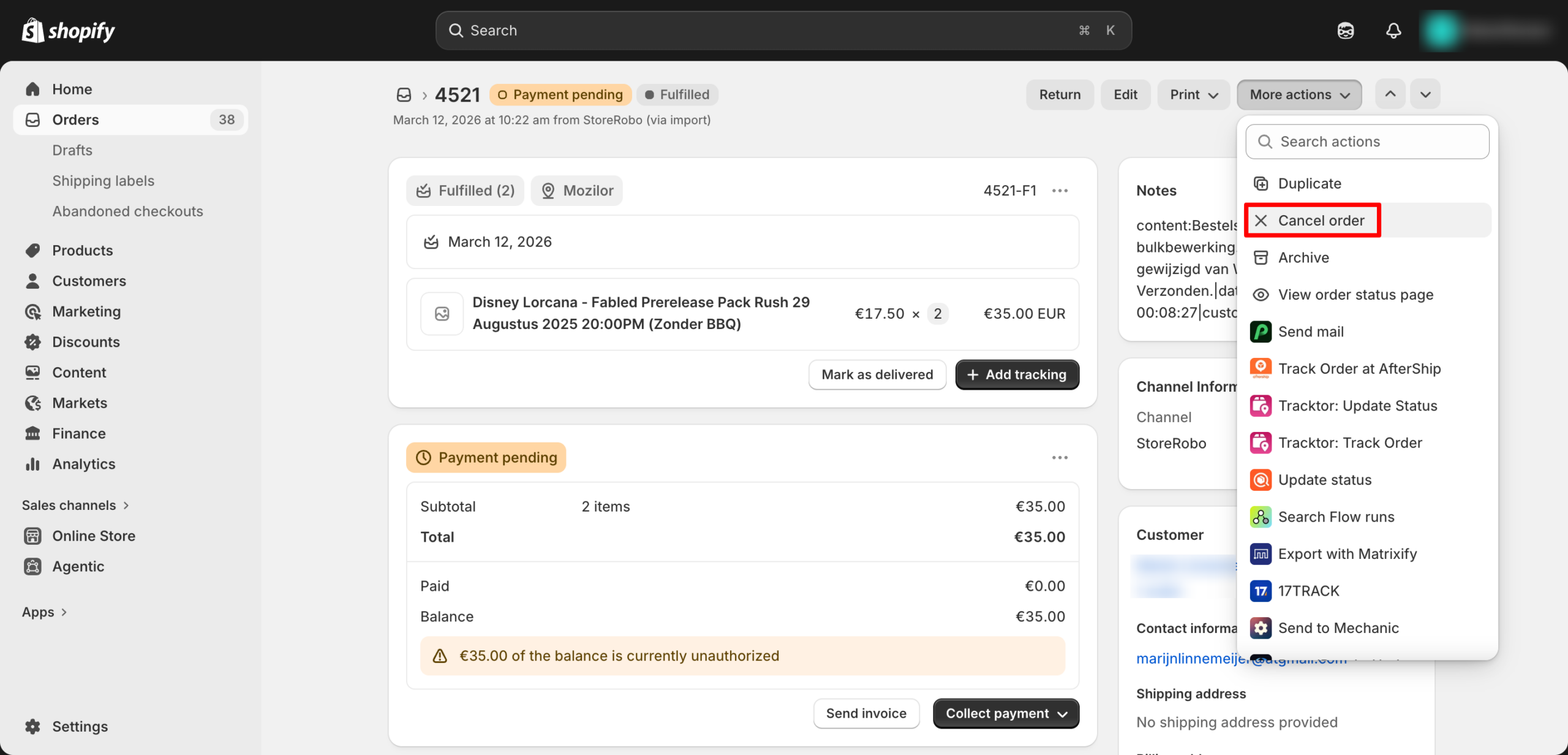
- Then, choose a cancellation reason, such as customer request, fraudulent order, inventory issue, or another applicable reason.
- Choose whether to restock the items in your inventory.
- Select whether to send a notification to the customer.
- Click Cancel order to confirm.
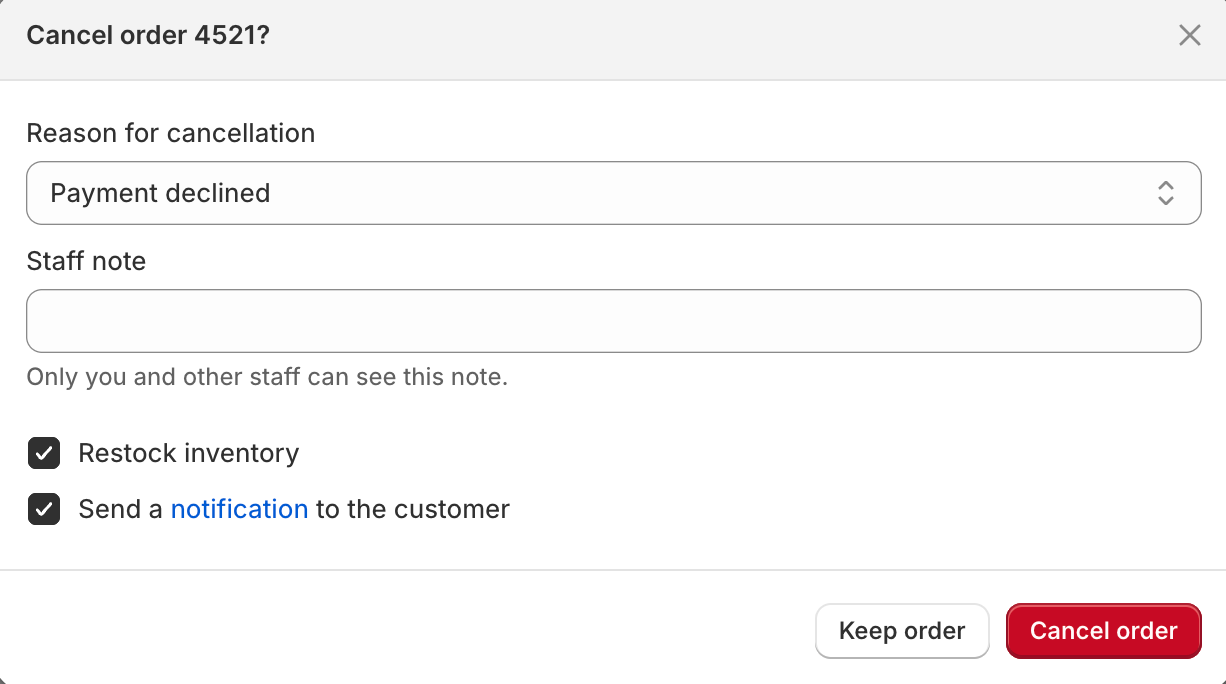
Once confirmed, Shopify marks the order as canceled. Depending on the options you selected, Shopify may also refund the customer, restock the items, and send a cancellation email.
While Shopify provides a straightforward interface for managing individual orders, its default setup isn’t designed for bulk actions like mass cancellations. If you’ve ever tried to cancel multiple orders manually, you already know how repetitive and frustrating it can be.
One of the main limitations is that Shopify doesn’t offer a built-in option to cancel multiple orders at once. Instead, you have to go into each order individually, confirm the cancellation, and repeat the process all over again for every single order. This can quickly become a tiresome task, especially if you’re dealing with dozens or even hundreds of orders.
Here are some of the key challenges of relying on manual cancellations:
- Time-consuming: Canceling each order manually takes several clicks and confirmations. Multiply that by a large number of orders, and you’re looking at hours of work that could’ve been spent on more strategic tasks.
- Risk of errors: The more repetitive a task, the higher the chance of making mistakes, like skipping orders, canceling the wrong one, or missing important details. Manual processes leave little room for consistency.
- Inefficiency with large order volumes: As your store grows, so does the complexity of your order management. Manually canceling orders isn’t scalable, and during peak times like sales or stock issues, delays in order processing can impact customer satisfaction.
In short, manual order cancellation is fine for occasional use, but quickly becomes a bottleneck as order volumes rise. That’s where automation tools like StoreRobo come in to make the process faster, smarter, and error-free.
Before diving into the bulk cancellation process, it’s essential to ensure your setup is ready and you’re following best practices. Bulk cancellations can significantly streamline order management, but they also carry certain risks if not handled carefully.
Here’s a complete checklist to prepare yourself for a smooth and error-free experience:
1. Have StoreRobo Installed and Set Up
To use the bulk cancel feature, make sure the StoreRobo app is properly installed in your Shopify store. Once integrated, StoreRobo syncs with your store’s order data and provides a centralized dashboard to manage and cancel orders in bulk.
2. Review Orders Carefully Before Cancelling
Bulk cancellations are permanent in Shopify. Once canceled, an order cannot be undone through the system. If you make a mistake, you’ll have to manually recreate the order, which can be time-consuming and prone to error. To prevent mishaps:
- Always double-check the list of selected orders.
- Confirm their statuses before initiating cancellation.
3. Check Eligibility: Order Status Matters
Shopify only allows cancellations for certain types of orders. Generally, only orders that are Unfulfilled or Partially fulfilled are eligible for cancellation.
Orders already fulfilled, archived, or refunded may not be cancellable depending on Shopify’s restrictions and your store settings. Use StoreRobo’s filters to ensure you’re only working with eligible orders.
4. Understand Customer Notification Settings
By default, StoreRobo does not notify customers when orders are canceled. If you want customers to receive cancellation emails:
- Use Shopify’s CSV import method during the cancellation process with notification settings configured.
- Or plan to notify customers manually or through another app.
Decide how to handle customer communication before you cancel the orders to avoid confusion or service complaints.
5. Apply Accurate Filters
StoreRobo provides powerful filtering options to help you pinpoint the exact orders you want to cancel, based on date, payment status, fulfillment status, and more. Using precise filters ensures that:
- You don’t accidentally select unrelated orders.
- You maintain control over which transactions are affected.
Even a small mistake in filtering could lead to unwanted cancellations, so take a moment to verify your selection.
6. Start with a Small Batch (Recommended)
If you’re new to StoreRobo or bulk operations in general, it’s wise to start with a small test batch of orders. This helps you validate that everything works as expected, without risking disruption to a large group of live orders. Once you’re confident in the process, you can scale up to handle larger batches safely.
Taking these steps in advance will help you avoid errors, maintain customer trust, and make the most of StoreRobo’s bulk cancellation capabilities. A little preparation can go a long way in keeping your order management efficient and stress-free.
StoreRobo makes it easy to cancel Shopify orders in bulk using a CSV-based export and import workflow.
The process involves three main steps:
- Export the Shopify orders you want to cancel.
- Update the cancellation fields in the CSV file.
- Import the updated CSV file back into Shopify using StoreRobo.
Let’s go through each step.
Step 1: Export Shopify Orders You Want to Cancel
Start by using StoreRobo to export the orders you wish to cancel. You can apply filters to narrow down specific orders based on criteria like date, status, or payment type. This export will generate a CSV file containing the relevant order details.
For this, from your Shopify admin,
- Go to Apps > StoreRobo > Export
- Select Shopify CSV as the export template
- Under Data Type, choose Orders.
- Select the required columns for export.
Make sure to include the following essential columns for accurate and effective order cancellation:
- ID
- Name
- Cancel: Reason
- Cancel: Send Receipt
- Cancel: Refund
Quick Note: While you’re mainly setting the order status to “canceled,” it’s essential to include and update the required columns. This helps ensure the cancellation is processed correctly and keeps your Shopify order records accurate and well-organized. Always double-check your column selection before exporting.

- Next, apply filters or settings to narrow down the orders you want to cancel.
For this example, filter all unfulfilled orders with the payment status as ‘Pending’ placed before April 1st. This helps you identify orders likely to be abandoned or unpaid, making them ideal candidates for bulk cancellation.

Step 2: Update the CSV to Cancel Shopify Order
Open the exported CSV file using a spreadsheet editor like Excel or Google Sheets. Remove any unnecessary rows or columns irrelevant to the cancellation process.
Update the following fields for each order you want to cancel:
- ID – Leave this column unchanged.
- Name – Leave this column unchanged.
- Cancel: Reason – Enter the appropriate reason for canceling the order (e.g., customer request, fraudulent, out of stock).
- Cancel: Send Receipt – Type YES if you want to send a cancellation email to the customer, or NO if you don’t.
- Cancel: Refund – Enter TRUE to issue a full refund automatically, or FALSE to cancel without refunding.

Save the updated CSV file once all required changes are made.
Pro Tip: Use data validation or dropdowns in your spreadsheet editor for fields like Cancel: Send Receipt and Cancel: Refund to avoid typos (e.g., typing “YESS” instead of “YES”). This helps maintain data accuracy and ensures a smooth import back into StoreRobo.
Step 3: Import the Updated Orders to Cancel
- Go to your Shopify admin, then navigate to Apps > StoreRobo >Import.
- Upload the updated CSV file containing the orders marked for cancellation.
- Under Data Type, select Orders.
- Click Upload to continue.

- Enable the option to “Update existing orders”. This ensures that the current orders are updated to “canceled” instead of creating new entries.
- Finally, click Import to start processing the bulk order cancellations.

Once the import is complete, all the specified orders will be successfully updated and marked as canceled in your Shopify store.

Also Read: How to Bulk Archive Shopify Orders?
Post-Cancellation Actions: What Happens After You Cancel a Shopify Order?
Canceling a Shopify order can affect refunds, inventory, customer communication, and reports. After canceling an order, review the following areas to make sure everything is handled correctly.
Refunds
Canceling an order does not always mean the customer is refunded automatically. Refund behavior depends on the payment status, payment gateway, and cancellation settings you choose.
If the customer has already paid, confirm whether the refund was issued successfully. If the order was unpaid or pending payment, a refund may not be required.
Inventory Restocking
When canceling an order, Shopify may let you restock the items from the canceled order. This is useful when the products haven’t been shipped and can be made available for sale again.
Always verify inventory after cancellation, especially when canceling orders in bulk. Incorrect restocking can lead to overselling or inaccurate stock counts.
Customer Notification
Shopify can send a cancellation notification to the customer if the notification option is selected.
If you choose not to send an automatic email, consider whether you should notify the customer manually. This is especially important when the order was canceled because of stock issues, fraud checks, payment problems, or customer support requests.
Fulfillment and Third-Party Apps
If the order is connected to a fulfillment service, dropshipping supplier, shipping app, or warehouse system, make sure the cancellation is reflected there too.
Canceling the Shopify order alone may not automatically stop fulfillment in every external system.
Reports and Analytics
Canceled orders can affect how sales and order data appear in your Shopify reports. After large-scale cancellations, review your reports to understand the impact on revenue, inventory, and fulfillment metrics.
Frequently Asked Questions
To cancel an order on Shopify, go to Shopify admin > Orders, open the order, click Cancel order, choose the cancellation reason, select restock options, choose whether to notify the customer, and confirm the cancellation.
No, once an order is canceled in Shopify, either manually or through bulk operations, it cannot be undone. Shopify does not offer a native option to “reopen” a canceled order. If you accidentally cancel an order, the only workaround is to manually recreate the order, which includes re-adding the products, customer details, and payment information.
This is why it’s essential to carefully review your orders and CSV file before initiating the bulk cancellation.
Not by default. StoreRobo does not send automatic notifications to customers when orders are canceled. However, you can notify them by setting the “Cancel: Send Receipt” field to YES in your CSV file. This ensures that a cancellation email is triggered through Shopify’s system upon import processing.
If left blank or set to NO, the customer will not receive any notification.
Yes, partially fulfilled orders can be canceled, but with some considerations. You can only cancel the unfulfilled portion of the order, and any fulfilled items remain unchanged unless manually handled.
When using StoreRobo, make sure to specify the correct cancellation and refund instructions in your CSV file. Also, confirm whether partial refunds are needed for the fulfilled items, as this process may require additional manual steps.
Yes, you can cancel multiple Shopify orders using a bulk workflow. With StoreRobo, you can export selected orders, update the required cancellation fields in a CSV file, and import the updated file back into Shopify.
Canceling stops an eligible order from being processed. Refunding sends money back to the customer. Archiving hides completed or canceled orders from your active order list. Deleting removes certain order records, but deletion is not the same as cancellation and is only available in specific cases.
The cancel option may be unavailable if the order has already been fulfilled, is restricted by its payment status, is being processed by a third-party fulfillment service, or doesn’t meet Shopify’s cancellation requirements.
Conclusion
Managing large volumes of orders can quickly become overwhelming, especially when it comes time to cancel Shopify order batches. Using StoreRobo for bulk order cancellations offers a faster, more accurate, and scalable solution compared to Shopify’s manual process.
With just a few guided steps, exporting orders, updating the necessary fields, and importing the changes, you can handle cancellations in bulk without the usual hassle or risk of error. Embracing tools like this is a smart step toward scaling your store operations and focusing on what truly matters—growing your business.


Subcribe to our newsletter


