



Share:


Table of Contents
Managing large product catalogs in Shopify doesn’t have to be slow or complicated. With the right tools and approach, you can import hundreds or even thousands of products in one go and get your store up and running faster.
Adding products to Shopify one by one can be time-consuming, especially with large catalogs. Bulk importing products using a CSV file lets you upload all your product data at once, saving time and reducing errors, whether you’re launching a new store, migrating from another platform, or updating prices and inventory.
In this article, we’ll walk you through how to import products into Shopify using a CSV file. While Shopify’s built-in importer works well for standard use cases, it only supports CSV files that follow a specific structure. If your product data is formatted differently, importing it directly into Shopify can become challenging.
To handle custom CSV files with ease, we’ll use the StoreRobo Product Import Export App by WebToffee. StoreRobo is a powerful Shopify product migration tool that lets you import, export, update, and migrate products without restructuring your original CSV file.
Key Takeaways:
- Uploading products via CSV allows you to add or update large catalogs in one go, eliminating repetitive manual work.
- While useful for standard formats, Shopify’s built-in importer requires a specific CSV structure, which can be restrictive for custom data.
- With the StoreRobo Product Import Export App by WebToffee, you can easily import, export, update, and migrate products using custom CSV files, without reformatting your original data.
Understanding Shopify’s Product CSV Format
Before importing products into Shopify, it’s important to understand how Shopify’s product CSV format works. A Shopify product CSV is a spreadsheet file that contains all your product information, such as titles, prices, SKUs, inventory, images, and variants, organized into specific columns that Shopify recognizes.
What is a Shopify Product CSV?
A Shopify product CSV is a structured file that tells Shopify how to create or update products in your store. Each row represents a product or a product variant, and each column defines a specific product attribute. Shopify reads this file during import and uses the data to populate your product catalog.
Required vs Optional Columns
Shopify expects certain columns to be present in your CSV file for the import to work correctly.
Required columns include:
- Handle: A unique identifier used to group variants under the same product
- Title: The product name
- Variant Price: The selling price of the product
Optional columns include:
- Product description
- SKU
- Inventory quantity
- Vendor
- Product type
- Tags
- Images
- Compare-at price, weight, and more
While optional fields aren’t mandatory, including them helps create a more complete and accurate product listing.
Preparing Your Custom CSV File
Once you understand Shopify’s CSV format, the next step is preparing your custom CSV file. A well-structured CSV ensures your products import smoothly without errors or missing data.
Structuring Your CSV Correctly
Your CSV file should be organized in a clear, consistent format:
- Each row represents a product or a product variant
- Each column represents a specific product attribute
- Column headers should be placed in the first row
- Avoid empty rows or merged cells
Use a spreadsheet tool like Excel, Google Sheets, or LibreOffice to create and edit your CSV, then export it as a .csv file.
Key Product Fields to Include
While not all fields are mandatory, including the following helps create complete product listings:
Product Basics
- Title: The product name displayed in your store
- Handle: A unique identifier used by Shopify to group variants
- Description: The main product description (HTML is supported)
Pricing and Inventory
- Price: The selling price of the product
- SKU: A unique stock-keeping unit for inventory tracking
- Inventory quantity: Number of units available in stock
Organization and Classification
- Product type: Helps categorize products internally
- Vendor: Useful for brand or supplier identification
- Tags: Improve search, filtering, and organization
Handling Variants in a CSV
For products with multiple options (like size or color):
- Use the same Handle for all variants of a product
- Each variant should be listed on a separate row
- Specify option values (e.g., Size = Small, Color = Red)
- Assign unique SKUs, prices, and inventory per variant
This tells Shopify to group multiple rows into a single product with variants.
Adding Product Images via URLs
Shopify imports images using publicly accessible image URLs:
- Add image URLs in the image-related columns
- The first image becomes the main product image
- Additional images can be added using extra rows or image position fields
- Ensure image URLs are valid and accessible (no login required)
Follow the below steps to import products to Shopify using a custom CSV file.
Step 1: Install the StoreRobo App on Your Shopify Store
- Log in to your Shopify admin account and go to the Apps menu.
- Search for the “StoreRobo Import Export Suite” in the search bar.
- Once you find the app, choose a plan for the StoreRobo app.
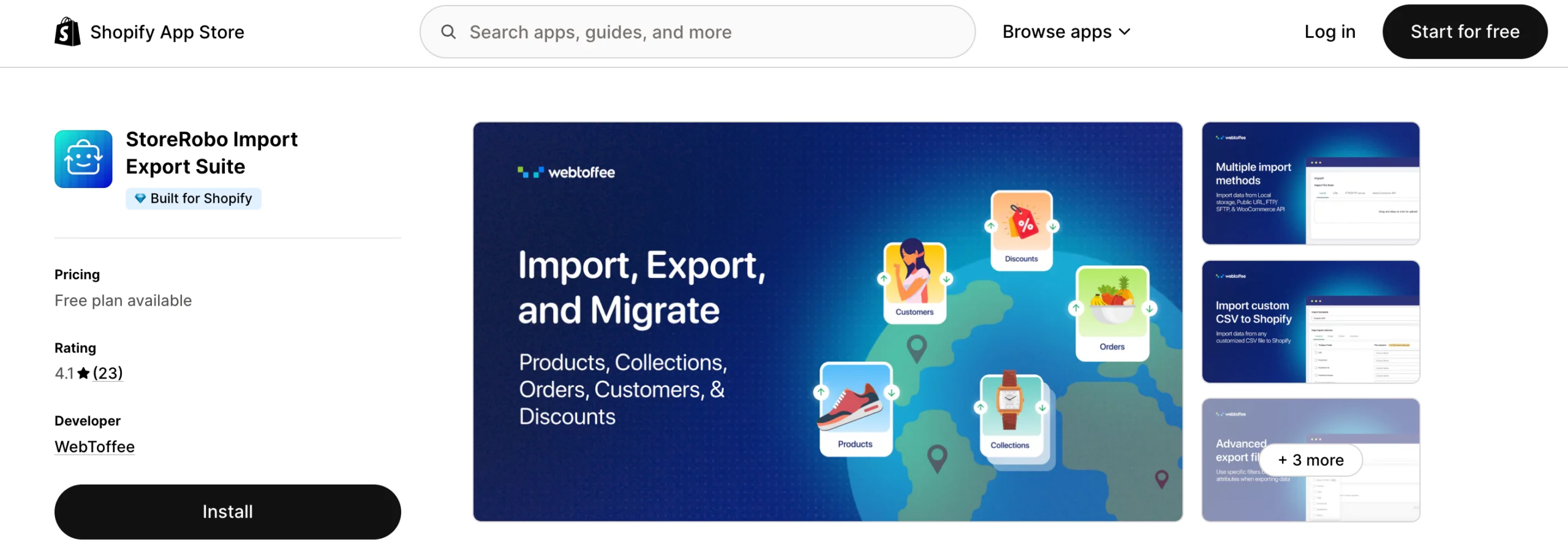
The custom CSV import option is available only on Pro and Enterprise plans. Choose a plan that meets your needs. Then, install and activate the app.
Step 2: Upload the CSV file
After installing the app, go to the Home page of the StoreRobo app. Scroll down to the import section and choose the import method as Local.
Upload the CSV file from your local storage, select the data type as Products, and click on Upload.

Step 3: Map the CSV Columns With Shopify Fields
In this step, choose the import template as Custom CSV. Then, you have to map the columns in the CSV file with Shopify product fields.
Use the drop-down menu to select the column header in the CSV file.

After mapping the import columns, choose the import options available in the app.
Here are the available options:
- Choose whether you want to update the product data if products already exist.
- Select whether to skip importing new products to your store.
- Enable the Publish new product checkbox.
After selecting the necessary options, click Import to start the import.

Once the import action is complete, you can view a log report of the import process.

That’s it; you have successfully imported products in bulk using a custom CSV file.
Common Import Errors and How to Fix Them
Even with a well-prepared CSV file, you may occasionally run into import issues. The good news is that most Shopify import errors are easy to identify and fix once you know what to look for.
Invalid CSV Format
Shopify fails to read the file or stops the import process.
Common causes:
- File is not saved as .csv
- Incorrect delimiter (semicolon instead of comma)
- File not UTF-8 encoded
How to fix it:
- Re-save the file as a CSV (UTF-8) format
- Use commas as delimiters unless otherwise specified
- Open the file in a text editor to confirm proper formatting
Missing Required Fields
Products don’t import or appear incomplete.
Common causes:
- Required columns like Handle, Title, or Variant Price are missing or empty
How to fix it:
- Ensure all required columns are present
- Make sure required fields are filled for every product or variant
- Avoid blank cells in mandatory columns
Image Not Importing
Products import successfully, but images are missing.
Common causes:
- Image URLs are broken or inaccessible
- Images are hosted on private or password-protected locations
How to fix it:
- Use publicly accessible image URLs
- Test image URLs in a browser before importing
- Make sure image links are correctly placed in the image columns
Duplicate Product Handles
Products overwrite each other or fail to import correctly.
Common causes:
- Multiple products using the same Handle
- Accidental reuse of handles in large CSV files
How to fix it:
- Ensure each product has a unique handle
- Use the same handle only for variants of the same product
- Review handles carefully before importing
Inventory Not Updating Correctly
Stock levels don’t reflect the values in the CSV.
Common causes:
- Inventory tracking is disabled
- SKU or inventory item IDs don’t match existing products
- Incorrect inventory location settings
How to fix it:
- Enable inventory tracking for products
- Verify that SKUs match existing records
- Check inventory location and stock settings in Shopify
Best Practices for Smooth Shopify Product Imports
Following a few proven best practices can help you avoid errors, save time, and ensure your Shopify product imports run smoothly, especially when working with large or complex catalogs.
Always Back Up Product Data
Before importing or updating products, make sure you have a backup of your existing product data. This allows you to restore your store quickly if something goes wrong during the import. You can export your current products to a CSV file or use a backup tool to keep your data safe.
Test With a Small Sample First
Instead of importing your entire catalog at once, start with a small test CSV containing a few products or variants. This helps you confirm that:
- Fields are mapped correctly
- Images import properly
- Prices and inventory update as expected
Once the test import looks good, you can safely proceed with the full import.
Keep a Clean CSV Template
Maintain a standard, well-structured CSV template that follows Shopify’s format. This makes future imports easier and reduces formatting mistakes. Remove unused columns, keep headers consistent, and ensure data types (text, numbers, dates) are uniform across rows.
Document Your Import Process
Documenting your import steps can save time in the long run, especially if imports are done regularly or handled by multiple team members. Keep notes on:
- Required CSV columns
- Mapping rules
- Import settings used
- Common fixes for past errors
This ensures consistency and makes troubleshooting much easier.
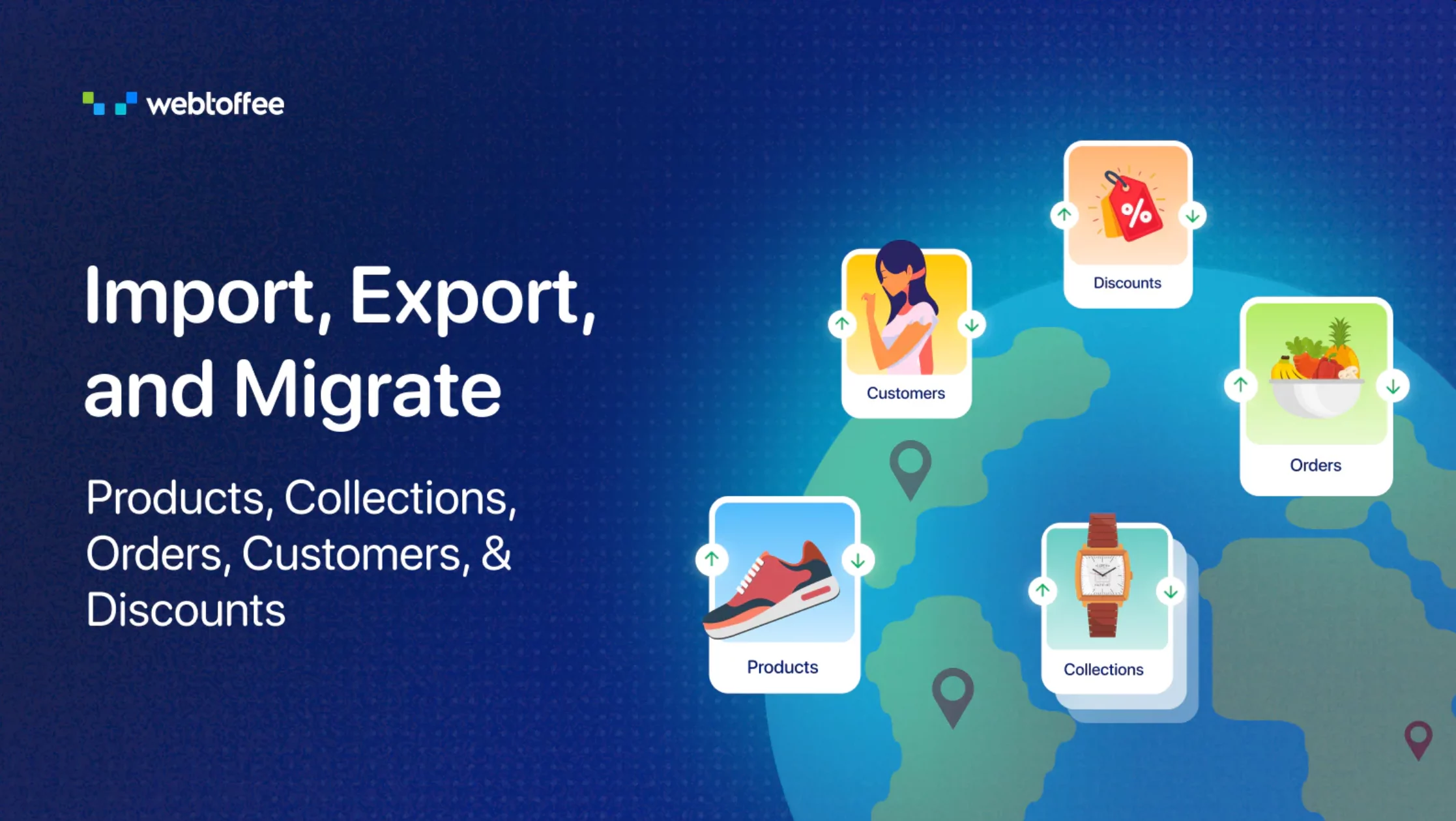
StoreRobo Import Export Suite is a powerful companion for Shopify store owners. It facilitates the effortless migration of product data between stores. The app also lets you migrate products from WooCommerce as well.
This advanced data migrator app features premium features such as advanced filtering options, multiple methods for import/export, and more. You can import any custom CSV files with product data and map the columns with Shopify product fields during import. This gives you more flexibility and options for transferring your product data between stores.
Using this app, you can import CSV files from local storage, an external FTP server, WooCoomerce API, or any import Shopify products from a public URL.
Apart from product data migration, the app also lets you import or export smart collections and custom collections as well. You also have the option to export product data to the Google Shopping feed using this app.
Additionally, it provides you the option to schedule the import or export job for a later time. This means you can rest easy while the app takes care of the import/export jobs.
Key features of the app:
- Import or export products and collections
- Generate Google Shopping feed for Shopify
- Import or export products with images
- Multiple methods to import products
- Update data during import
- Schedule the import/export jobs
- Advanced filters and options
Conclusion
Importing a customized CSV file will give you more flexibility and options for migrating products in Shopify. The app we discussed in this article is the perfect choice for businesses of all sizes. It has different pricing plans based on the number of products.
For a complete overview of everything you can do with Shopify import/export, see our Shopify import export guide.
We hope this article has helped you learn how to import products to Shopify using a custom CSV file. If you have any questions, please feel free to ask them in the comments section. We’d be happy to help you.
Thanks for reading!


Subcribe to our newsletter


