Share:


Table of Contents
Data Subject Access Requests (DSARs) are formal requests made by individuals seeking access to their personal data held by organizations, mandated by the GDPR. It is crucial for businesses, especially those using WordPress, to understand the legal obligations surrounding DSARs to ensure compliance and maintain user trust.
- DSARs allow individuals to request a copy of their personal data, as well as details on how and why it is processed.
- Under GDPR, organizations have one month to respond to a DSAR, with the possibility of a two-month extension for complex requests.
- WordPress includes built-in tools for managing DSARs, but these require manual input unless enhanced by plugins like WebToffee GDPR Cookie Consent.
- Organizations must verify the identity of the requester before fulfilling a DSAR to ensure data security and compliance.
- Failure to comply with DSAR regulations can lead to legal penalties and damage to an organization's reputation.
- Providing clear access and erasure request processes enhances user experience and supports GDPR compliance efforts.
If you run a WordPress website that collects personal data, sooner or later someone will ask to see what you have on them, or ask you to delete it. These are data subject access requests (DSARs), and under GDPR, you’re legally required to respond to them correctly and on time.
The good news is that handling them doesn’t have to be complicated at all. In this guide, we’ll walk through what you need to provide, the rules to follow, and how to manage both data access and data erasure requests in WordPress using the WebToffee GDPR Cookie Consent plugin.
A data subject access request (DSAR) is a request from an individual asking a business for a copy of the personal data it holds about them. It’s based on the right of access under GDPR Article 15, and in the UK it’s often called a subject access request (SAR).
Anyone whose data you process can make one, whether that’s a customer, a newsletter subscriber, or someone with an account on your site. They also don’t need to give a reason for asking.
DSAR vs Data Subject Request (DSR)
Access is just one of the rights GDPR gives individuals. People can also ask you to correct inaccurate data (rectification), delete it (erasure, or the right to be forgotten), hand it over in a portable format (portability), or stop using it for certain purposes (objection). Together, these are known as data subject requests (DSRs).
In practice, the terms get mixed up, and many people use “DSAR” for any of these requests. Each right has its own rules and exceptions, but the handling process is largely the same: receive the request, verify the person, act on it, and respond.
For WordPress site owners, access and erasure requests are the ones you’re most likely to receive.
When someone makes an access request, you need to confirm whether you process their personal data. If you do, you must send them a copy of that data along with some extra details about how you use it.
For a typical WooCommerce store, the personal data usually includes:
- Account details like name, email address and username
- Billing and shipping addresses
- Order history and purchase details
- Comments, reviews and newsletter signups
- Consent records
Under GDPR Article 15(1), you also need to tell them:
- Why you’re processing their data
- The categories of personal data involved
- Who you’ve shared it with, such as payment gateways or shipping partners
- How long you’ll keep it, or how you decide that
- Where you got it, if not directly from them
- Their rights to rectification, erasure and restriction, and to complain to a supervisory authority
- Whether you use automated decision-making, including profiling
If the request comes in electronically, send your response in a commonly used electronic format. You should only share their data, so remove or redact anything that identifies other people.
GDPR gives you one month from the day you receive a request to respond, and Article 12(3) lets you extend that by up to two more months if the request is complex or the person has sent several, as long as you tell them about the extension and the reason within the first month.
If you serve UK customers, the Data (Use and Access) Act 2025 also lets you pause the clock while you wait for the requester to clarify what they’re asking for, and it confirms that your searches only need to be reasonable and proportionate.
Before you hand over or delete anything, make sure the request really comes from the person whose data it is. GDPR requires reasonable measures here, so an email confirmation link or a request from a logged-in account is usually enough.
In most cases, responding is free. You can only charge a reasonable fee based on your admin costs if a request is manifestly unfounded or excessive, or if someone asks for extra copies of data you’ve already sent.
The same test applies to refusals: you can decline a request that is manifestly unfounded or excessive, such as repeated requests meant to disrupt your business, but you have to explain your reasons to the person and tell them they can complain to a supervisory authority or seek a judicial remedy.
Also Read: How to Scan WordPress Websites for Cookies?
WordPress has had built-in privacy tools since version 4.9.6, released in 2018 ahead of GDPR. You’ll find them under Tools > Export Personal Data and Tools > Erase Personal Data.
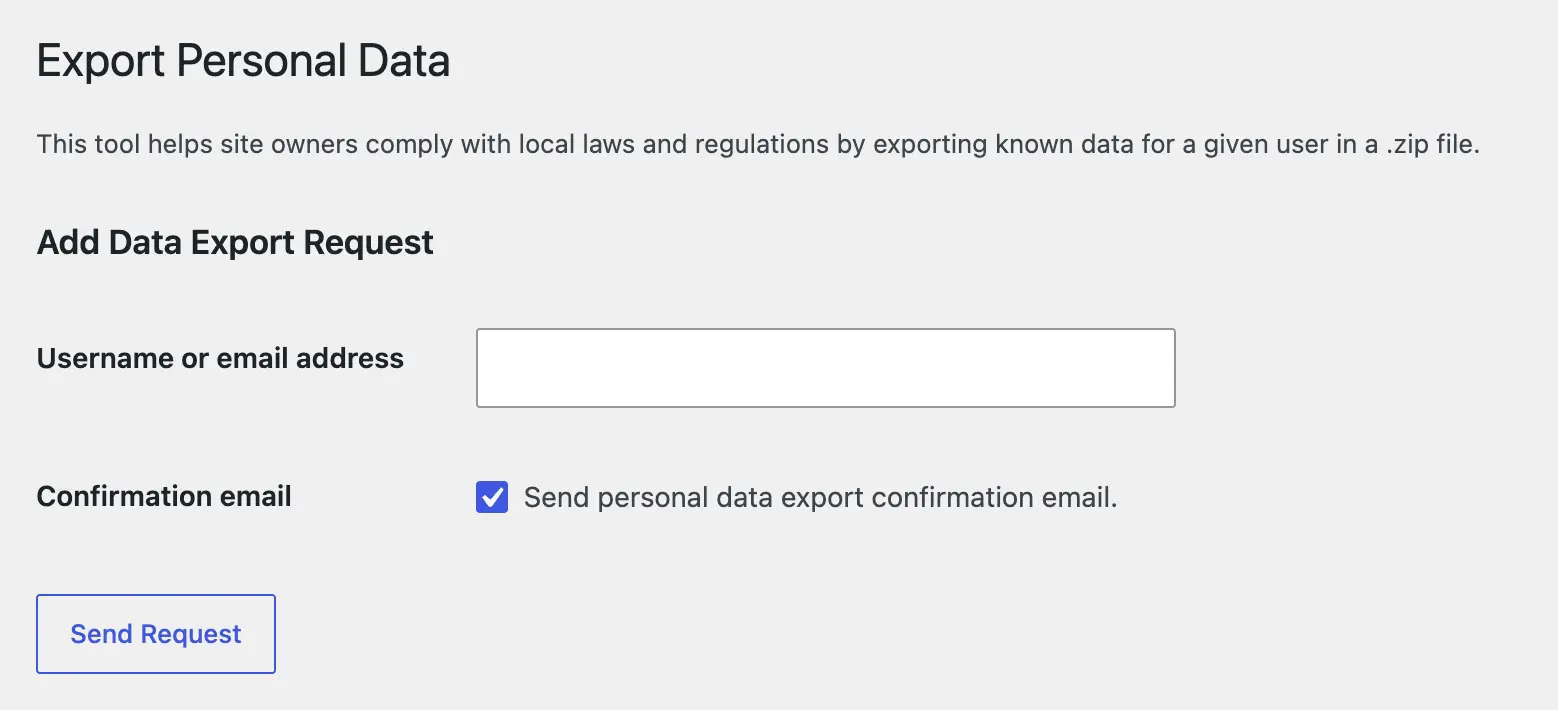
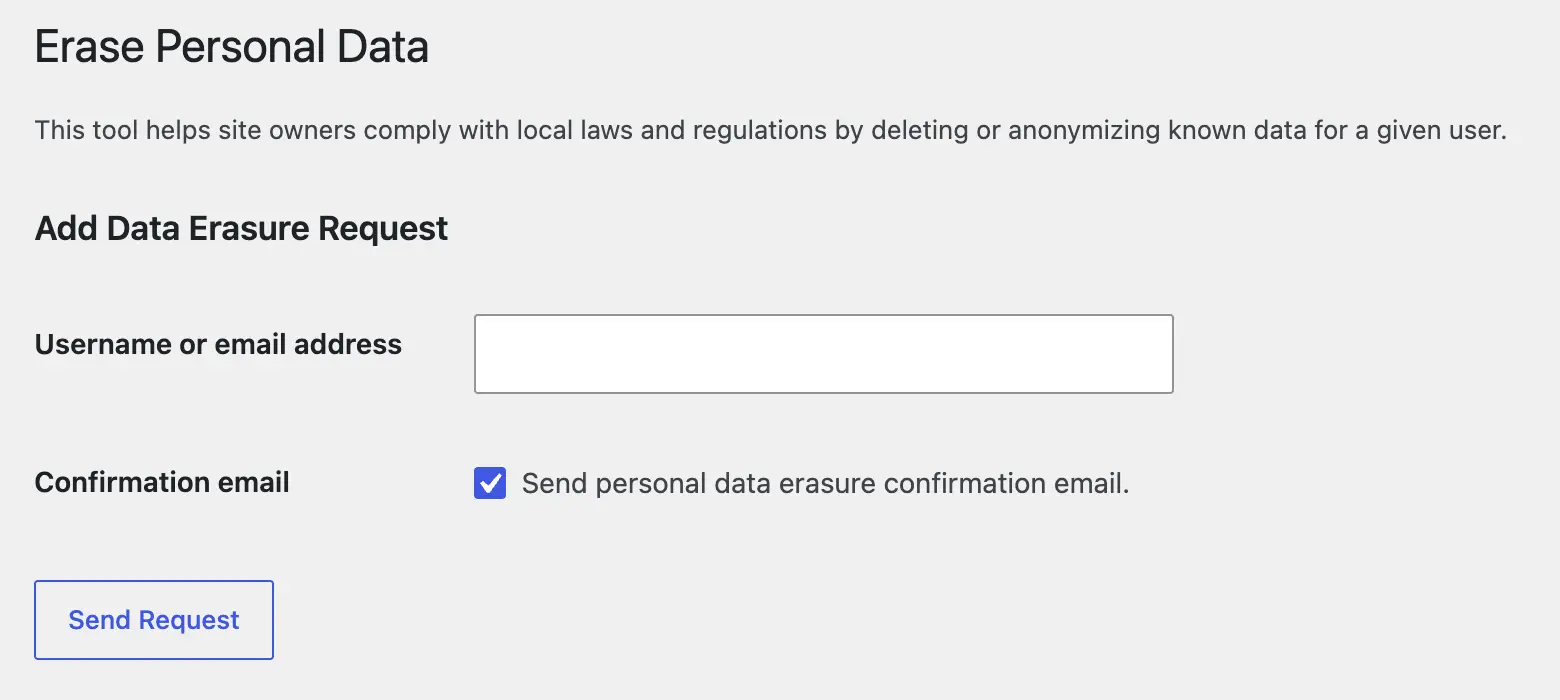
Both tools work the same way. You add a request by entering the person’s username or email address. WordPress can then send them a confirmation email, and the request moves forward only once they click the link. For most stores, that takes care of identity verification.
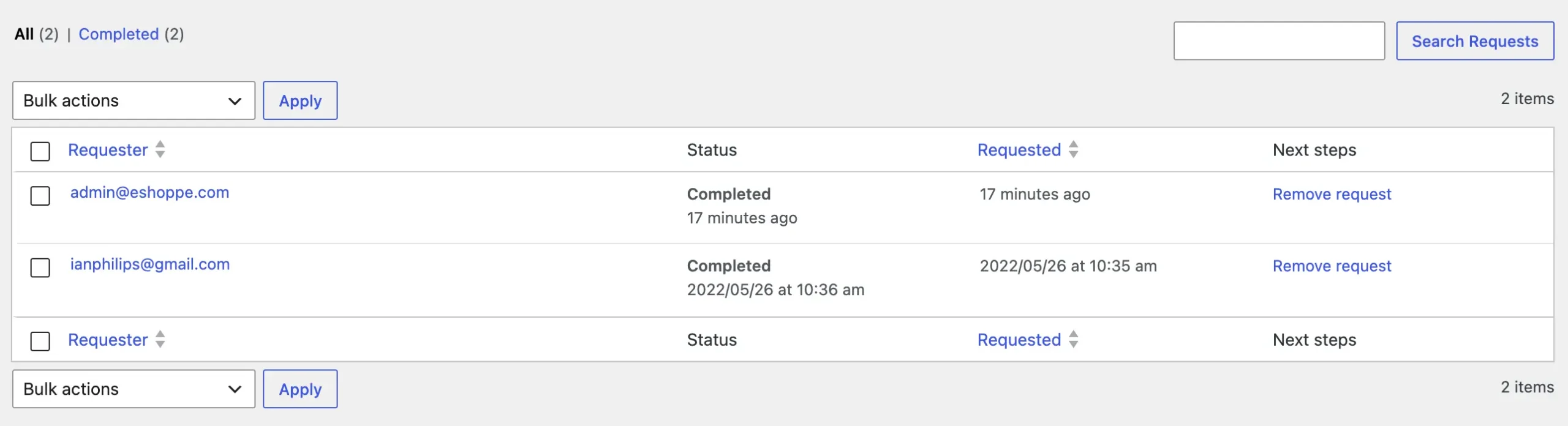
Every request appears in a list with a status, so you can see what still needs attention:
- Pending: The confirmation email has been sent, but the person hasn’t clicked it yet.
- Confirmed: The person has verified the request, and it’s ready to be processed.
- Failed: The request wasn’t confirmed in time.
- Completed: You’ve fulfilled the request.
Once a request is confirmed, you can download the person’s data as a ZIP file or email them a download link. For erasure requests, you run the eraser instead. Both tools pull data from WordPress core and from any plugin that registers with them, including WooCommerce. Plugins that don’t register won’t be covered, so check those separately.
There’s one big gap, though. Visitors can’t submit a request themselves. These tools are admin-only, so requests reach you by email, contact form, or support chat, and you have to add each one manually. Requests get missed this way, but the deadline still applies.
GDPR Cookie Consent plugin closes that gap. It adds dedicated request pages to your site where visitors can submit access and erasure requests, and those requests go straight into WordPress Privacy Tools.
Step 1: Install and Activate WebToffee GDPR Cookie Consent Plugin
Start by getting the plugin onto your site. After you purchase GDPR Cookie Consent, you’ll get an email with a download link. You can also download the plugin ZIP file anytime from your WebToffee My Account page, under Subscriptions > Download files.
To install it:
- In your WordPress dashboard, go to Plugins > Add New Plugin.
- Click Upload Plugin at the top of the page.
- Choose the ZIP file you downloaded and click Install Now.
- Once the installation finishes, click Activate Plugin.
- Activate your license key so you receive updates and support.
Step 2: Create the Data Access and Data Erasure Request Pages
After you activate the plugin, a Cookie Consent menu appears in your WordPress dashboard. Go to Cookie Consent > Advanced and scroll down to the Privacy Request Pages section.
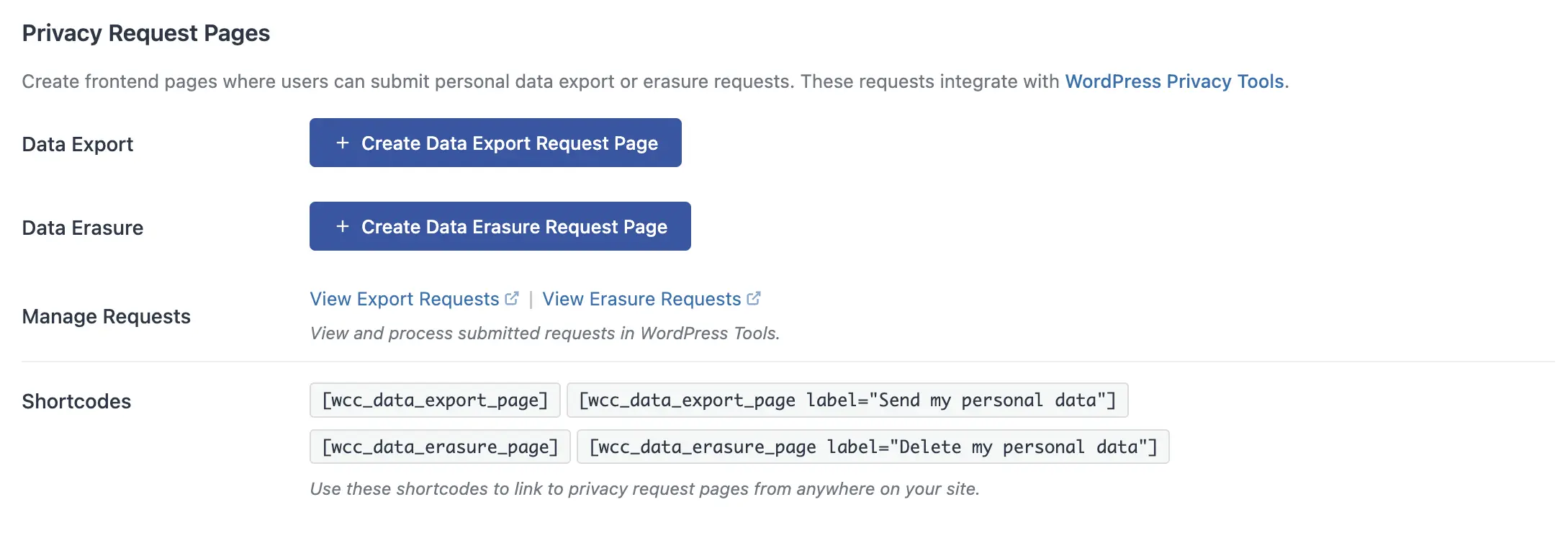
This is where you create the frontend pages your visitors will use to submit requests. Any request submitted through these pages goes straight into WordPress Privacy Tools, so you can manage everything from one place.
To create the pages:
- Next to Data Export, click Create Data Export Request Page. This page handles access requests, where visitors ask for a copy of their personal data.
- Next to Data Erasure, click Create Data Erasure Request Page. This page handles erasure requests, where visitors ask you to delete their personal data.
Each page comes with pre-written content that explains what the visitor is requesting and what happens next. You can edit it to match your privacy policy.
The same section also has a Manage Requests option. Use the View Export Requests and View Erasure Requests links to go straight to the matching WordPress Tools screen when new requests come in.
Step 3: Add the Pages to Your Footer, Privacy Policy and My Account
Creating the pages is only half the job. Visitors also need to be able to find them, so link them from the places people look when they have a privacy question. The plugin gives you shortcodes for this, and you’ll find them in the same Privacy Request Pages section under Cookie Consent > Advanced.
| Shortcode | What it does |
| [wcc_data_export_page] | Adds a link to the data access (export) request page |
| [wcc_data_export_page label=”Send my personal data”] | Same link, with your own link text |
| [wcc_data_erasure_page] | Adds a link to the data erasure request page |
| [wcc_data_erasure_page label=”Delete my personal data”] | Same link, with your own link text |
The label attribute lets you change the link text to match your site’s tone, so use whatever wording makes sense to your customers.
Here’s where to add them:
- Privacy policy page: Open the page in the editor, add a Shortcode block in the section about user rights, and paste both shortcodes. This is the first place most people look.
- Footer: On a block theme, go to Appearance > Editor, open your footer template part, and add a Shortcode block. On a classic theme, add the shortcodes to a Text widget in your footer widget area.
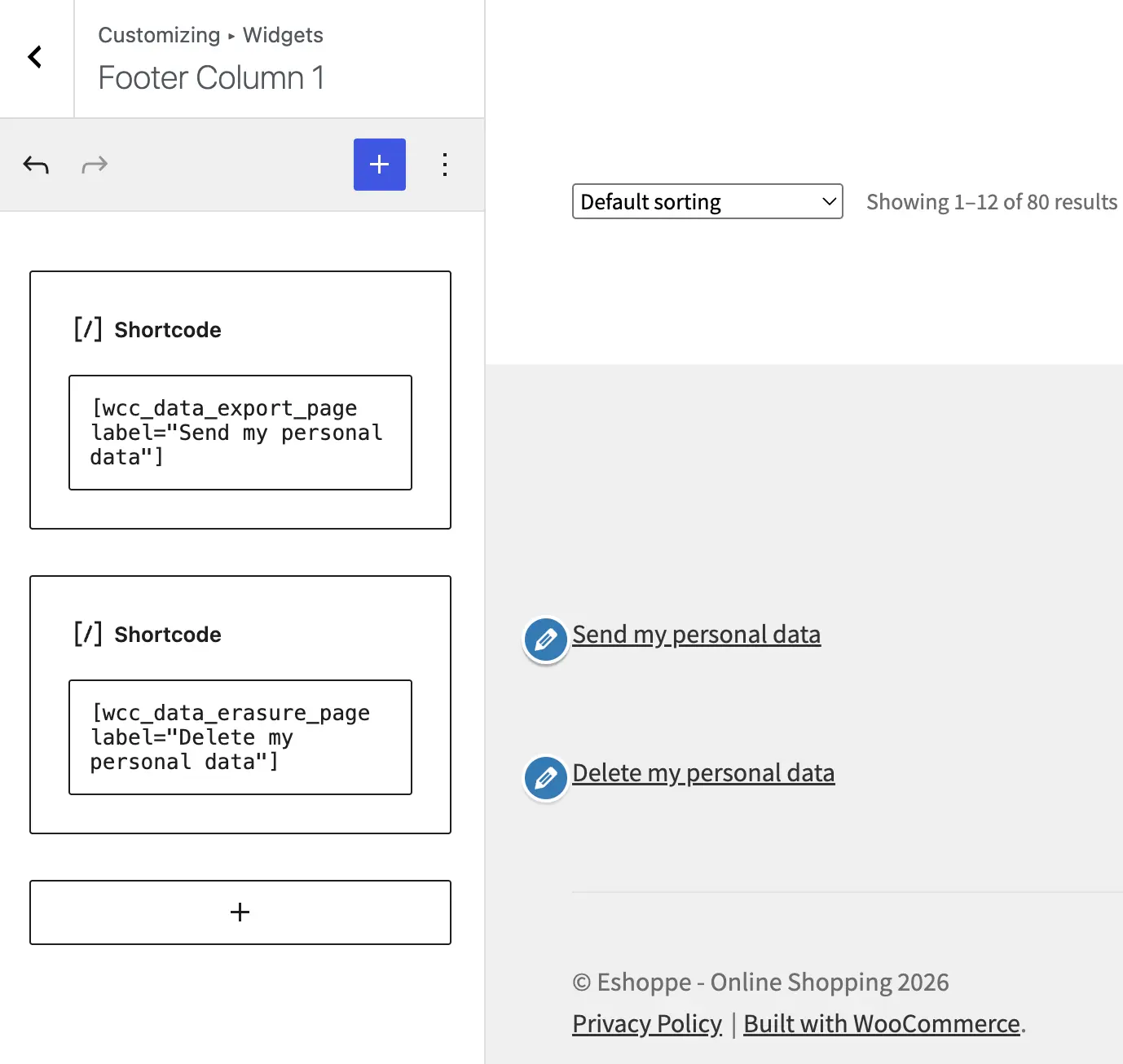
- WooCommerce My Account page: Edit the My Account page and add a Shortcode block above or below the existing account content. That way, logged-in customers can find the request links right next to their orders and account details.
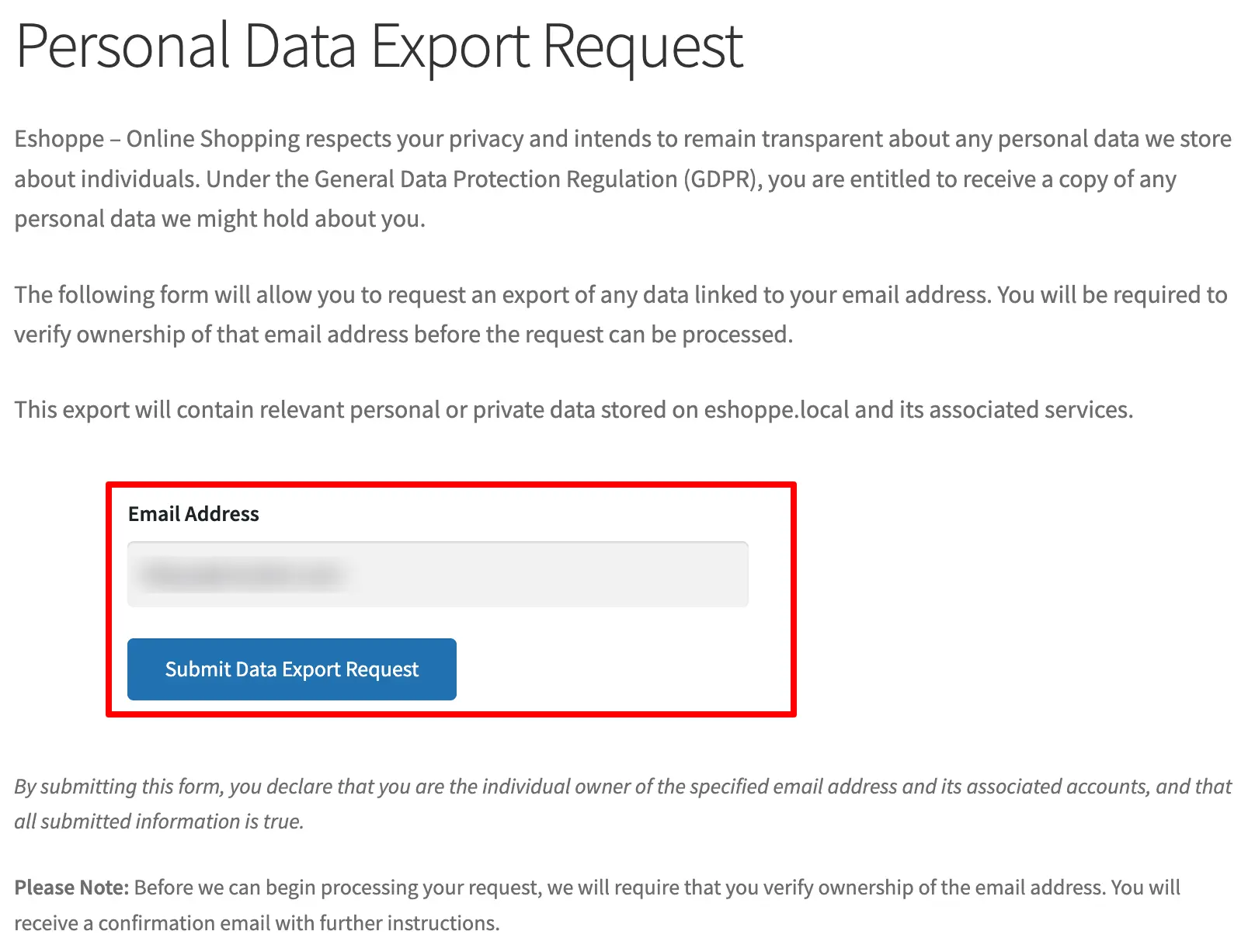
And That’s it! Users can submit their access request from this page, and you can manage the requests from the WordPress Privacy Tools settings page.
How long do I have to respond to a DSAR?
Under GDPR, you have one month from the day you receive the request. If the request is complex, or the same person has sent several, you can extend this by up to two more months. You must tell the requester about the extension, and the reason for it, within the first month.
Is a DSAR the same as a subject access request (SAR)?
Yes. Both terms refer to the same right of access under GDPR Article 15. “SAR” is the term commonly used in the UK, while “DSAR” is more common elsewhere. Whichever term someone uses, the rules and deadlines are the same.
Do I have to delete WooCommerce order data when someone asks for erasure?
Not always. Tax and accounting laws often require you to keep order records for several years, and GDPR allows this when you have a legal obligation. In WooCommerce, the “Remove personal data from orders on request” setting lets you decide whether order data gets anonymized or retained. Either way, tell the customer what you kept and why.
What if someone sends a request by email instead of using the request form?
The request is still valid. GDPR doesn’t require people to use a specific form or wording, so a request by email, live chat, or social media counts too. Add it manually under Tools > Export Personal Data or Tools > Erase Personal Data, and the deadline still applies from the day you received it.
Handling data subject access requests is an important part of protecting user privacy and staying compliant with GDPR. While WordPress already provides built-in tools for exporting and erasing personal data, the process can involve manual work when users have no direct way to submit their requests.
With the WebToffee GDPR Cookie Consent plugin, you can create dedicated data access and erasure request pages and connect them directly with WordPress Privacy Tools. This gives visitors an easier way to exercise their privacy rights while helping you keep requests organized and respond within the required timeframe.
Once you’ve created these pages, make sure they’re easy to find from your privacy policy, website footer, and WooCommerce My Account page. A clear and accessible request process not only makes GDPR compliance easier to manage but also gives users greater control over their personal data.