


Share:


Table of Contents
Coupons can really help boost sales, but let’s be honest—keeping track of them can turn into a real headache. As your store expands, juggling hundreds or even thousands of codes can quickly become overwhelming without the right tools in place to bulk edit WooCommerce coupons efficiently.
If you have been running your WooCommerce store for too long, it must contain a huge number of coupons in it. The higher the number, the larger the effort you have to put in to manage these coupons effectively, and it also takes up a lot of your time.
However, there’s good news. Managing coupons in your store doesn’t have to be a headache, especially if you have the right tools to address this problem. In this case, using specialized plugins. This is where the free Order Export & Order Import for WooCommerce plugin comes in.
With its advanced features, this plugin lets you quickly update and manage thousands of coupons in your store with minimal effort. It’s all about ensuring consistency in your coupon management.
Keep reading if you want to learn how this plugin makes it possible.
Key Takeaways:
- Running a WooCommerce store means managing a large and growing number of coupons, which is both challenging and time-consuming.
- Having the right tools like WebToffee’s Order/Coupon Import Export plugin, you can effortlessly bulk edit and manage coupons, making the process smooth and hassle-free.
Managing a few coupons is easy, but once your store starts growing or a big sale rolls around, things can get chaotic. That’s where bulk editing becomes a real lifesaver. Here’s why it matters:
1. Save Time During Sales and Campaigns
Running a holiday sale or a flash deal? You probably need to update a bunch of coupons all at once, like extending expiration dates or adjusting discounts. Bulk editing lets you do it in minutes instead of spending hours updating each one manually.
2. Keep Your Offers Consistent
When you have multiple coupons running for different products or categories, it’s easy to end up with inconsistent settings, like one coupon having a 10% discount while another accidentally has 15%. Bulk editing ensures all your coupons follow the same rules, giving your promotions a clean and professional feel.
3. Avoid Costly Manual Errors
Editing coupons one by one increases the chance of mistakes. Maybe you forgot to change an expiry date or enter the wrong usage limit. Bulk editing in a spreadsheet lets you see everything at once, so it’s easier to spot and fix any issues before they go live.
4. React Faster to Business Changes
Need to increase coupon limits to boost sales? Or pause an offer because a product’s out of stock? With bulk editing, you can make those changes across all relevant coupons quickly, without digging through each one individually.
As your eCommerce store grows, so does the use of coupons, leading to more frequent editing of coupons to adjust offers, target specific audiences, and adapt to market changes.
WooCommerce doesn’t offer built-in bulk editing for coupons, which is why having the right tool can make all the difference.
One of the most effective solutions is the Order Export & Order Import for WooCommerce plugin—and the best part? It’s free.
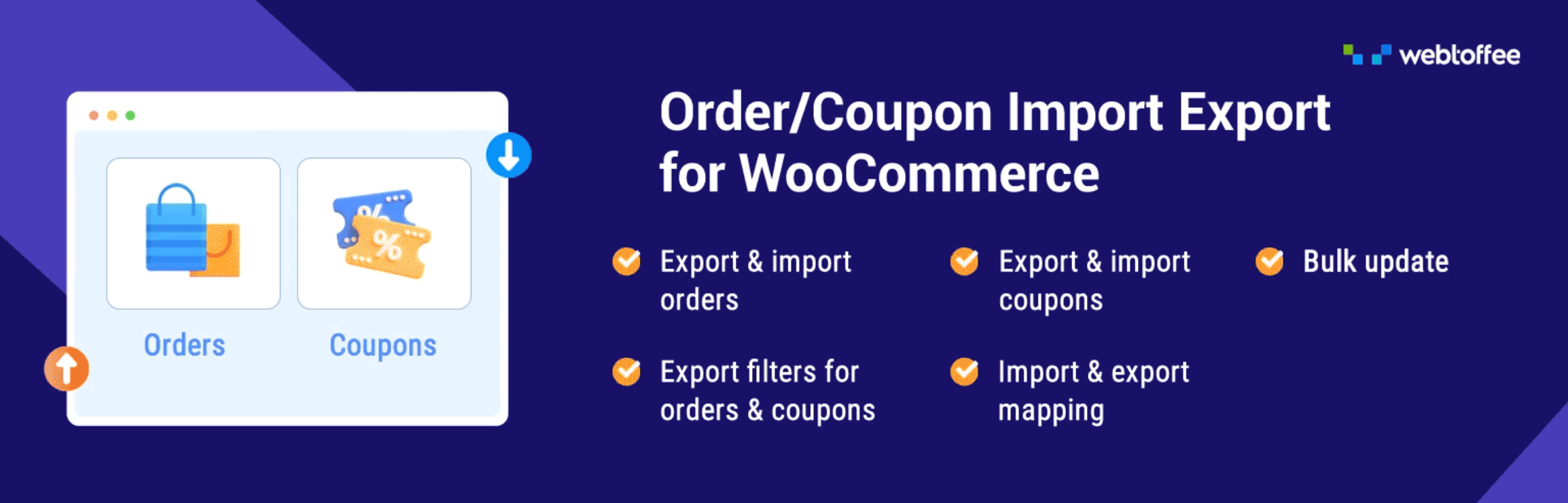
This plugin is designed to help you easily export all your existing coupons, make changes in bulk using a simple spreadsheet (like Excel or Google Sheets), and then import them back into your store with just a few clicks.
Why Use This Plugin?
- Speed: Make bulk updates to hundreds or even thousands of coupons in minutes.
- Accuracy: Edit data in a spreadsheet format, reducing the risk of manual entry errors.
- Ease of Use: No technical skills needed—just export, edit, and import.
- Supports Large Volumes: Works smoothly even with high numbers of coupons, making it ideal for busy stores or large-scale sales events.
To bulk edit or update your WooCommerce coupons, you must follow a two-step process. First, export your coupons in bulk to a CSV file. Then, import the CSV file and apply the needed changes during the import process.
A. Export Your WooCommerce Coupons to a CSV File
Start by exporting all your existing coupons into a CSV (Comma Separated Values) file using the Order Export & Import for WooCommerce plugin. This file acts like a spreadsheet, giving you a clear view of all your coupon details—such as coupon codes, discount amounts, usage limits, expiry dates, and more.
Here is how it’s done.
Step 1: Install & Activate Order Export and Import Plugin
- Go to Plugins > Add New from your WordPress dashboard.
- Search for ‘Order Export and Order Import’ plugin by WebToffee.
- Once you have found the plugin, click on Install Now and then activate the plugin.

Step 2: Select Post Type as Coupon
- After installation, go to WebToffee Import Export (Basic) and select Export.
- Select Coupon as the post type to export and proceed to the next step.

Step 3: Choose an Export Method for Coupons
1. Select Quick export as the export method and click on the Export button.

This will export your products into a CSV file.
Then, download the CSV file to your local storage.

Once exported, you can open the file in Excel, Google Sheets, or any spreadsheet tool. From here, you can edit multiple coupons at once, apply changes in bulk, and even use formulas to speed things up.
For example, if you’re updating the expiry date for a seasonal sale, you can adjust the entire column with just a few clicks.
Below is a preview of the coupon CSV file exported using this plugin.

B. Import the Updated CSV Back to Your Store
After making your edits, save the file and head back to your WooCommerce site. Using the same plugin, import the updated CSV file, and the system will apply your changes to the corresponding coupons. The plugin lets you choose whether to update existing coupons, add new ones, or both, giving you full control over the process.
You’ll also get a summary of what was updated so that you can double-check everything went smoothly.
Let’s see how this is done.
Step 1: Select the Coupon CSV File to Import
- Now, go to the Import section of this plugin and select Coupon as the post type to import.

Step 2: Choose Advanced Import of WooCommerce Coupons
- Select Advanced Import as the import method and upload the CSV file containing the coupon data.

Step 3: Edit Coupon Data
This step is optional if you have made your changes to the CSV file. In this step, you have some edit options before you import coupons in WooCommerce. The options are limited, but it is easier to edit the coupon data without any spreadsheet software.
Note: Any change made at this step will be applied to every coupon in the file. Use this option when you want to apply a uniform update across all records.
Example Use Case: Lowering Discount Amounts After a Sale
Let’s say you want to reduce the coupon discount percentage for all the coupons after a flash sale. Let’s see how.
- Locate the Coupon Amount field in the import mapping screen.
- Click on the pen icon next to the Coupon amount field.

2. Enter the new discount value you want to apply to all coupons within the square brackets as shown below (e.g., add “- 5”) and click Apply.

This will reduce the coupon percentage on your store site by 5.
Important Note on Reducing Coupon Values
If you’re planning to reduce coupon values by 5, here’s how it will affect your store—depending on the coupon type you’ve set:
For Percentage-based Coupons
- The coupon discount percentage will be reduced by 5%.
- Example: A coupon with a 20% discount will become a 15% discount after the update.
For Fixed Amount Coupons
- The discount value will be reduced by $5 (or the equivalent in your store’s currency).
- Example: If a coupon currently offers a $5 discount, it will be reduced to $0, meaning no discount will be applied.
Pro Tip: To avoid affecting low-value coupons or accidentally removing discounts:
- Use the Advanced Export option to filter and select only the coupons you want to update.
- Alternatively, edit the exported CSV file manually to apply changes only where needed before re-importing.
Also Read: How to Import Coupons into WooCommerce
Step 4: Select Update Coupons
- Select the Update option if the coupon exists in the store.
- Click the Import button to import the coupons to your store site.

Once the import action is completed, the progress log will show the number of successful and failed imports (if any).

To ensure a smooth and error-free coupon update process, it’s a good idea to follow these best practices:
1. Backup Your Site Before Making Changes
Always create a full backup of your store before importing or updating large volumes of coupons. This gives you a safety net in case anything goes wrong.
2. Test on a Staging Site First
If possible, try your import process on a staging (test) site first. It lets you catch errors early without affecting your live store or customers.
3. Double-Check Key Fields
Before re-importing, review your CSV file for accuracy. Pay extra attention to:
- Expiry dates
- Usage limits
- Discount types and values
- Conditions like minimum spend or product/category restrictions
4. Keep Coupon Names and Descriptions Consistent
Clear and consistent naming makes it easier to search, organize, and manage your coupons later—especially when you have dozens (or hundreds) in play.
Conclusion
This plugin would be of great help to those looking for the simplest method to bulk update their coupon data. Even someone with less technical expertise will not have much trouble doing this. I hope you see how this plugin works for your store.
As mentioned in the introduction, the WooCommerce order import export plugin we used in this article also has a premium version that supports multiple file formats, such as CSV, XML, Excel, etc.
Have you had a chance to use this plugin, or do you have any questions about its functionality? We’re eager to hear your feedback.
Feel free to comment below or contact us if you need assistance!


Subcribe to our newsletter


