


Share:


Table of Contents
Exporting WooCommerce subscription orders to Excel allows store owners to efficiently manage and analyze their recurring customer data. By utilizing a subscription-compatible export plugin, users can customize their exports to include essential subscription details, enhancing data accessibility for reporting, migration, or backup purposes.
- WooCommerce does not natively support exporting subscription orders to Excel, necessitating the use of specialized plugins.
- The WebToffee Order Import Export plugin enables users to export subscription data in XLS or XLSX formats, allowing for easy manipulation in Excel.
- Users can filter subscription exports by various criteria, such as status, customer, or payment date, to streamline data management.
- The export process allows for customization of included fields, ensuring that only relevant subscription information is captured.
- Automating exports through saved templates and scheduling options can save time and improve operational efficiency for recurring data needs.
- Both Excel and CSV formats are supported for exports, with each serving different purposes depending on user requirements.
WooCommerce doesn’t provide a straightforward built-in option for exporting subscription orders to Excel. To export WooCommerce subscriptions, you can use a subscription-compatible export plugin to select the subscription data you need and download it as an XLS or XLSX file.
With WebToffee’s Order Import Export plugin, you can export subscription details such as customer information, subscription status, payment dates, associated products, and other subscription data in bulk. You can also filter the orders you want to export and customize the columns included in the file.
In this guide, we’ll show you how to export WooCommerce subscription orders to Excel step by step and briefly explain how to import them back when needed.
What Does Exporting WooCommerce Subscriptions Mean?
Exporting WooCommerce subscriptions means downloading the subscription orders created for customers who have signed up for recurring products or services on your store.
These orders contain information about the ongoing subscription relationship, such as the customer, subscription status, billing schedule, payment details, associated products, start date, next payment date, and other subscription-related data.
It is important to distinguish subscription orders from subscription products.
- A subscription product is the product a customer signs up for. For example, a “Monthly Coffee Box – $25/month” is a subscription product because it defines what is being sold, how much it costs, and how often the customer is charged.
- A subscription order is created after a customer purchases that product. It represents that customer’s ongoing subscription and stores details such as whether the subscription is active or canceled, when the next payment is due, which customer it belongs to, and which product is linked to it.
When you export WooCommerce subscriptions, you are exporting these customer-specific subscription records, not the subscription products listed in your product catalog.
Exporting this data can be useful when you need to review subscriptions in bulk, create reports, migrate subscription orders to another WooCommerce store, maintain backups, or update subscription information before importing it back into WooCommerce.
What WooCommerce Subscription Data Can You Export?
A WooCommerce subscription contains considerably more information than the product a customer originally purchased.
Depending on the data available in your store and the fields you select, your export can contain details such as:
- Subscription ID
- Subscription status
- Customer information
- Billing and shipping details
- Associated products
- Subscription start and end dates
- Next payment date
- Payment method
- Order totals
- Billing interval and period
- Subscription metadata
You can also choose which fields appear in your export file and arrange them in the order that works best for you.
To export subscriptions directly as an Excel file, you need the premium version of WebToffee’s Order Import Export plugin, as XLS and XLSX export formats are premium features.
Before beginning, install and activate the plugin on your WooCommerce store. If you need help, see our guide on installing a WebToffee plugin.
After you activate the plugin, follow these steps.
Step 1: Select Subscriptions as the Post Type
Once you have installed the plugin,
- Go to the WebToffee Import Export (Pro) > Export.
- Choose Subscription as the post type to export.

Then, proceed to the next step.
Step 2: Choose Advanced Export Method
Next, choose how you want to export the subscription orders.
You will have two options:
- Quick export exports the subscription orders using the default export settings and commonly used fields.
- Advanced export gives you greater control over the process, including filters, column selection, and other export settings.
Since we want to customize the subscription export, select Advanced export and continue.

Step 3: Filter the Subscriptions You Want to Export
The Advanced export method lets you narrow down which subscription orders are included in the file.
For example, you may want to export only subscriptions that match a particular status, customer, product, payment date, or other available condition instead of exporting every subscription in your store.
Use the available filters to define the subscriptions you need.

Filtering is especially useful when you want to work with a particular segment of your subscription data, such as active subscriptions, rather than downloading your entire subscription database.
Once you apply the required filters, proceed to the next step.
Step 4: Select and Rearrange Export Columns
Next, choose how subscription data should appear in the exported spreadsheet.
You can select the required fields and rearrange the columns by dragging and dropping them into your preferred order.

For example, if you primarily need the subscription ID, customer details, status, and next payment date, you can arrange those columns together to make the exported Excel file easier to review.
After configuring the columns, continue to the next step.
Step 5: Export WooCommerce Subscriptions to XLS or XLSX
In the final export step, configure the export file settings.
- Enter a name for the export file.
- Select XLS or XLSX as the file format.
- Configure any additional export options you require.
- Choose whether to exclude previously exported orders or line items, if applicable.
Quick Tip: If you plan to run the same subscription export again, click Save Template to save your filters, column selections, and other configurations for future use.

Click Export to start the process.
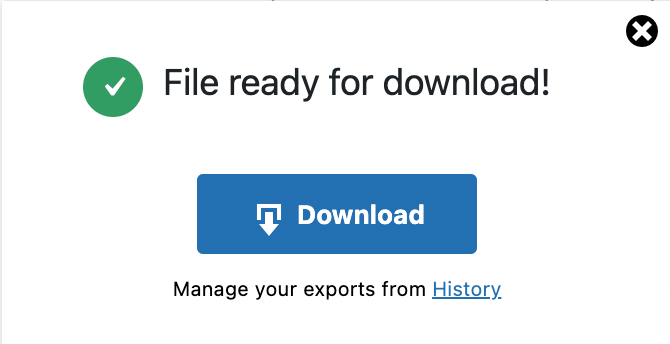
Once the file is ready, a File ready for download message will appear. Click Download to save the exported subscription file.
You can then open the XLS or XLSX file directly in Microsoft Excel.
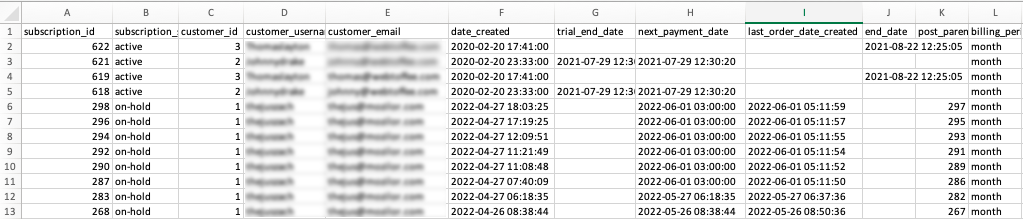
You have now successfully exported your WooCommerce subscriptions to Excel.
How to Export Only Active WooCommerce Subscriptions
If you only need a list of customers with currently active subscriptions, you do not have to export every subscription record from your store.
Using the Advanced export method in WebToffee’s Order Import Export plugin, you can filter the export by subscription status and include only Active subscriptions in the file.
This is useful when you want to:
- Create a list of current subscribers
- Review active recurring revenue
- Analyze upcoming renewals
- Prepare customer or subscription reports
- Migrate only ongoing subscriptions to another WooCommerce store
- Exclude canceled, expired, or inactive subscriptions from the export
To export only active subscriptions:
- Choose Advanced export and in the Filter data step, locate the subscription status filter.
- Select Active as the required status.
- Configure any other filters or export columns you need.
- Continue through the export process and download the file in your preferred format.

The resulting file will contain only subscription orders that match the Active status at the time of export.
You can also combine the status filter with other available filters to narrow the export further. For example, you may want to export active subscriptions associated with a particular product, customer, or date range.
This is often more convenient than exporting all subscription orders and manually removing canceled, expired, or on-hold subscriptions from the spreadsheet afterward.
CSV vs. Excel for WooCommerce Subscription Exports
Both CSV and Excel files can be used to work with exported WooCommerce subscription data, but they serve slightly different purposes.
- XLS and XLSX files are useful when you want to open, review, sort, filter, or edit the subscription data directly in Microsoft Excel.
- CSV files are lightweight and widely supported, making them useful for transferring subscription data between applications and systems.
The premium WebToffee plugin supports Excel formats in addition to other supported import and export formats, so you can select the format that best suits your workflow.
Can You Automate WooCommerce Subscription Exports?
If you regularly need updated subscription data, manually running the same export every time can become repetitive.
The plugin lets you save configured export settings as templates, making it easier to reuse the same filters, columns, and other settings for future exports. For workflows that require recurring data transfers, you can also use the plugin’s scheduling options where supported to automate import and export tasks.
This can be useful for periodic backups, reporting workflows, migrations, or transferring subscription information to another system.
The same plugin can also be used to import subscription orders into WooCommerce.
If the Excel file was previously exported using WebToffee’s plugin, the import process is simpler because the fields already follow a compatible structure.
Here’s how to import the subscription data.
Step 1: Select Subscriptions as the Post Type
From your WordPress dashboard:
- Go to WebToffe Import Export (Pro) > Import
- Choose Subscription as the post type.

Proceed to the next step to choose an import method.
Step 2: Select Advanced Import Method
Here, you can choose Quick Import if you exported WooCommerce subscription orders using the same plugin; otherwise, choose Advanced Import.
When using Advanced Import:
- Select the location of the import file.
- Choose Local if the file is stored on your computer.
- Upload the Excel file.
- Configure the delimiter and date format where applicable.
The plugin can also support other import locations, such as remote sources, depending on your configuration.

Proceed to the next step.
Step 3: Map Excel Columns to WooCommerce Subscription Fields
Next, map each column in your input file to the corresponding WooCommerce subscription field.
Correct field mapping ensures that information such as customer details, subscription status, payment dates, and other subscription data is imported into the right fields.
You can also use the mapping screen to make certain data transformations or bulk changes where supported.

Once the fields are mapped correctly, continue to the next step.
Step 4: Configure Advanced Import Options
The final step lets you define how existing and new subscription orders should be handled.
Depending on your requirements, you can configure options such as:
- Update existing subscriptions
- Skip or update subscriptions that already exist
- Handle conflicts with existing post IDs
- Link related products
- Link products using SKU instead of product ID
- Delete subscriptions from the store that do not match records in the imported file

Review these settings carefully, particularly when updating or deleting existing subscription orders. You can then click Save Template to reuse the configuration later or choose Import/Schedule to continue.
Once the import is complete, the plugin displays an import log showing the number of successfully imported orders and any failed imports.

Yes. With a WooCommerce subscription-compatible export plugin such as WebToffee’s Order Import Export plugin, you can export subscription orders to XLS or XLSX files and open them directly in Microsoft Excel.
Yes. WooCommerce subscription orders can also be exported to CSV. CSV is useful for transferring data between systems, while XLS or XLSX may be more convenient when you want to review or edit the data directly in Excel.
Yes. Use the subscription status filter and select Active before running the export.
Depending on the fields selected, the export can include subscription IDs, status, customer details, payment dates, billing information, products, totals, and subscription metadata.
This is possible through custom/database-level methods, but for most store owners a subscription-compatible export plugin is significantly easier and safer to manage.
Yes, if the export solution supports scheduled exports. With WebToffee’s Order Import Export plugin, you can configure the subscription export, save the settings as a template, and schedule it to run automatically at regular intervals.
This article was intended to help you import or export WooCommerce subscription orders using an Excel file. You can use a single plugin to perform import and export tasks for your WooCommerce store.
If you are planning to create subscription orders for your WooCommerce store, try ourWooCommerce subscription plugin to set up subscriptions easily.
Hope you find this article helpful. If you have any questions or feedback, please comment below, and we will get back to you.

Got any query? Please leave a comment or reach out to our support
Got any query? Please leave a comment or reach out to our support

Subcribe to our newsletter


Comments (2)
sanshin mudanças
October 14, 2022
I follow this step, the order are created, but without informations. Exemple: the orders is created but without phone or client name
Alan
October 20, 2022
Hi,
Can you please reach us via support?