


Share:


Table of Contents
- Shopify AI features include tools for content generation, store analytics, and workflow automation, streamlining various aspects of eCommerce management.
- Sidekick serves as an AI assistant, capable of analyzing store data, generating reports, and even creating custom apps based on merchant needs.
- Sidekick Pulse proactively identifies opportunities within a store, providing actionable recommendations directly on the Shopify admin dashboard.
- Shopify Magic allows for the generation of product descriptions and other content, significantly reducing the time merchants spend on repetitive writing tasks.
- AI-powered tools like Campaign Autopilot automate marketing campaigns, offering recommendations while allowing merchants to maintain control over their strategies.
- SimGym enables merchants to test storefront changes using simulated AI shoppers, providing insights into user experience before implementing real changes.
AI is becoming a much bigger part of Shopify.
What started with tools for writing product descriptions has expanded into store analytics, workflow automation, customer support, marketing, product discovery, image creation, and even storefront testing. Shopify says 75% of surveyed store owners already use AI tools in some form, showing how quickly AI is becoming part of everyday eCommerce.
The problem is that there are now so many AI features that it can be difficult to know which ones are actually useful.
This guide covers ten Shopify AI features merchants should know about in 2026. Some of these features are available broadly, while others are still in early access, limited to certain plans, or rolling out gradually. This article reflects Shopify’s AI tools and availability as of now.
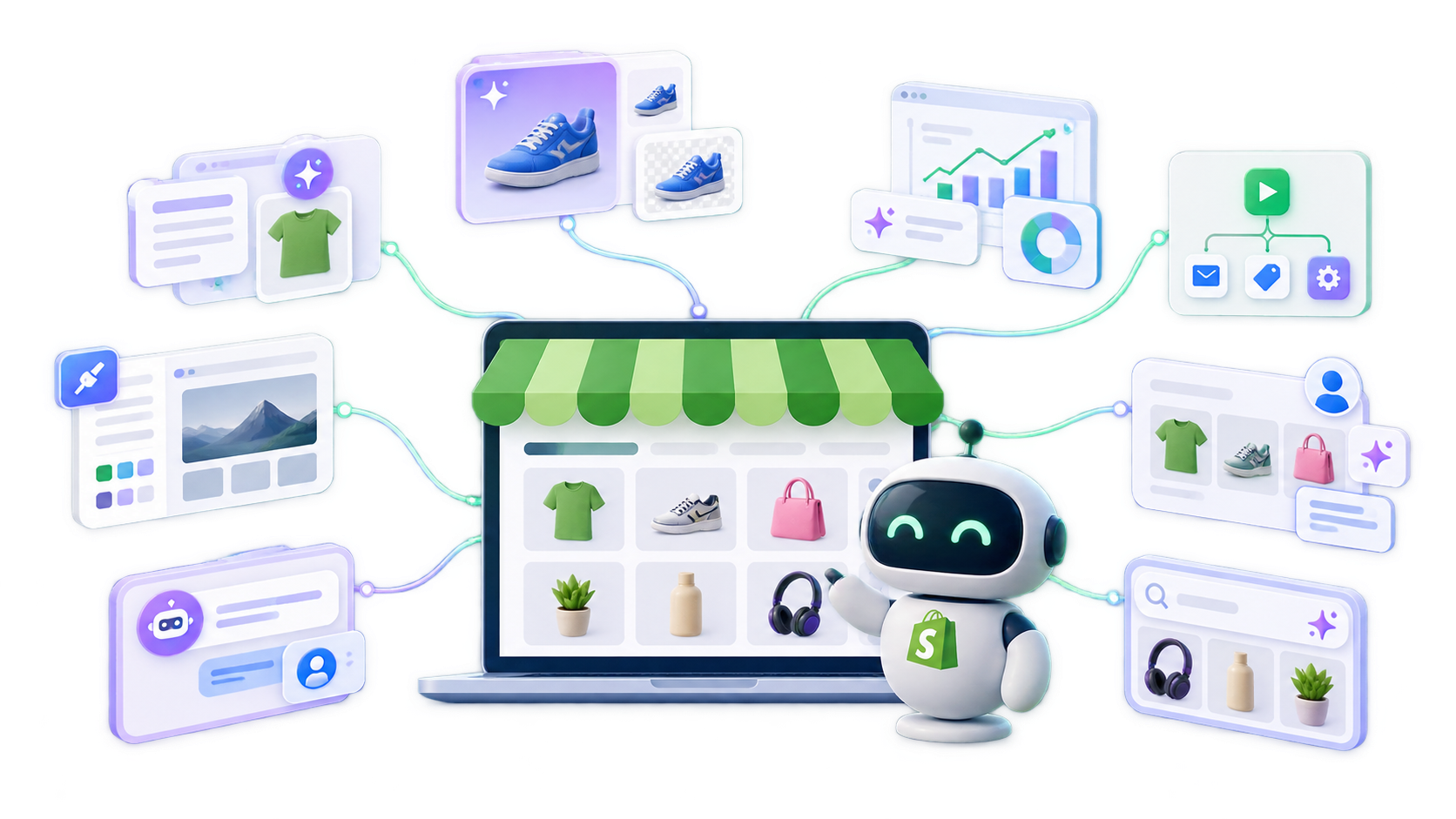
Shopify’s AI features are a collection of built-in tools designed to help merchants manage their stores more efficiently.
Most of these capabilities fall under Shopify Magic and Sidekick. But Shopify’s use of AI goes beyond these two tools.
AI is now being built into several parts of the Shopify platform, including analytics, Shopify Flow, theme customization, product imagery, personalized shopping experiences, and AI-powered product discovery.
This means Shopify AI is becoming less of a standalone feature and more of a layer that supports different parts of running an ecommerce store.
1. Shopify Sidekick: Your AI Store Assistant
Sidekick is Shopify’s built-in AI assistant for running and managing your store.
Sidekick has moved well beyond answering basic Shopify questions. You can now use it to analyze store data, create content, update products and collections, manage certain admin tasks, build Shopify Flow workflows, and even generate custom internal apps.
For example, instead of opening multiple reports and filtering them manually, you could ask:
“Show me my five best-selling products over the last 60 days and compare their sales with the previous 60 days.”
Sidekick can generate ShopifyQL queries and visualizations based on store data, making it particularly useful for merchants who want answers without building reports themselves.
One of its more advanced capabilities is app generation. Merchants on Grow, Advanced, and Shopify Plus can describe an internal tool they need and let Sidekick create it. These generated apps can work with products, orders, customers, discounts, content, and analytics inside the Shopify admin.
Where to Find It
You can access Sidekick directly from your Shopify admin by clicking the Sidekick icon in the top navigation. This opens the Sidekick chat panel without taking you away from the page you’re working on.
From there, you can ask questions about your store, analyze performance, get help with Shopify tasks, or ask Sidekick to take supported actions using your store data.
Want to explore Sidekick in more detail? Read our complete guide to Shopify Sidekick to learn more about its capabilities, example prompts, and ways to use it in day-to-day store management.
2. Sidekick Pulse: Proactive AI Recommendations
Sidekick Pulse changes Sidekick from an assistant you ask questions to into one that proactively looks for opportunities in your store.
Instead of waiting for you to open Sidekick and type a prompt, Pulse analyzes store activity and surfaces recommendations directly on the Shopify admin Home page.
A recommendation might bring attention to opportunities that might otherwise be easy to miss, such as a product performing unusually well, a customer segment worth re-engaging, or an area of the store that may benefit from optimization.
When you select a recommendation, Sidekick can turn it into a to-do list and help you work through the next steps. Importantly, Sidekick doesn’t automatically apply the recommended changes without your approval.
Pulse is still in early access, so not every merchant will see it. Your store also needs recent sales activity and Shopify Network Intelligence enabled.
Where to Find It
If your store is eligible for Sidekick Pulse, you’ll see Pulse cards directly on the Shopify admin Home page. These cards surface suggested actions, insights, or opportunities based on recent store activity.
You can open a card to review the recommendation in more detail and, where supported, continue working on it with Sidekick.
3. Shopify Flow With AI-Built Automations
Shopify Flow is Shopify’s automation tool for handling repetitive store tasks based on triggers, conditions, and actions. Describe an automation in normal language and let Sidekick help build the workflow in Shopify Flow.
Shopify Flow has always been useful for automating repetitive store processes. The difference now is that merchants don’t necessarily need to understand every trigger, condition, and action before getting started.
Sidekick can generate a Flow workflow from a plain-English description.
For example, instead of manually building the logic for a customer-tagging workflow, you could simply explain what you want to happen.
Where to Find It
Open Shopify Flow from the Apps section in your Shopify admin, then choose Create workflow. While building the workflow, you can use Sidekick to describe the automation you want in plain language.
Sidekick can help turn that request into a workflow with the appropriate trigger, conditions, and actions, which you can then review and adjust before activating.
4. Shopify Magic
Shopify Magic is Shopify’s collection of generative AI features for creating content throughout your store.
One of its best-known uses is generating product descriptions, but Shopify Magic can also assist with content such as blog posts, pages, emails, headings, and customer-service responses.
For a merchant with hundreds of products, that can remove a lot of repetitive writing. For example, give Shopify Magic:
- the product type
- important materials
- target customer
- main benefits
- brand tone
- important keywords
and it can produce a starting description. The more specific the information you provide, the more useful the generated content is likely to be.
Shopify warns merchants that generated descriptions can introduce benefits or claims that weren’t included in the original information. You remain responsible for the accuracy of anything published on your store.
Where to Find It
You’ll find Shopify Magic built into supported areas across the Shopify admin, such as product descriptions, email content, and other editable text fields.
Look for the Shopify Magic icon or AI writing option when creating or editing content, then enter a short prompt or a few details about what you want to generate. You can review and edit the result before publishing it.
5. AI Image Editing and Tinker
Shopify’s AI tools can now help merchants create and modify visual assets without opening a traditional image editor for every change.
That includes tasks such as creating new scenes around product images, adjusting backgrounds, generating promotional visuals, and producing creative assets.
Shopify has also launched Tinker, a free mobile app with more than 100 AI tools for creating images, videos, logos, product photography, and other visual assets. For small teams, this can be especially useful when you need multiple creative variations but don’t have time for another full product shoot.
Imagine you have one clean product photo of a pair of sunglasses. You could use AI tools to experiment with visuals for:
- a summer campaign
- a holiday promotion
- social posts
- email banners
- product launch graphics
without starting from zero each time.
Where to Find It
Shopify’s built-in AI media tools appear in supported image-editing areas across the Shopify admin, where you can generate or modify visual assets while working with product or marketing content.
For a broader set of creative tools, you can also use Tinker on iOS or Android to create and edit images, videos, and other promotional assets from your phone.
6. AI Block and Theme Generation
Shopify’s theme editor can use AI to create custom storefront blocks from a plain-language description, helping merchants add new sections without writing Liquid code manually. You can describe the layout or content you want, and Shopify generates the underlying code for you.
For example, you could ask for:
“A promotional banner with an image on the left, text and a button on the right, and spacing that matches the rest of the theme.”
Shopify can turn that request into a reusable block that you can preview and adjust inside the theme editor.
AI can also help generate a starter theme based on a description of your brand, products, and preferred visual style. Instead of beginning with a completely blank theme or spending hours configuring layouts, you can describe the kind of storefront you want and use the generated design as a starting point.
This can be especially useful for new stores, smaller teams, or merchants testing a new storefront concept without involving a developer for every layout change.
Where to Find It
Open the Online Store > Themes section in your Shopify admin and launch the theme editor. AI generation options appear in supported theme-building areas, where you can describe the block or storefront style you want and preview the generated result before adding it to your live theme.
6. Semantic Search
Semantic search helps Shopify understand what shoppers mean, rather than relying only on the exact keywords they type.
Traditional search works best when the customer’s query closely matches words in your product data. Semantic search can connect related concepts.
Shopify gives the example of a shopper searching for terms such as “Christmas party shoes.” A semantic system can understand concepts associated with that intent rather than looking only for products containing those exact words.
This can be particularly useful for large catalogs where customers describe products differently from the merchant.
However, semantic search isn’t currently available to every Shopify store.
As of September 2026, Shopify says semantic search is available for stores that:
- use the Grow, Advanced, or Plus plan
- have fewer than 200,000 products
It also doesn’t apply to predictive search and isn’t supported for the Japanese locale.
Where to Find It
Semantic understanding is included in eligible online-store search setups. Search controls are available through Shopify’s Search & Discovery app.
7. Agentic Storefronts and Shopify Catalog
Shopify’s Agentic Storefronts can make your products available for discovery through AI shopping experiences such as ChatGPT, Microsoft Copilot, Google AI Mode, Gemini, Shop, and supported Meta experiences.
This matters because product discovery is beginning to happen outside traditional search engines and store navigation.
A shopper might ask an AI assistant:
“Find me waterproof trail shoes under $150 with good grip for wet conditions.”
The AI system can search structured product information and surface products that match the request.
Shopify Catalog is an important part of this. It organizes product information so participating AI channels can understand titles, descriptions, pricing, availability, images, and other product data.
Shopify’s Agentic section also lets merchants view channel performance and preview how products may appear in Catalog search.
Where to Find It
In your Shopify admin, go to Sales channels > Agentic to access the Agentic Storefronts section. From there, you can review available AI shopping channels, check product eligibility, manage participation where supported, and view performance data related to AI-driven discovery and referrals.
8. AI Sales Associates and Shopify Inbox
Shopify Inbox can place an AI-powered sales associate on your storefront to answer questions and help shoppers discover products.
The agent can use information from your product catalog, policies, and store content. Merchants can also configure its tone, style, and rules.
That moves storefront chat beyond simple canned responses.
A customer could ask:
“Which of these jackets would work best for temperatures around 5°C?”
or:
“Do you have this in a wider fit?”
The goal isn’t merely to answer support questions. It is to help customers make buying decisions while they’re still browsing.
Where to Find It
Install Shopify Inbox from the Shopify App Store and open it from your Shopify admin. Before enabling the AI sales associate for customers, make sure your product information, store policies, common FAQs, and brand tone are up to date, since the assistant relies on this information when responding to shoppers.
You should also configure any available AI instructions or guardrails to define how the assistant should communicate and what it should avoid. Before rolling it out widely, test it with real questions your support team regularly receives to check whether its answers are accurate, helpful, and consistent with your brand.
9. Campaign Autopilot
Campaign Autopilot is an AI-powered marketing automation tool built into Shopify. It uses AI to recommend, create, and manage marketing campaigns from Shopify.
Instead of configuring every campaign separately, merchants can connect supported channels, establish a budget, set guardrails, review recommendations, and let Autopilot manage approved tactics.
Current integrations include areas such as:
- Meta Ads
- Microsoft Advertising
- Shop Campaigns
- Shopify Messaging
Additional channel availability can vary by location and rollout stage.
Autopilot can use your products, customer information, and sales data to recommend marketing actions, including customer acquisition campaigns and email automations.
The important part is that you still have control.
You can approve or reject recommendations, define guardrails, change budgets, pause activity, and control how much approval the system needs.
Where to Find It
If your store is eligible, open Growth > Autopilot from the Shopify admin. From there, you can review recommended campaigns, connect supported marketing channels, set budgets, and control how much approval is required before campaigns go live.
Availability depends on your store setup. Shopify currently requires things such as Shopify Payments, at least one product, configured shipping and store policies, a store in good standing, and the necessary marketing permissions. Autopilot is available across most Shopify subscription plans, excluding the Agentic plan, although individual advertising or messaging channels may have their own eligibility requirements.
10. Shopify SimGym
SimGym uses simulated AI shoppers to test how people might interact with different versions of your storefront. It can compare a published theme with a draft theme or analyze a single theme on its own.
The AI shoppers browse the site, move through collections and products, add items to carts, and provide feedback on the shopping experience. That makes SimGym interesting for merchants considering changes to:
- navigation
- product pages
- collection pages
- cart experiences
- theme redesigns
Instead of immediately exposing every experiment to real customers, you can use simulations as an initial screening step.
But there is an important caveat.
SimGym is currently an AI Research Preview, which typically refers to experimental AI tools created by Shopify (or third-party developers), and Shopify explicitly notes that simulated shopper behavior can differ from the behavior of real customers.
That means SimGym should not replace real conversion data or A/B testing.
Think of it as a pre-filter. If SimGym identifies a major navigation problem, investigate it. If one theme performs better in the simulation, consider testing the change with real shoppers before treating the result as proven.
Where to Find It
Install the Shopify SimGym app from the Shopify App Store, then choose a live or draft theme to analyze. The tool can simulate how shoppers move through your storefront and help you compare different theme versions before you publish major changes.
To use SimGym, your store currently needs a Liquid-based storefront, Shopify Network Intelligence enabled, and a storefront that is not in private mode. Custom headless storefronts built separately from Shopify, including those created with Hydrogen, Shopify’s official React-based framework, are not supported at this time.
Many Shopify AI features, including Shopify Magic and Sidekick, are included with eligible Shopify plans. However, some tools depend on your plan, location, store setup, or feature eligibility, and services such as advertising can still involve separate costs.
Always check the current Shopify documentation before choosing a plan based on one AI feature.
There isn’t one separate “AI plan.” Different features have different requirements. Basic AI tools are broadly available, while more advanced capabilities can require Grow, Advanced, Plus, store eligibility, Network Intelligence, Shopify Payments, or early-access approval.
No, not for most Shopify AI features. Tools like Sidekick, Shopify Magic, Flow, Inbox, and Agentic Storefronts are built for merchants. Coding is mainly needed for deeper custom development using tools such as the Shopify AI Toolkit or Dev MCP Server.
Not really. Shopify AI is better for reducing repetitive work, such as drafting content, analyzing reports, automating tasks, and answering common questions. Your team is still needed for strategy, judgment, brand decisions, complex customer issues, and quality control.
Final Thoughts
Shopify AI in 2026 is no longer just about automatically writing product descriptions.
It can now help merchants analyze store data, automate workflows, create content, produce visuals, improve product discovery, support customers, run marketing campaigns, reach shoppers through AI assistants, and test storefront ideas.
But that doesn’t mean every merchant needs every feature.
Start with a clear problem, choose the tool that fits it, and measure whether it saves time or improves results.
The goal isn’t to add more AI to your store. It’s to use AI where it can make a measurable difference.


Subcribe to our newsletter


