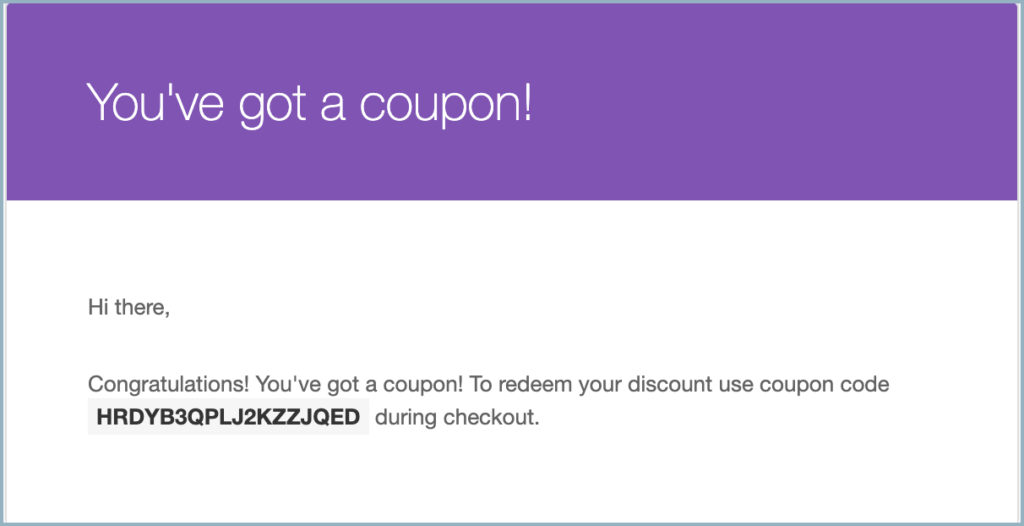
The WebToffee WooCommerce Coupon Generator plugin allows you to send personalized, one-time-use codes to multiple customers simultaneously to prevent coupon abuse. To set this up, navigate to Marketing > Generate Coupons (or Smart Coupons > Generate Coupons) and select ‘Email to recipients’ with the ‘Unique coupons for each recipient’ option. Following the steps to filter your recipient list and configure your discount rules will trigger an automated email blast that sends every customer their own distinct coupon code.
Step 1 – Open the Coupon Generator Dashboard
To set up and send a coupon to multiple users
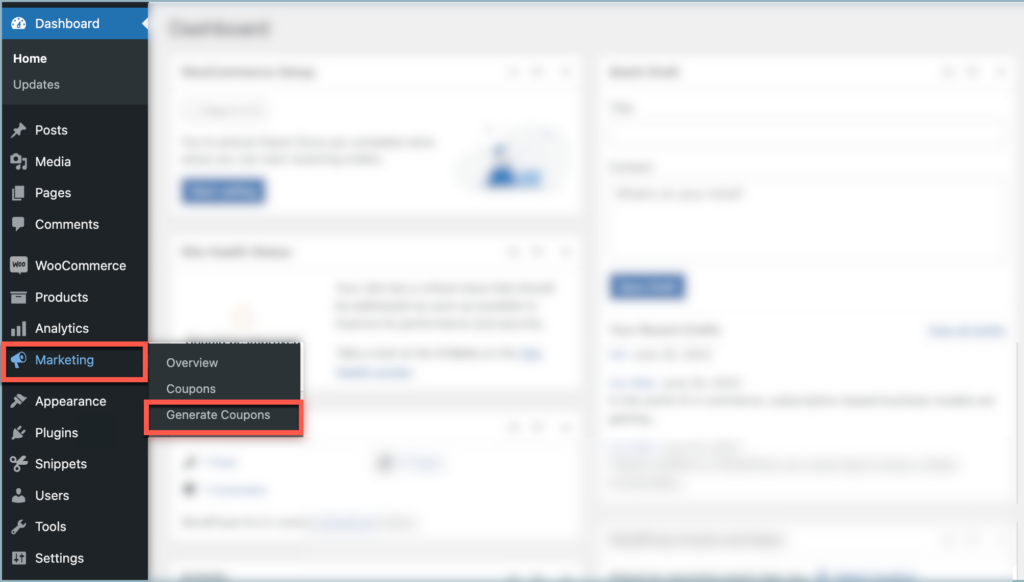
- When WooCommerce Coupon Generator is installed as a stand-alone plugin, navigate to Marketing > Generate Coupons from the WordPress dashboard.
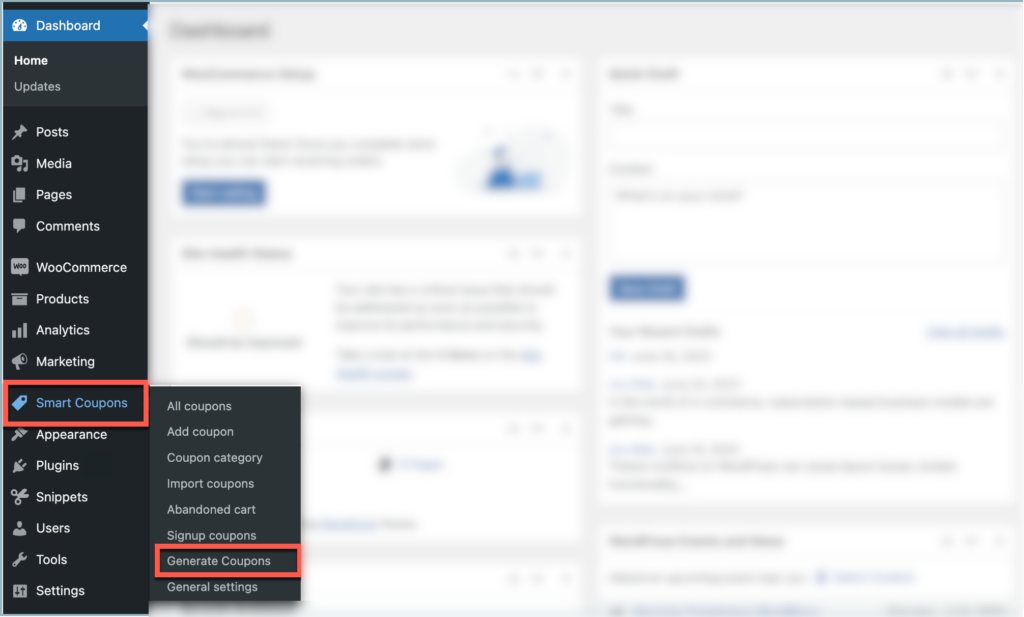
- When installed as an add-on to the Smart Coupons for WooCommerce Premium plugin, navigate to Smart Coupons > Generate Coupons from the WordPress dashboard.
Step 2 – Select the Email Distribution Action
- From the Actions section, select Email to recipients.
- A new option named Coupon to generate will appear under the Actions section.
- Select Same coupon for all users from Coupon to generate.

Step 3 – Define Your Recipient List
The plugin allows emailing the generated coupons to the selected existing users or to manually entered email addresses.
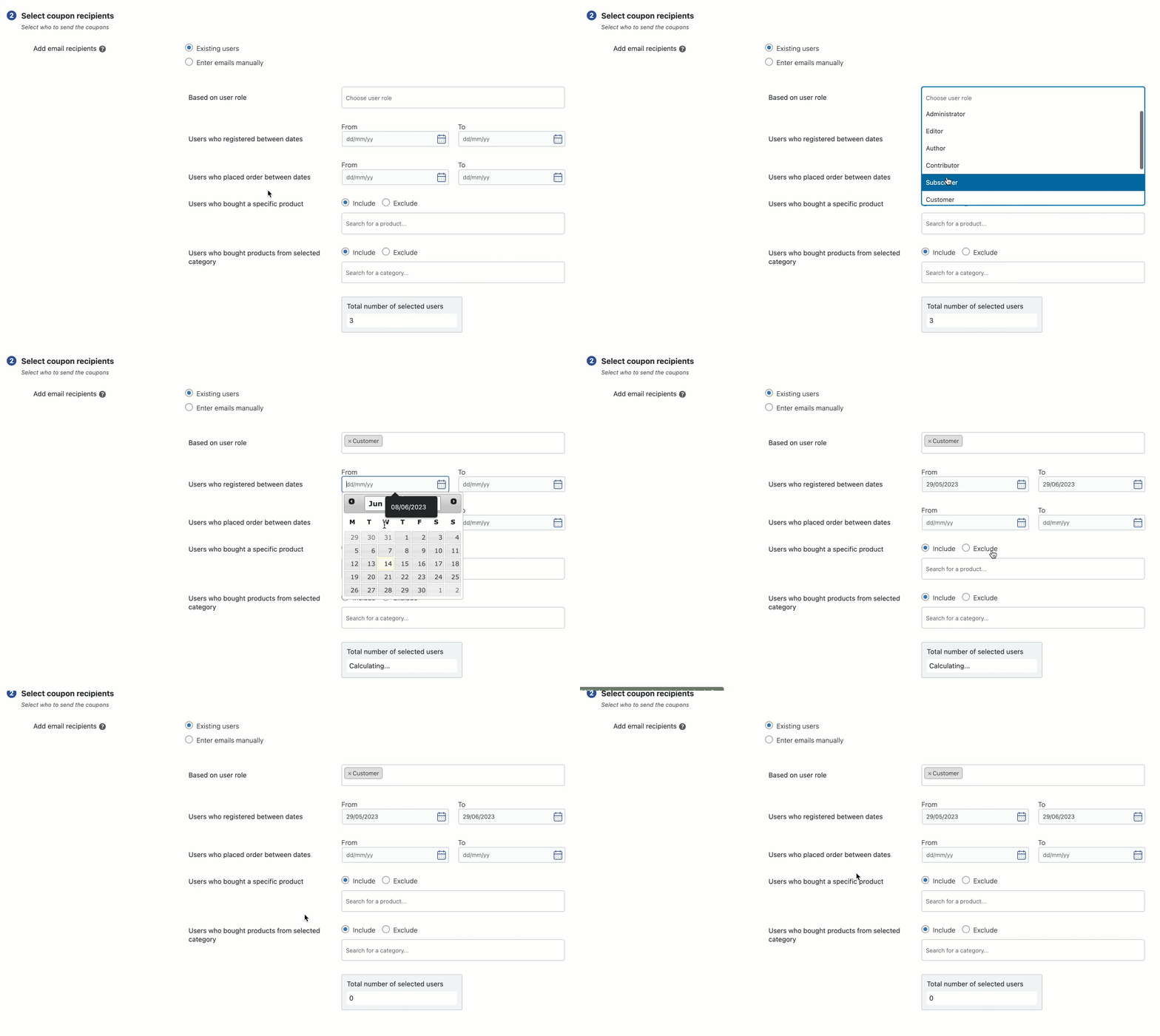
- To email the coupon to a selected range of existing users, select Existing users in the Add email recipients section, then filter the desired customers in the filter section.
- For example, the given filter will only select site customers who are registered on the site between 01/06/2023 and 26/07/2023 and who have bought the Divi Engine Tee with product ID #285.
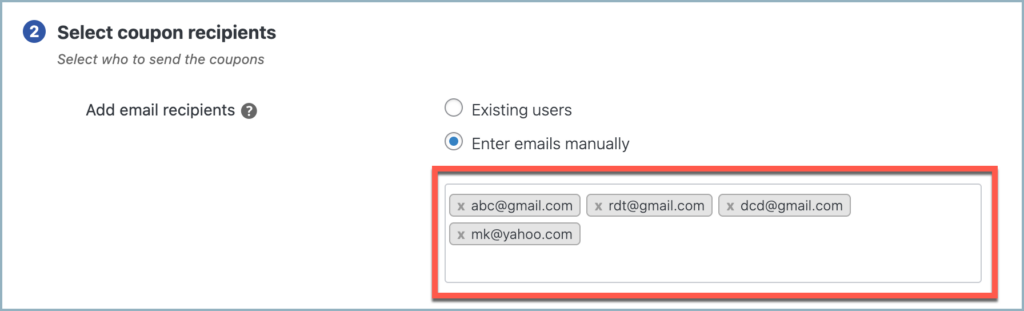
- To email the coupon to custom emails, select Enter emails manually in the Add email recipients section and enter the required emails.
- The given example will send the coupon to the entered emails
Step 4 – Set Discount Values and Usage Rules
Configure coupon settings, such as discount type, expiry date, usage restrictions, usage limits, and more, in the Coupon settings section based on your preferences.
The section will have advanced configuration options if the Smart Coupons for WooCommerce plugin is installed on the site.
Step 5 – Finalize and Generate Your Coupons
Key in an appropriate description to the generated coupon, giving additional information about the coupons, such as their purpose, special terms or conditions, or any other relevant details.
Finally, click Generate coupons(s) to generate the coupon (s) and email them to the selected users.