
To set up the Smart Coupons for WooCommerce plugin, first install and activate the plugin, create your first coupon from Smart Coupons → Add Coupon, and configure discount rules, usage restrictions, and advanced conditions like BOGO, signup coupons, or abandoned cart discounts. Smart Coupons for WooCommerce by WebToffee is a specialized plugin that provides a range of coupon-specific features. It enables you to create and manage a variety of discount coupons effortlessly, helping boost sales and improve customer retention. This guide will walk you through setting up the plugin, creating your first coupon, and configuring commonly used coupon types and restrictions.
Smart Coupons for WooCommerce – Key Features
- Create Advanced Coupons – Create coupons based on shipping methods, payment methods, user roles, billing or shipping countries, and more.
- BOGO Offers – Set up Buy One Get One promotions.
- Coupon Management – Import, bulk generate, and manage coupons, and filter the coupon list by where each coupon came from.
- Store Credits – Create and manage store credit vouchers and gift cards that can be redeemed multiple times.
- Signup Coupons – Encourage new signups with a welcome discount.
- Abandoned Cart Coupons – Win back customers by sending discount coupons for their abandoned carts, encouraging them to complete their purchases.
- Flexible Coupon Options – Configure advanced restrictions and conditions for coupon usage.
- Coupon Display – Show coupons on the cart, checkout, and My Account pages, highlight applied coupons, and show a coupon banner on any page, including product pages.
Getting Started
- Install and activate the plugin. A Smart Coupons menu then appears in your WordPress dashboard.
Create Your First Coupon with Smart Coupons
This section shows you how to create your first coupon, configure the discount type and value, schedule it, and set usage restrictions and limits.
Step 1: Create a New Coupon
- Go to Smart Coupons > Add coupon.
- Enter a unique Coupon Code and an optional Description.
- Choose a Discount type, such as Percentage discount, Fixed cart discount, or Store credit.
- Enter the Coupon amount.
You can also allow free shipping, apply the coupon automatically, and set start and expiry dates.

Step 2: Apply Usage Restrictions
Usage restrictions control which products or categories can use a coupon.
- Open the Usage restriction tab.
- Restrict the coupon to selected products, categories, or product attributes, set minimum and maximum spend, and choose whether it can be used with other coupons. You can also exclude products with specific attributes, such as a size or color, from the coupon.

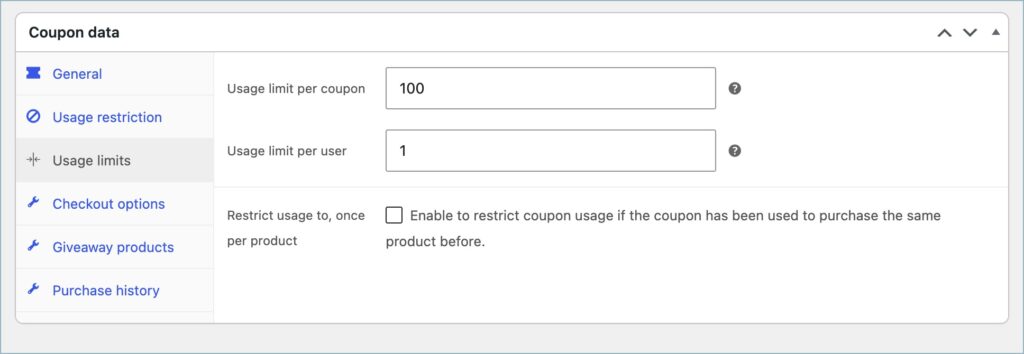
Step 3: Define Usage Limits
To prevent overuse, open the Usage limits tab and set:
- How many times the coupon can be used in total.
- How many times each customer can use it. Customers see their usage on the coupon, for example Usage: 1/3.
- Restrict usage to, once per product, so each product gets the discount only once.
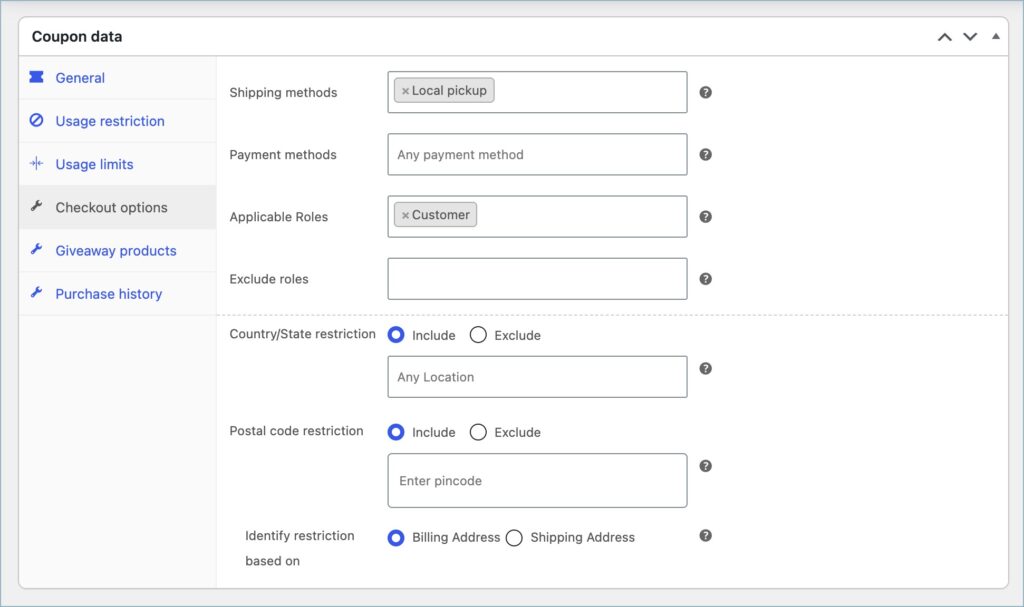
Step 4: Restrict Based on Checkout Options
Limit the coupon to selected shipping methods, payment methods, user roles, and billing or shipping locations from the Checkout options tab.
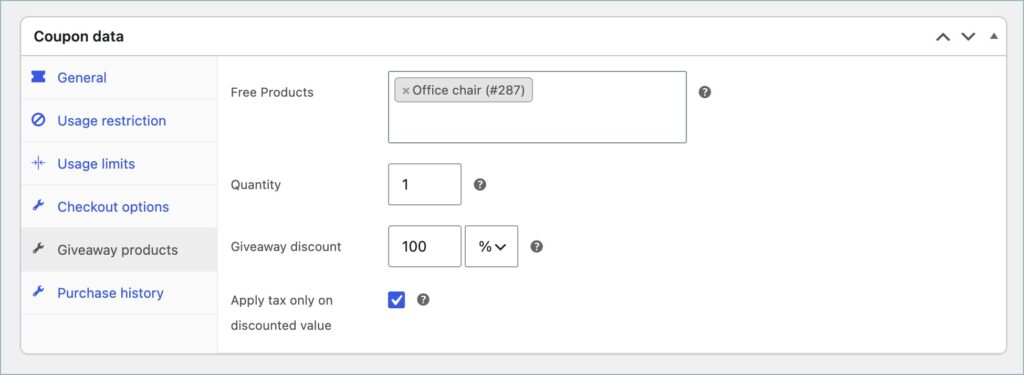
Step 5: Set up Giveaway Products
In the Giveaway products tab, choose a product to add to the cart for free or at a discount when the coupon applies.
Step 6: Restrict Based on Purchase History
In the Purchase history tab, restrict the coupon based on the customer’s past orders.

Read More
Publish the coupon.

Setting Up WooCommerce BOGO (Buy One Get One) Offers
BOGO (Buy One, Get One) offers let customers receive a free or discounted product when they purchase qualifying items.
This is an example of how to set up a simple BOGO offer: purchase a product and receive an additional one for free.
Step 1: Create a New Offer
- Go to Smart Coupons > BOGO.
- Click Add new, then Custom.
- Select Buy product X, get product X/Y as the offer type.
- Enter an offer name and description, then continue.

Step 2: Define the Customer Reward
- Under Customer gets, select Same product, set In quantity of to 1, and set Discount type to Free. Customers now get one more of the product they added to the cart, for free.
Note: To let customers pick several free products from a list, select Specific product(s) under Customer gets, add the products, and choose Any combination of the above (up to quantity specified). For example, with In quantity of set to 2, customers can choose any two products from the list, including two different ones. See Allow Customers to Choose a Complimentary Product.
Step 3: Set Offer Trigger
- Under Trigger, select Buys quantities of and set Min quantity to 1. The offer applies when a customer adds any product in the store to the cart.
Step 4: Set Offer Application Frequency
- Under Apply offer, select Repeatedly (Apply offer on each product added to the cart, Buy one get one, Buy two get two, Buy three get three, and so on).

Save and Activate offer.
Read More
- Set Up Product Giveaway Offers in WooCommerce
- Complimentary Product on Spending a Set Amount in WooCommerce
- Configure BOGO Coupons to Apply Repeatedly – Buy 1 Get 2, Buy 2 Get 4
- Allow Customers to Choose a Complimentary Product of Choice with WooCommerce BOGO Offers
- Set up BOGO Discounts in WooCommerce
- Offer the Cheapest Product in the Cart as BOGO Giveaway in WooCommerce
Special Promotions
You can create promotional discounts, such as abandoned-cart, sign-up, and first-order coupons, to increase conversions.
A. Abandoned Cart Discounts
Provide discount coupons to customers who leave products in their cart without completing checkout.
- Enable Abandoned Cart Coupons under Smart Coupons > Abandoned Cart.
- Associate a master coupon to define the discount rules. (The select coupon is shared as an Abandoned cart coupon).
- Set the idle time and email interval for sending the coupon.
- Save the settings.
B. Signup Coupons
Reward new users with a discount when they register on your store.
- Enable Signup Coupons under Smart Coupons > Signup Coupons.
- Associate a master coupon to define the discount rules. (The selected coupon is shared with all new signed-up users.)
- Save the settings.
C. First-Order Discounts
Offer discounts to users placing their first order.
- To create a First-order discount, create a new coupon with a Percentage Discount or Fixed Cart Discount from Smart Coupon > Add Coupon.
- Under the Purchase history set, the Number of orders equals zero, and publish the coupon.
Store Credit Gift cards
Store credit gift cards let you offer prepaid credits that customers can redeem across multiple purchases. What sets gift cards apart from regular store credit coupons is that they can be customized and look way better when you share them with others. If you want to add a store credit-based gift card product to your store:
- Navigate to Smart Coupons > Store credit and activate Use templates for store credits.
- Create a product with a zero price and associate it under Associate a product.
- Configure purchase options by offering predefined values or allowing the customer to select a custom option.
- Implement usage limits and restrictions and tailor the template as necessary.
- Save your settings.


Related Smart Coupons Documentation
For detailed information on each option in the plugin, visit Smart Coupons for WooCommerce – Feature Walkthrough.
- Bulk Generate Coupons Using Smart Coupons for WooCommerce
- Email WooCommerce Coupons in Bulk to Customers
- Bulk Import Coupons in WooCommerce
- WooCommerce coupon generator and importer
- Hide Coupon Code Field From WooCommerce Checkout Page or Cart page
- Customize Coupons Using Smart Coupon for WooCommerce plugin
- Create a Limited-Time Coupon Offer in WooCommerce
- Categorize WooCommerce Coupons
- Sell Store Credit Gift Cards in WooCommerce Stores
- Send Store Credit to Customers in WooCommerce
- Coupon Message Customization in WooCommerce
- Display Only Cart Eligible Coupons on the WooCommerce Cart/Checkout Pages
- Auto Apply Coupons in Cart – Simplify Discounts with URL Coupons and Shortcodes

NutraLabs srl
May 21, 2025
Buongiorno, creando un coupon BOGO, vorrei omaggiare i miei clienti di 2 prodotti omaggio a scelta, purtroppo si può offrire 1 prodotto solo o tutta la lista inserita. C’è la possibilità di far selezionare 2 prodotti da una lista di prodotti inserita che il cliente può selezionare? Ho provato anche a creare un coupon classico con sconto 0 e mettendo una lista di prodotti omaggio, ma anche in questo caso riesco sempre a far inserire al cliente 1 solo omaggio.
Sanjai Valsan
May 29, 2025
Hi,
Thank you for reaching out!
The customization you’re looking for is possible with a custom code snippet. Our support team will be happy to assist you with this and provide the necessary guidance.
Dan
November 10, 2023
Hi!
I use the plugin only for the automatic add to cart, but the plugin also displays a coupon on the checkout page.
How can I hide it, as I just want the coupon code to be added.
Thanks!
Justine
September 1, 2023
Hi
Is it possible to use your plug in to offer member pricing on products with different discounts on different products.
For example- Add CRACKERDEAL at check out and receive – $5 off 1kg coffee or $2 off coffee pods, $2 off 250g coffee etc
What is the best way to do this?
Arjun
September 4, 2023
Hello Justine,
Thank you for getting in touch with us. We understand your requirement. But our plugin does not currently include the functionality you have specified.
Waldemar Kawulski
October 20, 2021
Is it possible in this plugin set minimal product price like 1USD? Thi should be used when cupon value is bigger than order value.
Example:
i have cupon on 200 usd value.
And buy 3 products with subtotal 150 usd.
Now when i use cupon i receive 0 value order, but i want in this case for any product in this order set price 1 usd, and order subtotal with this cupon should be 3 usd.
it is possible?
Mike
October 26, 2021
Hi Waldemar,
Thanks for reaching out. We understand your requirement. However, our plugin presently doesn’t offer any options to achieve this requirement. Thanks for understanding.
James Thomas
August 16, 2021
Hi There,
Is it possible to give customers coupon based on this condition:
For every $100 purchase Customer will receive $10 coupon and it will have an expiry for 7 days.
For example: customer buy $120 worth of product and after the checkout he/she will be offered a 10$ coupon for next purchase. he/ She can also see the coupon in their “My Coupon” Page
For Every $100 spend they will get 2% cash back coupon.
Example: customer buy $120 worth of product and after the checkout he/she will be offered a $2.4 coupon for next purchase. He/ She can also see the coupon in their “My Coupon” Page
Thanks in advance.
Mike
August 16, 2021
Hi,
We are sorry to let you down. Presently, our plugin does not offer such cashback coupon generation based on the orders.
Talha Tariq
April 8, 2021
Hey folks!
Is there is any chance that we can add the usage restrictions on the auto-generated coupons? Please let me, if feasible I am happy to buy the pro version.
Mark
April 16, 2021
Hi Talha,
You can have usage restrictions on the auto-generated coupons too if you set the same for master/parent coupon.
Paweł Górowicz
November 25, 2020
Any hook to hide coupons below item in cart ? Other than css display:none; ?
Mark
November 26, 2020
Coupons are displayed below items in the cart only if you enable it under the coupon edit page. Kindly leave the “Make coupons available in” option as blank.
vieri
October 17, 2020
how do I restrict for a region or city?
Thank you
Mark
October 17, 2020
We only have country-based restriction option available now.