


To display WooCommerce coupons using shortcodes, go to Smart Coupons → All Coupons, copy the generated shortcode (e.g., [wt-smart-coupon id=116]), and paste it into any page, post, or custom content area. To display all available coupons, use the shortcode [wt_sc_user_available_coupons] on a custom page.
The Smart Coupons for WooCommerce plugin offers a seamless way to generate and manage coupon codes. By default, the plugin automatically generates shortcodes for all available coupons in your store.
One of the key advantages of using shortcodes is that they allow any visitor, regardless of role (including guests), to view available coupons.
Coupon Shortcodes
| Purpose | Shortcode |
|---|---|
| Display a specific coupon | [wt-smart-coupon id=YYY] |
| Display all available coupons | [wt_sc_user_available_coupons] |
How to Find the Coupon Shortcode
To access the shortcodes:
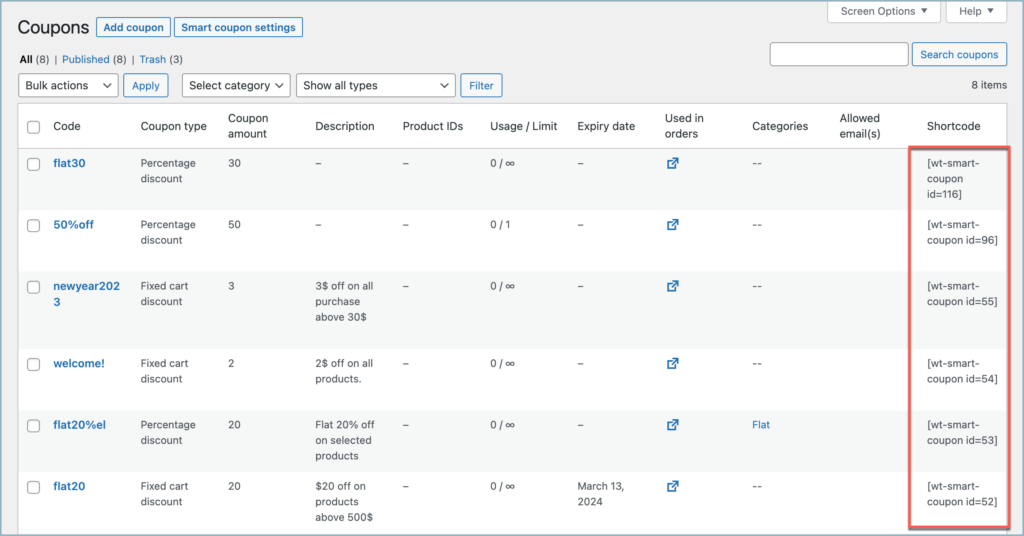
- From the WordPress admin dashboard, navigate to Smart Coupons > All Coupons.
- Under the Shortcode section of the table, copy the shortcode of any coupon in the store.
How to Display a Coupon on a Blog Post
To display coupons in a pre-defined format on any blog post, follow the given steps:
- First, select an existing coupon or create a new one to copy its shortcode.
- To illustrate, consider the coupon with the coupon code flat30.

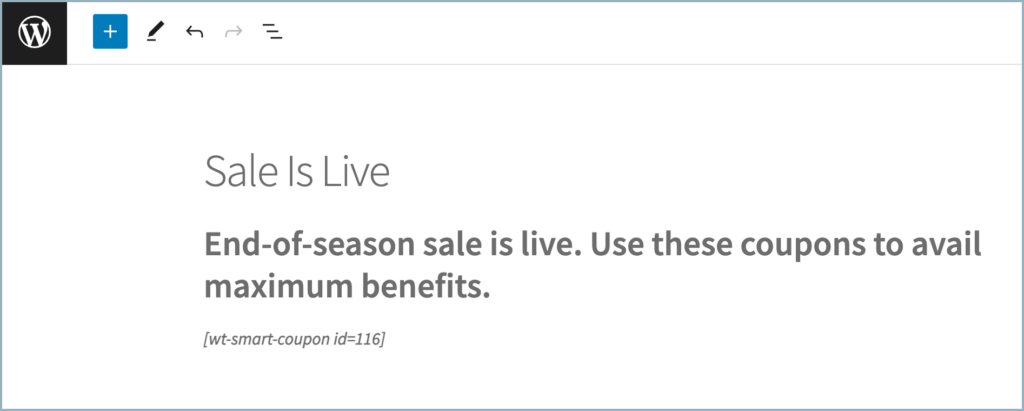
- The shortcode corresponding to the coupon flat30 is [wt-smart-coupon id=116].
- Once you have copied the shortcode, paste it into any blog post to display the coupons.
For example, consider the blog shown below:
- Publish or preview the post to view the coupon.

Likewise, you can use shortcodes to display coupons on posts or pages for promotions or other purposes.
How to Display All Available Coupons
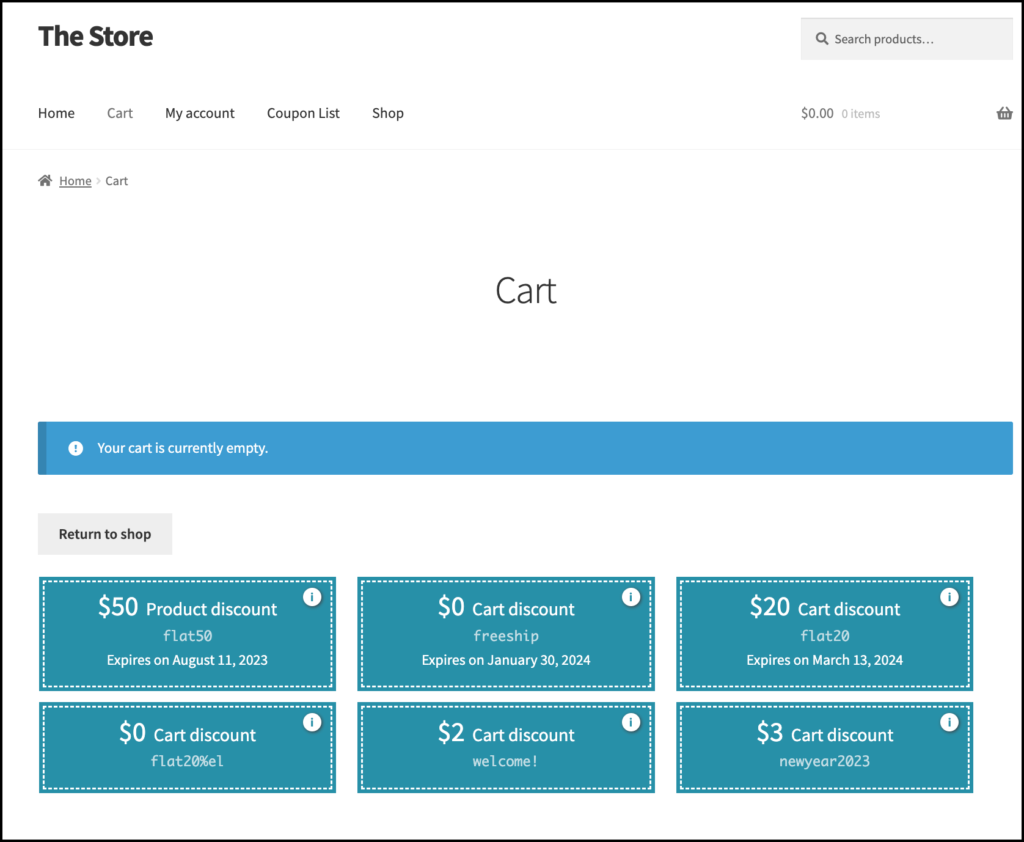
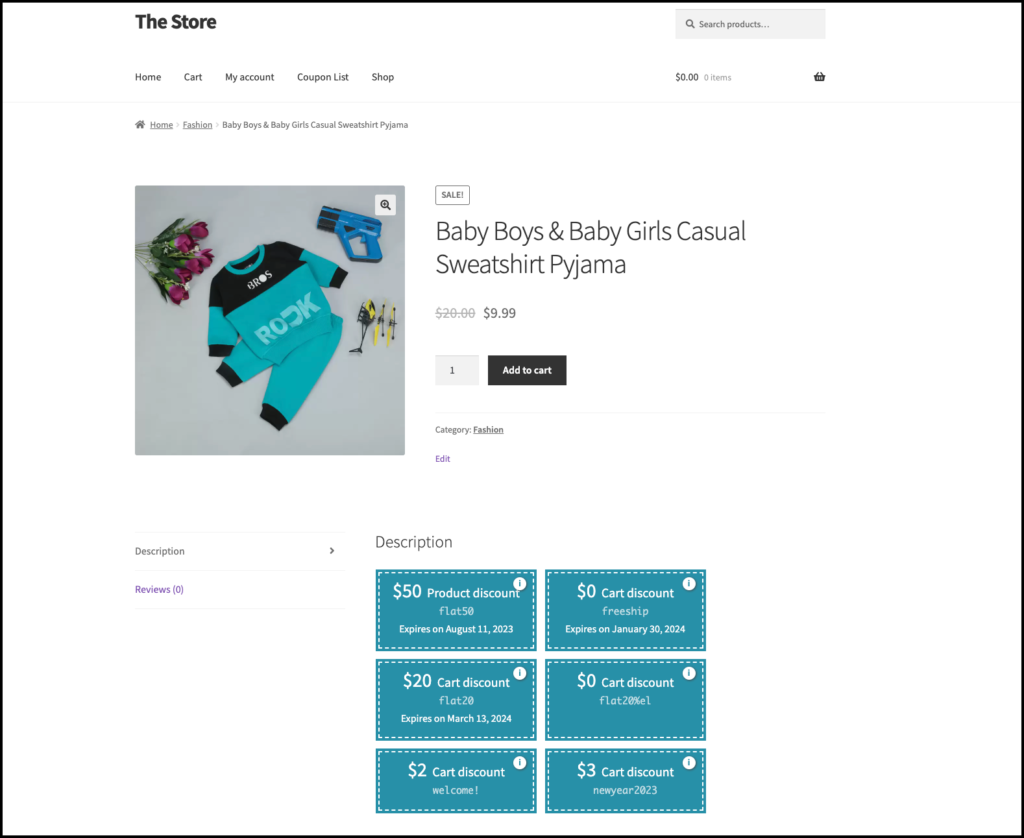
Throughout the purchase process, customers can benefit from multiple available coupons. Use the provided shortcode to display all available coupons in one place. The coupons can be displayed in various locations, giving you the freedom to choose where to display them.
Displaying all available coupons on a custom page
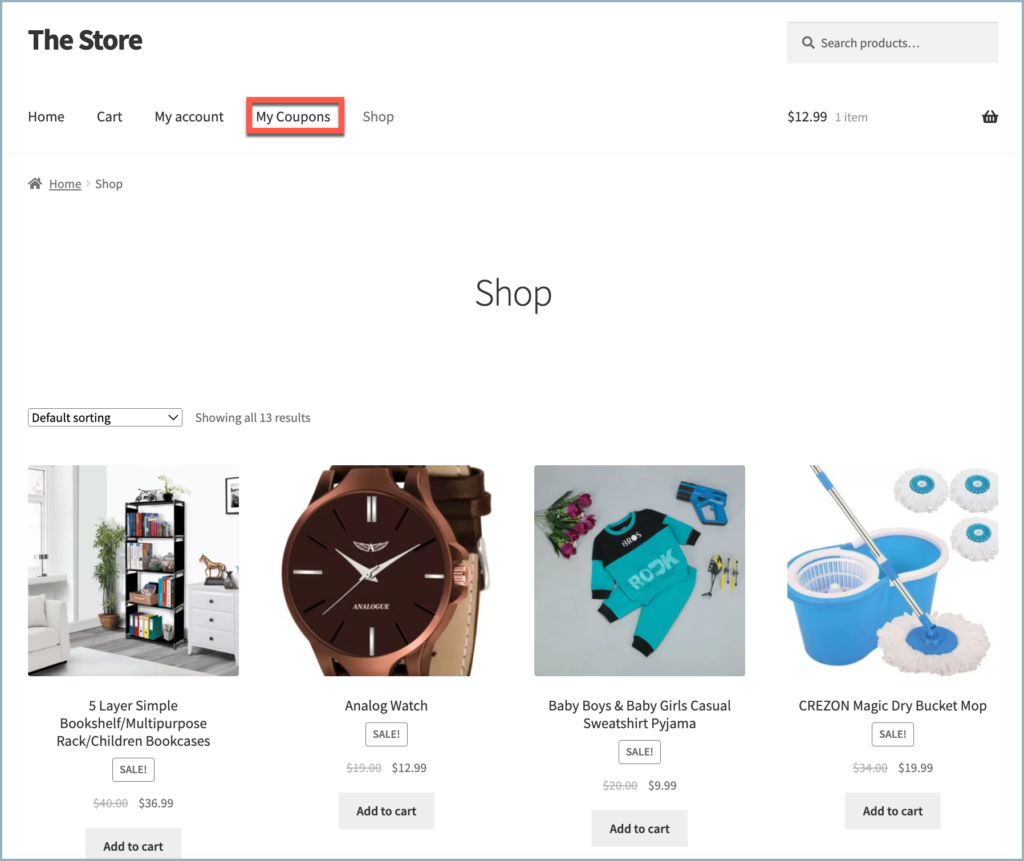
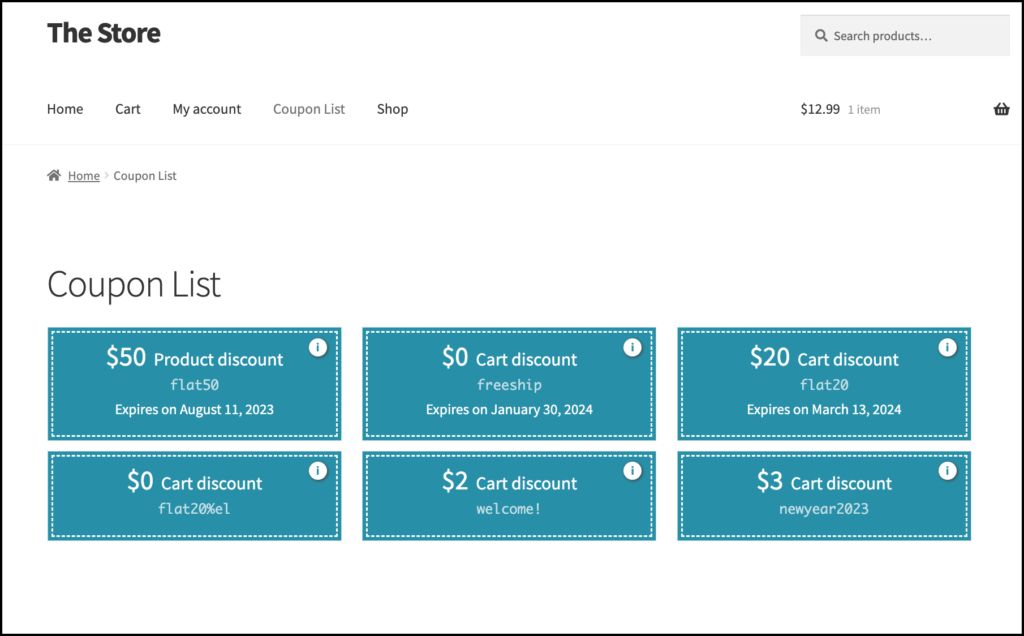
- A custom page named ‘Coupons List’ is added to the main menu to display all available coupons.
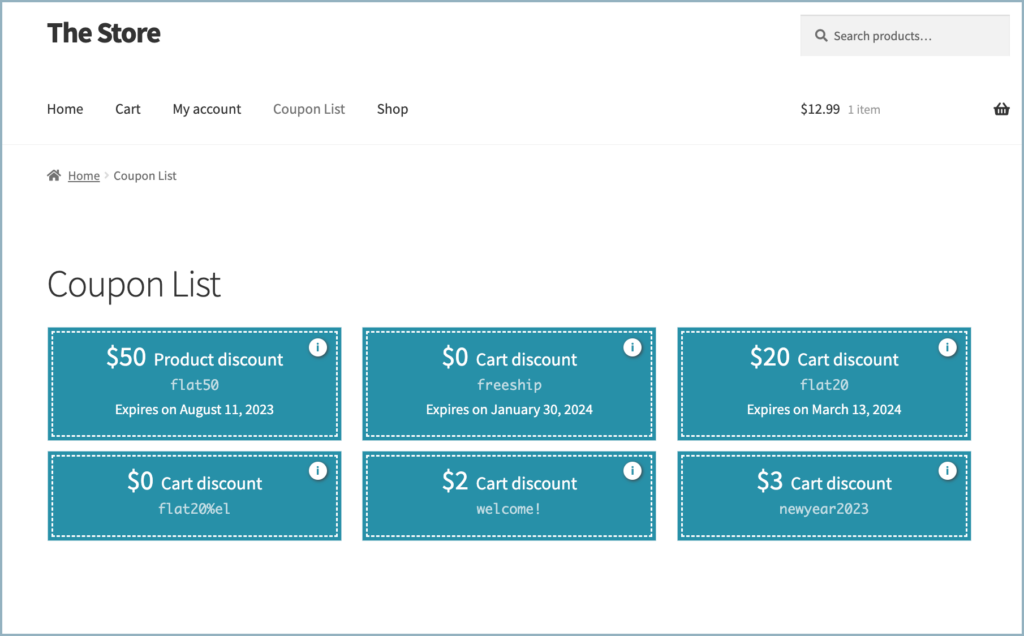
- Now, use the shortcode [wt_sc_user_available_coupons] on the custom page editor window to display all available coupons.

- Then, the coupon list will look as shown below.
Also, try adding the coupons to the ‘cart page,’ ‘product page,’ or any custom page to display all available coupons.

Isa
July 23, 2025
Hi,
the shortcode for all coupons [wt_sc_user_available_coupons] is not working for me.
Displaying a special coupon with [wt-smart-coupon id=884] workx. Where is the problem?
Sanjai Valsan
July 31, 2025
Hi Isa,
Thank you for reaching out,
The
[wt_sc_user_available_coupons]shortcode is part of the pro version of the Smart Coupons for WooCommerce plugin. If you’re using the free version, this shortcode won’t be available, which might be why it’s not working for you.If you are using the pro plugin and still facing this issue, please reach out to our support team with more details. We’d be happy to take a closer look and help you resolve it.
Discountler
March 9, 2023
Thank you for the detailed WooCommerce Coupon Setup Guide.
jannik
July 1, 2022
how to display all available coupons with one shortcode?
Mike
August 26, 2022
Hi Jannik,
The shortcode to display all available coupons is
[wt_sc_user_available_coupons]If the customer is logged in, they will be able to view all general coupons and the coupons assigned to them. For non logged-in users, only the generally available coupons will be visible.
PS: The shortcode option is implemented in the 2.0.5 version. Please keep your plugin updated for latest features and bug fixes.
Duane
September 21, 2023
Hi, does smart coupons support dynamic coupons e.g. a short code that I can use on a product page that will pull the info of the coupon relating to that product only?
Arjun
September 21, 2023
Hi Duane,
Thank you for reaching out to us. The plugin currently doesn’t support the feature you have mentioned. If I understand your query correctly, you would like to display the eligible coupons on all product pages. You may check out our Display Discounts for WooCommerce plugin. It helps you display the coupon templates on the product pages as per your requirements.
Alejandro Gonzalez
February 8, 2022
How can I hide the banner? As I only want to automatically apply coupons to all who meet the criteria, thanks!
陳郁婷
January 18, 2022
My Account page showing available coupon shortcodes?