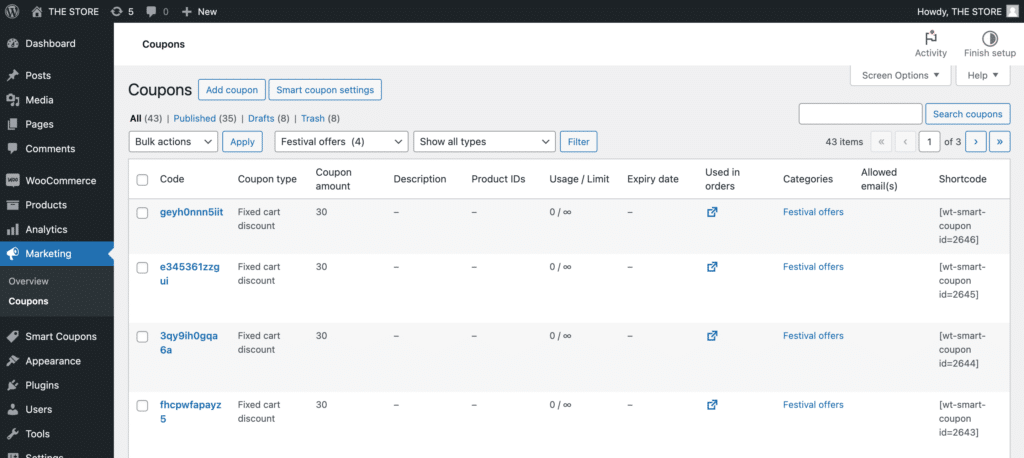
To categorize WooCommerce coupons, go to Smart Coupons → Coupon category and create a new category. Then, go to Smart Coupons → All Coupons and open a coupon, select the desired category in the Categories section, and update the coupon. You can later filter coupons by category from the All Coupons page.
Organizing WooCommerce coupons into categories helps you manage large numbers of coupons more efficiently. This article explains how to categorize your WooCommerce coupons using the Smart Coupons for WooCommerce plugin.
How to Create a Coupon Category in WooCommerce
Once the plugin is installed and activated,
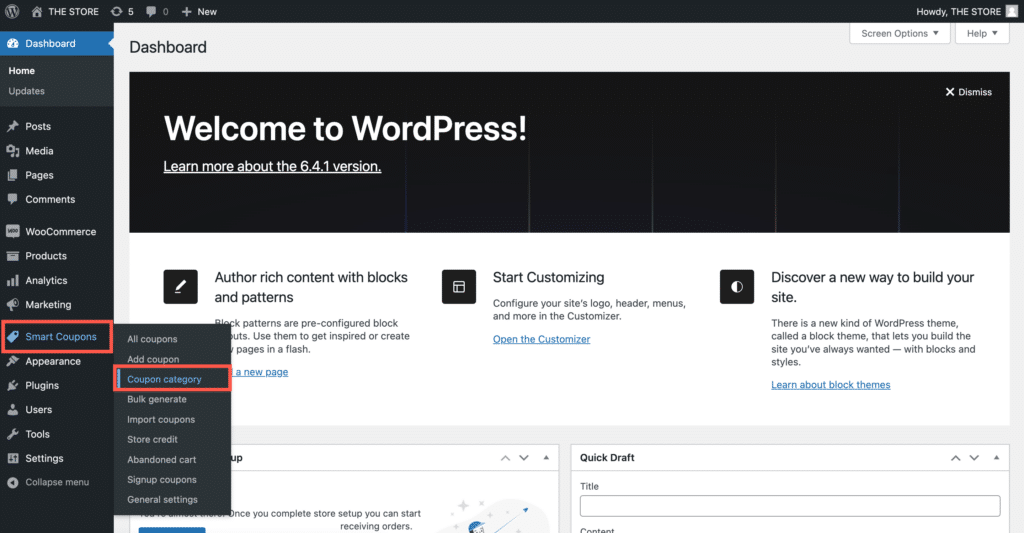
- From the WordPress dashboard, navigate to Smart Coupons > Coupon category.
- Provide a Name and a Slug for the coupon category.
- Select a parent category if needed.
- Optionally, describe the coupon category for better management.
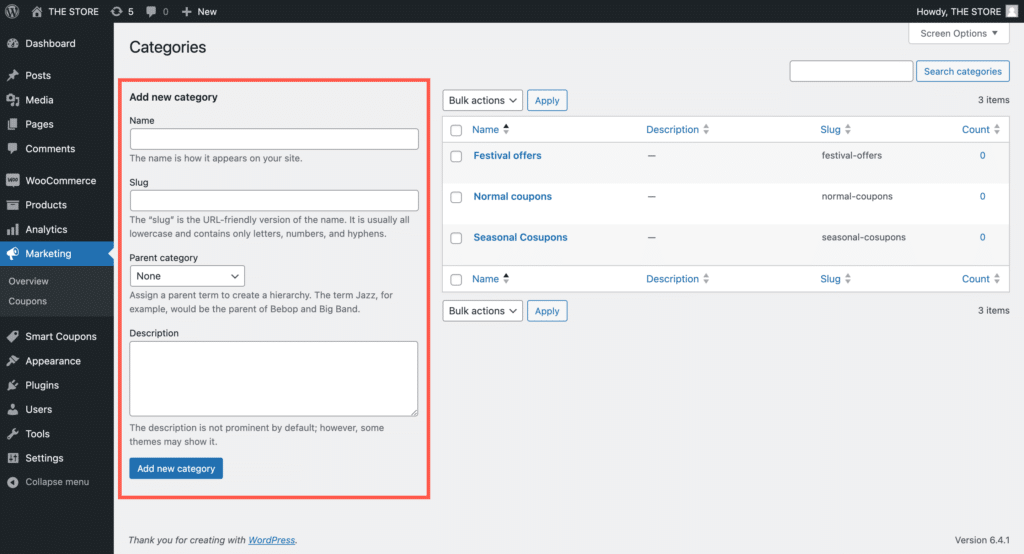
- Finally, click on Add new category.
As shown above, the right side of the Categories page displays a list of all the created categories.
How to Add a Coupon to a Category
- From the WordPress dashboard, navigate to Smart Coupons > All Coupons.
- Click on Add coupon to create a new coupon or select an existing coupon.
A new section titled Categories will be added to the coupon edit page.
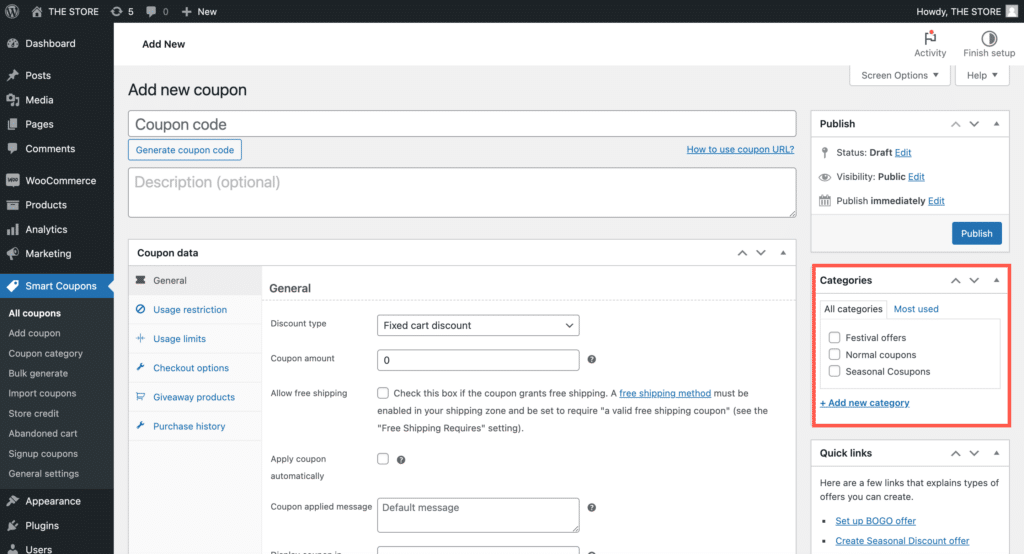
- Select a category for the coupon. You can also choose to create a new category from here.
How to Filter Coupons by Category
To filter and view the coupons by category,
- From the WordPress dashboard, navigate to Smart Coupons > All Coupons.
- On the top, under Select Category, select a category to filter out.
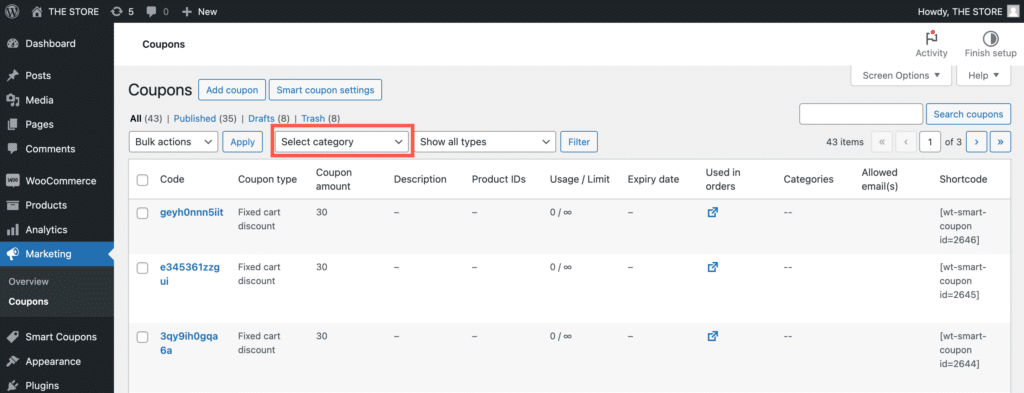
The table will list all the coupons in the selected category.