


Coupon messages serve as a means of communication between the business and the customer. They provide context about the coupon, its benefits, and any specific terms and conditions. The Smart Coupons for WooCommerce allows the customization of coupon messages as the need of the store owner. To customize coupon messages:
- Navigate to the Customize messages tab.
- Click on the edit icon of the respective coupon message.
- Key in a new coupon message.
- Update the message.
Edit a custom message
To edit a coupon message:
- Navigate to Smart Coupons > General settings > Customize > Messages.
- Under the Actions section, click on Edit for the coupon message that you want to edit.

- This will open a dialogue box.

- You can enter the required Custom message in the Message text box.
- The custom message can also hold placeholders. The available placeholders are listed under the Available placeholder section. The plugin also allows creating custom placeholders, which will be discussed later in the article.
- Click Update message to save changes.
- The changes will be reflected on the message tab as follows.

Add a custom placeholder
Using placeholders in messages can greatly enhance the ease of reusing the same variable in multiple locations, making them a valuable and helpful variable function. There are predefined placeholders given by WordPress as available values. A user can add a custom placeholder if they want to, using the wt_sc_add_placeholder_values filter.
Example:
- The code snippet given below explains how to add a custom placeholder
{try}.
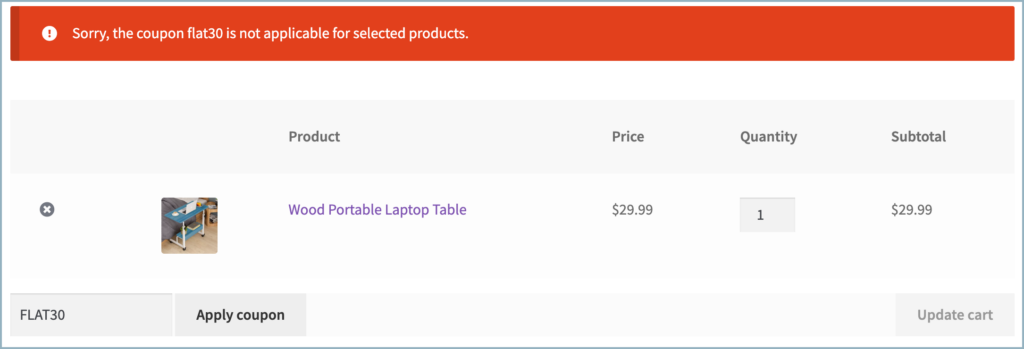
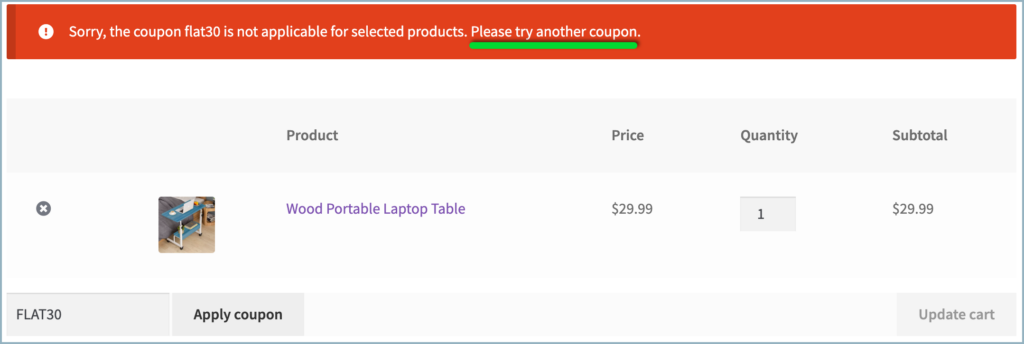
"Sorry, the coupon {coupon_code} is not applicable for selected products.{try}."is a custom message with{coupon_code}(predefined placeholder) and{try}(custom placeholder).

- For example, assume that the coupon code is
FLAT30. In this case, the notification with the default placeholder will be"Sorry, the coupon flat30 is not applicable for selected products".
- After adding a custom message with a custom placeholder,
{try}will change the message to"Sorry, the coupon flat30 is not applicable for selected products. Please try another coupon".
- Moreover, One can use the same placeholder in any message to display the message ‘Please try another coupon.’

Maciek
January 24, 2024
hi, coupons messages don’t appear. What’s the problem?
Arjun
January 24, 2024
Hi Maciek,
Thank you for reaching out. Coupon messages are designed to display on specific triggers, such as when a coupon is applied or if the coupon is deemed invalid. Please ensure that you have activated the relevant trigger to prompt the coupon message. If you continue to experience issues and are unable to see any coupon messages, kindly contact our support team for further assistance.
Dave Robertson
June 23, 2023
Hi, I’m assisting Darrell. We upgraded to 2.0.8 (and are using the Pro version) and have been able to update the message via that setting.
However, we found that “freebie” still shows up in other places. For example, in the file
/public/wp-content/plugins/wt-smart-coupon-pro/public/modules/giveaway_product/views/_cart_giveaway_products.php
… the text, “Congratulations! Choose your freebie from below:” is baked into the plugin code; leaving the only way to modify the plugin’s code directly. Which, is never recommended.
I’m writing to request there be a cleaner way to modify any of the messages. Adding more config settings could be done, but I understand that’s a lot of work.
A simpler way could be to add filters that allow replacing text. WooCommerce makes use of extensive filters to modify text throughout its views. See
https://woocommerce.github.io/code-reference/hooks/hooks.htmlandhttps://developer.wordpress.org/reference/functions/apply_filters/We’re comfortable adding filters to our website’s PHP code to replace language. If you could update this (and provide docs that list the available filters of your plugin) that would be greatly appreciated!
Thanks for considering this request. If you have any questions about our use case please let us know.
Arjun
June 26, 2023
Hi Dave,
Thank you for getting in touch with us. Sounds like you need some technical assistance. Please visit support page for technical assistance.
Darrell J
June 20, 2023
Good afternoon.
We have the smart coupon plugin installed on woocommerce, however we do not have this customize message option in general settings. Instead we see a URL coupon option. Is something missing and/or out of date?
Thank You
York Barbell
Arjun
June 22, 2023
Hi Darrell,
Thank you for reaching out to us. Regarding the situation you described, there are a few possibilities to consider. First, it’s possible that you are using an older version of the plugin. The Customize message feature was introduced in version 2.0.8 of the plugin. So, please make sure that you have the latest version installed.
Alternatively, it could be that you are using the free version of the plugin. The Customize message option is only available in the premium version of the plugin. Therefore, please verify that you have the premium version of the plugin to access this feature.