To bulk email coupons in WooCommerce, use the Smart Coupons for WooCommerce plugin to generate unique discount codes and distribute them to multiple recipients simultaneously. By navigating to the ‘Bulk Generate’ tab, you can configure your coupon settings, enter the list of customer email addresses in the ‘Usage Restriction’ field, and select the ‘Email to the recipients’ action. This automated process ensures each customer receives a personalized, one-time-use coupon directly in their inbox, eliminating the need for manual distribution.
Bulk generate coupons
To get started,
- From the WordPress dashboard, navigate to Smart Coupons > Bulk Generate.
- In the No of coupons to be generated field, enter a number corresponding to the number of people you intend to email the coupons or a higher number.
- Under the Generate coupons and section, choose the Email to the recipients option.
The Email to recipient option works with the Allowed emails option available under the Coupon Usage restriction. When you enter the email addresses you would like to share the coupons with under the Allowed emails option, the application generates only enough coupons based on whichever value is lower: the coupon number or the number of emails.
Individual coupons will be generated and emailed to each user.

- Next, scroll down to the Coupon settings section and configure the coupon as needed.
- Configure the coupon with the appropriate discount type, value, and other details, then select the coupon recipients in the Usage restriction tab.
- Scroll to the bottom of the tab and, under Allowed emails, enter the emails with which you would like to share the coupons.
Separate multiple email addresses with commas. Individual coupon codes will be generated for each user.

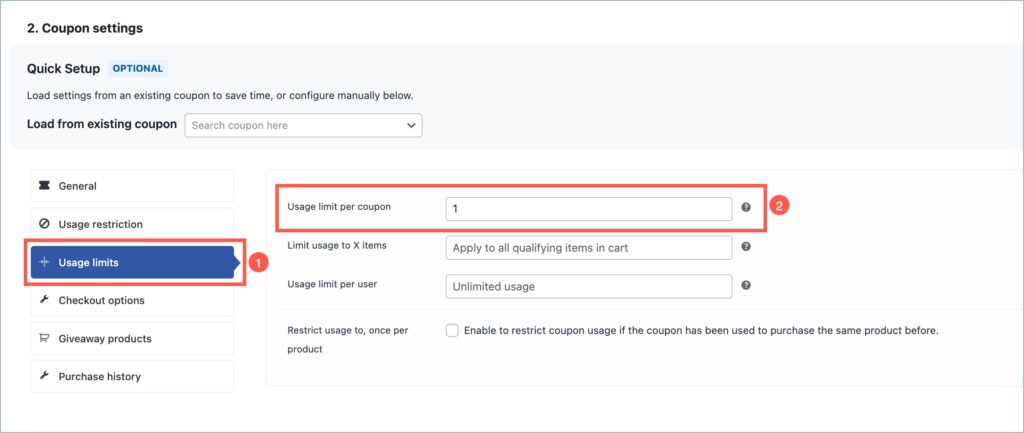
- As an additional option, you can limit the coupon’s usage to once per user by going to the Usage limits tab and setting the Usage limit per coupon to 1.
- Finally, click Generate coupon to create the coupons and email them to the corresponding users.
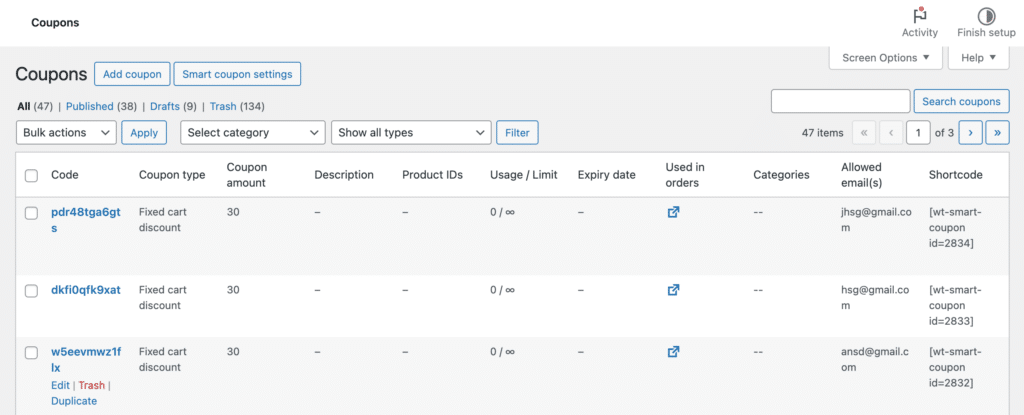
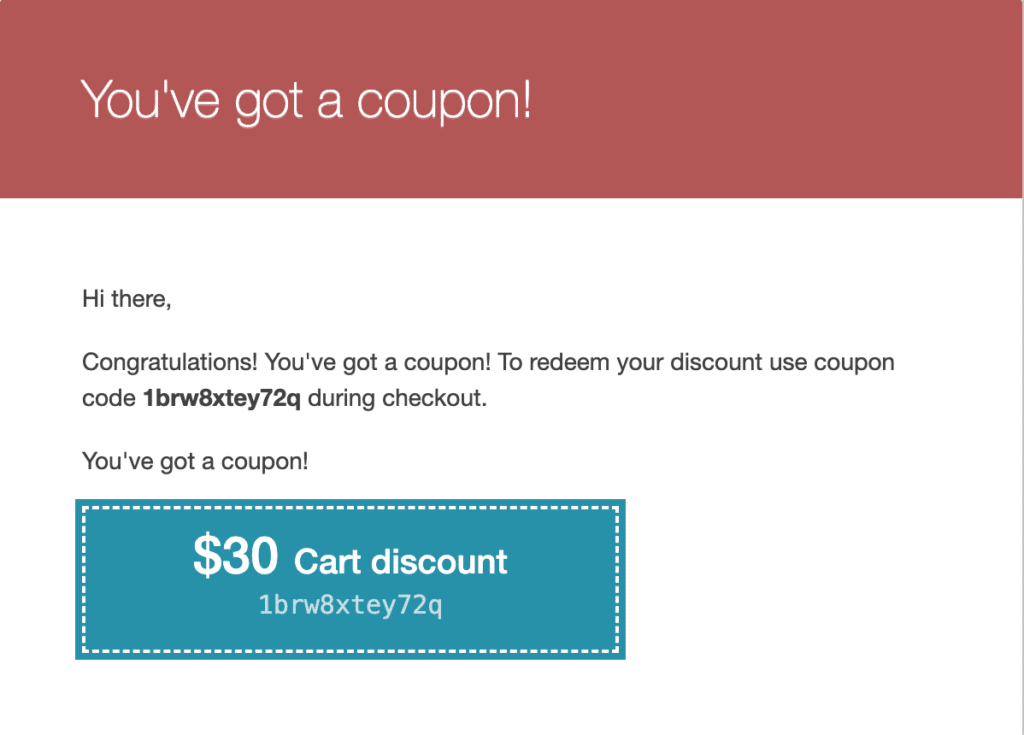
Now, the plugin generates individual coupons and emails them to all the selected recipients.
You can also find the generated coupons under Smart Coupons > All Coupons.