


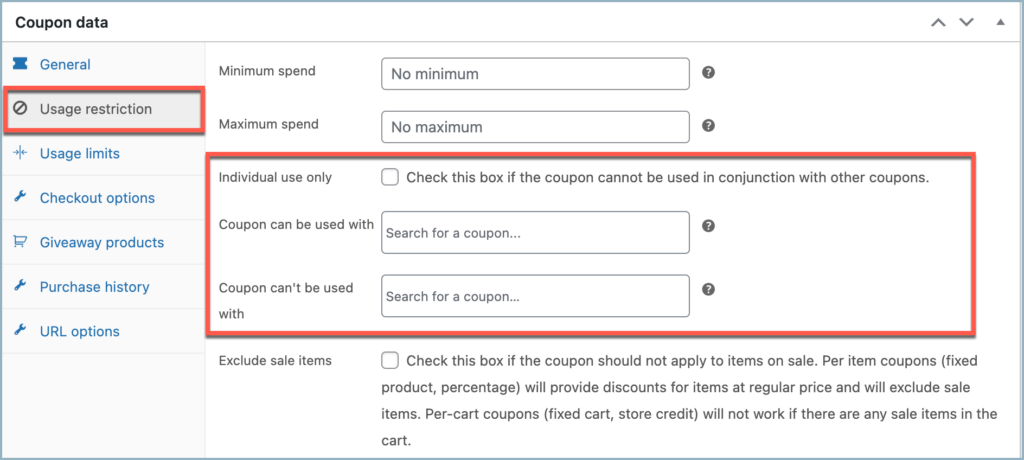
To create combo coupons in WooCommerce, navigate to Smart Coupons > Add Coupon, then head to the Usage restriction section in the Coupon data meta box. From here, you can use the Coupon can be used with field to select specific codes that are eligible for combined use, or use the Coupon can’t be used with field to explicitly restrict certain pairings. Coupons that work with other coupons are a compelling feature that will drive sales. The Smart Coupons for WooCommerce plugin allows the creation of combo coupons that let customers redeem multiple coupons on a single purchase.
By default, WooCommerce can only restrict coupons to individual use via the usage restriction tab in the coupon panel. However, with the smart coupon plugin:
- Use coupons in combination with other coupons.
- Restrict coupons to use alongside other coupons.
Create Combo Coupons
- From the WordPress dashboard, navigate to Smart Coupons > Add Coupon.
- Enter name, description, and other details as you prefer.
- Head to the Usage restrictions section in the Coupon data meta box to create combo coupons.
- Next, In the Coupon can be used with section, select the coupon to use in conjunction. For example, consider a coupon code DISCOUNT10
- Alternatively, in the Coupon can’t be used with section, you can select the coupon that can’t be used in conjunction with the coupon creation. For Example, consider the coupon code FLAT20.
- Looking into the front-end action for using the coupon in conjunction with DISCOUNT10 will be as follows:
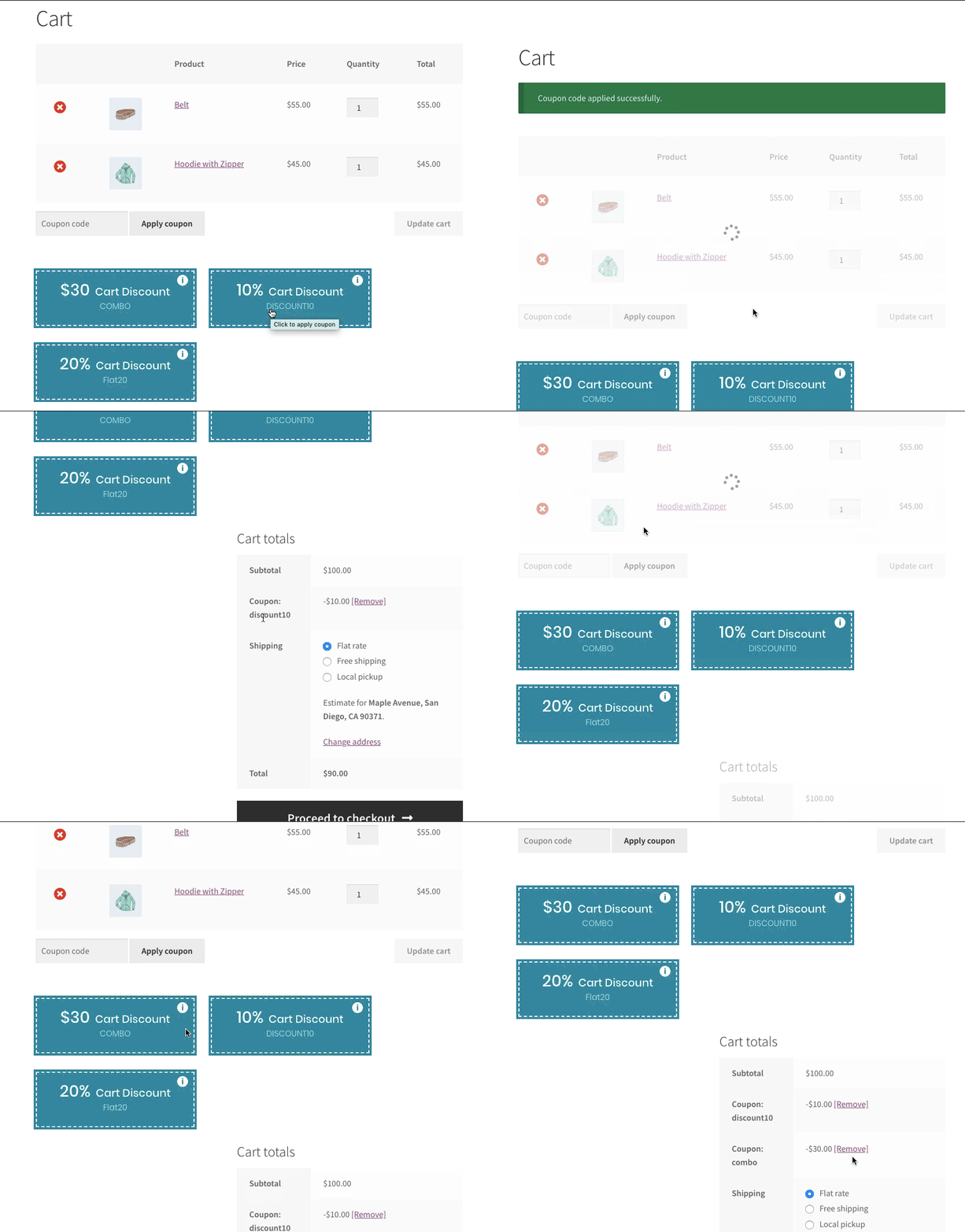
- Both coupons work together.
- Next, the front-end action for using the coupon in conjunction with FLAT20 will be as follows
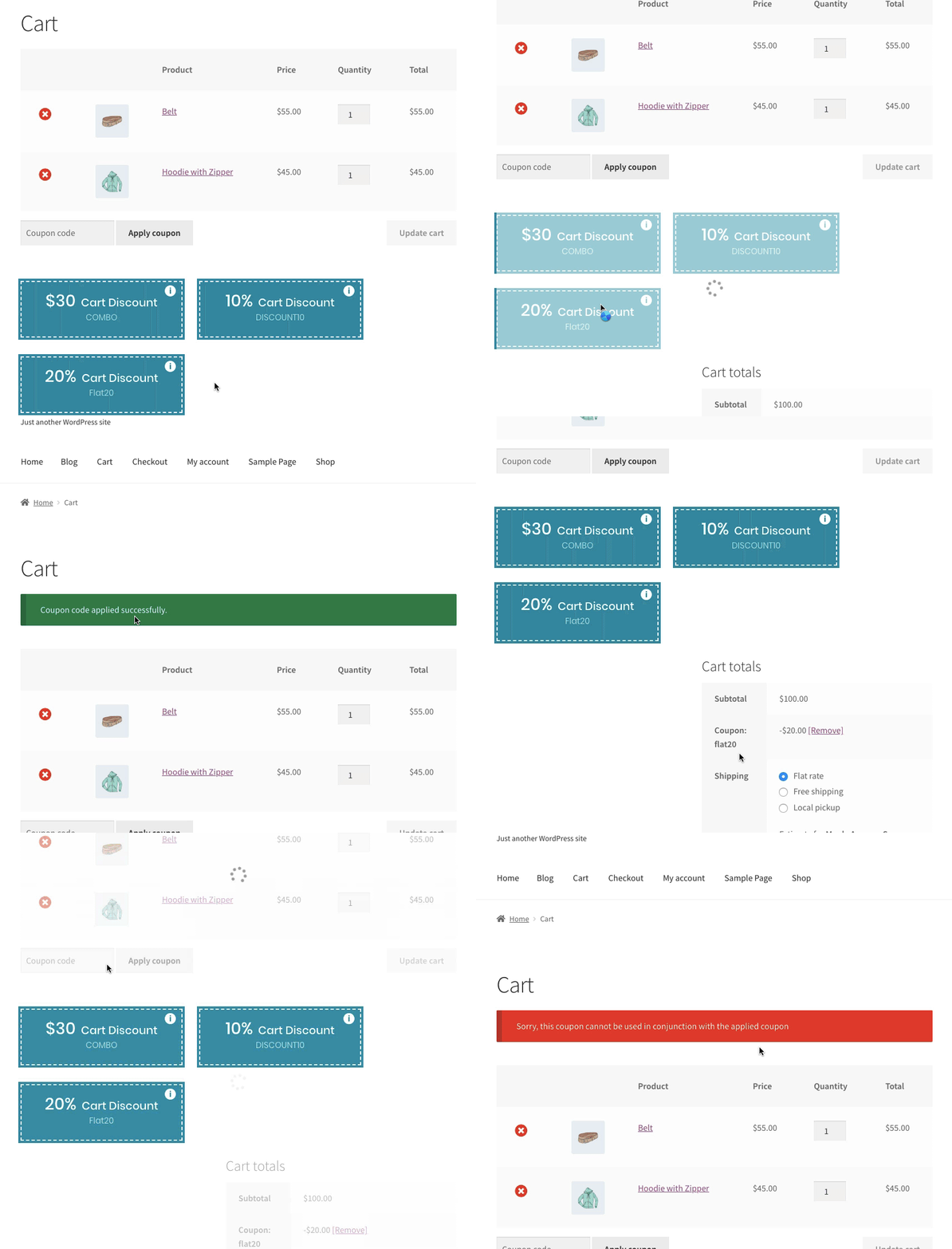
- Coupons don’t work together.
