


In today’s competitive business landscape, companies constantly seek innovative ways to attract and retain customers. One such strategy that has gained significant popularity is using sign-up coupons. Sign-up coupons are exclusive discounts or special offers provided to individuals who register on the website for the first time. This article explains how to set up a sign-up coupon with the Smart Coupons for WooCommerce plugin by WebToffee.
For example, consider creating a signup coupon with a 20% discount.
To set up a sign-up coupon, follow the steps given below:
- Configure a master coupon with the necessary properties.
- Associate master coupon to function as a signup coupon.
Configuring a master coupon
To configure a sign-up coupon, you must create a master coupon with the necessary properties and then associate it as a sign-up coupon.
To set up a master coupon:
- From the WordPress dashboard, navigate to Smart Coupons > Add coupon.
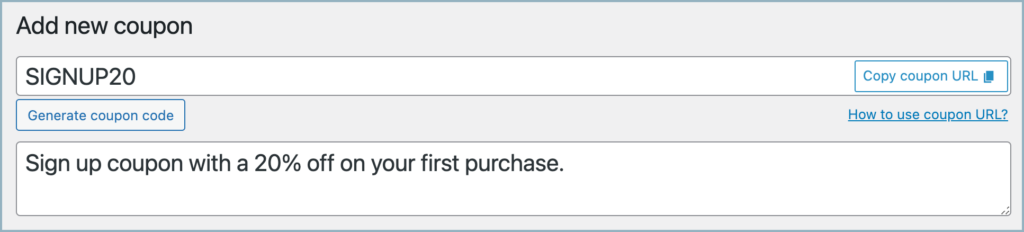
- Key in an appropriate coupon code and description
- From the General tab, select the Discount type as a Percentage discount.
- Enter the Coupon amount as 20.
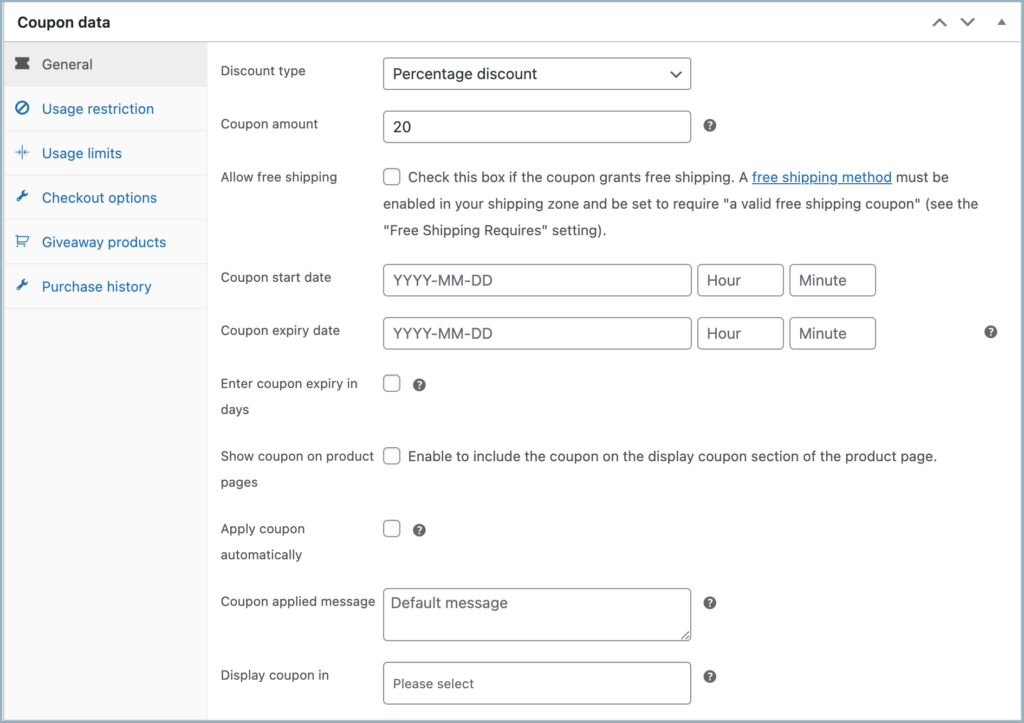
- Additionally, the plugin provides the option to configure the following:
- Coupon start date and expiry date.
- Apply coupon automatically.
- Showcase coupon on the product page.
- Usage restrictions.
Recommended settings for master coupon
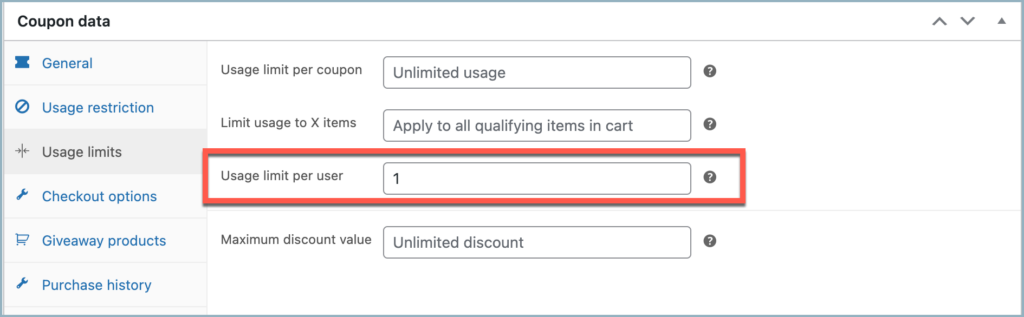
- By default, a single user can use the signup coupon multiple times. To restrict the coupon’s usage per user, navigate to the Usage limits tab in the Coupon data meta box and set the usage limit. For instance, if you want the signup coupon to be redeemable only once per user, set the Usage limit per user to 1.
- To apply the signup coupon automatically during checkout, enable Apply coupon automatically from the General tab under Coupon data.
Once the configuration is done, click on Publish.
Configuring signup coupon
To set up the signup coupon:
- Go to Smart Coupons > Signup Coupons from the WordPress dashboard.
- Toggle the switch to enable Signup coupon.
- Under Base coupon template, search for and select the master coupon (e.g.,
SIGNUP30). - Under Use same coupon code, choose one of the following options:
- Checked: All customers will receive the same coupon code. The email IDs of new users will be added to the Allowed emails list under the Usage Restriction section of the master coupon.
- Unchecked: The plugin will generate a unique coupon code for each registered user. These new coupons will mirror the master coupon settings but have distinct codes. You can also customize the coupon codes by specifying a prefix, suffix, and defining the character length for each unique signup coupon.
- Click Save changes.

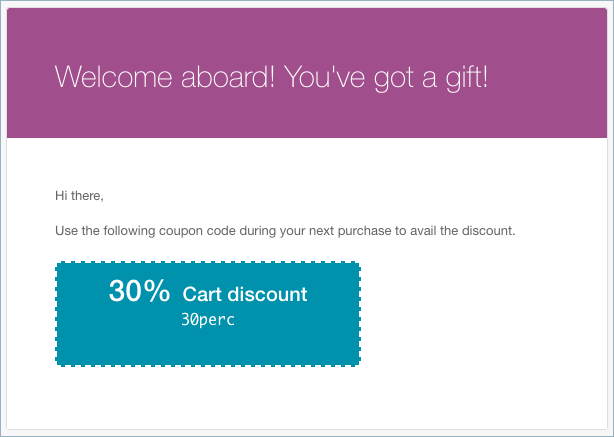
On signing up successfully, the customer will be notified via email as shown below:

Weeraphon Iamnak
May 8, 2025
Hi, I would like to do the following:
– Let people sign up with a form on my website to my newsletter. 1) They get a unique discount coupon by mail (this I’ve found with the information above). Then 2) I want to add their contact information to my Mailchimp newsletter list.
Sanjai Valsan
May 12, 2025
Hi,
Thank you for reaching out,
The workflow you described—generating a unique coupon upon form signup and automatically adding the user to your Mailchimp newsletter list—would require a custom implementation, as it is not supported by the plugin out of the box.
We recommend reaching out to our support team with the specific details of your use case. They’ll be able to evaluate the feasibility of the customization and guide you accordingly.
Matt
April 1, 2025
Can I change the “WooCommerce Signup Coupon-Signup Email Notification” pr at least add some additional messaging?
Arjun
April 11, 2025
Hi matt,
Thank you for reaching out. Yes, it’s definitely possible to customize the “WooCommerce Signup Coupon – Signup Email Notification” message.
You can edit the content directly through the default WooCommerce email customization settings. Just navigate to:
WooCommerce → Settings → Emails → “Welcome aboard! You’ve got a gift!”
From there, you’ll be able to modify the subject line, heading, and additional messaging.
For a step-by-step guide, please refer to this detailed article:
👉 Customize Email Templates in WooCommerce
Alejandra
March 15, 2024
Es posible crear el cupón de registro solo a partir de la segunda compra del cliente y no para la primera?
Gracias
Arjun Aravind
March 18, 2024
Hi,
Thank you for reaching out. Yes, you can set up a coupon to be used for the second purchase instead of the first. To do this, follow these steps:
1. From the WordPress dashboard, go to Smart Coupons > Add Coupon.
2. Enter basic information such as coupon code, type, and amount.
3. Head to the Purchase history tab under coupon data.
4. Under Number of orders, select equals and set the value to 1 (this means that if the customer has exactly one order, this coupon will be applied—essentially creating a coupon for the second order).
5. Set any other necessary restrictions.
6. Publish the coupon.
Now you have a coupon that applies to the second order in your store. To share the coupon with users upon signup:
1. Go to Smart Coupons > Signup Coupon.
2. Choose the previously generated coupon under Associate a master coupon.
3. Save your settings.
Alejandra
March 13, 2024
¿Es posible hacer que el cupón de bienvenida sea usado para la segunda compra en vez de para la primera?
Arjun Aravind
March 19, 2024
Hi Alejandra,
Thank you for reaching out. Yes, you can set up a coupon to be used for the second purchase instead of the first. To do this, follow these steps:
1. From the WordPress dashboard, go to Smart Coupons > Add Coupon.
2. Enter basic information such as coupon code, type, and amount.
3. Head to the Purchase history tab under coupon data.
4. Under Number of orders, select equals and set the value to 1 (this means that if the customer has exactly one order, this coupon will be applied—essentially creating a coupon for the second order).
5. Set any other necessary restrictions.
6. Publish the coupon.
Now you have a coupon that applies to the second order in your store. To share the coupon with users upon signup:
1. Go to Smart Coupons > Signup Coupon.
2. Choose the previously generated coupon under Associate a master coupon.
3. Save your settings.
franco
January 4, 2024
We need to set up a signup form that after inserting the e-mail from the customer, that customer receives an e-mail with a unique custom discount code.
The form shall detect the sending of the code only for new subscribers, so it shall detect if the user already submitted the form with the same email and show an alert that the e-mail has already been used blocking the sending of the form.
Then we need to import a set of codes that shall be used to assign the unique code to the e-mail so the discount code shall be assigned randomly to the e-mail and used only one time. The amount of codes to be imported is about 5k codes.
Is it possible to achieve what is described above with your plugin?
Thanks,
Franco
Arjun
January 11, 2024
Hi franco,
Thank you for reaching out. We understand your requirement, but achieving the specified use case may not be possible directly through the plugin. To assess the feasibility of a custom solution, we require more details about your setup. Please contact our support team for additional assistance.
jin
February 22, 2023
Can’t I pay the membership coupon directly to the membership account, not by email?
Mike
March 9, 2023
Hi Jin,
Yes, you can provide the coupon directly to the account without sending it through email. Once you set up the Sign-up coupon functionality, you may disable the email template used for the same. The email template can be accessed from WooCommerce > Settings > Emails page and the template name is “Welcome aboard! You’ve got a gift!”. Disable the template to prevent the emails from being sent to users. The coupons would still be created for the accounts.
To display the coupons on the My account page, make sure to select it from the Display coupon in option.
Nelsey
December 9, 2022
On a woocommerce checkout page it allows users to create an account when they place their first order. This then sends the signup coupon immediately after they place their first order.
The customer always then immediately calls us to ask if they can use the signup coupon. They “forgot” to use it.
How can the system be set so the Signup coupon goes out 1 day after the user has signed up as a new user? (Or some other time after the new registration?)
Mike
February 10, 2023
Hi Nelsey,
I understand your requirement. Unfortunately, it is not possible to delay the emails of the Signup coupons. You may edit the email template (WooCommerce > Settings > Email > Welcome aboard! You’ve got a gift!) of the sign up mentioning that the coupon can be used on their next order only.
Fabio
August 6, 2021
How to translate the WooCommerce Signup Coupon-Signup Email Notification?
Mark
August 25, 2021
Hi Fabio,
You can edit the email template and edit the contents from Woocommerce > Settings > Email settings page. Open the email that you want to edit and click copy file to theme. Then you can view the HTML and edit it.
Jason Tan
June 4, 2021
Hi, is there a way to use shortcode for the coupon code that i can anywhere on the email template?
Jason Tan
June 4, 2021
i have enabled action coupon for signup users however did not receive any email notifications once signup successfully.
José Ramón
May 28, 2021
hi, does the plugin complement well with registration form plugins? our idea is to use the registrationmagic.com plugin to create a WooCommerce registration form on a separate page.
I await your response, thank you.
Mark
June 1, 2021
Hi Jose,
We haven’t yet tested our plugin with mentioned one. Our plugin works based on normal woocommerce coupons and extends its functionalities.
Ricardo Miguel Salas Rivacoba
April 28, 2021
I can’t find the action tab! I just purchased the pro version for this and sadly, can’t get it to work.
Raju
April 26, 2021
Hi,
I found everything but i didn’t found the action coupon tab.
Thanks
Mark
May 2, 2021
Hi,
Please check if you are using the latest version of the premium plugin.
LAU JACKY
April 5, 2021
Is there a way to set up a coupon code for a user who creates an account on our website and set it to only be used once?
If yes.
Any video can show us how to do it?
Mark
April 8, 2021
Hi Lau,
You can set the usage limit to 1 per user for the master coupon under the coupon edit page > Usage limits tab.
Wes
January 26, 2021
I need to create bulk coupons tied to an item in my WooCommerce store. My affiliate will sell those coupons in his website. After a buyer gets the coupon code, she comes to my website to register with the code. Is it possible to create a separate signup form for this purpose?
Mark
January 29, 2021
Hi Wes,
It is capable of creating signup coupons for users who regsiters via the regular WordPress sign up page. This plugin does not provide any feature to create signup forms on its own. Sorry to have let you down.
Alex
December 17, 2020
Is there any way to generate a unique code per user who signs up for our newsletter with unlimited usage each?
Mark
December 17, 2020
Hi Alex,
I am afraid we don’t have any option to send coupons based on newsletter subscription.
Adnan
December 16, 2020
If someone subscribes to the newsletter plugin, like MailPoet. Is coupon will send to that subscriber or not? Please let me know
Mark
December 17, 2020
Hi Adnan,
The user must register in the site to receive a signup coupon. Newsletter subscription won’t trigger the signup coupon generation.
Vlada
October 14, 2020
Is it possible for this coupon to expire after x amount of days after signup? So the user receives a coupon and the coupon expire e.g. within 5 days of registration, that way customer is forced to use it?
Mark
October 14, 2020
Yes. You can set expiry in number of days in the latest version of the plugin.
Michael
September 29, 2020
Is their a way to auto-generate a UNIQUE coupon code when a user creates an account and set it to only be used once?
Mark
September 29, 2020
While creating the master coupon, please set usage restriction.