


To customize auto-generated coupon codes created with the Smart Coupons for WooCommerce plugin, you can define specific prefixes, suffixes, and character lengths to match your branding and enhance security. Depending on the type of coupon, whether it’s a dynamic coupon shared upon purchase, a bulk-generated code, or a gift card, you can adjust these settings within the “Coupon code format” section of the plugin’s General Settings.
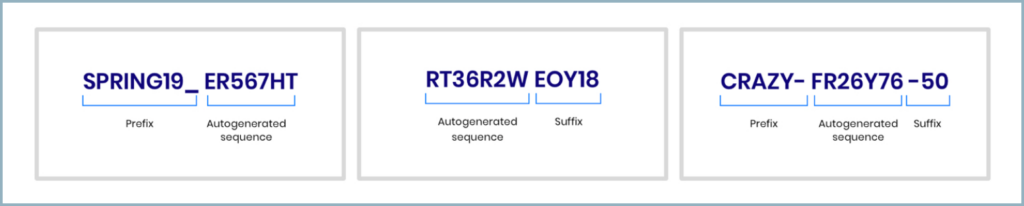
Here is how you can customize your WooCommerce coupons Smart Coupon for WooCommerce:
This customization of coupon code length, suffix, or prefix does not apply to coupons directly or manually generated from the Add Coupon section.
Customize Auto-Generated WooCommerce Coupon Codes
You can customize dynamic coupons created by the plugin, such as coupons shared during product purchase. To do so, install and activate the plugin and follow the steps below:
- From the dashboard, navigate to Smart Coupons > General settings > General.
- The customization options are listed under the Coupon code format section.
Here, you can set a prefix, a suffix, and the length of the coupon code. The length of the coupon code excludes the suffix and prefix.
These settings are not applicable to autogenerated gift card coupons or bulk-generated coupons. Those have to be customized from the respective settings, as discussed later in the article.

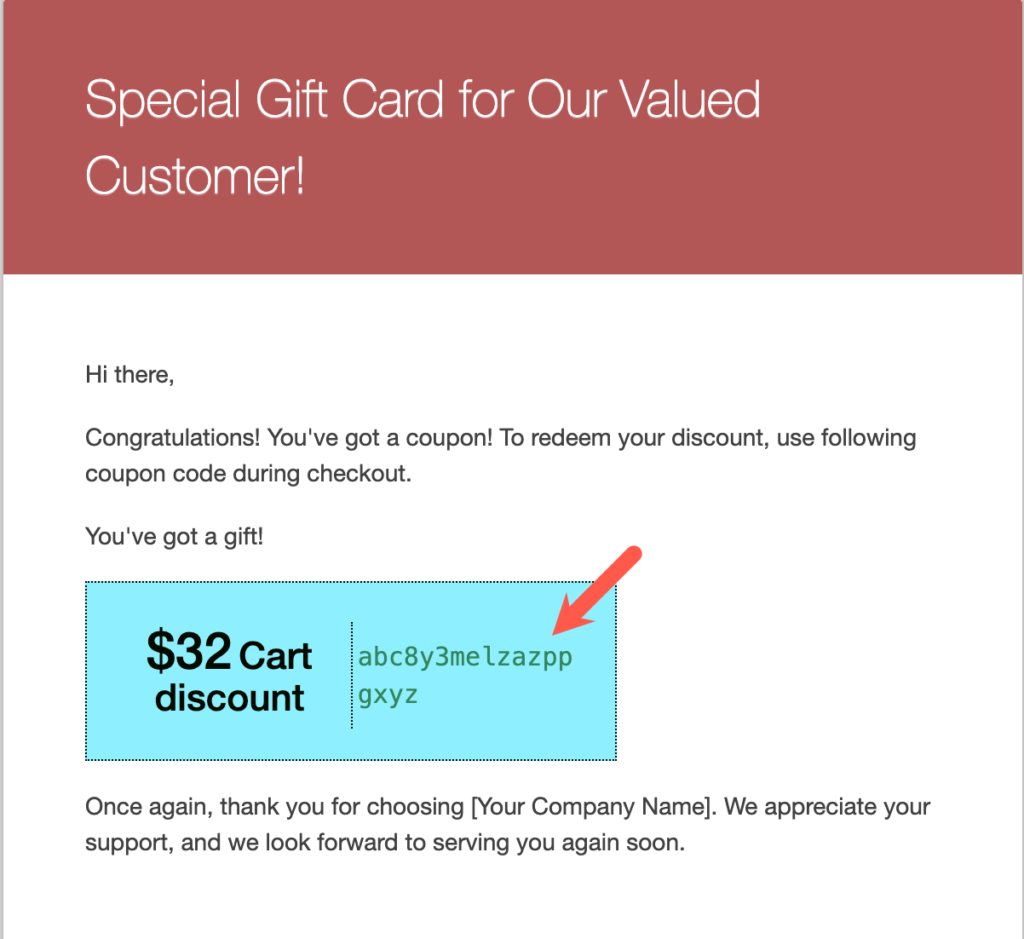
Customize store credit/gift card coupons
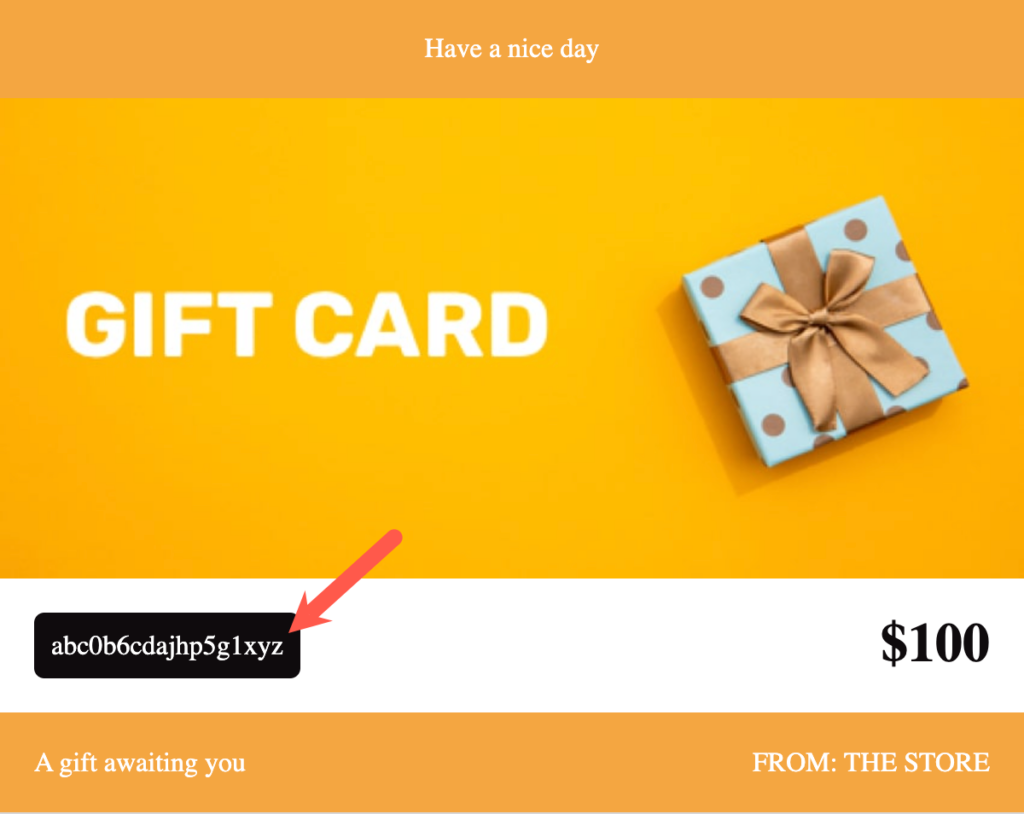
To customize the auto-generated coupon associated with store credit gift cards,
- From the dashboard, navigate to Smart Coupons > Store credit > General settings.
- Under the General settings tab, scroll down to the coupon code format section.
Here, you can set a prefix, a suffix, and the length of the coupon code. The length of the coupon code includes the suffix and prefix.

Customize bulk-generated coupons
Customizing coupons generated during bulk generation is done within the bulk generation processes. To customize the coupons, follow these steps:
- From the dashboard, navigate to Smart Coupons > Bulk generate.
- Once the bulk generate process configuration is all set, navigate to the General tab under Coupon settings.
- Here, the options to customize the coupon format are in the general section.
- Click Generate coupons, to apply the settings to all generated coupons.


