Note: This guide applies only to users with Smart Coupon for WooCommerce plugin version 3.0.0 or higher.
You can schedule a WooCommerce BOGO offer to run only during a specific date and time using the Smart Coupons for WooCommerce plugin. By enabling the Schedule option, you can set the start and end dates for your BOGO campaign so it activates and expires within the specified time window.
To schedule a WooCommerce BOGO offer, navigate to Smart Coupons → BOGO, create or edit a BOGO campaign, enable the Schedule option from the right panel, set the start and end date and time, and click Save & Activate. The offer will automatically run within the selected timeframe.
Prerequisite
Before creating a bogo offer,
- Ensure that the Smart Coupons for WooCommerce plugin is installed and activated.
Step 1: Create a New BOGO Offer
- Go to Smart Coupons → BOGO from the WordPress dashboard.
- Click “+Add new” to create a new BOGO offer.
- Select + Custom and then Buy product X, get product X/Y.
- Provide a Campaign title and a Description for your new offer.
- Click on Continue.
- Set a trigger for your BOGO offer.
- Configure what your customer gets as a BOGO giveaway.
- Set the offer frequency.

For a detailed guide on creating a BOGO offer, refer to the article, Set up BOGO Discounts in WooCommerce.
Step 2: Set the BOGO Offer Schedule
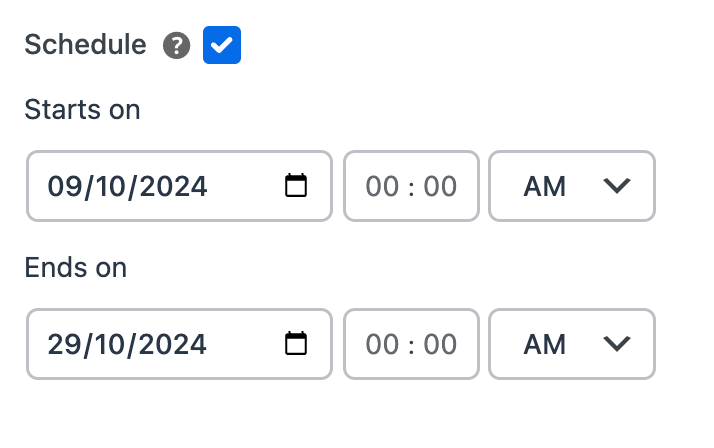
To schedule a BOGO offer, enable the option Schedule from the right panel of the page.
Here, you can set a start date and time and an end date and time. You can choose to set either the end date alone or both dates.
- When both dates are set, the offer remains valid within that timeframe. The shown offer is valid from 9th Oct to 29th Oct 2024.
- If only the start date is set, the offer is valid from that date and time until you manually disable it. The shown offer will become active on 9th Oct 2024 and will be active until you disable it manually.
- Setting only the end date validates the offer from the current day until the specified date and time. The offer shown will be active from the time it was created until 29th Oct 2024.