


To display WooCommerce coupons on the Product, Cart, Checkout, or My Account pages:
- Go to Smart Coupons > All Coupons.
- Create or edit a coupon.
- Open the General tab under Coupon Data.
- Select the pages under Display coupon in.
- Save the coupon.
The coupon will automatically appear on the selected pages once activated.
With the Smart Coupons for WooCommerce plugin by WebToffee, you can now easily display the coupons you want customers to know about on the Product, Cart, Checkout, or My Account pages.
How to Display WooCommerce Coupons on Product, Cart, Checkout, or My Account Pages
To begin with:
- From the WordPress dashboard, navigate to Smart Coupons > All Coupons.
- Click Add coupon to set up a new coupon to display on selected pages. Alternatively, you can choose an existing coupon from the list to showcase on the selected page.
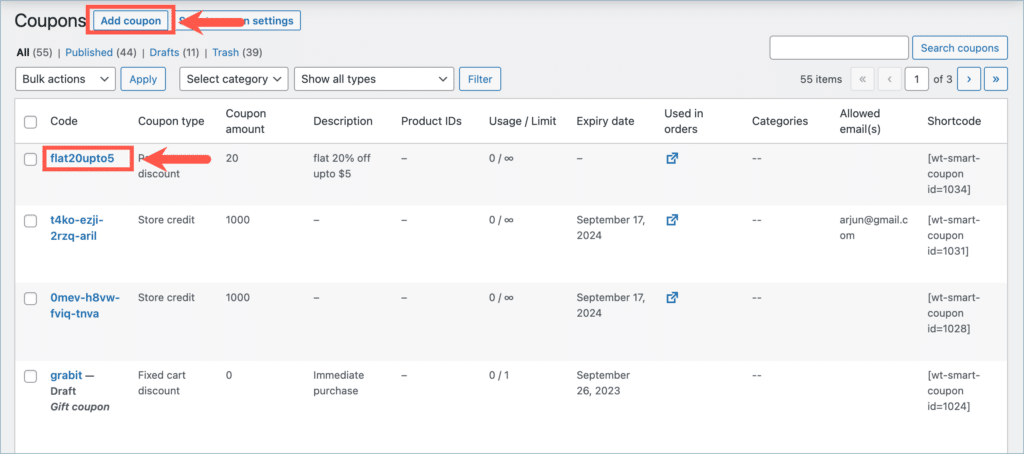
- Configure the coupon according to your preferences.
- Within the Coupon data meta-box, under the General tab, locate the Display coupon in the field.
- Choose the page(s) where you want the coupon to be visible. The available options are:
- Product Page
- Cart
- Checkout
- My Account

- Save the changes.
- Once the coupon is active, it will be displayed on the selected page, as shown below.


