


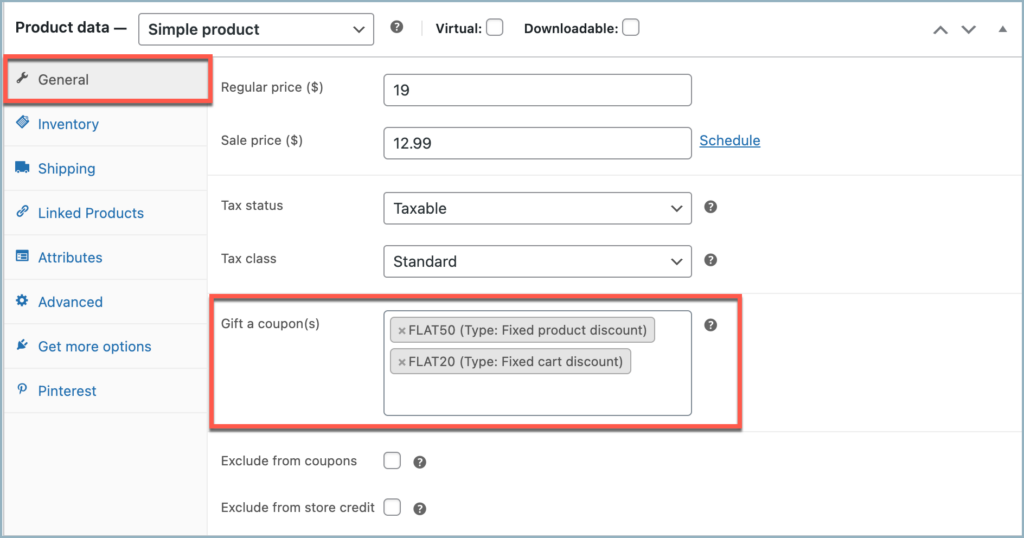
To offer gift coupons on product purchase in WooCommerce, edit a product, go to the General tab under Product data, select the coupon(s) from the Gift a coupon(s) option, and update the product. When customers purchase the product, the coupon will be issued and can be sent to them or gifted to another recipient at checkout.
The Smart Coupons for WooCommerce plugin allows you to issue gift coupons upon product purchases. Depending on the type of gifted coupon, users can either redeem it on a later purchase or gift it to another user at checkout.
Prerequisites
- Ensure the Smart Coupons for WooCommerce plugin is installed and activated.
- Create the coupon(s) you want to offer before associating them with a product.
How to Associate a Product with a Gift Coupon
To associate a product with a coupon and offer the coupon on a product purchase, follow the given steps:
- Navigate to WooCommerce > Products from the WordPress Dashboard.
- Add a new product or edit an existing one.
- Scroll down to Gift a coupon(s) under the General tab.
- Select the coupons from the list displayed.
- You can enter multiple coupons as you need.
- Configure all other product details if not already done.
- Update or publish to save the changes.
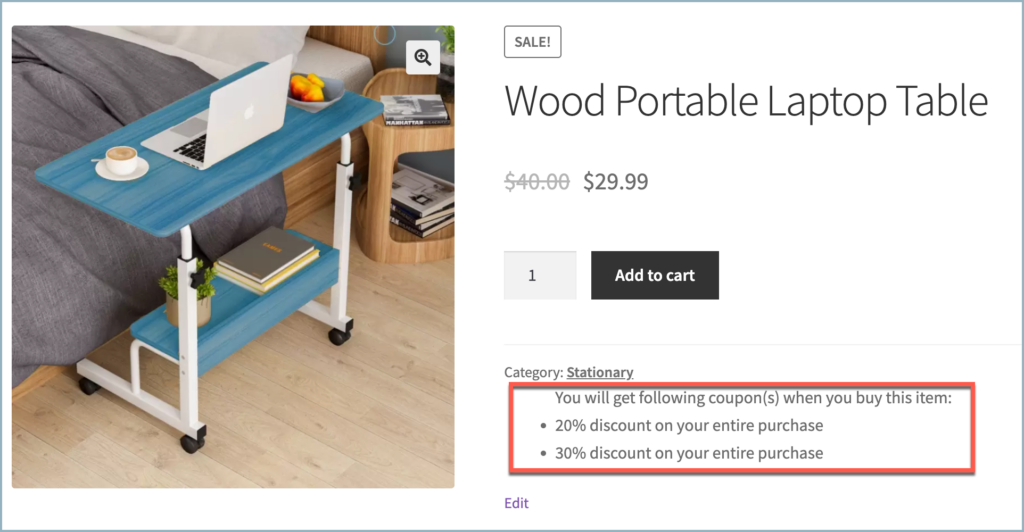
On moving a product linked with coupon(s) into the cart, the customer can view the embedded coupon information as shown below:
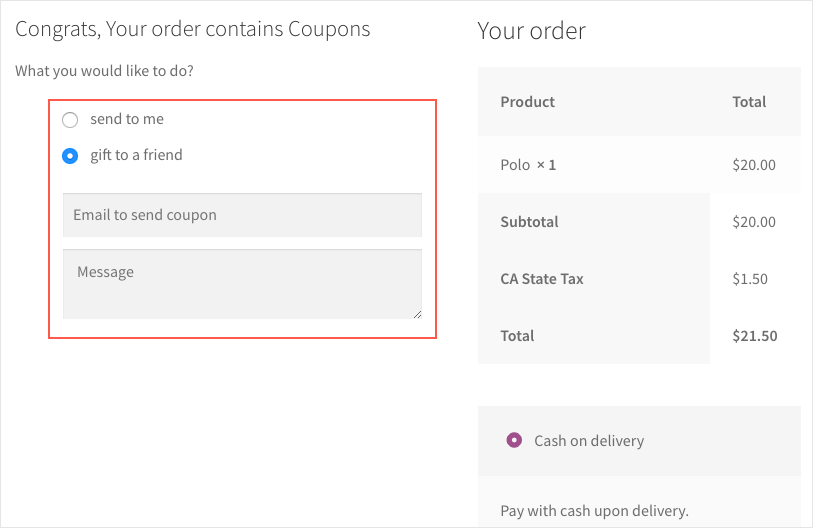
Gift coupon actions
After purchasing a product linked with a gift coupon, customers can:
- Send the coupon to themselves for later use
- Give the coupon to a friend by entering the recipient’s email
- Add a personal message to the gift coupon
Gift Coupon Settings and Customization Options
The plugin provides a couple of options to customize this feature to your preferences. To access the options:
- Navigate to Smart Coupons > General Settings > General.
- Scroll down to the Gift a coupon settings section.

- Email Coupon on Order Status: Choose an order status that triggers sending the email with the gift card to the recipient.
- Send coupon to buyer (hide ‘who to send’ option): Enable this option to remove the recipient selection choice, sending the gift card to the buyer by default.
- Send unique code to each recipient: Enabling this option will generate and send unique coupon codes to each user. Otherwise, the coupon code you set on the coupon page will be shared with the user.

Pavlos Bizimis
September 24, 2025
Can I have the Offer Gift Coupons functionality for ANY purchase?
Sanjai Valsan
October 1, 2025
Hi Pavlos,
Thank you for reaching out,
With the Gift Cards plugin, you can configure the “Offer Gift Coupons” feature for any purchase. By default, the coupon is triggered based on conditions like products, categories, or cart total.
If you want the gift coupon to apply for all purchases, just leave those conditions blank. That way, the coupon will be issued no matter what items the customer buys.
Fabio Medina
November 15, 2021
Quisiera saber si tienen un demo del plugin premium con el que pueda hacer pruebas antes de
Mike
December 6, 2021
Hi Fabio,
Thanks for reaching out. We do not have a demo set up available now. You may please go ahead and purchase the plugin and test it.
We guarantee a 100% refund within 30 days which gives you plenty of time to test it risk-free.
Jan
November 1, 2021
We want to send a coupon code (from our predefined coupons, not dynamically generated) with a purchase of a special product.
1. Can we disable the “send to me / gift to a friend” option?
2. Is the coupon code integrated in the order confirmation eMail?
3. Can we edit the text of the eMail integration?
Thank you!
Mike
January 18, 2022
Hi Jan,
Thanks for reaching out and we are sorry for the delayed response. According to your queries,
Ed Bernd
July 18, 2021
Everything in Gift Coupons on Product Purchase sounded great… until we got to the Cart and you said this: “The customer will be prompted to choose whether to gift the coupon to a friend or send it to his own mail for redeeming in next purchase.”
I don’t want my customer giving away the discount I am offering them.
What I advertise is this: Customer buys Product A, then chooses any product in Category B, and (that same customer) can buy other products in Category B now or later at a 50% discount.
Is the Smart Coupon smart enough to do that? If so, I want it.
Thanks.
Ed
Mark
July 25, 2021
Hi Ed,
Our plugin does not have an option to set buy any products at 50%. You can create coupon to offer a selected product as give away or at 50% discount.
Pier Stith
July 3, 2021
How do you get the description of the coupon to be more specific than “$xx.xx discount on some products”? That’s all I get when I attach a fixed product coupon to a product. But when I tried it in your test server before purchase, it named the specific product. I need to know how to do that.
Mark
July 13, 2021
Hi Pier,
Sorry to let you down, but there is no option to name the product on the coupon banner.
Adam
March 26, 2021
1. Will the feature “Gift Coupon on Product Purchase” generated new coupon code specific only eligible for each purchased user ?
2. Can a non-purchased user abuse and use the coupon from “Gift Coupon on Product Purchase”, even not gifted by the purchased user ?
3. Can the “Gift Coupon on Product Purchase” coupon, set limit to be used only once for the purchased user ?
4. Can the new “Gift Coupon on Product Purchase” coupon, set to every successful purchase in the store ?
5. Can the gifted coupon set expiry calculated from the gifted date ?
Mark
March 31, 2021
Hi Adam,
Thanks for reaching out.
1. Yes. Individual coupons will be created based on the condition set in the associated coupon and these coupons will be user email restricted based on billing email.
2. Since the coupon is email restricted, a different user won’t be able to use the coupon unless the right email address.
3. Yes.
4. As mentioned in the article the coupons need to be associated with every product to email the coupon.
5. Yes. You can set expiry in number of days.