


Note: This guide applies only to users with Smart Coupon for WooCommerce plugin version 3.1.0 or higher. If you are using an older version of the plugin, please refer to the previous documentation here.
You can create a BOGO offer that automatically applies to the cheapest or most expensive item in the cart by going to Smart Coupons → BOGO → Add New, choosing Custom → Cheapest/Most Expensive, then setting the reward, trigger conditions, and offer frequency, and finally clicking Save & Activate.
With the Smart Coupons for WooCommerce plugin, you can create highly flexible BOGO offers that automatically identify and offer either the cheapest or the most expensive product in a customer’s cart as a giveaway, either for free or at a discount.
This article provides a step-by-step guide to setting up this specific type of BOGO offer, helping you maximize sales while keeping things simple and effective.
Prerequisite
Before creating a bogo offer, make sure to:
- Install and activate Smart Coupons for WooCommerce (version 3.1.0+).
Key Highlights of the Feature
- Dynamic Selection: Automatically detects the cheapest or most expensive product in the customer’s cart.
- Customizable Discounts: Select whether the giveaway product is offered for free, at a discount, or at a specified price.
- Flexible Triggers: Define conditions such as product quantity or product categories to activate the offer.
- Offer Frequency: Determine whether the offer applies once or repeatedly, depending on the specified conditions.
Easily Create Dynamic BOGO Offers with Smart Coupons
Here’s how you can set up a flexible BOGO offer that automatically rewards either the cheapest or most expensive product in the cart.
Step 1: Create a new BOGO offer
- Navigate to Smart Coupons > BOGO from your WordPress dashboard.
- Click on the + Add New button.
- In the Create new BOGO offer window, you’ll see a few predefined templates (like Buy 2, Get the Cheapest One for Free).
- If your use case is simple, such as a standard “Buy 2, Get 1 Free” offer, you can select one of these presets to save time.
- For more control (such as offering the most expensive item), click on + Custom and then select Cheapest/Most Expensive.
- Enter the Offer Title and Description to provide context for the offer.
- Click Continue to proceed.

Step 2: Configure customer reward
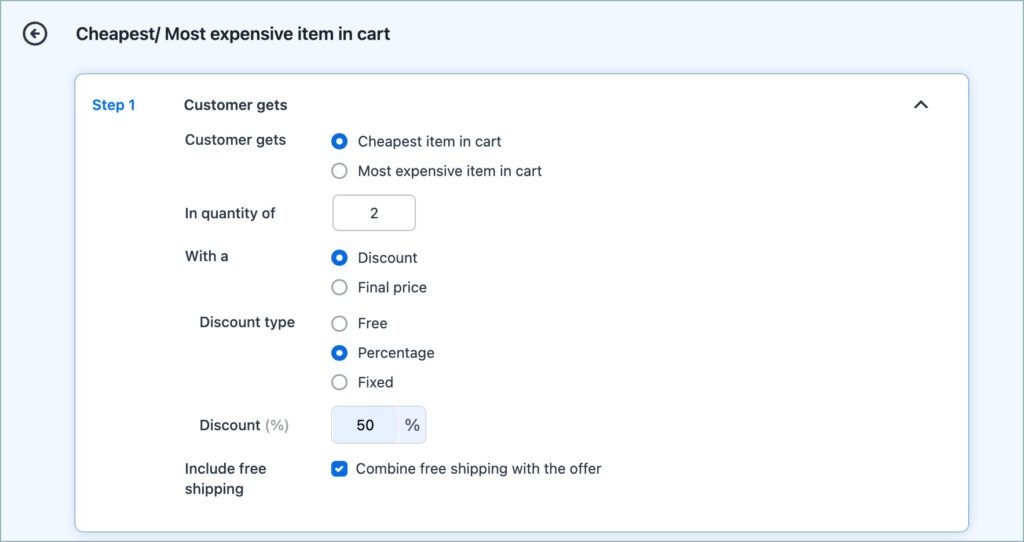
- In the Customer Gets section:
- Choose between Cheapest item in cart or Most expensive item in cart.
- Set the Offer Quantity:
- For example, if set to “2”, two qualifying items (cheapest or most expensive) will be used as giveaways.
- Define the Offer Value:
- Free: The item(s) will be offered at no cost.
- Percentage Discount: Apply a discount, such as 30%, 50%, etc.
- Fixed Discount: Reduce the price by a fixed amount (e.g., $10).
- Final Price: Set a final price for the item if its original price exceeds this value.
- Enable Include free shipping to waive the shipping charge for the current order on the offer application.
Note: If there are two quantities of the cheapest product, these two will be converted into giveaways. If there is only one quantity of the cheapest product, the following cheapest item is automatically selected as the second giveaway.
Step 3: Define Trigger Conditions
In this step, you define what activates the offer.
- Select ‘Trigger by Cart Quantity’ and set a minimum number of items (e.g., 4 or 5).
- Apply Product or Category Restrictions if necessary:
- Example: Only apply to items in the Clothing category.
- Combine multiple trigger conditions for advanced targeting.

You can add more conditions to the trigger as needed. To know more about triggers and how to configure them, refer to Set up BOGO Offers in WooCommerce.
Step 4: Configure Offer Frequency
You can choose how often the offer will be triggered:
- Apply Once: Reward is granted only once per cart.
- Apply Repeatedly: Repeats based on quantity thresholds. E.g.:
- Buy five items, get the two cheapest at 50% off
- Buy ten items, get the four cheapest at 50% off
- Custom Intervals: Define tiers such as:
- For 11+ items: give three items
- For 25+ items: give four items


Step 5: Choose the Offer Application Method
- Automatic Trigger: The offer applies instantly once the cart meets the set conditions.
- Coupon Code: Requires the customer to enter a coupon manually.
Choose based on whether you want the offer to run silently or only for those who apply a promo code.

Step 6: Display Offer Information on Store Pages
You can choose to display offer information on:
- Cart Page: Display the deal just before checkout.
- Checkout Page: Reinforce the discount before payment.
- My Account Page: Keep customers aware of ongoing promotions.
This enhances visibility and encourages conversions.
Step 7: Save and Publish the Offer
- Optionally set start and end dates to schedule the offer. To know more, check out this article: How to schedule a BOGO offer in WooCommerce.
- Click Save & Activate to make the BOGO offer live on your store.

See the Offer in Action
Here’s how both types of BOGO giveaways look in a real store setup:
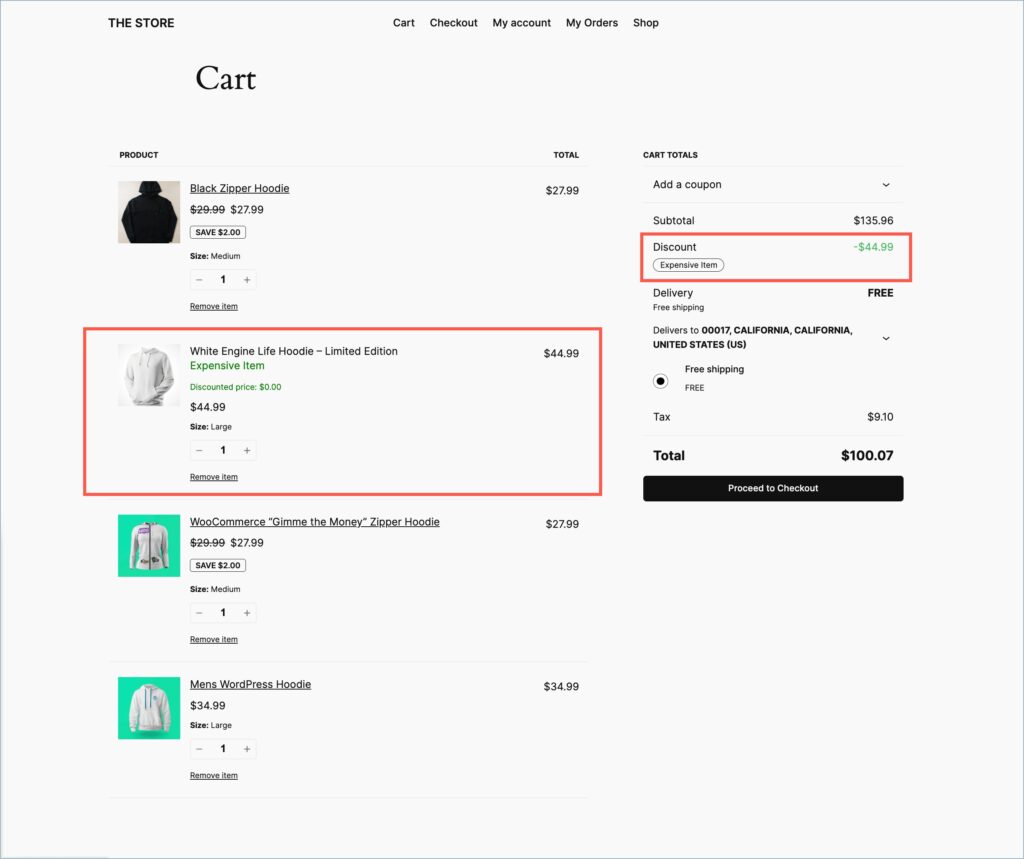
Use Case 1: Most Expensive Item as Giveaway
Configuration Overview:
- Customer Gets: Most expensive item in the cart
- Quantity: 1
- Reward Type: Free
- Trigger Condition: Cart must have at least four items from the Hoodies category
- Frequency: Once per order
Expected Result: The customer adds four clothing items (hoodies), including a $44.99 White Engine Life Hoodie, which becomes free since it is the most expensive.
Use Case 2: Cheapest Items at 50% Discount
Configuration Overview:
- Customer Gets: Cheapest item in cart
- Quantity: 2
- Reward Type: 50% Percentage Discount
- Trigger Condition: Cart must include at least five clothing items
- Frequency: Repeatedly (every five items triggers 2 discounted giveaways)
Expected Result: When a customer adds 10 clothing items, the four cheapest products will automatically be discounted by 50%.

Summary
- Go to Smart Coupons → BOGO → Add New and choose Custom → Cheapest/Most Expensive.
- Select whether customers get the cheapest or most expensive item as a free or discounted reward.
- Define trigger conditions and offer frequency.
- Click Save & Activate to publish the BOGO offer.

andy
April 11, 2025
The follow is displaying on my home page. How do I remove it? THANKS
“Woohoo, add any product to your cart and it’s on us. Enjoy your freebie”
Arjun
April 11, 2025
Hi Andy,
Thanks for reaching out. The message you’re seeing –
“Woohoo, add any product to your cart and it’s on us. Enjoy your freebie” –
appears to be related to a technical issue or configuration conflict.
To help you resolve this quickly, we kindly recommend reaching out to our support team directly. They’ll be able to investigate the issue in detail and guide you through the steps to remove it.
Sam Hawcroft
August 29, 2025
I am also seeing this and I cannot remove it
Sanjai Valsan
September 8, 2025
Hi Sam,
Thank you for reaching out. I’m sorry you’re running into the same issue. This message usually appears due to a configuration conflict. To get it fixed quickly, please contact our support team — they’ll check your setup and guide you step by step to remove it.