


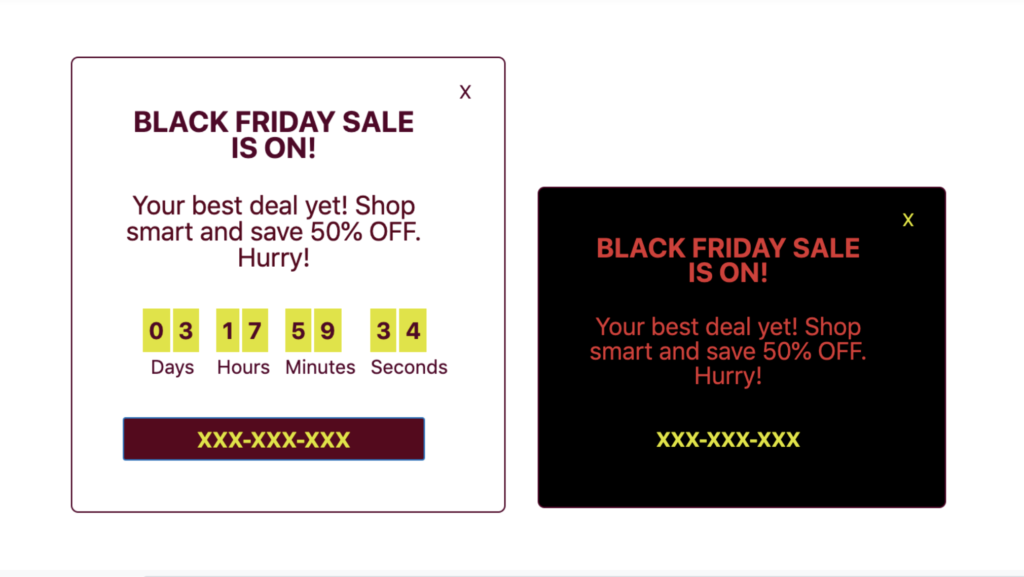
Smart Coupons for WooCommerce is an extended coupon plugin that allows you to set up a stunning sales countdown timer in banner/widget display formats. You can display the banner automatically by enabling the Promotional banner setting in the plugin’s Customize tab or manually by inserting a shortcode onto any page.
Quick Setup Steps:
- Create a Coupon: Go to Smart Coupons > Add coupon and ensure you set an expiry date to enable the timer.
- Access Banner Settings: Navigate to Smart Coupons > General Settings > Customize and select the Coupon banner section.
- Enable & Customize: Toggle the Promotional banner on, select your coupon, and choose between a horizontal Banner or a floating Widget.
- Style & Position: Customize the colors, text, and position (Top, Bottom, or Custom) using the Live Preview Panel.

Prerequisite:
1. Create a Basic Coupon with an Expiry Date
- Start by creating a coupon from Smart Coupons > Add coupon. Make sure the coupon has an expiry date to enable the countdown timer.
- Additionally, configure discount type, usage restrictions, and limits as needed.

Accessing the Coupon Banner Settings
To configure the banner:
- Go to Smart Coupons > General Settings > Customize tab.
- Select the Coupon banner section.
Enable the Promotional banner toggle to begin customizing your banner or widget.

Configuring the Coupon Banner
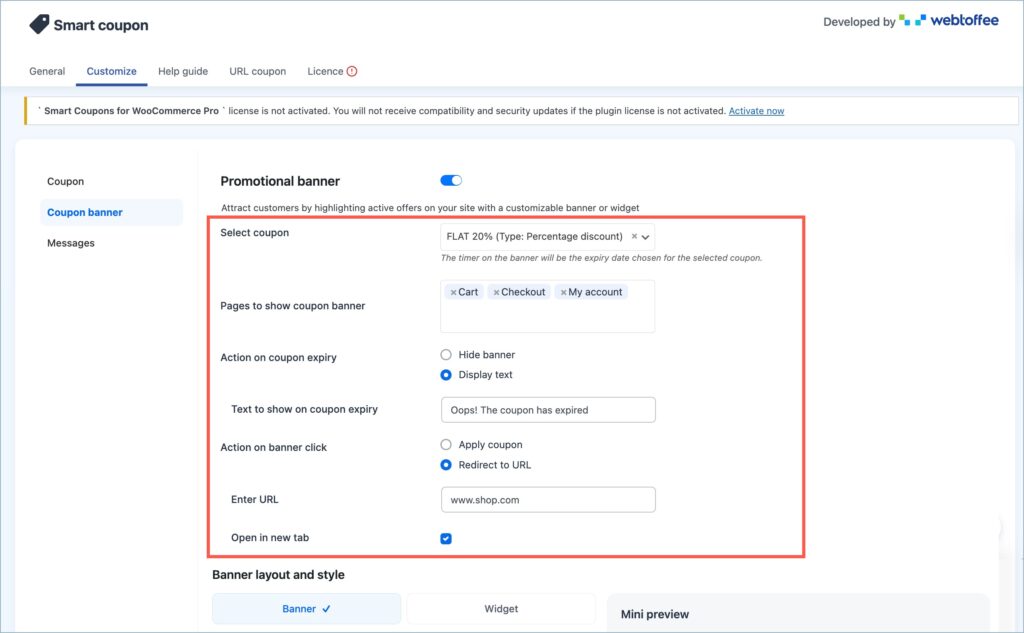
1. Select Coupon & Pages
- Use the Select coupon dropdown to choose your active coupon.
- Add pages where the banner should appear in the Pages to show coupon banner field.
Note: The timer uses the expiry date of the selected coupon.
2. Banner Behavior Settings
- Action on Coupon Expiry: Choose whether to hide the banner or display a custom message.
- Action on banner click: Either apply the coupon or redirect to a custom URL. If you choose to redirect to a custom URL, an additional field will be added to specify the redirection link. You can even choose to open the link in a new tab.
Banner Layout and Style
Choose the display format:
- Banner (horizontal strip at top/bottom)
- Widget (floating box)
Banner Position
- Top, Bottom, or Custom position (The banner will be placed at a custom vertical position on your site based on the Y-axis value below).

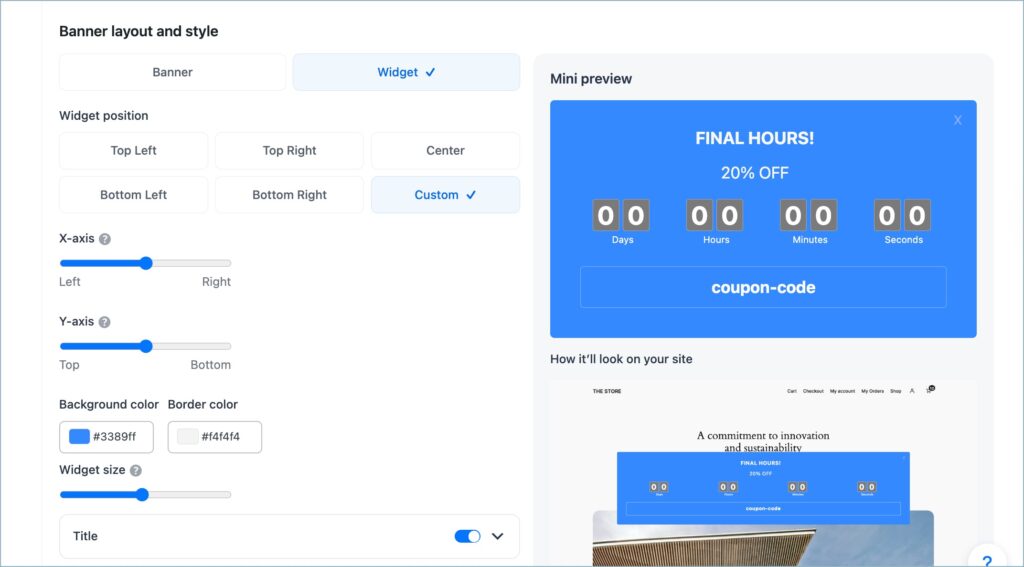
Widget Position (if Widget is selected)
- Choose from Top Left, Top Right, Center, Bottom Left, Bottom Right, or Custom.
- When ‘Custom’ is selected, you can fine-tune the position using the X-axis and Y-axis sliders.
- Adjust the Widget size for precise styling.
Background & Border Color
- Pick custom colors to match your store theme.
Customize the Coupon Banner Elements
The banner now supports individual customization panels for each element. Toggle each section on or off and customize the appearance as needed.
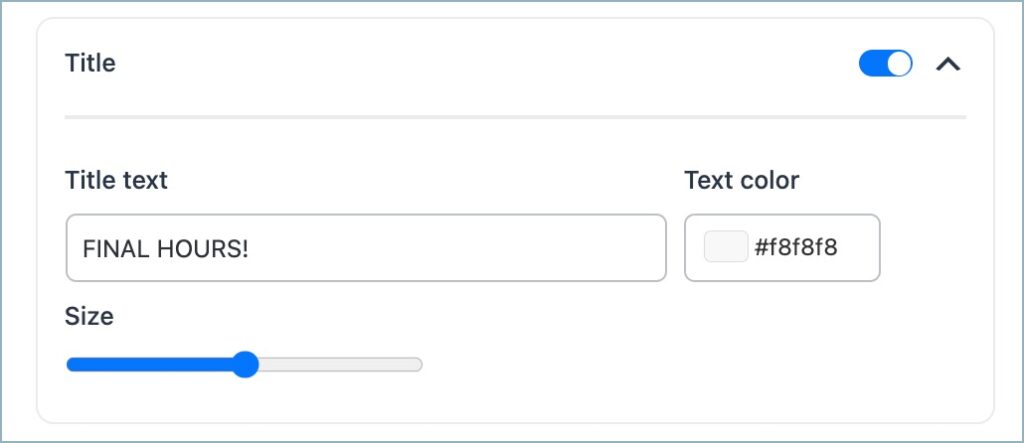
Title
- Customize text, font size, and text color.
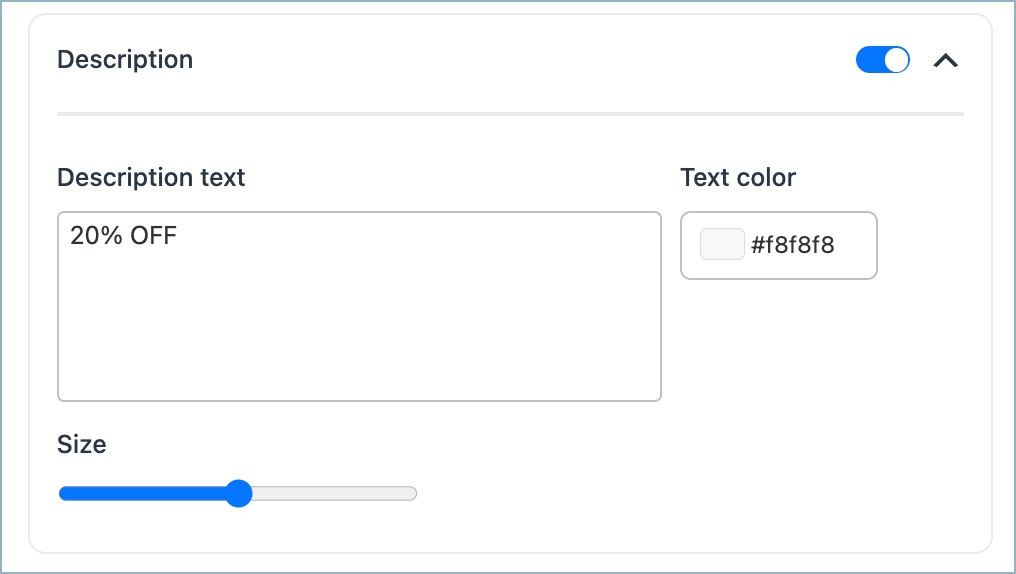
Description
- Add a short descriptive message about the offer.
- Adjust font size and color.
Timer
- Customize timer colors (text, background, border).
- Adjust the font size.

Note: Timer visibility requires an expiry date on the coupon.
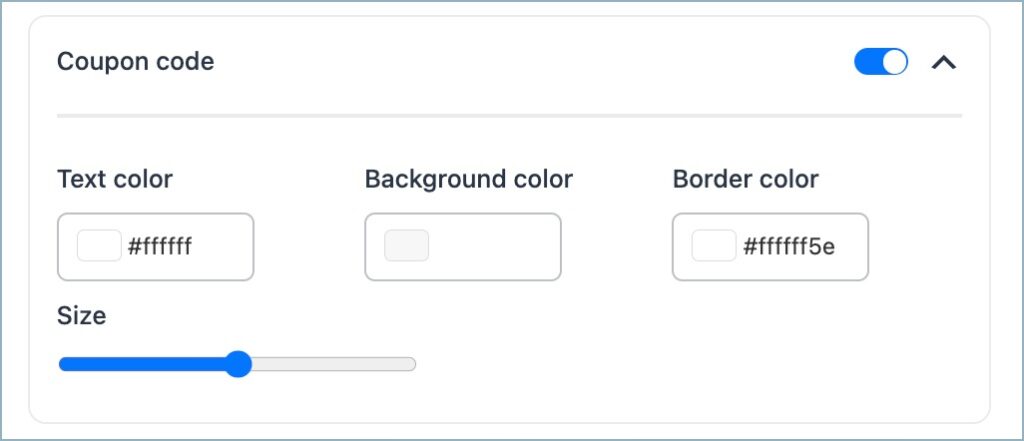
Coupon Code
- Configure how the coupon code appears.
- Customize font size, background, text color, and border.
Close Button
- Enable or disable the dismiss option.
- Option to show closed banner again on page refresh.

Live Preview Panel
A Mini preview area on the right shows real-time changes as you customize the banner. Use the “Capture Screenshot” option to view how the banner appears directly on your store, ensuring accurate placement and styling.

On applying the changes, you can view a customized coupon banner in the front end as shown below:

You can see the coupon banner with a real-time countdown timer. On clicking the banner, you can opt for the coupon to be applied directly to your cart amount or to redirect to a particular URL, as per the underlying settings configured for the banner.
Displaying Coupon Banners Using Shortcode
In addition to the automatic display option, the Smart Coupons plugin allows you to manually embed a coupon banner or countdown timer anywhere on your site using a shortcode.
This approach is ideal if you want more targeted placement, for example, inserting the banner only on a specific landing page, product page, or custom-designed section.
Basic Shortcode Format
To display a default coupon banner using its post ID, use the following shortcode:
[wt_smart_coupon_banner coupon_id=XX]- Replace XX with the coupon ID (which is the post ID found under Marketing > Coupons).
- This renders the coupon banner using the default settings configured in the plugin’s UI.
Enhanced Shortcode With Parameters
You can also override the default banner settings by passing optional arguments within the shortcode.
[wt_smart_coupon_banner coupon_id=4545 banner_type="widget" title="End of Season Sale" description="Avail 50% OFF" position="bottom_right" bg_color="#8224e3"]The above shortcode will set the appearance type as a widget with a title and description positioned to the bottom right and a background color of #8224e3 for a coupon with ID 4545.
Note: The styling will be overridden only for arguments explicitly mentioned within the shortcode; others will follow default settings.

Comment (1)
Jim
May 4, 2020
Smart coupon for WooCommerce is really a great timer plugin for WooCommerce. I use it on several stores and it works great.