


WooCommerce orders can be migrated between stores by exporting from the source store and importing into the destination store using the free version of the Order Export & Order Import for WooCommerce Plugin for WooCommerce.
Note: It is advised to migrate the products and users of your store, before migrating orders.
Exporting Orders
To export WooCommerce orders:
- Click on WebToffee Import/Export(Basic) > Export.
Step 1: Select a post type
As a first step, you need to choose the post type as Order.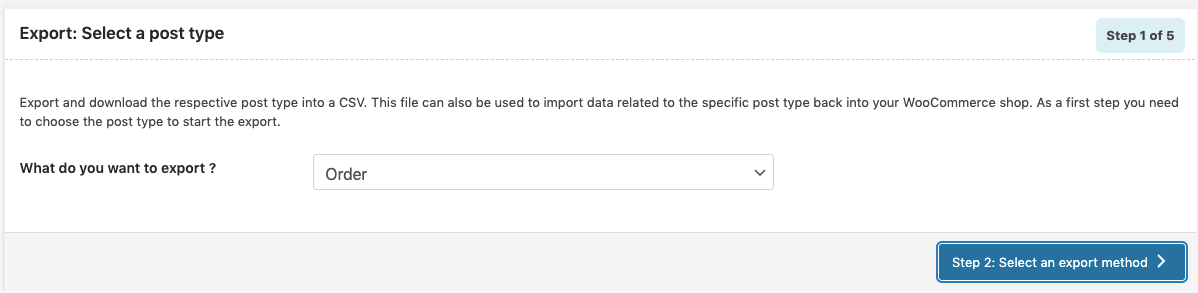
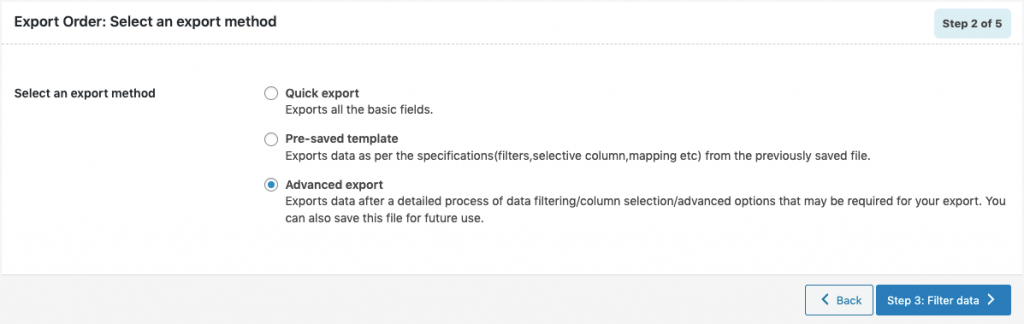
Step 2: Select an export method
Choose from the below options to continue with your export:
- Quick export : exports the basic/standard fields.
- Based on a pre-saved template : exports data as per the specifications(filters, selective column, mapping etc) from the previously saved file.Note: The template will be listed in the drop down only if you have saved it in previous exports, if you go through the Advanced export, at Step 5 you will get an option to save the template. Once you save that, next time when you want to export a pre-saved template, it will be populated within the drop down.
- Advanced export: Takes you through a detailed process of filtering/column selection/advanced options that may be required for your export.
Note: You can also save this file as a template for future use.
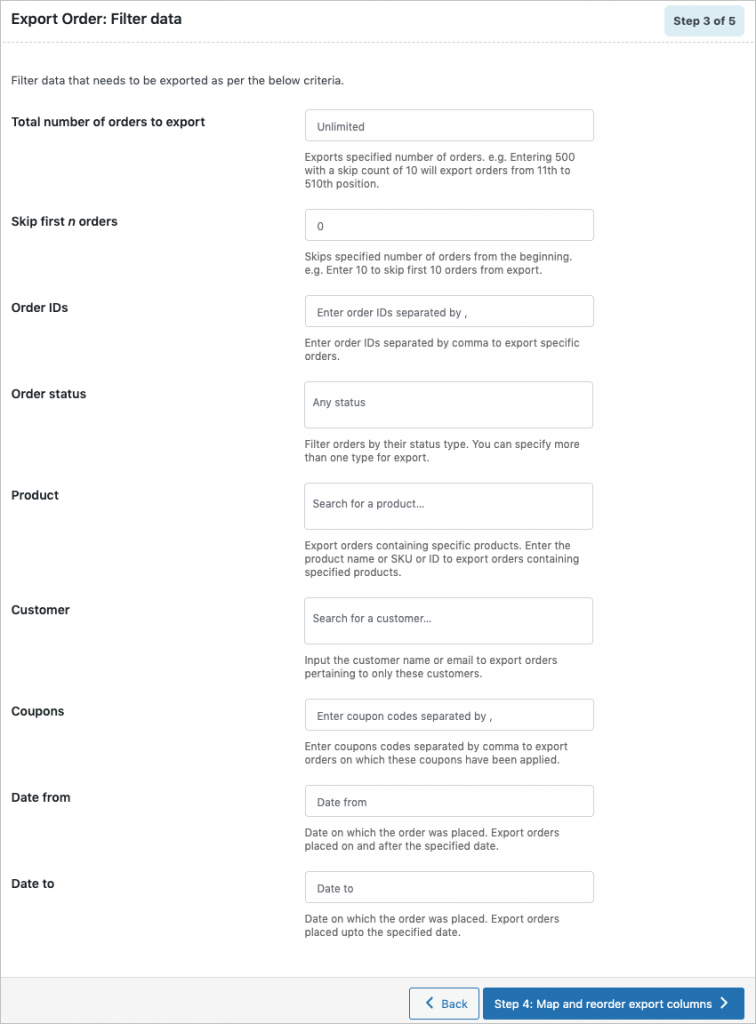
Step 3: Filter data
Filter data that needs to be exported as per the below criteria.
- Total number of orders to export
- Skip first n orders
- Order IDs
- Order Statuses
- Product
- Coupons
- Date from
- Date to
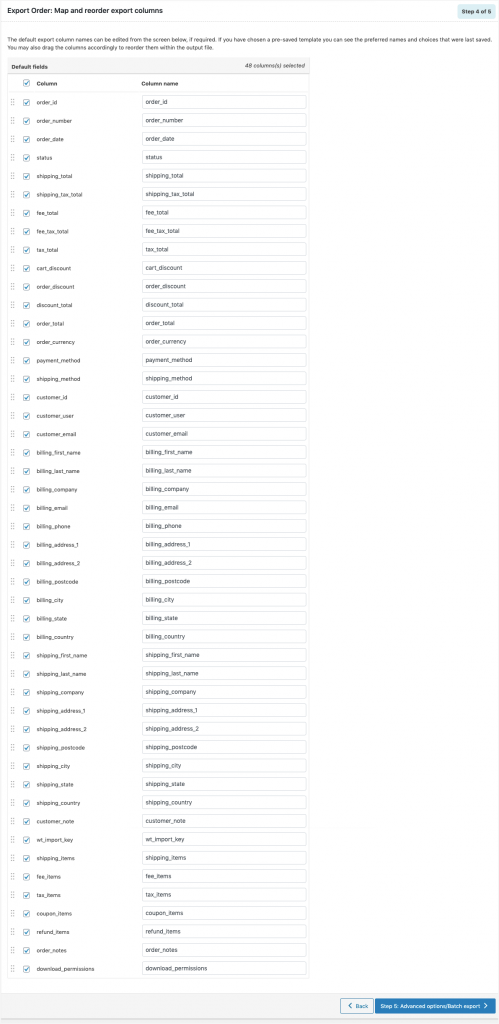
Step 4: Map and reorder export columns
The column names appearing in this section can be edited if required. The preferred names and choices that were last saved can be viewed on choosing a pre-saved template. One can also move the columns to reorder the arrangement.
Step 5: Advanced Options/Batch Export
On reaching Step 5, the following window will appear, from where one can export in batches.
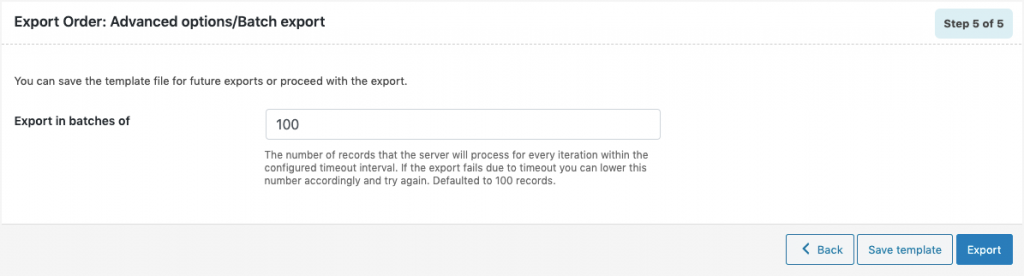
- Save the template file for future export (if needed).
- Click on Export and export or schedule the export to finish.
Refer Export orders for detailed step-wise export process.
Importing Orders
Download a Sample Order CSV.
For successful import, make sure to add the coupon code in the format code:xxx in the CSV file, where xxx is the coupon code. 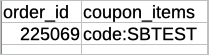
To import WooCommerce orders:
- Click on WebToffee Import/Export(Basic) > Import.
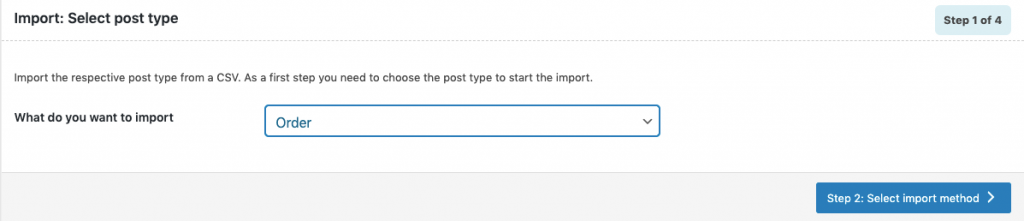
Step 1: Select a post type
As a first step, you need to choose the post type as Order.
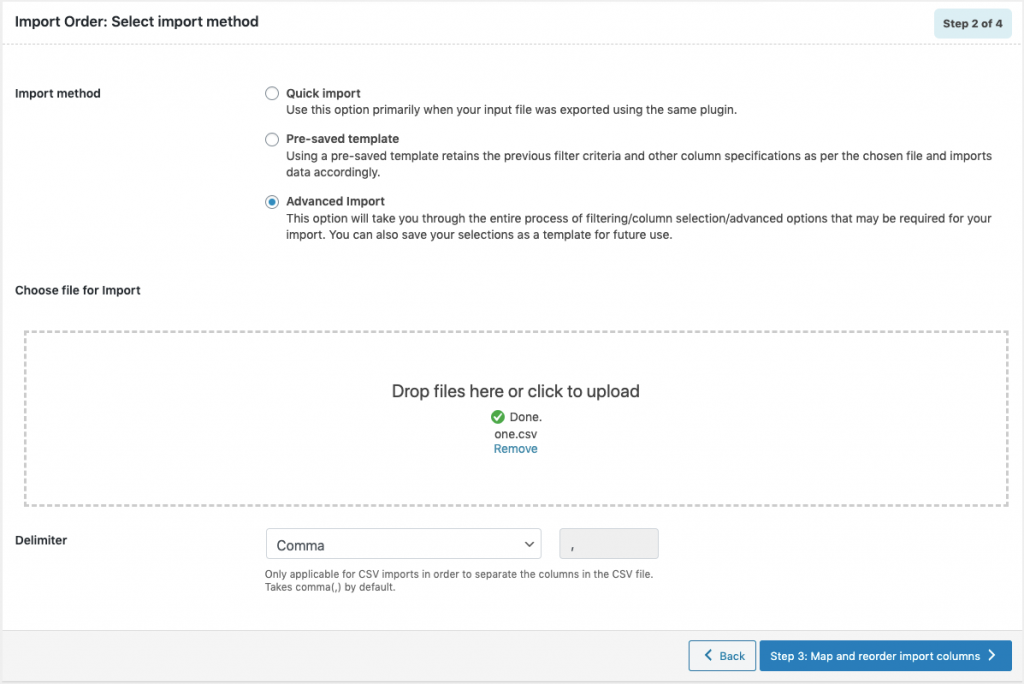
Step 2: Select an import method
Choose from the below options to continue with your import:
- Quick import : Preferred if your input file was exported using the same plugin.
- Pre-saved template : Retains the previous filter parameters and other column specifications as per the chosen file and imports data accordingly.Note: The template will be listed in the drop down only if you have saved it in previous exports, if you go through the Advanced export, at Step 4 you will get an option to save the template. Once you save that, next time when you want to export a pre-saved template, it will be populated within the drop down.
- Advanced import:Imports data after a detailed process of filtering/column selection/advanced options. This file can be saved for future use.Note: You can also save this file as a template for future use.
Step 3: Map import columns
The column names appearing in this section can be edited if required. The preferred names and choices that were last saved can be viewed on choosing a pre-saved template.
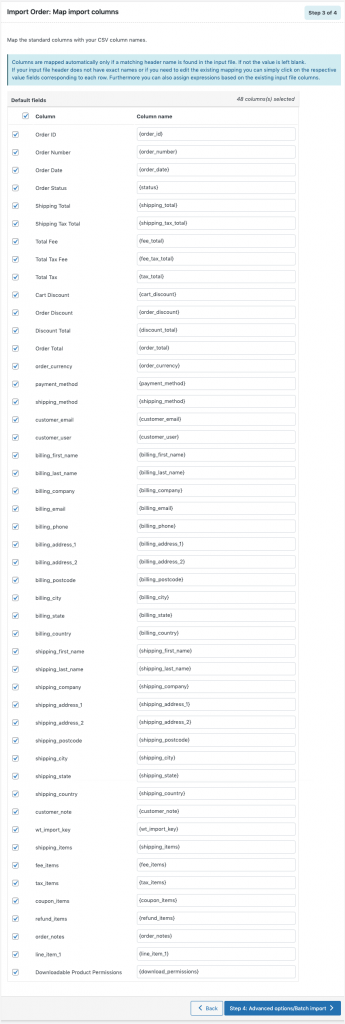
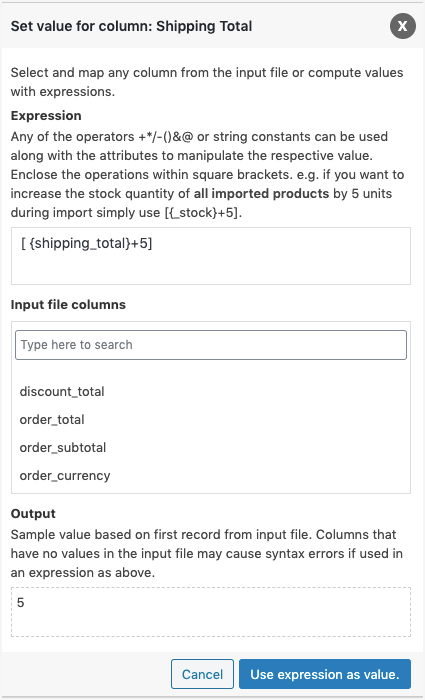
Evaluate field
Evaluate field can be used to append a value/expression to an existing item while importing. It basically selects/maps any column from the input file and compute the values with expressions and creates output.
- Expression: Any of the operators +*/-()&@ or string constants can be used along with the attributes to manipulate the respective value.
- Input: Select the column from the dropdown which has to be modified.
- Output: Sample value will be created based on the first record from input file.
- Click on Step 4 to proceed.
Step 4: Advanced Options/Batch Import
On reaching Step 4, the following window will appear, from where one can import in batches. One can either Skip or Update the entry If order exists in the store.
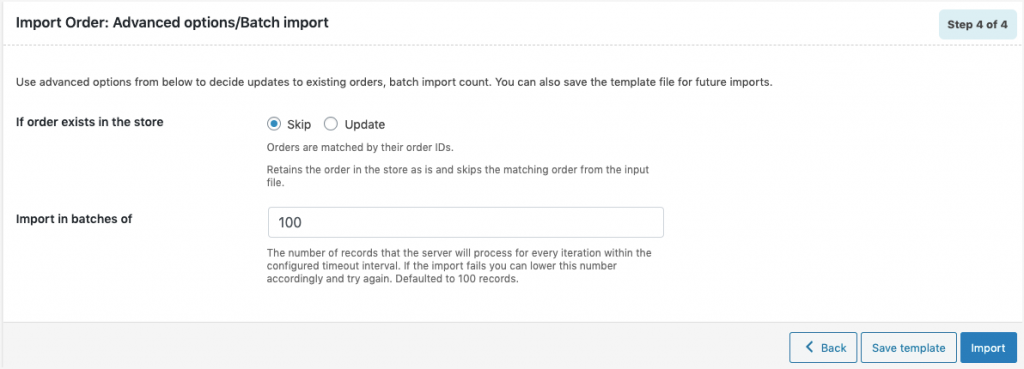
- Save the template file for future (if needed).
- Click on Import to finish.
Refer Import orders for detailed step-wise import process.
