


Overview
The free version of the Order / Coupon / Subscription Export Import Plugin for WooCommerce is an ideal plugin for exporting and importing data from the WooCommerce store or e-commerce platforms. With this plugin, you can easily import/export :
- Orders
- Coupons
What do we provide?
- Migrate both orders and coupons using the same plugin.
- The main migration methods are:
- Quick import/export
- Based on a Pre-saved template
- Advanced import/export
- Import/export data processing in batches, ensures successful import/export irrespective of its size/count.
- Detailed history and debug logs are other main peculiarities.
Pre-requisites
- Make sure mbstring is enabled on the server.
- Only CSV file formats are supported.
- Download a CSV with:
- CSVs should be in UTF-8 format.
To initiate the basic plugin version, install and activate.
Getting Started
Hooray!!.. You have successfully activated the plugin. On activation, a new menu “WebToffee Import/Export(Basic)” will appear in the WP admin panel’s sidebar.
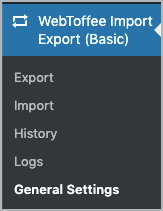
We can navigate to the plugin settings in two ways:
- WebToffee Import/Export(Basic) from WordPress dashboard.
- Plugins > Installed Plugins > Order / Coupon / Subscription Export Import Plugin for WooCommerce (BASIC)> Settings (the user will be taken to the General Settings window.)
The plugin consists of five different sub-menus :
- Export
- Import
- History
- Logs
- General settings
Let us have a look at each of these sub-menus in detail.
Export
Orders and coupons can be exported in just 5 steps:
- Select a post type: The available post types are Order and Coupon.
- Select an export method: Quick export, Pre-saved template and Advanced export are the provided export methods.
- Filter data: One can filter data with respect to the chosen post type.
- Map and reorder export columns: To map, edit and reorder export columns.
- Advanced Options/Batch Export: Provides advanced options for export.
Refer Exporting orders and coupons for detailed step-wise export process.
Import
Orders and coupons can be imported in just 4 steps:
- Select a post type: The available post types are Order and Coupon.
- Select an import method: Quick import, Pre-saved template and Advanced import are the provided import methods.
- Map import columns: To map and edit import columns.
- Advanced Options/Batch Import: Provides advanced options for import.
Refer Importing orders and coupons for detailed step-wise import process.
History
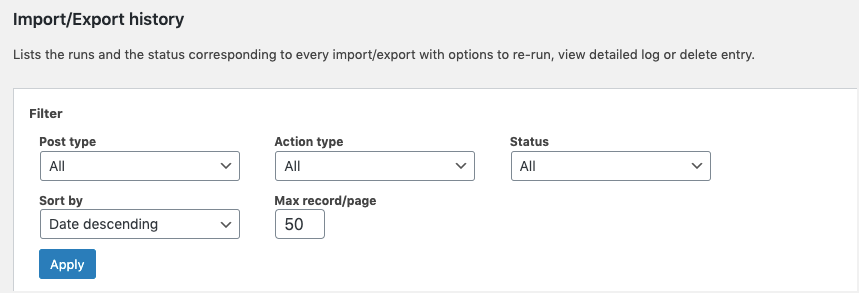
The History tab lists the runs and the status corresponding to every import/export with options to :
- Re-run: re-runs the action by taking the user to the respective screen.
- View log: view a detailed import log
- Delete: deletes the entry
- Download: This option appears only for export action type. Here, you can download the generated export file.

To look into the History section:
- Click on WebToffee Import/Export(Basic) > History
- One can sort the list with these available Filter options:
• Post type: ALL, Orders, Coupons
• Action type: All, Export, Import
• Status: All, Finished
• Sort by: Date descending, Date ascending
• Max record/page: The maximum records to be included in a page.
Logs
The Logs tab lists developer logs mostly required for debugging purposes with options to perform the following actions:
- View: to view detailed logs along with the reasons for failed parsing if any.
- Delete: to remove the log
- Download: to share the log report with the support team in case of issues

Reach the Logs section by clicking on WebToffee Import/Export(Basic) > Logs
Save Import Logs
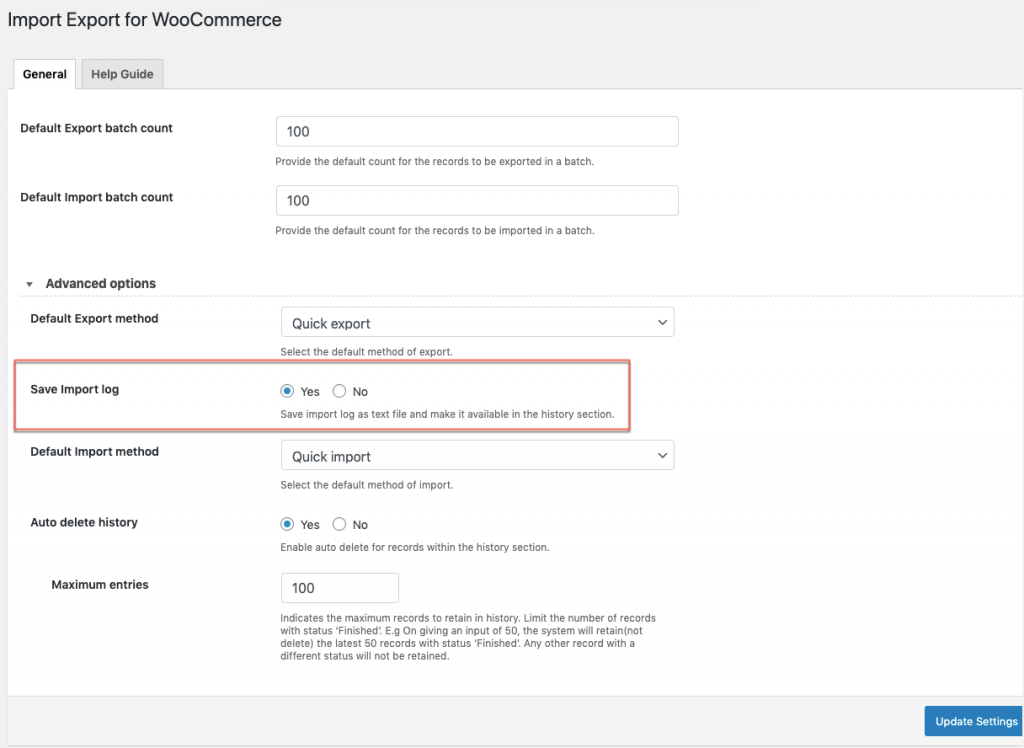
- Navigate through WebToffee Import/Export(Basic) > General Settings
- On the General tab, choose “Yes” for Save Import log to save import log as text file and make it available in the log section for debugging purposes.
- Click on Update Settings to finish.
General Settings
The General Settings tab helps to configure all the basic settings of the plugin. Click on WebToffee Import/Export(Basic) > General Settings , to reach this module.
The General Settings sub-menu consists of two sections:
- General
- Help Guide
General
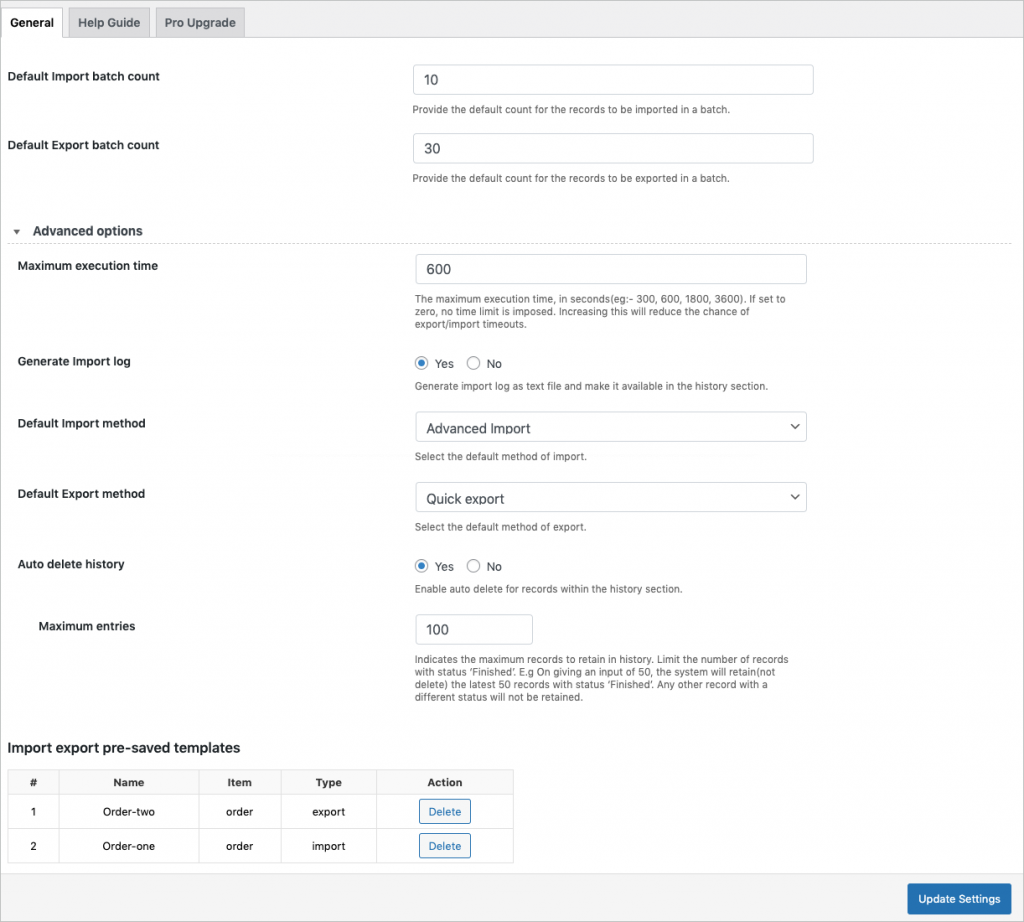
Here, you can configure the basic settings.
- Default Export batch count : Here you can give the default count for the records to be exported in a batch.
- Default import batch count : Specify the default number of records to be imported in a batch.
Advanced options
- Maximum execution time: Increasing the time will avoid uninterrupted data transfer. To remove the time limit, set value to zero. Default value is 600 seconds.
- Generate Import log : Here you can choose ‘Yes’ to generate the import log as a text file and to make it available in the log section.
- Default Export method : Here you can choose a default export method from the three given options:
- Quick export (chosen by default).
- Pre-saved template
- Advanced export
- Default Import method : Choose an import method from three options Quick import, Pre-saved template, and advanced import.
- Default Export method : Choose an export method from three options Quick export, Pre-saved template, and advanced export.
- Auto-delete history: You can auto-delete the history by choosing ‘Yes’.
- Maximum entries : Here, you can specify the maximum records to retain in history. It will limit the number of records with the status ‘Finished’. E.g: if you input a count of 50 the system will retain only the most recent 50 number of records with the status ‘Finished’. All other records of any other status will not be impacted by this count.
Import export pre-saved templates
This section lists all the pre-saved templates that were saved during an import-export process. You can also delete the template file.
Click on Update Settings to save changes.
Help Guide
The section consists of two tabs:
- Help Links: Provides direct links to resources like documentation and support.
- Sample CSV: To download sample CSVs of order and coupon.
Conclusion
Order management is a key component of any ecommerce business. Adding the Order/Coupon Import Export plugin to your store will make your business smooth by enabling easy management of hundreds and thousands of orders and coupons in your store. Click here to know about the plugin.

Raghisha
February 5, 2025
Hi,
Does the plugin can generate daily report automatically and send to admin mail?
Regards,
Raghisha
Hema
February 21, 2025
Hello Raghisha,
Thanks for reaching out. No, as of now, the plugin doesn’t generate report.
Mish
February 19, 2024
Hi, I am trying to import the exported file and I am receiving the same errors as others who had posted “Importing Order(ID) conflicts with an existing post” and your response was to “Please try deleting/unmapping the ID column and try importing so that a new ID will be assigned.”
If I delete the “order_id” column when it imports the file the order number is then changed to the next available order number. The order #’s, as you know are important and are used in various accounting areas and customer service, it needs to be the same as what was exported. How can this be corrected?
I am still trying to find a work around so that I can get the orders imported, but so far, no luck.
Hema
March 28, 2024
Hello Mish,
Thanks for reaching out. By importing the order as a new item, the order number will be affected, as the order number depends on the order ID in WooCommerce. By default, in WooCommerce, the order number is auto-generated from the order ID. Whatever the order ID is, it will be used as the order number. If you are required to retain the order number, you may try using our sequential order number plugin to import order numbers from the CSV file. You may please install the sequential order number plugin and then import the orders from the CSV file to retain the order numbers.
Rao Adnan
December 4, 2023
Hi Sir,
This plugin is not working on my site
This is my site https://nustone.co.uk
Its showing error
Sorry, you are not allowed to access this page.
Vineetha
December 6, 2023
Hi Rao Adnan,
Thank you for reaching out.
This message you received typically occurs when the user account does not have administrator or shop manager user roles. By default, only these user roles have permission to access the plugin. Could you please confirm if you have any of the above-mentioned user roles?
If you are unable to access the plugin even after logging in as an administrator or shop manager, then kindly reach out to us via support.
Nicki
September 2, 2022
Hi,
i can export an order file as *.csv but i cant import it. It says there are no tables to import although there are a few.
I took the default settings but i still dont get a list. I`m using the free version.
What am i doing wrong.
Alan
September 19, 2022
Hi,
Can you please reach us via support and share the screenshot of the error and the file you are importing so that I can check it and help you?
Jerry
March 7, 2022
Hi , i’m still facing the issues of id conflicts is their any thing to generate new post id instead of sku
Alan
March 17, 2022
Hi,
Please try deleting/unmapping the ID column and try importing so that a new ID will be assigned.
Ric Dev
March 3, 2022
Hi Team,
Presale question:
We did order migration using free version. While importing we got order id conflct issue .
Warning:
Importing Order(ID) conflicts with an existing post ID:*****
If we use premium version will it be solved ? Migration can be done without any conflict?
Please confirm.
Alan
March 17, 2022
Hi,
In the premium version plugin, there is an option to assign new IDs if there are any ID conflicts during import. You can also unmap/delete the ID column during import to overcome the ID conflict. WordPress will automatically assign the next available ID to the imported post.
Jatin
October 7, 2021
How to add custom fields to import/export – specially asking related to plugin ” Google Listings and Ads ” .
Mark
October 9, 2021
Hi,
If you are using any third-party plugin to create custom data fields to products it will be stored as metadata. You may please export the product with the option Hidden meta checked in the export mapping and the custom metadata fields will be included in the exported CSV. Later on, you can use the same exported CSV as a template to import data back.
Ad
October 18, 2021
“the option Hidden meta checked in the export mapping”
This looks to be a paid option only.
Mark
October 19, 2021
Hi,
Yes, exporting and importing custom metadata is one of our premium features. Please check out the pro version plugin to export and import metadata.