


ⓘ
This article applies to the following document types:
- Invoice
- Credit Note
- Dispatch Label
- Proforma Invoice
Store owners can easily rearrange rows inside the summary table of a document using the WebToffee’s Customizer for WooCommerce PDF Invoices add-on. To rearrange rows inside the summary table, follow the below steps:
- Navigate to the Summary table of the corresponding document.
- Click anywhere on the Summary table.
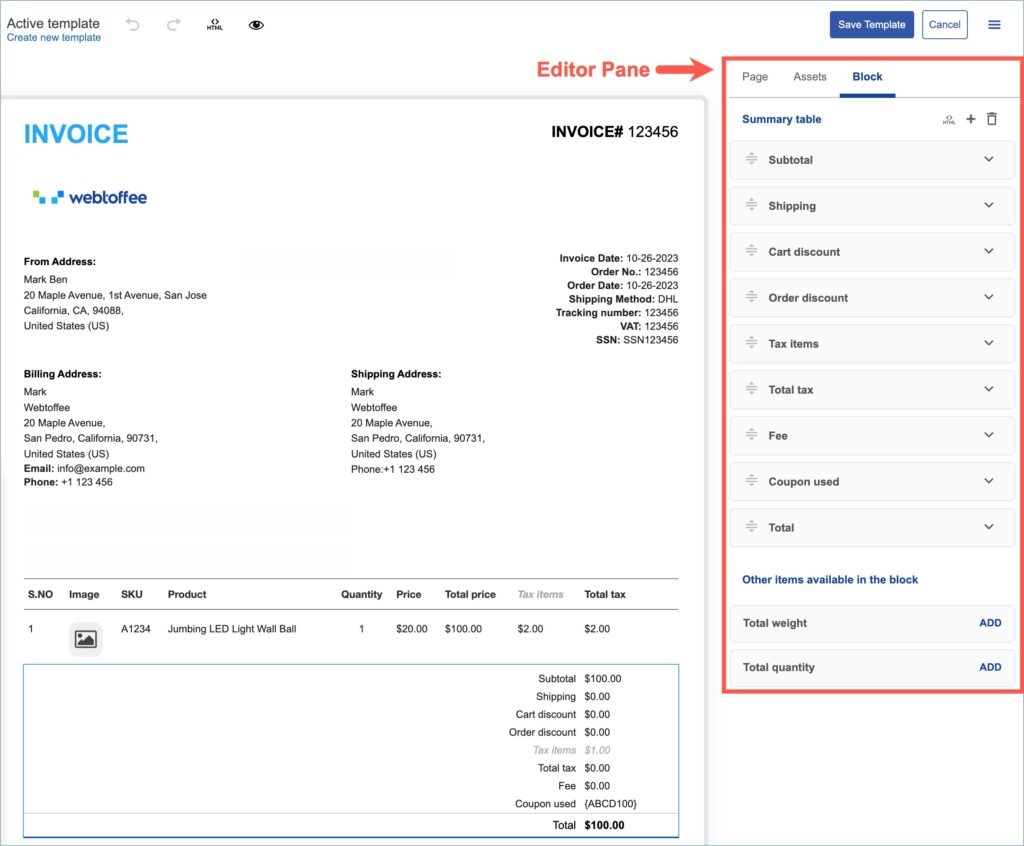
- Head to the Editor pane.
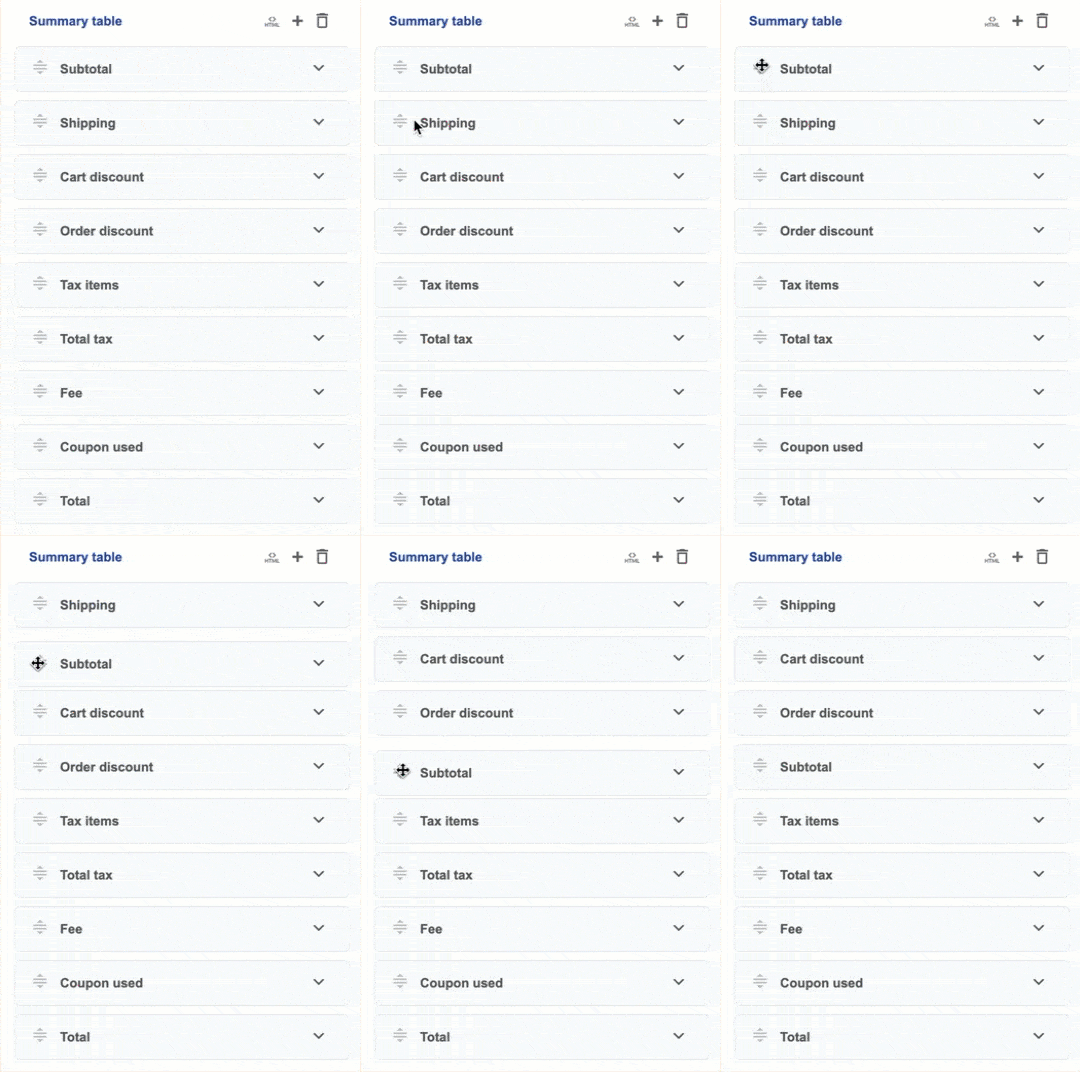
- Drag and drop the desired row to the preferred position.
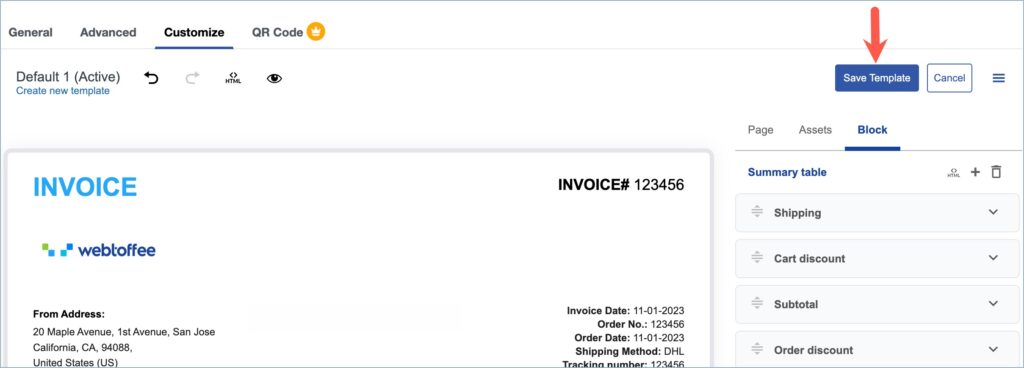
- Click on Save Template.
Rearranging rows inside the summary table
Let’s take an example of rearranging rows in an ‘Invoice’ document. Follow the below steps to rearrange rows:
- Navigate to Invoice/Packing > Invoice > Customize.
- Head to the Summary table in the active invoice template.
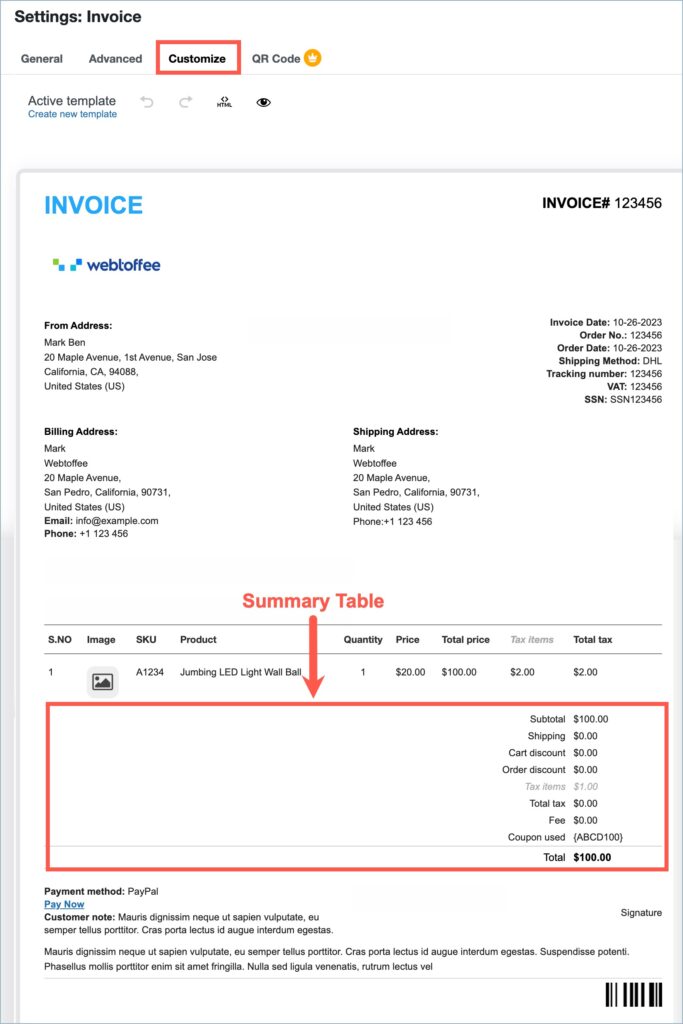
- Click anywhere on the summary table. The Editor pane will now display the elements in the summary table.
- Drag and drop the desired row to the preferred position.
- Click on Save template and save changes.
Deleting rows inside the summary table
Store owners can delete rows from the summary table by following the below steps:
- Navigate to the Delete icon present at the top right corner of the Editor pane.
- Click on the Delete icon.
- Choose the rows to be deleted by ticking the checkbox next to the preferred rows.
- Head to the Delete button and click on it to remove the rows.
- Finally, click on Save Template to save the changes.
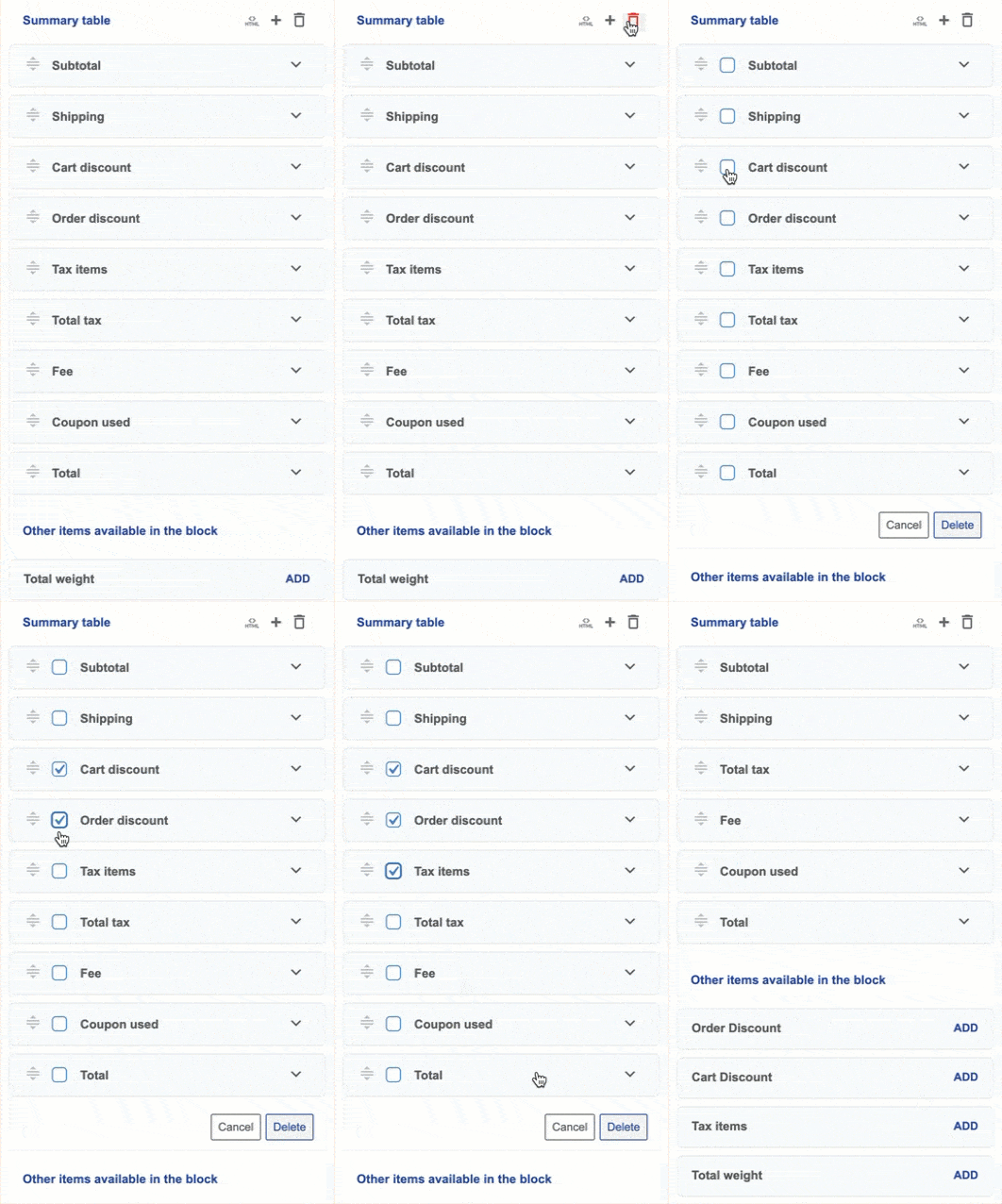
Overall, this feature makes it simple to organize and refine the summary section by rearranging or removing rows as needed. It allows for better control over how key details are presented, helping create cleaner and more structured WooCommerce documents.
📚
Discover More:
