


This is a complete documentation of the free plugin Sequential order number for WooCommerce to help you convert your WooCommerce orders into a custom and sequential format.
Overview of the plugin
- Supports sequential order numbers for WooCommerce
- Enable custom formatting for order numbers in your store by adding a prefix and starting number for orders.
- Option to have order date prefixes for all orders
- Support Subscription orders.
- Search custom order numbers from the Orders page.
- Compatibility with WooCommerce Subscriptions and WebToffee Subscriptions plugins.
Installation
You can install the plugin either from the WordPress plugin directory or as a zip downloaded from the WordPress.org website. You can learn more about the installation procedure by reading the article How to install a free plugin from WordPress.
Getting Started
From the WordPress dashboard, navigate to WooCommerce >Settings > Sequential Order Number. Following is the Sequential order number settings window. You can configure the settings as per your preference.

Settings
- Order number format – Select an order number format with a combination of number, prefix, or date.

- Prefix – The prefix will appear at the beginning of the order number. For eg, if you enter ‘WT-‘ as the prefix with the start number as 100, then your first order number will be WT-100. To add a suffix to the order number you will have to purchase the premium version of the Sequential order for WooCommerce plugin.
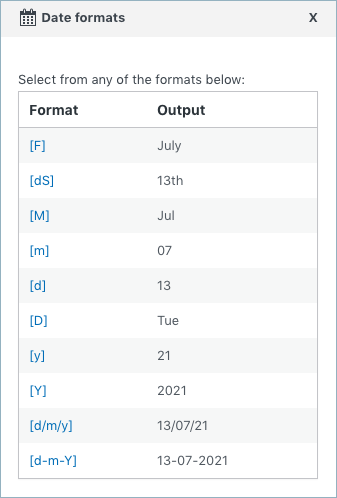
- Order date format – The order date will appear after the prefix. Select one or more date formats and use alphanumeric characters to separate them. For example, pick the date format [y]/[m]/[d] separated by ‘/’ to get the order date format as 21/07/28. Pick any of the date formats from the list of pre-defined formats as given below:
- Order number length – Maintains a fixed length for order number padded with ‘0’ excluding prefix. For example, entering the order number length as 7 with order number 123 and prefix ‘wt’ will generate a sequential order number as wt0000123.
- Preview custom order number – Preview your custom order number with the newly input prefixes and date formats to know how it will appear for WooCommerce orders.
- Start Number – Here you can add a custom starting number for your store’s order number.
- Apply for all orders – Enabling this option will change starting number and/or prefix for all the existing and new orders in your store. If unchecked, it will only apply to the new orders.
- Track orders – Enable the track order option to track the sequential order number. Shortcode can be inserted to track orders.
- Search orders – Enable this option for searching plugin-generated orders from the WooCommerce orders page.
Tracking orders
WooCommerce offers this shortcode to link orders based on the order ID. You can add the shortcode as a post and use it to track the orders. The shortcode is as follows:
[[woocommerce_order_tracking]]
A screenshot of the order tracking page on a website created using the shortcode follows.
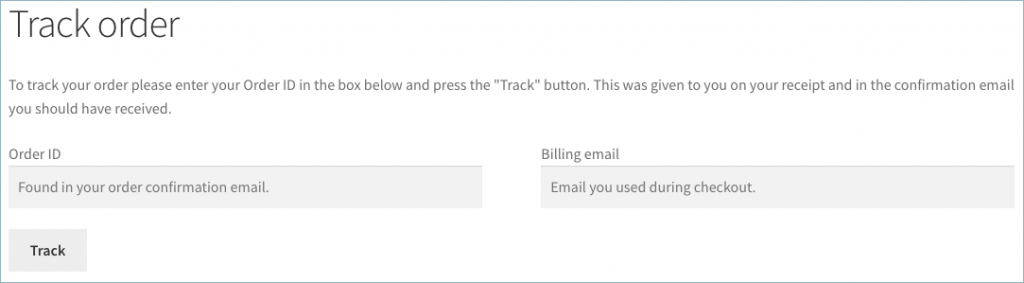
You can view all the details regarding an order by entering the order ID and billing email corresponding to that order.
Search orders
You need to enable this option to search plugin-generated orders from the WooCommerce orders page. If you disable it, you will not be able to search for custom order numbers from the orders page.
Finally, click on the Save Settings button. As a result, the store’s order numbers will be updated.
Following is a screenshot of an order page containing sequential orders.
In the below screenshot, the values assigned for each field are as shown below:
- Starting number – 100
- Order number format – [Prefix][Date][Number]
- Prefix – ORDER
- Order date format – ‘[Y]-‘ Current year (2024) with a hyphen as separator
- Order number length – 6

Searching Orders using the WooCommerce Search Option
By default, WooCommerce provides a search option on the Orders page to search orders based on certain criteria, such as Order ID, customer email, product name, etc. Installing the Sequential order number for WooCommerce plugin adds the order number as an additional search criterion. Enable the Search Orders option from the plugin Settings page (WooCommerce > Settings > Sequential Order Number) to use the order number as the search criteria.


Conclusion
To sum up, if order management takes up a lot of your time, then the plugin will be helpful in making it easier for you. If you are dealing with lots of orders in your store on a daily basis, you can save time tracking orders quickly.

Dan Broughton
June 22, 2026
Hi there. I note on my website the Sequential Order Number plugin is showing orders in a non sequential order. I.e. larger numbers before smaller numbers in relation to the date / time of the order. Can you advise why this is?
Hema
June 22, 2026
Thank you for reaching out.
This behavior can occur when a sequential order number has not yet been generated and is only assigned once the order reaches a specific status. For example, this may happen if the order is initially created as a draft order.
In such cases, if multiple orders are created first and their statuses are updated at different times, an order that was created earlier may end up receiving a higher sequential order number if its status is updated later than another order.
Could you please confirm whether the affected orders were initially created as draft orders or remained in a status that does not trigger sequential number generation?
Additionally, as this appears to be a technical issue that may require further investigation, kindly reach out to our Technical support team here with screenshot of relevant order details so we can take a closer look and assist you further.
Gurdeep Kaur
May 13, 2026
this is not working for new orders
Yuval
May 14, 2026
Hi Gurdeep,
Thanks for reaching out.
Kindly deactivate and reactivate the Sequential Order Number plugin and check again. Please note that for orders created manually from the WooCommerce backend, the sequential order number is assigned only after the order is created/saved.
If the issue still persists, please contact our technical support team for further assistance.
Tuan
February 11, 2026
Hello,
We are using your plugin for quite some time, and it seems like your plugin is causing delay on our checkout process about 7-10 sec delay.
could you get back to us ?
Kind regards
Hema
February 12, 2026
Hello Taun,
Thanks for reaching out. Since this requires a closer look at your site setup and possible conflicts, could you please reach out to our support team directly?
Kindly share your site URL along with temporary admin access so our team can perform detailed debugging and identify the root cause.
You can contact our support team here.
Simona
January 5, 2026
Hi, the plugin doesn’t work properly. Any time I wont to start with the new year, I change the number, but it uses a different number
Yuval
January 21, 2026
Hi there,
We’d like to inform you that our plugin functions using an incremental counter; it checks the last generated order number and assigns the next number in sequence. If an order number has already been used, the same number will not be generated again, even if you change the starting order number in the plugin settings. Kindly let us know if this is the case.
We recommend adding a new prefix or suffix and then setting your desired starting number. This will allow the sequence to begin from 1 or any number you prefer.
If the issue persists or any further concerns, please reach out to our technical support team via this link, and our team will be happy to assist further.
tom
June 27, 2025
Is there a way to add the wordpress post id as part of the “synthetic” sequential number?
Sanjai Valsan
June 30, 2025
Hi Tom,
Thanks for your question!
Including the WordPress post ID as part of the sequential number isn’t a common configuration through the plugin’s settings. Since this might involve a more advanced or custom setup, we recommend reaching out to our support team for the most accurate guidance.
Max R
December 18, 2024
Hi,
ich verwende zusätzlich das Plugin Flexible PDF Coupons PRO for WooCommerce. Auf dem Gutschein wird nun nur die alte Woocommerce-Order-ID dargestellt. Wie kann ich die neue seq. forlaufende Nummer bspw. als Shortcode dort angeben.
Danke
Sanjai Valsan
December 24, 2024
Hi Max,
Thank you for reaching out,
The Flexible PDF Coupons PRO plugin you are using appears to reference the
post_idinstead of our sequential order number. We recommend reaching out to the plugin vendor and requesting them to use$order->get_order_number()instead of$order->idor$order->get_id()when fetching order data.Thank you for your understanding! If there’s anything else we can assist you with, feel free to reach out to our customer support team.
max
December 18, 2024
Hi,
ich verwende zusätzlich das Plugin Flexible PDF Coupons PRO for WooCommerce. Auf dem Gutschein wird nun nur die alte Woocommerce-Order-ID dargestellt. Wie kann ich die neue seq. forlaufende Nummer bspw. als Shortcode dort angeben.
Danke
Sanjai Valsan
December 24, 2024
Hi Max,
Thank you for reaching out,
The Flexible PDF Coupons PRO plugin you are using appears to reference the
post_idinstead of our sequential order number. We recommend reaching out to the plugin vendor and requesting them to use$order->get_order_number()instead of$order->idor$order->get_id()when fetching order data.Thank you for your understanding! If there’s anything else we can assist you with, feel free to reach out to our customer support team.
Elizabeth
June 21, 2024
we are experiencing some skipped numbers, how do we find out what is causing this?
Sanjai Valsan
June 21, 2024
Hi Elizabeth,
Thank you for reaching out!
It seems like you are experiencing issues with sequential order numbers. To resolve this, you might need some technical assistance. Kindly contact our customer support team for further assistance.
Andy Alpern
May 29, 2024
Hi. Is it possible to get rid of the hash tag “#” in the order number? thanks
Order: AA-05-28-2024-262
instead of
Order: #AA-05-28-2024-262
Sanjai Valsan
May 30, 2024
Hi Andy,
Thank you for reaching out!
The hashtag (#) at the beginning of the order number is added by WooCommerce. While it may be possible to remove it, the feasibility needs to be checked. Kindly contact our customer support team for further assistance.
William Uden
May 13, 2024
Gateway Timeout
The gateway did not receive a timely response from the upstream server or application.
Get this error any time I save changes. Order numbers are not changing. Any ideas?
Sanjai Valsan
May 15, 2024
Hi William Uden,
Thanks for reaching out!
Sorry to hear you’re encountering this issue. Please reach out to our customer support team, and they’ll be able to investigate and help resolve this matter for you promptly.
Oliver
April 23, 2024
Hallo,
das Plugin lief seit 1 Jahr ohne Probleme.
Seit 1 Woche haben wir jetzt ein Problem:
Wenn wir eine Bestellung manuell hinzufügen wird keine Bestellnummer generiert, er nimmt eine fortlaufende Bestellnummernummer aus Woocommerce. Diese Nummer wird auch in der E-Mail an den Kunden geschickt.
In der Bestellübersicht in Woocommere wird dann eine andere, generierte Bestellnummer, angezeigt.
Bei Bestellungen über den Shop funktioniert alles super.
Sanjai Valsan
May 3, 2024
Hi Oliver,
Thank you for reaching out!
It seems like you require some technical assistance to address the issue you’ve encountered. Kindly contact our customer support team to get the issue resolved.
Whitney
March 30, 2024
I am having the same issue with the old order number showing up in several places:
1. On the “Thank You” page of orders paid with Cash App. The correct order number displays at the top of the page but Cash App is importing the old number somehow and displaying it on this page as well so we have 2 different orders numbers appearing.
2. In the email sent to customers who paid with Cash App. Same thing, Cash App is importing the old order number in the email.
3. The Route Shipping Insurance integration is pulling the old order number in their system and in their emails as well.
So it seems the issue is with the order number third parties are syncing to. Can you make sure that number gets updated, please? Thanks, guys!
Sanjai Valsan
April 4, 2024
Hello Whitney,
Thanks for reaching out!
We haven’t yet tested the plugin with integration systems such as CashApp and Route Shipping Insurance, so we cannot confirm compatibility. However, it’s our understanding that they may be utilizing returns post_id instead of our sequential number. Unfortunately, we can’t fix this on our own. We advise you to contact the plugin vendor and ask them to use
$order->get_order_number()instead of$order->idor$order->get_id()when fetching order data.Duco
December 19, 2023
Hi, nice idea for a plugin, but in my case, it does not seem to work (completely). What I do; I configured the plugin and checked the checkbox to update all existing orders. I see, in the orders overview, that the old order numbers are updated, but when a new order is placed, the old order number is used instead of the order number generated by this plugin. Also, the outgoing email contains the “old” (WooCommerce) order number and not the new one. Whenever I save the settings again, the order numbers are changed correctly again, but this does not happen automatically. Is there maybe something wrong on my side?
Sanjai Valsan
December 21, 2023
Hello Duco,
Thanks for reaching out!
The issue you have pointed out seems like a site-specific one. So kindly contact our customer support team for further assistance.
Whitney
March 30, 2024
I actually had this same issue on a client’s site so I don’t think it’s site specific. When we attempted to update old order numbers, new orders were not coming in with the new order number. We had to save it a few times for it to take effect. I’m assuming it may be something similar to how WP permalinks work where you have to save it 2x to work? Idk but just wanted to share Duco is not alone.
Sanjai Valsan
April 4, 2024
Hi Whitney,
Thank you for bringing this to our attention. We apologize for any inconvenience you’ve experienced. We’re continuously working to improve our plugin’s functionality and address issues like this. Your feedback helps us understand areas for improvement, and we appreciate your patience as we strive to enhance the user experience.
Diego PD
October 27, 2023
Hello. Great plugin.
I have a small problem using your sequential order number plugin. I have my store linked to WhatsApp to receive order notifications, but when I receive the message it sends me the original order number. Can this be changed so that the modified order numbers arrive in sequence?
Sanjai Valsan
October 31, 2023
Hi Diego PD,
Thanks for reaching out!
To resolve this issue, instead of referencing to
$order->idor$order->get_id()when fetching order data, use$order->get_order_number()to call the sequential number information.Stanislav
August 15, 2023
There is a problem changing the status of old orders that were made before this plugin was activated. For example, the plugin is set so that new orders start with the number 30000. But I have an old order 6546 with a status of processing. After I change the status to completed, the number of this old order automatically changes to 30001. What is the reason for this?
Hema
August 18, 2023
Hi Stanislav,
Thanks for reaching out. We are providing a woocommerce hook on our plugin to create order from admin’s side. When we change status that hook is causing issue. Thanks for letting us know and this will be corrected in the next release.
Jim
June 26, 2023
We too are having the issue where it does not output the order number in the emails – it still uses the product ID, which is causing real confusion. Is there a way round this?
Hema
June 27, 2023
Hello Jim,
Thanks for reaching out. The order_number could be overridden by other plugins if used any. We can help you better when we know about other plugins that are used at your end. Kindly contact customer support for further assistance.
Ivo
March 1, 2023
Hi,
Thanks for another great plugin! We just seem to be having an issue whereby the order number shown in the subject line of the New Order email does not match the sequential order number created by your plugin.
This is the syntax for the New Order email subject line: [{site_title}] New customer order ({order_number}) – {order_date}
Juraj
December 26, 2022
Hello, I am using the format : “prefix,date,number”, where “date” is the year. I would like to ask if with the new year 2023 the number automatically resets to the “starting number”? If not, how do I do it manually?
I.e. for example it will be the last one in 2022 ABC20226789 and then the first in 2023 – ABC20230001.
Thank you in advance.
Juraj
Mike
January 3, 2023
Hi Juraj,
Thanks for reaching out. The daily/monthly/yearly reset counter option is only available in the premium version of our Sequential Order Numbers for WooCommerce plugin.
azrul
October 28, 2022
Hi admin,
I just wondering how can i get the original order id from this plugin order id?.
In my woocommerce the original order id is 10 example but when i try to search back the original order id from the order id given by this plugin i cannot get the original order id.
Please advice me how to get the original order id from this order id that been given by the plugin
Mike
January 11, 2023
Hi Azrul,
Presently the plugin doesn’t offer any options to display the original order id. However, you can find the original order id in each order URL, where the “post=” section is the actual order ID. Hope it helps.
Zack
October 24, 2022
Can I use this to create order numbers for old orders and keep their existing IDs?
For example if an old order is #1732, I want the new one to be “2022-1732”. Basically I want to prefix existing orders with year “2022-” and then I want to change it again so that all new orders have a prefix “2023-” going forward.
Can I do that? It looks like it can only start a new sequence, rather than make use of the existing order ID that it already has.
Mike
December 5, 2022
Hi Zack,
Thanks for reaching out.
Presently the plugin doesn’t offer the mentioned option to add prefix to the order id. However, your feature suggestion has been forwarded to our development team. After doing the necessary feasibility studies, we will add it to the development backlogs and take it into consideration during future developments. Thanks for understanding.
Marijn
September 12, 2022
Dear Developers,
We are using your plugin to set a custom prefix and sequantial order number for our webshop.
The webshop is connected to Microsoft Navision which our CRM system. Now i was wondering which database table and field is the custom order number with prefix stored? So that i can parse these information to MS Navision.
Thanks in advanced,
Marijn Boss
Mark
September 23, 2022
Hi Marijn,
Happy to see that you are using our plugin.
The custom order number is saved in the post_meta table under the meta key
_order_numberBill
July 29, 2022
Everything works great except with emails. The subject of New order emails still displays the old order#, while the Header in the body of the email displays the new order # even though they are both using {order_number} in the woocommerce email settings.
Thanks!
Mike
August 25, 2022
Hi Bill,
Are you using any email customizer plugins or any custom codes to alter the WooCommerce email content? Kindly share your WooCommerce system status report (WooCommerce>status>system status report) via this link for a better understanding.
Chris
July 18, 2022
Order numbers jumped from #239 in May 2022 then the next order placed on the site today was #3166
On the latest version
Mike
July 21, 2022
Hi Chris,
Thanks for reaching out. Since it is a glitch, kindly raise a support ticket via this link.
AMWeb
June 27, 2022
Hi,
I am using your plugin and am correctly getting sequential order IDs for Woocommerce orders, but not for Woocommerce Subscriptions.
How do I need to proceed to also have sequential subscription numbers?
Thanks
Mike
July 21, 2022
Hi there,
Our plugin is designed to generate sequence numbers for the WooCommerce orders (WooCommerce > Orders). We understand your requirement. However, presently our plugin doesn’t offer any options to generate sequence numbers for the subscription orders.
Mike Brown
June 23, 2022
We’re finding that the incremental order number is appearing everywhere except the thankyou.php page where it always shows as 0. Any idea how to fix this? The code is below:
get_order_number() ); ?>
Mike
July 18, 2022
Hi Mike,
We were not able to replicate the issue when we tested the scenario on our end. Kindly reach out to us via our support to check the issue.
Eugenia Franzoni
May 31, 2022
Hi,
we would like to use the plugin together with the ShippyPro service, which uses Legacy APIs. Everything works with their service, except that the order IDs exported to them is the Post ID and not the Order ID
We are actually using the free plugin. Would the Pro plugin solve the issue?
thanks!
Shesna
June 1, 2022
Hi Eugenia,
Thanks for reaching out to us. We understand your requirement. Unfortunately, we won’t be able to do anything to get this resolved from our side alone. However, you may please check with the ShippyPro Plugin vendor about any hooks available to modify the data exported by the plugin.
gavin
March 25, 2022
I found that the order number I got from the third-party credit card payment plugin is still the original order number. How can I solve this problem? The plugin I used is [wintopay-for-woocommerce-V2.0.8]Looking forward to your reply!
Mark
April 12, 2022
Hi Gavin,
Greetings from Webtoffee!
In order to bring additional compatibility, code changes should be done within that plugin or they should be able to provide us with some action hooks. Kindly share us their support page link or contact so that we can check with them. You may also try contacting them directly.
Dev
February 25, 2022
The new order id doesn’t work on order tracking page. help me with this.
Mike
March 23, 2022
Hi Dev,
Thanks for reaching out to us.
Kindly share the WooCommerce system status report (WooCommerce>status>system status report) via this link for a better understanding of the issue.
Quinn Corkal
February 2, 2022
Thanks for the great plugin.
When we use the shortcode in Woocommerce emails {order_number}, it doesn’t take the new order number (we reset to zero). It takes the order number as if never installed your plugin (ex 3758).
Is there a way to fix this?
Thank you!
Mike
March 23, 2022
Hi Quinn,
Thanks for reaching out to us.
Kindly mention the email customizer plugin name that you are using. It will be nice if you could share the WooCommerce system status report (WooCommerce>status>system status report) via this link for a better understanding.
Punit Shah
January 28, 2022
Hi,
Any way to add compatibility with Sumo Affiliates Pro plugin?
Mike
February 1, 2022
Hi Punit,
Thanks for reaching out to us. Unfortunately, we haven’t tested the plugin with the Sumo Affiliates Pro plugin and we are not sure of the compatibility. Since it is a premium plugin, it will be nice if you could try using the free version of our plugin and see if it have any compatibility issues.
Punit Shah
January 26, 2022
Sumo Affiliates Pro plugin does not reflect the updated order number. Can it be fixed?
Mike
February 1, 2022
Hi Punit,
Thanks for reaching out to us. If you like to make any of your other plugins (invoice/payment/shipment) compatible with the Sequential Order Numbers for WooCommerce, please make the below tweak.
Instead of referencing
$order->idor$order->get_id()when fetching order data, use$order->get_order_number()Evan
January 25, 2022
I am just curious, I updated a shipping address on an order and the order ID updated. Is there a way to not have the order ID when we do changed to the order itself?
Mike
February 1, 2022
Hi Evan,
Thanks for reaching out to us. We were not able to replicate any such issues when we tested the same scenario on our end. If the issue persists kindly share the screenshots of the order edit page via this link.
Margot
January 3, 2022
Hi Webtoffee team,
I would like to start the new year with new sequential orders. Example:
Last order in 2021: 2021-0133. How do I start 2022 with 2022-0001? I already changed the prefix in 2022, but I am unable to restart the order number from 0001.
Please let me know how to change this.
Mike
January 8, 2022
Hi Margot,
Thanks for reaching out to us. We understand your requirement. Presently the daily/monthly/yearly wise sequence resetting option is only available on the premium version of our Sequential Order Numbers for WooCommerce plugin. Thanks for understanding.
KRZYSZTOF STEFANKO
November 8, 2021
Hi. I have order number #3 but on PayU refference I get paid for order 92100. Same info os to DHL and I see adres deatils and order 92100 printed on posting sticker. 92100 was old numeration from previous plug in
Mike
November 30, 2021
Hello there,
Thanks for reaching out to us and we are sorry for the inconvenience caused. We have addressed the issue in our latest update. Kindly update the plugin to the latest version (v1.4.2) and check. Let us know if anything.
Sergio Marta
October 18, 2021
Hi.
Scenario: I have orders 2021-01, 2021-02.
1) In 2021, may I “Restart” with 01-20121 maintaining the older orders?
2) In 2022 how may I restart from 2022-01?
Best regards.
Mike
October 25, 2021
Hi Sergio,
Thanks for reaching out. We understand the requirement. However, presently our plugin doesn’t offer any automation for your requirement. You need to do it manually by setting the start number and your custom prefix on your desired intervals.
Simon Andrew Hardman
October 18, 2021
Hi,
We get an occasional problem when using Paypal & IPN with the incorrect format of the order_id information being sent but the orders are sequenced ok- have you seen this before?
Regards
Simon
Mike
October 25, 2021
Hi Simon,
Thanks for reaching out to us. We understand your requirement. Unfortunately, this cannot be fixed at our end alone. We have already contacted the plugin vendor and waiting for their response. We suggest you contact the plugin vendor from your side too. Thanks for understanding.
Alex
September 15, 2021
After the latest update, $order->get_order_number(); does not work.
It show the WooCommerce Order ID instead of the new Order ID.
Mike
September 27, 2021
Hi Alex,
Thanks for reaching out. Kindly raise a ticket here and share the details for debugging.
Nagendra Shukla
November 15, 2021
We are also facing same issue. After update $order->get_order_number(); is returning wocommerce order id (post id)
While it was all working before update.
Please help to get it fixed.
Mike
November 30, 2021
Hi Nagendra,
Thanks for reaching out to us and we are sorry for the inconvenience caused. We have addressed the issue in our latest update. Kindly update the plugin to the latest version (v1.4.2) and check. Let us know if anything.
Masoud Forsat
August 31, 2021
Hello. I’m using the plugin but I have a problem that it generates order number even for abandoned checkouts. How can I modify it to generates the order number only for paid orders?
Thank you
Mike
September 6, 2021
Hi Masoud,
Greetings from Webtoffee!
Since the order number generation is triggered when an order is created, there is no option to differentiate them and avoid pending payment orders.
We will add this to backlogs and consider it in future updates.
Masoud Forsat
August 31, 2021
Hello. I am using the plugin, but I have a problem.
When customers go to the checkout page and fill the billing information (before entering the card information), the app counts it as one order. I mean even abandoned orders have order number!! So we can not follow order numbers.
How can I solve this?
I want the order number to be only for completed orders.
Thank you
Mike
September 27, 2021
Hi Masoud,
Thanks for reaching out. Are you using any third-party plugins for check out? Kindly share the details via this link.
Stephan
August 30, 2021
Hi and thank you for this tool! As we are using it, we have the problem, that the new order numbers get correctly mentioned in our system – but not in the order confirmation mail. In the mail there we have still the old random order numbers of woocommerce.
Maybe someone can help us?
Kind regards
Stephan
Mark
September 1, 2021
Hi Stephan,
We have tested the scenario and we are getting the sequential order numbers in the email as well. Are you using any other plugins to send the emails?
Chloe
October 21, 2021
I have the same issue
Mike
November 30, 2021
Hi Chloe,
Thanks for reaching out to us and we are sorry for the inconvenience caused. We have addressed the issue in our latest update. Kindly update the plugin to the latest version (v1.4.2) and check. Let us know if anything.
Johann
August 27, 2021
Hi, the last update did not fixed the “Post ID instead of Order ID” Issue for me. Do I need to rollback or what could it be?
Customers still get the E-Mail with Post ID instead of Order ID.
Mark
September 1, 2021
Hi Johann,
Are you using any third-party plugins in the site or is it the default woocommerce emails?
Kat
August 25, 2021
Hello. Can this plugin send the order number to PayPal? It is not sending the custom order number to PayPal. Its using a different number (I think what you would get without using this plugin).
Mark
August 26, 2021
Hi Kat,
Kindly mention which PayPal plugin you are using in the site so that we can check for compatibility.
Steven Spencer
August 18, 2021
How about the ability to increment more than 1 for each order, whether 10 or 23 ?
Thanks!
Mark
August 19, 2021
Hi Steven,
Sorry to let you down, but we currently do not have this option available in the plugin. We will consider adding this an improvement in future releases.
Joe Riviello
August 5, 2021
We have a site with order numbers that match the is numbers, which happen to be very long numbers( ie. 900076586635536884. This is do to an issue we had with our version control plugin recording the site changes. Does your plugin allow for us to set the order number starting point from today and in the future to something like 1001? The historical orders can remain with the long number.
Mark
August 16, 2021
Hi Joe,
Thanks for reaching out to Webtoffee! Using our plugin you can begin a sequence for all future orders and keep the existing order numbers for past orders.
Adrian Smith
July 15, 2021
Hi
We just noticed that the sequential plugin had given up and we have received a few orders with the post_id assigned instead. Checking for updates I see that you have released a bugfix release for this and we have applied it. We have some questions:
1. How do we recover for the orders that did not get a sequential number?
2. Is it possible to apply a renumber process to a selection of orders – not all?
2. Will the next sequential number follow on from the last generated one or will it continue to use the post_id value?
Arpan
July 10, 2021
i didn’t quite understand the usage of woocommerce_order_tracking.
After using your plugin, order number got printed correctly in the generated invoice, but woo-sms plugin is not able to send sms with new order number. it continues to send sms with woo-commerce generated random order number.
Mark
July 13, 2021
Hi Arpan,
The might be some changes needed in the Woocommerce SMS plugin to make it compatible. Instead of referencing $order->id or $order->get_id() when fetching order data, that plugin should use
$order->get_order_number()to make it compatible.Please contact their support and request to make this change.
Sarah
March 16, 2021
What does tracking the orders do? Will the plugin work if I don’t enable this option?
Mark
March 16, 2021
Hi Sarah,
[woocommerce_order_tracking] is a shortcode provided by Woocommerce to link to the order based on order ID and you can use it in the front end of the site. You need to enable that option if you want to track the orders based on the sequential order numbers.
It is not required to enable that option to use the plugin. It’s needed only if you are using that shortcode.
Jeff
October 25, 2021
Sorry, but this is still confusing to me.
Especially:
“It is not required to enable that option to use the plugin. It’s needed only if you are using that shortcode.”
To what option are you referring?
Thx.
Mike
November 30, 2021
Hi Jeff,
If you use this [woocommerce_order_tracking] shortcode and have enabled the Track Orders option located on our plugin settings page, you can track orders based on the sequential order number.