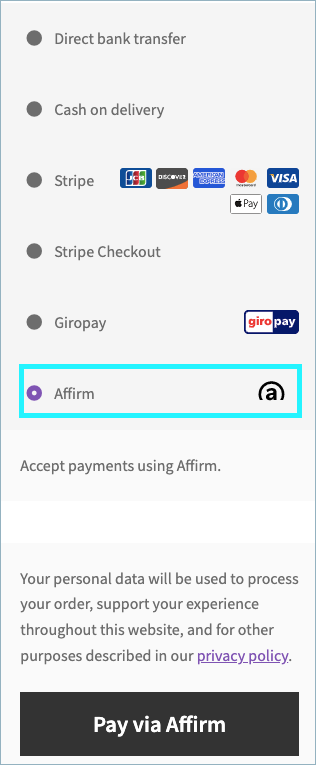
In the world of e-commerce, offering diverse payment options is essential for reaching customers worldwide. This is possible with the Stripe Payment Plugin for WooCommerce, which provides support for various local payment gateways. This enables customers to pay using methods they know and trust, boosts checkout confidence, and, ultimately, improves conversion rates.
Local payment gateways
The plugin offers the following local payment gateways:
- Alipay
- SEPA Pay
- Klarna
- Afterpay
- WeChat Pay
- iDEAL Pay
- Bancontact Pay
- EPS Pay
- Przelewy24 Pay
- Bacs
- BECS
- FPX
- Boleto
- OXXO
- GrabPay
- Affirm
Alipay
- To access the Alipay settings, go to WebToffee Stripe > Local Gateways from the WordPress dashboard.
- Under the Local Gateways tab, click on Alipay.
The supported currencies are CNY, AUD, CAD, EUR, GBP, HKD, JPY, MYR, NZD, SGD, and USD.

- Alipay: Enable to accept Alipay payments through Stripe.
- Title: Input the title for the payment gateway displayed at the checkout.
- Description: Input texts for the payment gateway displayed at the checkout.
- Order Button Text: Input a text that will appear on the order button when you place an order at the checkout.
Finally, click on Save Changes to update the settings.
Please note that Alipay does not support subscriptions.
Alipay checkout using Stripe
When you have configured all the above settings, move to the checkout page to pay via Alipay.

Finally, let’s see the steps involved in customer-facing web-flow:
- Select Alipay at checkout.
- Redirects to Alipay. Input the credentials in the respective fields.
- Get notified that payment is complete.
- Lastly, redirected back to the business’s site for payment confirmation.
SEPA Pay
- To access the SEPA settings, go to WebToffee Stripe > Local Gateways from the WordPress dashboard.
- Under the Local Gateways tab, click on SEPA.

- SEPA Pay: Enable to accept SEPA payments.
- Title: Enter a custom title for SEPA payment. This title will be visible on the checkout page.
- Description: Enter a custom description for SEPA payment. This description will be visible on the checkout page.
- Order Button Text: Enter a custom text for the SEPA payment button.
Finally, click on the Save changes button to update the plugin settings.
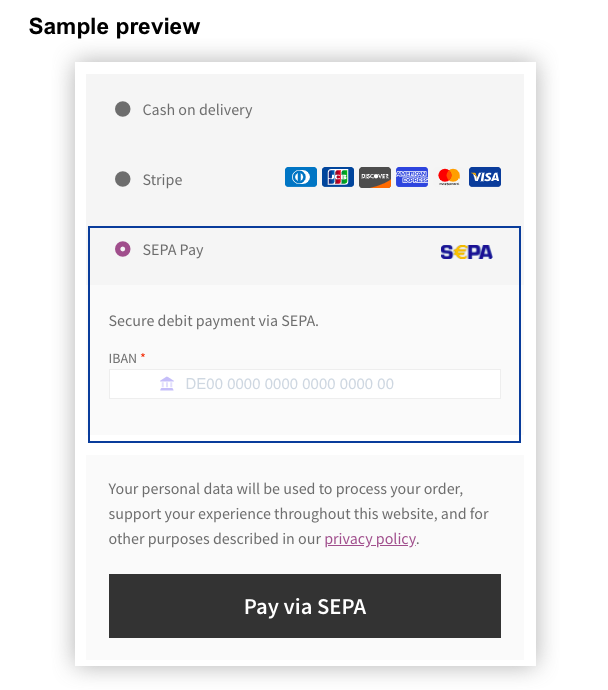
Pay via SEPA
To sum up, the SEPA payment workflow will be as shown below:
- The customer selects SEPA Direct Debit at checkout
- The customer provides full name, IBAN, and authorizes mandate.
- The customer gets the notification that the payment is complete.
Klarna
- To access the Klarna settings, go to WebToffee Stripe > Local Gateways from the WordPress dashboard.
- Under the Local Gateways tab, click on Klarna.

- Klarna: Enable to accept Klarna payments.
- Title: Enter a custom title for Klarna payment. This title will be visible on the checkout page.
- Description: Enter a custom description for Klarna payment. This description will be visible on the checkout page.
- Order Button Text: Enter a custom text for the Klarna payment button.
Klarna at the checkout
A sample preview of Klarna at the checkout:
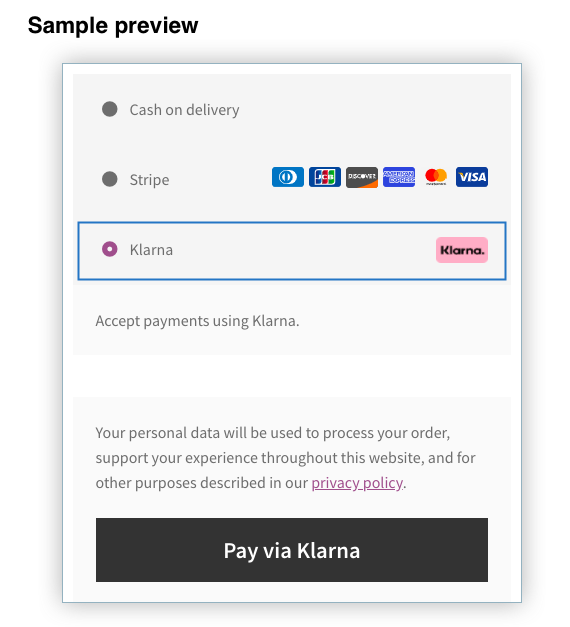
Pay via Klarna
To sum up, the Klarna payment workflow will be as shown below:
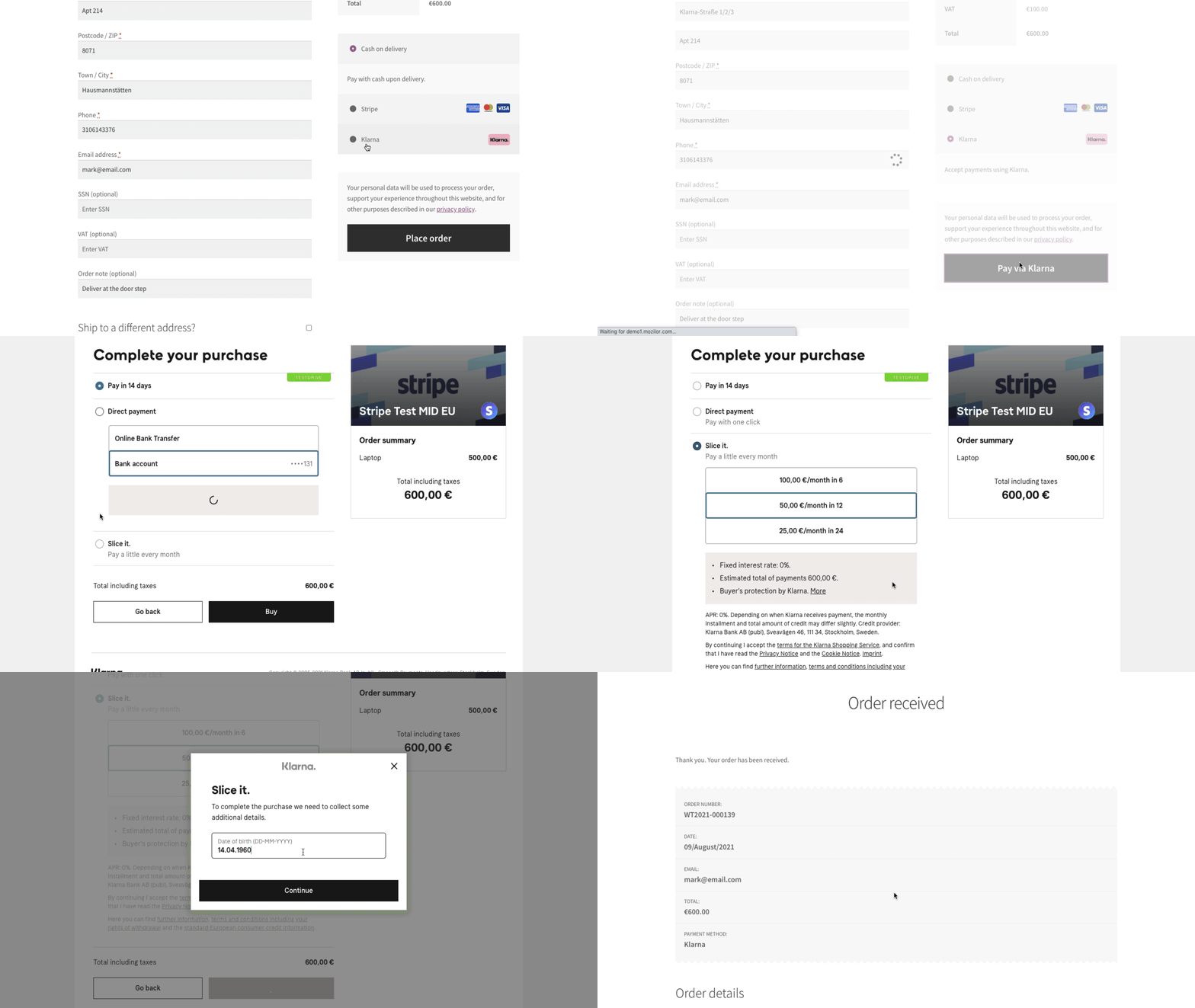
- At the checkout, redirects customer to the Klarna Hosted Payment Page.
- The customer can choose any among the payment options: Pay now, Pay later, Financing, and Installments.
- The payment options will differ based on the customer’s country/location. Refer to test Klarna pay.
- Klarna authenticates the payment either via Date of birth or One-time password.
- The customer returns to the business site by successfully placing an order.
Afterpay
- To access the Afterpay settings, go to WebToffee Stripe > Local Gateways from the WordPress dashboard.
- Under the Local Gateways tab, click on Afterpay.

- Afterpay: Enable to accept Afterpay payments.
- Title: Enter a custom title for Afterpay payment. This title will be visible on the checkout page.
- Description: Enter a custom description for Afterpay payment. This description will be visible on the checkout page.
- Order Button Text: Enter a custom text for the Afterpay payment button.
Finally, click on the Save changes button to update the plugin settings.
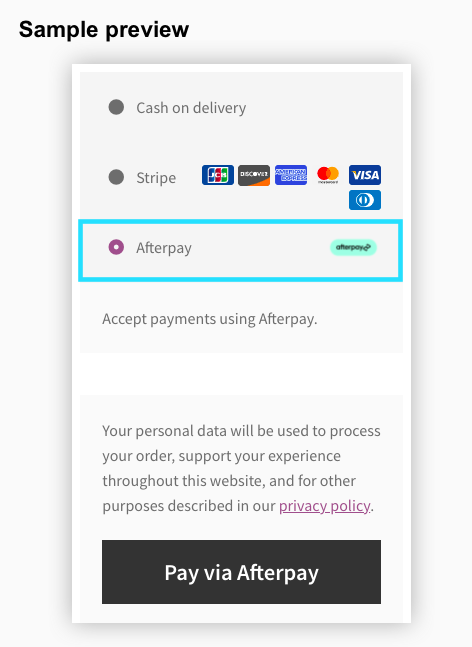
Pay via Afterpay
To sum up, the Afterpay payment workflow will be as shown below:
- Customer selects Afterpay at the checkout
- Redirects customers to the Afterpay site, where they agree to the terms of an installment plan.
- Prompts the customer to accept the terms. Consequently, it guarantees and transfers the funds to your Stripe account.
- The customer pays the first installment and repays the rest of the amount to the Afterpay directly over time.
WeChat Pay
- To access the WeChat settings, go to WebToffee Stripe > Local Gateways from the WordPress dashboard.
- Under the Local Gateways tab, click on WeChat.

- WeChat: Enable to accept WeChat payments.
- Title: Enter a custom title for WeChat payment. This title will be visible on the checkout page.
- Description: Enter a custom description for WeChat payment. This description will be visible on the checkout page.
- Order Button Text: Enter a custom text for the WeChat payment button.
Finally, click on the Save changes button to update the plugin settings.
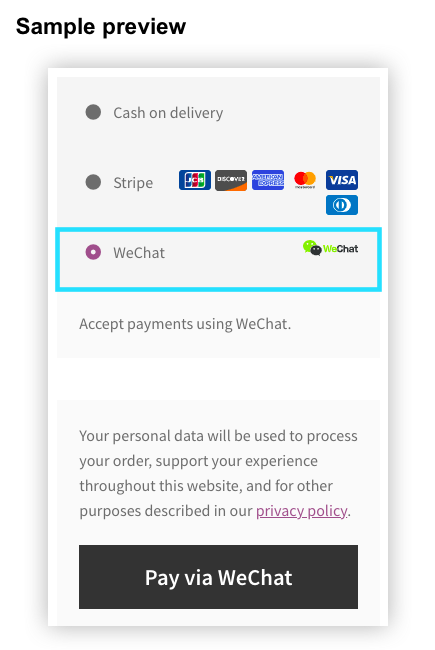
Pay via WeChat
To sum up, the WeChat payment workflow will be as shown below:
- The customer selects WeChat at the checkout
2. The buyer scans the QR code to complete the payment.

3. The WeChat app authenticates the payment.
4. Then, the plugin prompts the buyer to confirm the completion of the QR code scan.
5. Redirect the buyer to the order received page by successfully completing the order.
iDEAL Pay
- To access the iDEAL settings, go to WebToffee Stripe > Local Gateways from the WordPress dashboard.
- Under the Local Gateways tab, click on iDEAL.

- iDEAL Pay: Enable to accept iDEAL payments.
- Title: Enter a custom title for iDEAL payment. This title will be visible on the checkout page.
- Description: Enter a custom description for iDEAL payment. This description will be visible on the checkout page.
- Order button text: Enter a custom text for the iDEAL payment button.
Finally, click on the Save changes button to update the plugin settings.
Pay via iDEAL
To sum up, the iDEAL payment workflow will be as shown below:
- Customer selects iDEAL at the checkout
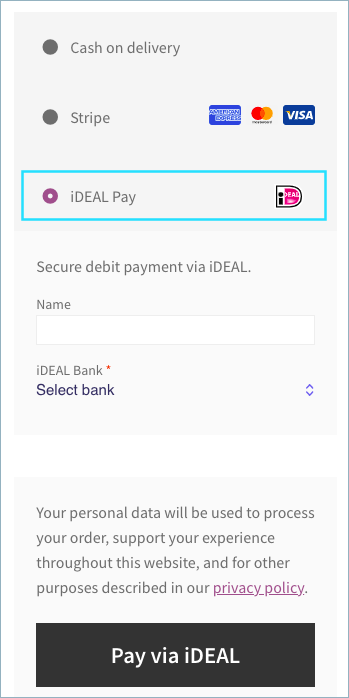
2. The buyer enters the name and selects the bank.
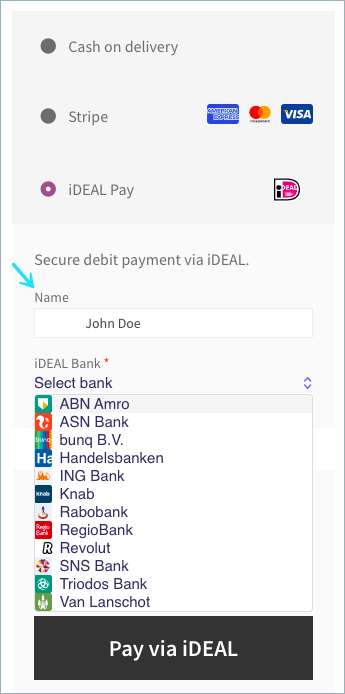
3. iDEAL authenticates the payment.
4. Then, the plugin prompts the buyer to confirm the completion of the transaction.
5. Redirects the buyer to the order received page by successfully completing the order.
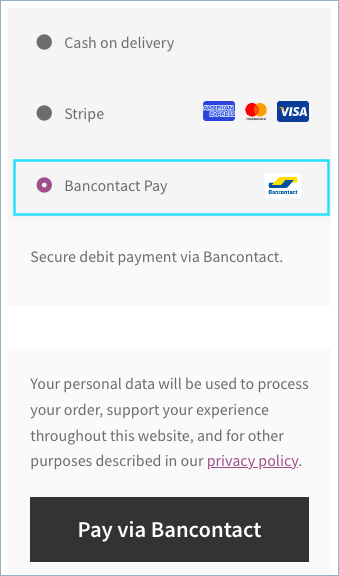
Bancontact Pay
- To access the Bancontact settings, go to WebToffee Stripe > Local Gateways from the WordPress dashboard.
- Under the Local Gateways tab, click on Bancontact.

- Bancontact Pay: Enable to accept Bancontact payments.
- Title: Enter a custom title for Bancontact payment. This title will be visible on the checkout page.
- Description: Enter a custom description for Bancontact payment. This description will be visible on the checkout page.
- Order Button Text: Enter a custom text for the Bancontact payment button.
Finally, click on the Save Changes button to update the plugin settings.
Pay via Bancontact
- Customer selects Bancontact at checkout
- Redirects customer to the Bancontact and enters credentials
- The customer is notified that payment is complete
- Customer returns back to the business’s site for payment confirmation (Optional)
- Customer selects Bancontact at checkout
- Redirects customer to the Bancontact and scans QR code
- Customer enters Pincode
- Customer is notified that payment is complete
- Customer returns back to the business’s site for payment confirmation (Optional)
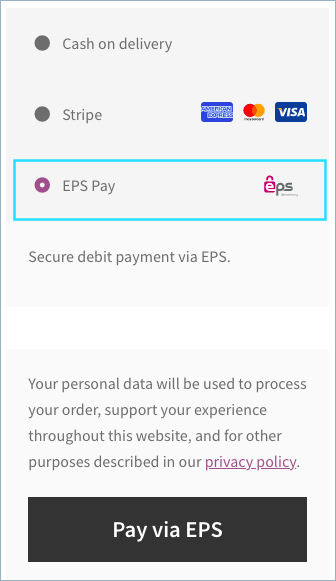
EPS Pay
- To access the EPS Pay settings, go to WebToffee Stripe > Local Gateways from the WordPress dashboard.
- Under the Local Gateways tab, click on EPS Pay.

- EPS Pay: Enable to accept EPS payments.
- Title: Enter a custom title for EPS payment. This title will be visible on the checkout page.
- Description: Enter a custom description for EPS payment. This description will be visible on the checkout page.
- Order Button Text: Enter a custom text for the EPS payment button.
Finally, click on the Save changes button to update the plugin settings.
Pay via EPS
- The customer selects EPS at checkout.
- The customer is redirected to EPS and chooses a bank.
- The customer enters account credentials.
- The customer completes the authorization process (with scanner or SMS).
- The customer is notified that payment is complete.
- The customer returns back to business’s site for payment confirmation.
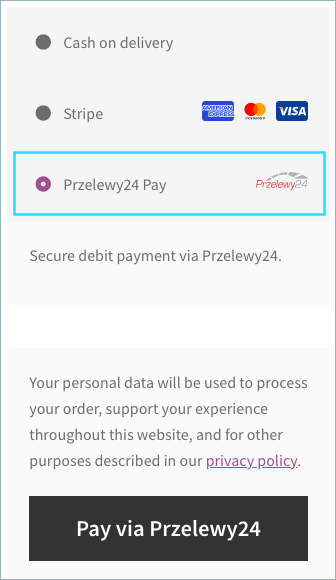
Przelewy24 Pay
- To access the Przelewy24 settings, go to WebToffee Stripe > Local Gateways from the WordPress dashboard.
- Under the Local Gateways tab, click on Przelewy24.

- Przelewy24 Pay: Enable to accept Przelewy24 payments.
- Title: Enter a custom title for Przelewy24 payments. This title will be visible on the checkout page.
- Description: Enter a custom description for Przelewy24 payments. This description will be visible on the checkout page.
- Order Button Text: Enter a custom text for the Przelewy24 payment button.
Finally, click on the Save changes button to update the plugin settings.
Pay via Przelewy24
- Customer selects Przelewy24 at checkout
- Customer is redirected to Przelewy24 and chooses bank
- Customer enters account credentials
- Customer completes authorization process
- Customer is notified that payment is complete
- Customer returns back to business’s site for payment confirmation
Bacs
- Go to WebToffee Stripe > Local Gateways from the WordPress dashboard to access the Bacs settings.
- Under the Local Gateways tab, click on Bacs.

- Bacs Direct Debit: Enable to accept Bacs Direct Debit payments.
- Title: Enter a custom title for Bacs Direct Debit payments. This will be visible on the checkout page.
- Description: Enter a custom description for Bacs Direct Debit payments. It will be visible on the checkout page.
- Order button text: Type in a custom button label for the Bacs Direct Debit payment button.
- Locale: Choose a language from the dropdown for the Bacs Direct Debit payment or checkout window.
Click on Save Changes to save the settings.
Payment Workflow
- A customer selects Bacs Direct Debit at the checkout.

- Upon selection, the customer will be redirected to the Pay with Bacs Direct Debit payment window.
- Here, the customer has to input the sort code, account number, name, and billing address.
- Click on Continue.

- Finally, click on Pay to complete the payment.
BECS
- To access the BECS settings, go to WebToffee Stripe > Local Gateways from the WordPress dashboard.
- Under the Local Gateways tab, click on BECS.

- BECS Debit: Enable to accept BECS Debit payments.
- Title: Enter a custom title for BECS Debit payments. This will be visible on the checkout page.
- Description: Enter a custom description for BECS Debit payments. It will be visible on the checkout page.
- Order button text: Type in a custom label for the BECS Debit payment button.
Click on Save Changes to save the settings.
Payment Workflow
- The customer selects BECS Direct Debit at checkout.
- The customer completes the Direct Debit Request.
- The customer gets a notification that the payment is complete.

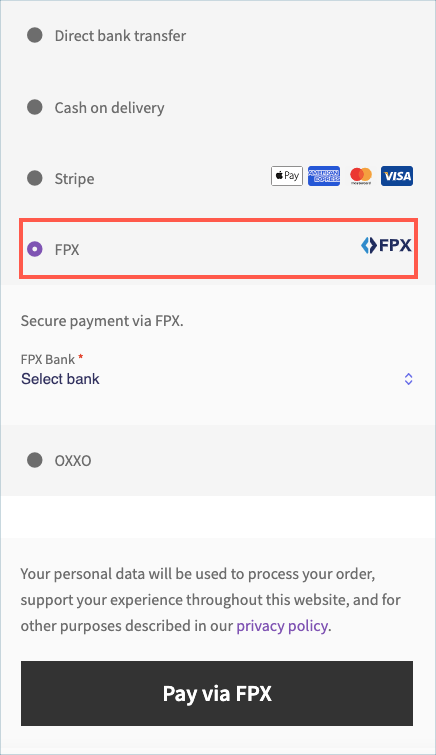
FPX
- To access the FPX settings, go to WebToffee Stripe > Local Gateways from the WordPress dashboard.
- Under the Local Gateways tab, click on FPX.

- FPX: Enable to accept FPX payments.
- Title: Enter a custom title for FPX payments. This will be visible on the checkout page.
- Description: Enter a custom description for FPX payments. It will be visible on the checkout page.
- Order button text: Type in a custom label for the FPX payment button.
Click on Save Changes to save the settings.
Payment Workflow
- The customer selects FPX at checkout.
- Chooses a bank and gets redirected.
- The customer enters account credentials.
- The customer completes the authorization process.
- The customer gets a notification that payment is complete.
- The customer returns to the business’s site for payment confirmation.
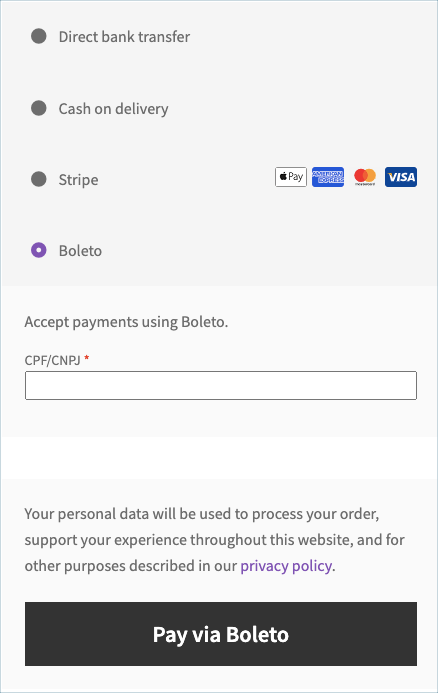
Boleto
- To access the Boleto settings, go to WebToffee Stripe > Local Gateways from the WordPress dashboard.
- Under the Local Gateways tab, click on Boleto.

- Boleto: Enable to accept Boleto payments.
- Title: Enter a custom title for Boleto payments. This will be visible on the checkout page.
- Description: Enter a custom description for Boleto payments. It will be visible on the checkout page.
- Order button text: Type in a custom label for the Boleto payment button.
Click on Save Changes to save the settings.
Payment Workflow
- A customer chooses Boleto as the form of payment.
- A Boleto is created for the transaction and is sent to the customer’s email. The Boleto has a barcode and includes your transaction information, such as bank information, transaction amount, customer information, and expiration date.
- When the customer is ready to pay the boleto, he/she can take it to any location that processes Boletos or process it online themselves.
OXXO
- To access the OXXO settings, go to WebToffee Stripe > Local Gateways from the WordPress dashboard.
- Under the Local Gateways tab, click on OXXO.

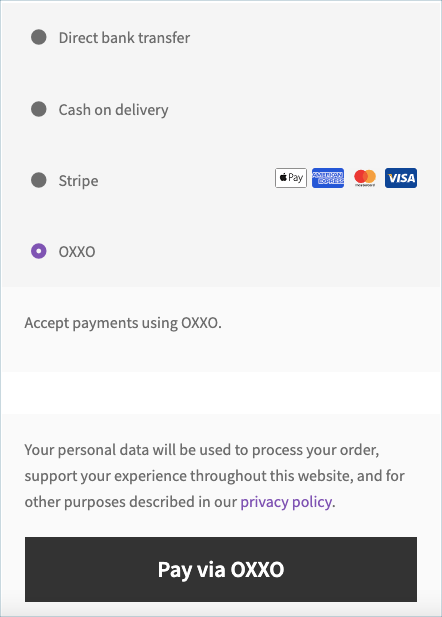
- OXXO: Enable to accept OXXO payments.
- Title: Enter a custom title for OXXO payments. This will be visible on the checkout page.
- Description: Enter a custom description for OXXO payments. It will be visible on the checkout page.
- Order button text: Type in a custom label for the OXXO payment button.
Click on Save Changes to save the settings.
Payment Workflow
- The customer selects OXXO at checkout.
- The customer receives a voucher with a transaction reference.
- The customer can then provide a voucher and cash payment at the OXXO store.
- The merchant receives a notification that the payment is complete.
GrabPay
- To access the GrabPay settings, go to WebToffee Stripe > Local Gateways from the WordPress dashboard.
- Under the Local Gateways tab, click on GrabPay.

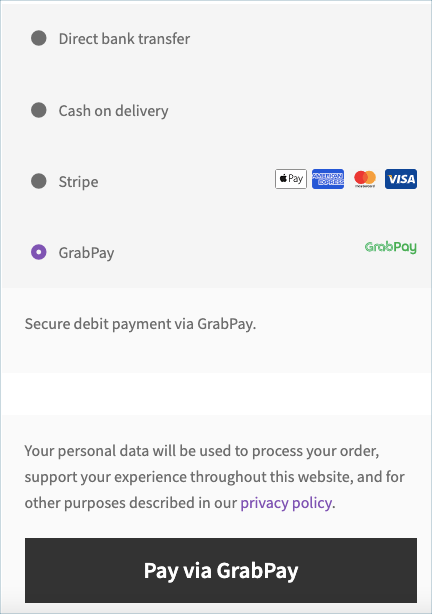
- GrabPay: Enable to accept GrabPay payments.
- Title: Enter a custom title for GrabPay payments. This will be visible on the checkout page.
- Description: Enter a custom description for GrabPay payments. It will be visible on the checkout page.
- Order button text: Type in a custom label for the GrabPay payment button.
Click on Save Changes to save the settings.
Payment Workflow
- Customers pay with GrabPay by redirecting to the GrabPay website to authorize the payment.
- After that, they will automatically be redirected back to the website. You will get immediate notification on whether the payment succeeded or failed.
Affirm
- To access the Affirm settings, go to WebToffee Stripe > Local Gateways from the WordPress dashboard.
- Under the Local Gateways tab, click on Affirm.

- Affirm: Enable to accept Affirm payments.
- Title: Enter a custom title for Affirm payments. This will be visible on the checkout page.
- Description: Enter a custom description for Affirm payments. It will be visible on the checkout page.
- Order button text: Type in a custom label for the Affirm payment button.
Click on Save Changes to save the settings.
Payment Workflow
- The customer selects Affirm at checkout on the online store.
- The customers are redirected to the Affirm model or pop-up, where they enter their phone number to receive a text with a pin to create or sign in to their account.
- The customer enters their social security number (SSN) to check for loan eligibility and moves to the confirmation screen.
- The customer then receives the loan terms and selects the payment plans.
- The customer then completes their purchase.
- The customer receives a confirmation of their Affirm purchase. Receives an order confirmation screen for the order.