


Overview
The Stripe Payment Plugin for WooCommerce(free) allows you to integrate Stripe payment into your WooCommerce store. Using the plugin, you can accept payments via Credit/Debit Cards, Alipay, Apple Pay, Payment Request Button(GPay), Stripe Checkout, SEPA, Klarna, WeChat, Afterpay, and many other local payment gateways in your WooCommerce store.
Installation
You can install the plugin from the WordPress plugin directory or as a zip downloaded from the WordPress.org website. To know more about installing a free plugin, refer to the following article: Installing a Free Plugin from WordPress.
Pre-requisites
The plugin requires you to sign up and create a Stripe Account.
Getting started
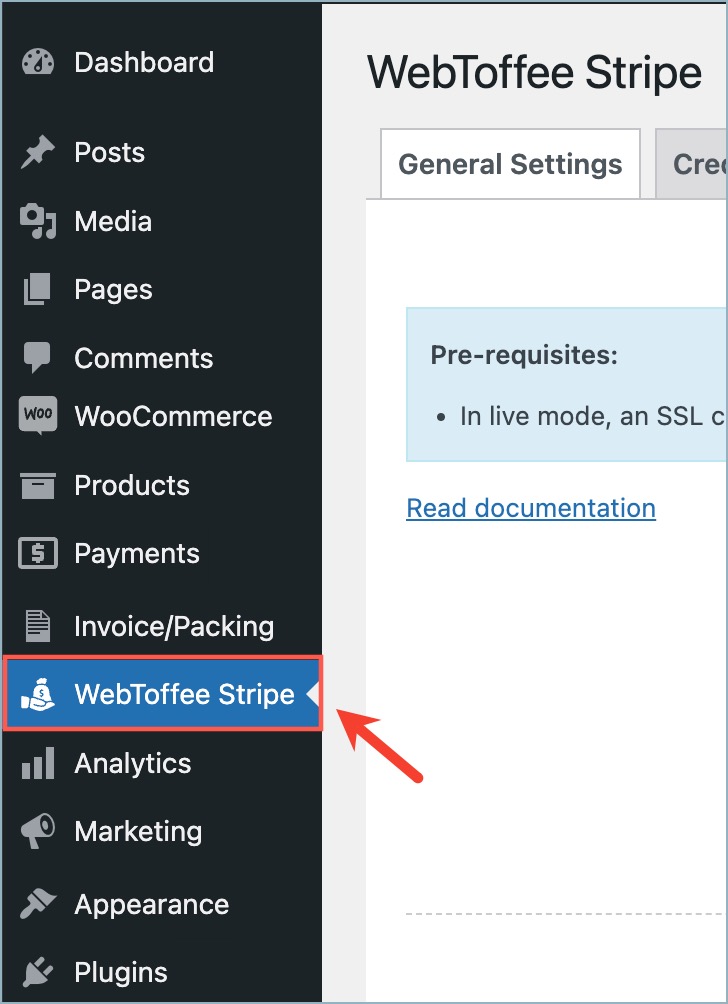
Once the plugin is installed and activated, you can navigate to the plugin settings in two ways:
- From the WordPress dashboard, navigate to WebToffee Stripe.
OR
- From the WordPress dashboard, navigate to Plugins > Installed Plugins > Stripe Payment Plugin for WooCommerce > Settings.

Configure Stripe in a few steps
We are enhancing security and require you to switch from using API keys to OAuth 2.0 for connecting your Stripe account. OAuth provides better control and limits access to only the necessary data, protecting your business from unauthorized access.
Step 1: Connect your Stripe account using the OAuth 2.0 method
- If you are a new user starting from scratch, upon heading to the WebToffee Stripe menu, you’ll be prompted to connect your Stripe account.
- If you are an existing user, from the WordPress dashboard, head to WebToffee Stripe > General Settings. Under General Settings, a banner at the top prompts you to connect your Stripe account.

- Switch to the live mode to receive live payments.
- Click on the Connect Now button, which will take you to the Stripe Sign-in page(if you haven’t already signed in).
- After signing in to your Stripe account, you’ll be prompted to install the WebToffee Stripe App.
- Proceed with installing the app. Once all the steps are completed correctly, you will see a message indicating successful installation. After the app is successfully installed, you will be redirected back to the plugin page.
- Now, you can see that your Stripe account is successfully connected.

For more details, check out the following article: Connect Stripe via OAuth 2.0.
Stripe Overview
Replicates a stripe dashboard view. It gives provisions for managing orders, processing partial/full refunds, and capturing payments. Keep the option disabled if you don’t want a stripe overview. To learn more, refer to the following article: Enabling Stripe Dashboard Within WordPress.

Capture Payments
By default, the Capture payment immediately option is enabled to capture payments immediately on successful transactions. However, if you wish to capture payments later, disable the option. Learn more by referring to the following article: Capturing Stripe Payments and Processing Refunds.

Payments can be captured later manually from the Stripe dashboard or overview. Uncaptured payments expire in 7 days.
G Pay/Apple Pay button position
Option to customize the placement of the G Pay and Apple Pay buttons.
G Pay/Apple Pay button height
Allows you to customize the height of the G Pay and Apple Pay buttons. Input a value between 40 and 55 pixels.

Step 2: Add Webhook endpoint
It is recommended that you add your site’s webhook to the Stripe dashboard to receive order status updates in a timely manner.
- First, copy your site’s webhook URL from the webhooks section.

- To insert the webhook,
- 1. Go to the Stripe dashboard.
- 2. Click on the Developers option at the top.
- 3. Head to the Webhooks tab.
- 4. Click on the Add an endpoint button.

- 5. Insert your site’s webhook endpoint URL.
- 6. Add events.
- 7. Click on Add endpoint.

A list of webhook events that are compatible with the plugin is given below:
- charge.refund.updated
- charge.dispute.created
- charge.succeeded
- charge.failed
- checkout.session.expired
- source.chargeable
- source.failed
- payment_intent.succeeded
- payment_intent.payment_failed
For more details on adding webhook, check out the following article: Configure Webhook for Order Status Updates.
- Upon adding the endpoint, copy the webhook secret and paste it into the plugin’s Webhook secret section.


- Finally, click on Save Changes.
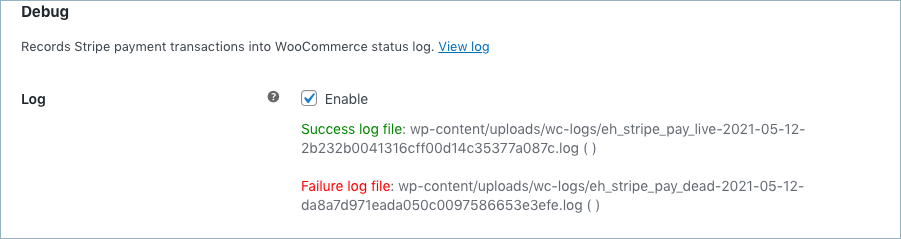
Debug
Records stripe payment transactions into the WooCommerce status log.
Click on Save Changes to save settings.
Step 3: Enable the corresponding payment gateway
The five types of payment gateways offered by the plugin are the following:
Payment via Credit/Debit Cards
Accepts Stripe payments via credit or debit cards.
To access the credit/debit card settings, head to WebToffee Stripe > Credit/Debit Cards from the WordPress dashboard.

- Credit/Debit cards: Enable to accept credit/debit card payments through Stripe.
- Title: Input a title for the payment gateway displayed at the checkout.
- Description: Input texts for the payment gateway displayed at the checkout.
- Order button text: Type the text that will appear on the order button when you place an order at the checkout.
- Allowed Cards: Accepts payments using selected cards. Displays the Icons of chosen cards at the checkout. Cards supported by the plugin are the following:
- MasterCard
- Visa
- American Express
- Discover
- JCB
- Diners Club
- Card fields in a row: Choose the style you want to show your credit card form. When checked, the credit card form will display the credit card number field, expiry date, CVV, and postal code in a single field.
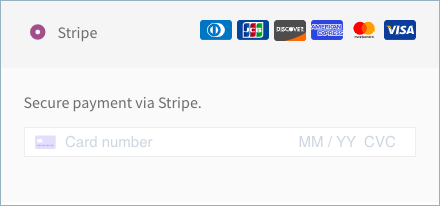
- Email Transaction Receipt: Enable this option to send transaction receipts via email to customers. Works in live mode only.
- Statement Descriptor: You can enter a statement descriptor that will appear on customers’ bank statements when they make or receive payments. A complete statement descriptor – either a single static descriptor or the combination of a prefix and suffix – must meet the following requirements:
- Contains between 5 and 22 characters, inclusive.
- Contains at least one letter.
- Does not contain any of the special characters < > \ ‘ ” *.
- Reflects your doing business as (DBA) name.
- Contains more than a single common term or common website URL. A website URL is only acceptable if it provides a clear and accurate transaction description on a customer’s statement.
Note:
Discover, Diners Club, and JCB cards are supported only for USD.
Finally, click Save Changes to save/update the settings.
Credit/Debit card checkout using Stripe
After configuring all the settings, move to the checkout page to view the credit/debit card checkout process.
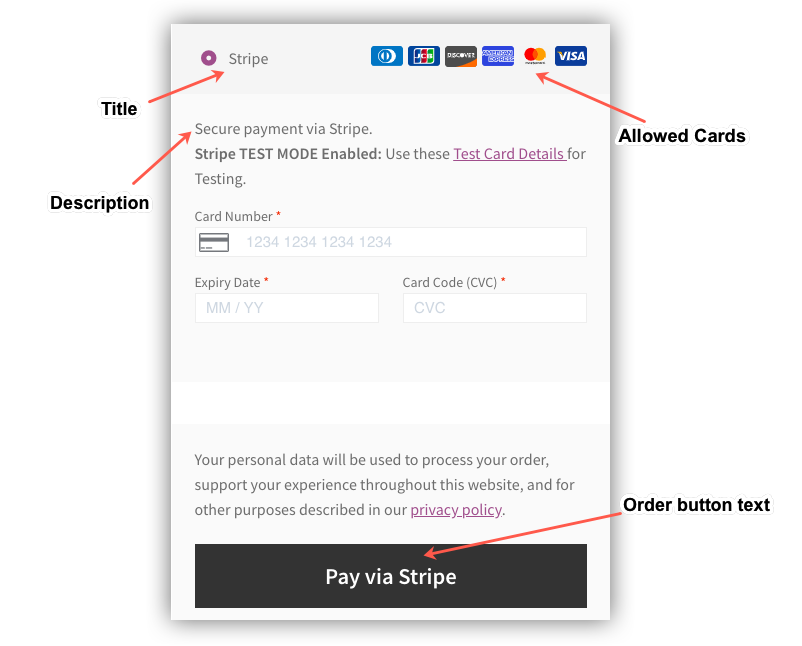
Specify the card details, such as the Card Number, Expiry Date, and CVV, and then click on the Pay via Stripe button to continue the payment process.
Apple Pay
Head to WebToffee Stripe > Apple Pay to access the Apple Pay settings.
To use Apple Pay, you need to register all your web domains that display the Apple Pay button with Apple and verify ownership of each domain.
Steps to register:
- Register your domain with Apple.
- To do this, navigate to Settings > Payments > Payment method domains from your Stripe dashboard and add your domain. All domains, whether in production or testing, must be registered. Don’t register your domain more than once per account.
- Verify ownership of your domain with Apple Pay.
- Download the domain association file and host it at /.well-known/apple-developer-merchantid-domain-association on your site. For example, if you’re registering https://example.com, make that file available at https://example.com/.well-known/apple-developer-merchantid-domain-association.
Payment methods are only available when you use a supported browser and pay in a supported currency.

- Apple Pay: Apple Pay allows you to accept payment via Apple Pay.
- Show on pages: The Apple Pay button will be shown on selected pages.
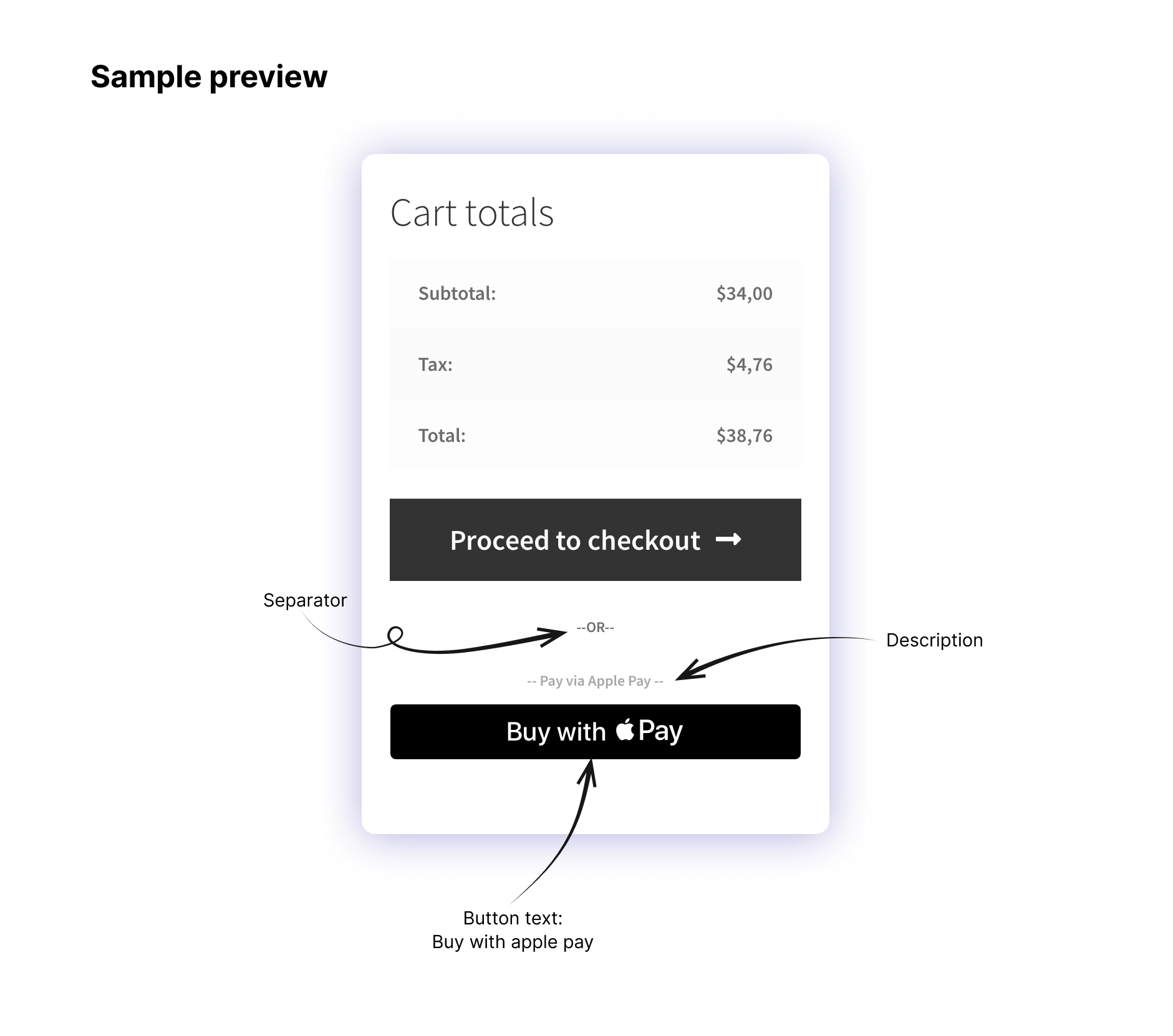
- Button settings:
- Color: Choose the button color from the standard white or black for it to appear accordingly at the checkout.
- Text: You can choose a suitable Apple Pay button text from the following options:
- Apple Pay
- Buy with Apple Pay
- Set up Apple Pay
Finally, click Save Changes to save/update the plugin settings.
GPay/Payment Request Button
To access the GPay/Payment Request Button settings, head to WebToffee Stripe > GPay/Payment Request Button from the WordPress dashboard.
To use Google Pay,
- Enable Google Pay in your Stripe payment methods settings.
- Register your domain
- To do this, navigate to Settings > Payments > Payment method domains from your Stripe dashboard and add your domain. All domains, whether in production or testing, must be registered. Don’t register your domain more than once per account.
- To accept Google Pay payments on the web, you need to serve from an HTTPS webpage with a TLS domain-validated certificate.
Payment methods are only available when you use a supported browser and pay in a supported currency.

- Google Pay: Enable to accept G Pay payments.
- Show on pages: You can display the payment request button on the cart, checkout, or product page.
- Button Settings:
- Type: Select the button type you want to have as Buy, Pay, or Donate.
- Theme: Choose the button theme as either a dark, light, or light outline.
Finally, click Save Changes to save/update the plugin settings.
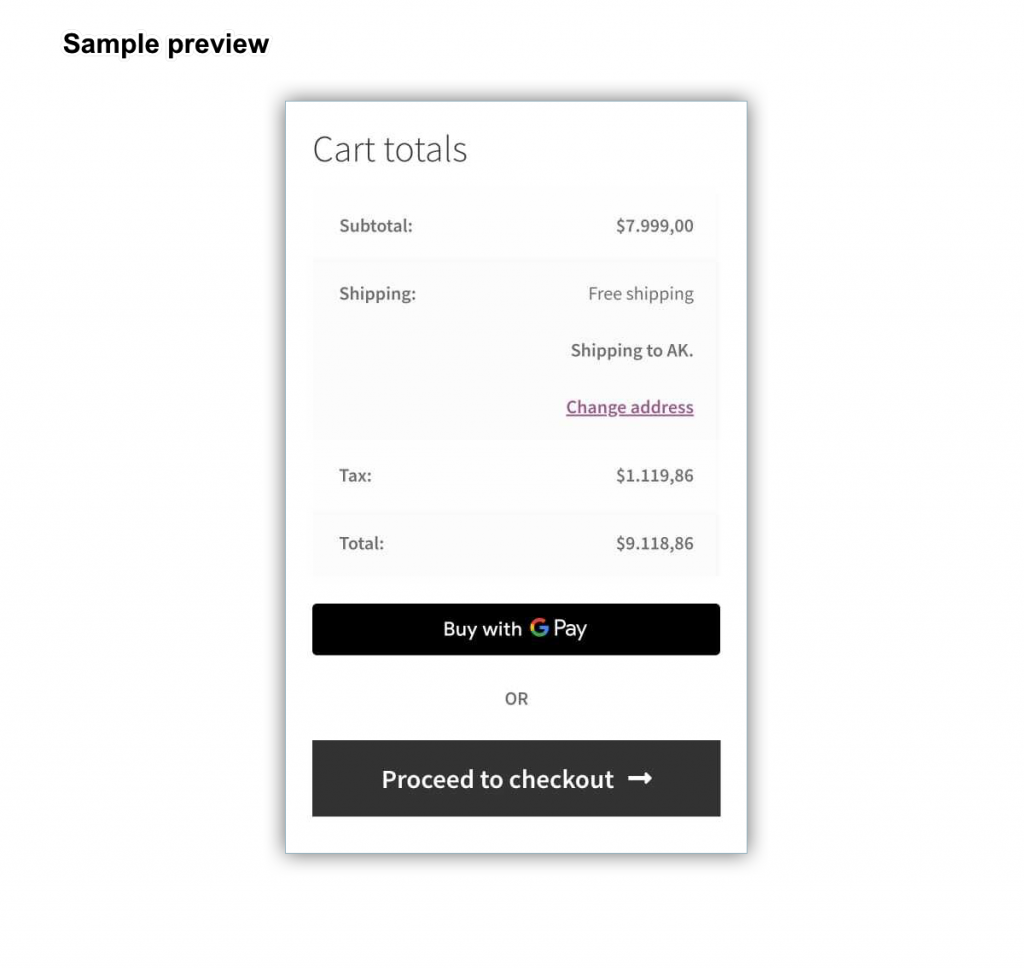
The Google Pay button on the cart page will appear in the following manner:
Stripe Checkout
- Navigate to WebToffee Stripe > Stripe checkout from the WordPress dashboard to access the Stripe Checkout settings.

- Stripe Checkout: Enable to accept Stripe checkout payments.
- Title: Enter a custom title for stripe checkout payment. This title will be visible on the checkout page.
- Description: Enter a custom description for stripe checkout payment. This description will be visible on the checkout page.
- Order Button Text: Enter a custom text for the stripe checkout button.
- Locale: Choose a language code from the dropdown.
- Send line items to stripe: Enable to view all order line items like tax, shipping, fees, discount, etc. at the stripe hosted payment page.
- Ask for address details from the stripe hosted page: Enable to receive billing and shipping addresses at the stripe hosted payment page.
Finally, click on Save Changes to save/update the plugin settings.
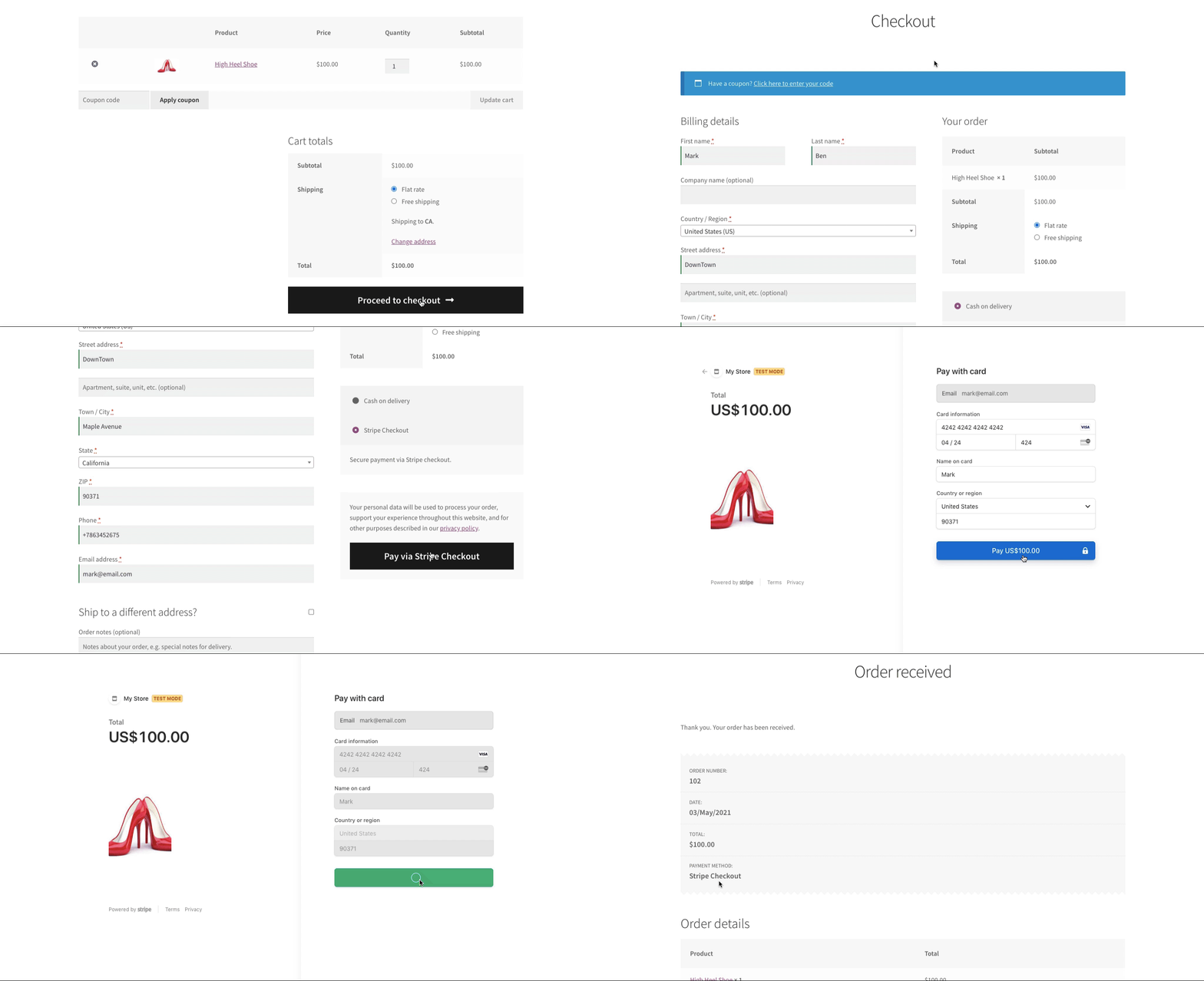
Pay via Stripe Checkout
The Stripe checkout workflow is as shown below:
Local Payment Gateways
The plugin supports the following local payment gateways: Alipay, SEPA Pay, Klarna, Afterpay, WeChat Pay, iDEAL Pay, Bancontact Pay, EPS Pay, Przelewy24 Pay, Bacs, BECS, FPX, Boleto, OXXO, GrabPay, Affirm.
For detailed information on the local payment gateways offered, check out the following article: Local Payment Gateways Offered by Stripe.
Help Guide
Provides direct links to resources like documentation and support.

Hasi
June 5, 2024
Hi, How we can set expire time to stripe payment window. Default its 24h. I need to set custom time
Sanjai Valsan
June 18, 2024
Hi Hasi,
Thank you for reaching out!
You can alter the expiry time of the Stripe checkout payment window. For detailed instructions on how to set a custom expiry time, please refer to the Stripe documentation.
frank
January 30, 2024
how to change the main image of stripe (instead of only showing the cards) i would like to have my own image
Arjun
February 2, 2024
Hi frank,
Thank you for reaching out. We understand your requirement, but as of now the plugin doesn’t provide the mentioned functionality.
Henry
November 25, 2023
I’m using this plugin and I want to tokenize card information in our system and. Do we have solution for this?
Arjun
November 27, 2023
Hi Henry,
Thank you for reaching out. When a customer opts to save their card information on your store, our plugin will tokenize the card details during the storage process. Otherwise, no data is retained.
Khaled Jabbari
May 20, 2023
How to edit the WebToffee Stripe Checkout Stripe page
Hema
May 22, 2023
Hello Khaled,
Thanks for reaching out. You can customize the Stripe checkout page from their Stripe dashboard. In addition to that there is an appearance section to upload logo, change color.
Saud
August 4, 2022
Hi
I added webtoffee to my site and added set up Klarna payments as well.
I had multiple Mastercard / debit card payments at my checkout.
One from woo commerce payments and one from the stripe.
I was interested in keeping only one and switched off woo commerce payments.
The problem was sorted on my checkout but then I realized it had actually messed up my woo commerce cart page, and without the woo commerce cart page, the customer would not be able to modify the cart any more so I have basically disabled it the plugin until I get the solution.
Kindly recommend a possible solution.
Thanks.
Without having a cart page the customer would not be able to
Mark
August 29, 2022
Hi Saud,
Apologies for the inconvenience caused. The plugin is designed to work flawlessly with WooCommerce cart and checkout and hence, it has been tested thoroughly for any conflicts. This sounds like a conflict with your site theme or something specific to your website. We can surely take a look into it.
Please submit a ticket here with your site details.
Steven
June 7, 2022
hi, previous woocommerce and stripe FPX integration was fine. When i click on the FPX the list of bank will display, but today the list of bank is unaccessible at FPX. Any particular solution for such issue?
Shesna
June 8, 2022
Hi Steven,
Thanks for reaching out. Since this is a site-specific issue, we’d suggest you submit a ticket here for direct assistance from the technical team.
Dennis
March 17, 2022
May I know how to force the Alipay payment to HKD? It always redirect to RMB by default
Alan
March 23, 2022
Hi,
The plugin uses the currency that is set up on your site. If you are required to make payment using HKD then please make sure that you choose this currency in the site settings.
amir
January 3, 2022
dear
i have installed the plugin and integrated according to my requirments but on the front side i am unable to put the credit cart number, expiry date and card code all of these three input boxes are read only
http://gator3077.temp.domains/~alamogsd/1stchoiceflags/NEWSITE/checkout/can you help me pleaseregards
amir
Alan
January 3, 2022
Hi,
Can you please try switching the active theme on your site and check if the issue persists or not. If it’s resolved then please reach us via support and share your active theme zip file so that we can check.
Abdalhady Joharji
December 14, 2021
Hi dears,
How i can change the payment button text?
Thanks
Alan
December 22, 2021
Hi,
Please reach us via support and let us know which text you are required to change.
alex
September 15, 2021
I installed and activated the plugin. But it does not show up on my wocommerce checkout page. Stripe, paypal etc shows up just not klarna. also is there any documentation for the plugin? and how can I set the plugin in testmode? Found a video from 2018 on youtube that showed the same plugin, just with many more options.
Mark
September 21, 2021
Hi,
Please reach us via support so that we can check the issue with Klarna. You can also go through the below documentation to know more about setting up the plugin.
How to set up Klarna
How to set up stripe payment gateway
Ashwin Shahapurkar
August 4, 2021
Hi, Does it support BACS Direct Debit? If not, will you be adding it anytime sooner?
Mark
August 5, 2021
Hi Ashwin,
Sorry to let you down but it currently does not support this payment method.
Sanathan
July 27, 2021
Where can I get the webhook link for any website from the plugin and how to add a signing secret key in the plugin which we get in Stripe account post adding URL.
Mark
July 29, 2021
Hi Sanathan,
Our plugin supports webhooks only for SEPA payment currently. If you are not using that, the plugin does not support webhooks.
Subho
June 2, 2021
How to connect with API? I’m not getting the option. How will I receive the payment?
Mark
June 5, 2021
Hi Subho,
The above article clearly details on how to get the API keys and add them in the plugin. Please read the article thoroughly.
Victor Saul
May 14, 2021
Hello. Are BOTH the “Credit/Debit Cards” AND the “Stripe Checkout” suppose to be enabled together? Or is it one or the other? Please advise. Thank you!
Mark
May 18, 2021
Hi Victor,
You can choose to enable any one or both. Credit/Debit Cards options allows checkout directly from site using card details. Stripe checkout is hosted in stripe and users will be redirected to the corresponding page to finish checkout.
Christine
March 13, 2024
Are both methods equally as secure?
Sanjai Valsan
April 2, 2024
Hi Christine,
Thanks for reaching out!
Both payment gateways are protected by Stripe, ensuring equal security standards.