


Share:


Table of Contents
Spam in quote request forms can quietly drain time and resources for WooCommerce store owners. Each fake submission forces you to sort through irrelevant details before finding genuine inquiries. Over time, these unwanted entries can clutter your inbox, distort customer data, and even cause you to miss real sales opportunities.
reCAPTCHA offers a simple and effective way to stop automated spam bots from flooding your forms. As a free Google service, it blocks fake submissions before they reach your inbox while still allowing real customers to contact you without frustration.
Our WooCommerce Request a Quote plugin already includes built-in reCAPTCHA support, so you do not need to install extra tools or write custom code. By enabling it, you can keep your quote request forms clean, protect communication channels, and focus on qualified leads.
Ready to get started? Let’s dive into why quote form spam is a bigger issue and how reCAPTCHA can help you solve it.

Quote request forms are often the first point of contact between you and potential customers. Unfortunately, they also attract automated bots that submit irrelevant or fake details. These bots can quickly overwhelm your system with dozens of requests that have no intent to buy.
Every spam entry forces you to spend time reviewing and deleting it. This constant filtering can slow down your workflow and increase the risk of overlooking a real customer inquiry hidden among fake ones. For smaller stores with limited staff, the impact can be even greater.
Beyond wasted time, spam entries can inflate your form analytics and distort customer data. This false information may lead you to make decisions based on inaccurate trends or demand. In some cases, excessive spam traffic can also put an unnecessary load on your server, causing performance issues.
By recognising spam as a persistent problem, store owners can take proactive steps to block it before it becomes a costly distraction. That is where reCAPTCHA becomes an important part of keeping your forms secure.
reCAPTCHA is a free security service from Google that protects online forms from spam and abuse. It works by distinguishing between real human users and automated bots, preventing bots from submitting forms with irrelevant or malicious content.
Google initially launched reCAPTCHA v1, which relied on users typing in distorted words or numbers from scanned text. While it was effective in its time, it eventually became outdated and was officially shut down in 2018.
Today, there are two main versions of reCAPTCHA. The first is reCAPTCHA v2, which many users recognise as the “I’m not a robot” checkbox or image selection challenge. This method prompts users to complete a simple task to confirm they are human.
The second is reCAPTCHA v3, which runs silently in the background. It analyzes user behavior such as mouse movements, typing patterns, browsing history, and time spent on a page, to assign a score between 0.0 and 1.0. A score of 1.0 indicates a user is very likely human, while 0.0 suggests a high likelihood of bot activity. This allows reCAPTCHA v3 to detect and block suspicious behavior without disrupting genuine users.
Both versions use advanced algorithms and machine learning to detect automated patterns. This means your forms stay accessible to real customers while bots are filtered out before their entries can be processed.
reCAPTCHA offers a straightforward way to reduce spam without disrupting the customer experience.
When a customer visits your WooCommerce quote form, reCAPTCHA runs quietly in the background or prompts them to complete a quick check. This process identifies automated bots before they can submit any data. Bots fail these checks, so their entries never reach your inbox.
Filtering spam at the form level means you receive only genuine requests. This improves the quality of your leads, saves time, and keeps your customer communication channels clear. With fewer distractions, you can respond to real inquiries faster and maintain a professional response rate.
Modern versions of reCAPTCHA also focus on user experience. For most customers, the process feels smooth, and in many cases, they will not even notice it is active. This balance between security and convenience is why reCAPTCHA v3 remains one of the most reliable tools for protecting WooCommerce quote forms.
The WooCommerce Request a Quote plugin makes it easy to collect price requests from customers without exposing your forms to unnecessary spam. One of its standout features is the built-in integration with Google reCAPTCHA. This means you can activate spam protection without installing extra extensions or writing custom code.
The plugin supports reCAPTCHA v3, giving you flexibility in how you secure your forms. With v3, the system runs quietly in the background and blocks suspicious activity without interrupting the user.
Setting up reCAPTCHA within the plugin is straightforward. You only need your site key and secret key from the Google reCAPTCHA console. Once entered in the plugin’s settings, the feature starts protecting your forms immediately.
Follow these steps to set up WooCommerce quote forms and secure them with reCAPTCHA verification.
Step 1: Install and Activate the WooCommerce Request a Quote Plugin
- After downloading the plugin file, go to Plugins > Add New in your WordPress dashboard.
- Upload the ZIP file, then click Install and Activate.
Step 2: Enable “Add to Quote” in WooCommerce Product Pages
- Go to Quotes > General settings to access the “Add to Quote” settings.
- Enable the Show ‘Add to quote’ button for products. You can choose to display it for all products or only selected ones.
- Then, choose where to show the button – on the Single product page, the Shop page, or both.
- To hide prices for quotable products, enable the Hide prices option.
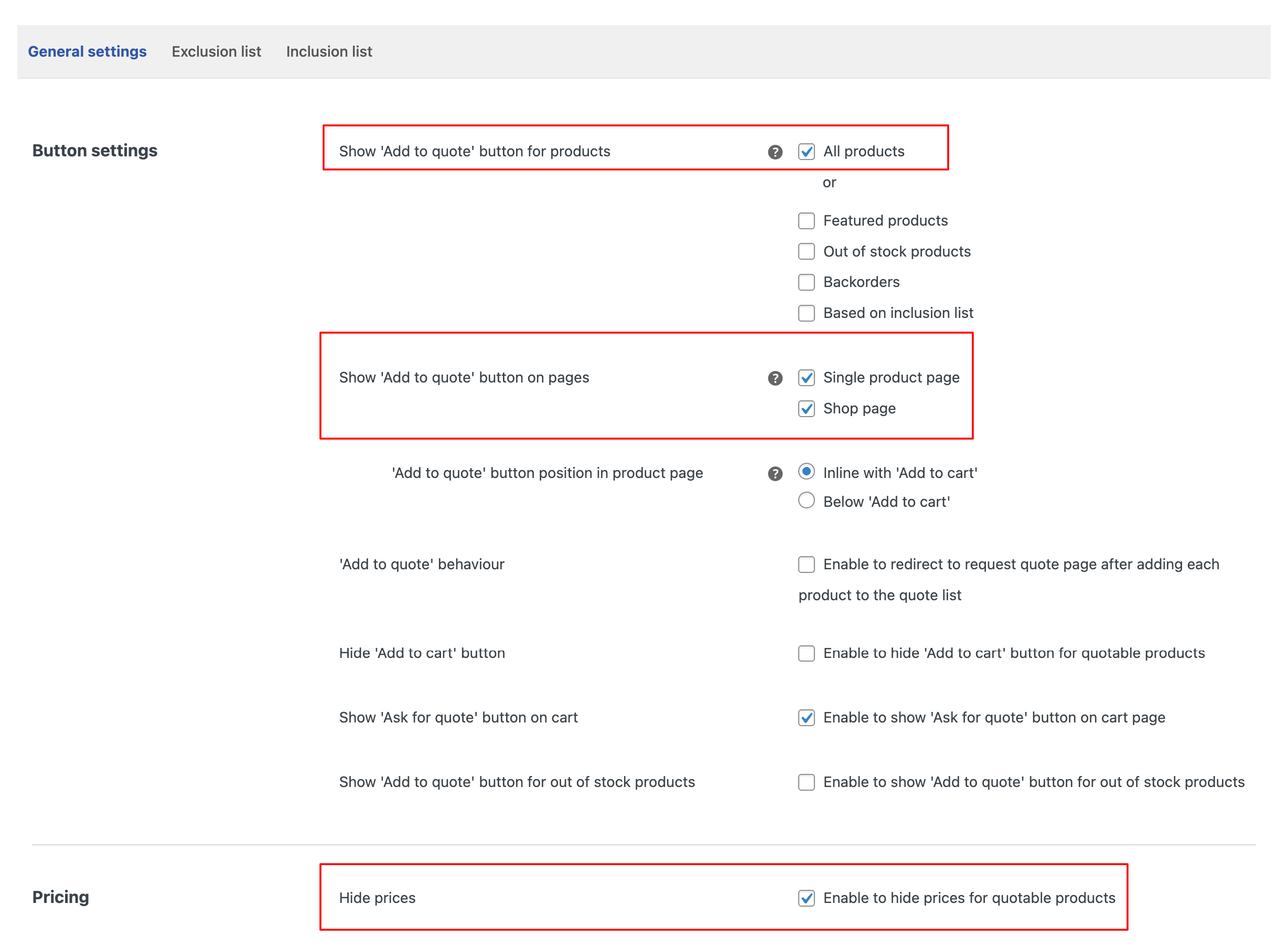
- After configuring the remaining settings as needed, click Update settings to apply the changes.
Step 3: Configure and Secure the Quote Form with reCAPTCHA
- Go to Quotes > Quote settings > Request quote page
- Scroll down to the Form settings section, where you’ll find the Add reCAPTCHA option.

- Enable the Add reCAPTCHA option by checking its box. This will reveal two new fields, one for the Site Key and one for the Secret Key.

- Register your site with Google reCAPTCHA by using the API key pair help link provided within the plugin interface. Register to receive your site key and secret key.
- Add your Google-generated site key and secret key into the respective fields in the plugin settings.
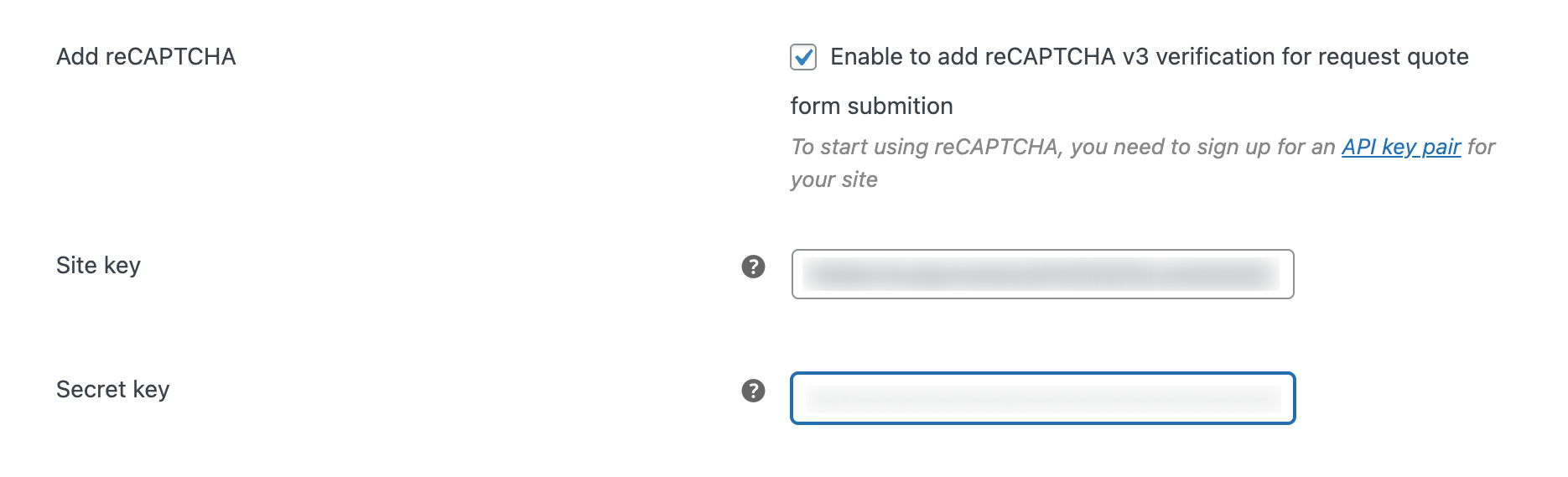
- Click Update settings to save your changes and activate reCAPTCHA protection on your quote form.
- Test your quote form on the frontend to confirm that the reCAPTCHA protection is functioning correctly and that real users can still submit quotes smoothly.
Once completed, your forms will automatically screen out spam submissions. The setup is quick but provides protection that will save you time and keep your quote requests clean.
Related Articles: How To Create a Custom Request a Quote Form in WooCommerce?
Enabling reCAPTCHA is a strong start, but pairing it with a few extra measures can help you keep your quote requests clean and accurate over the long term.
- First, always keep your plugin and reCAPTCHA version updated. This ensures you have the latest security features and bug fixes from both Google and the plugin developer.
- Second, consider using additional anti-spam techniques like honeypot fields (a spam prevention that uses a hidden input field in a web form to catch automated bots) or simple email verification for new customers. These methods add another layer of protection without creating a heavy user experience.
- Third, review your quote submissions regularly. Even with reCAPTCHA active, checking for unusual patterns or repeated suspicious entries helps you catch and block determined spammers early.
- Finally, test your form after any major site update. This confirms that reCAPTCHA remains active and that your customers can still submit requests without issues. By combining these practices, you reduce spam risks and maintain a steady flow of genuine leads.
Spam-free quote forms save time, improve lead quality, and keep customer communication clear. For WooCommerce store owners, enabling reCAPTCHA through the WooCommerce Request a Quote plugin is one of the quickest and most reliable ways to achieve this.
With built-in integration, you can activate protection in minutes without additional coding or third-party tools. Once enabled, reCAPTCHA blocks automated bots before they can clutter your inbox, allowing you to focus on genuine customer inquiries.
Set up reCAPTCHA today and keep your quote requests clean, accurate, and ready to convert into sales.
That wraps up our tutorial on making your quote forms spam-free using Google reCAPTCHA with the Request a Quote plugin. We hope you now have a clear understanding of how reCAPTCHA works and how it can enhance your WooCommerce quote request process.
Let us know your thoughts in the comments below. Thanks for reading!


Subcribe to our newsletter


