


Share:


Table of Contents
If you’re sending all your WooCommerce products to every sales channel, you’re probably wasting ad spend. Not every product is worth promoting, and that’s where advanced filtering comes in.
When it comes to selling online, not every product in your WooCommerce store deserves the same level of attention. Some items really stand out, while others yield better profits or might not even be in stock. If you try to push every single product through your ads or sales channels, you risk wasting your budget, lowering your click-through rates, and frustrating potential customers.
Advanced filtering fixes that. It gives you the ability to select exactly which products make it into your feed based on factors like stock status, category, or price. The result? You gain more control, your ads perform better, you make smarter use of your ad budget, and your customers enjoy a more seamless shopping experience.
In this article, we’ll take you through a thorough guide on understanding and implementing advanced filtering for your WooCommerce product feed, using a tool like WebToffee’s Product Feed plugin. By the end, you’ll know how to clear the clutter, showcase your best products, and create feeds that truly drive sales. Let’s get started.
Key Takeaways:
- Not every product deserves promotion. Sending your entire catalog to ad channels wastes budget and lowers performance.
- Advanced filtering gives you control. You can choose exactly which products appear in your feeds based on stock, category, price, or other attributes.
- By filtering strategically, you improve ad performance, optimize spend, and deliver a smoother shopping experience for customers.
Product feed filtering is the process of deciding which products from your WooCommerce store should be included or excluded from your product feed before it’s sent to sales channels like Google Shopping, Facebook, or Instagram.

Instead of sending your entire catalog, filtering lets you apply rules based on things like:
- Stock status (exclude out-of-stock items)
- Categories (include only “On Sale” or “New Arrivals”)
- Price range (promote products above/below a certain value)
- Attributes or tags (e.g., only “Winter Collection” products)
This way, your feed only contains the products that make the most sense for your campaigns, helping you spend smarter, improve ad performance, and give customers a better shopping experience.
Product feed filtering is like using a sieve. Instead of pouring everything into the pot, you sift out what doesn’t belong, leaving only the good stuff that’s ready to be served.
You’ve pictured the sieve holding back the clutter, out-of-stock items, low-margin products, or random inventory while letting only the best items slip through into your sales feed. That selective process you imagined? That’s exactly what advanced filtering does.
Advanced filtering lets you set precise rules for including or excluding products when generating your product feed. These rules apply across all supported sales channels, giving you a consistent and customizable feed strategy.
Why It Matters
Without filtering, a product feed is like casting a wide net into the ocean. You might catch something useful, but you’ll also waste a lot of energy hauling in things you never wanted.
Advanced filtering changes that. It transforms your feed from a broad, one-size-fits-all list into a strategic, curated selection of products that are more likely to perform well in ads and deliver value.
Here’s what that means in practice:
1. Sharper Relevance
Your customers don’t want to scroll past out-of-stock items or irrelevant products. By applying filters, you ensure that only the products matching your exact criteria make it into the feed. This keeps your listings aligned with customer intent and makes your campaigns feel more targeted.
2. Better Performance
When your ads showcase the right products at the right time, click-through rates naturally improve. More relevant ads lead to higher conversions, which means your marketing spend delivers greater returns. Instead of promoting everything, you’re promoting the products that actually sell.
3. Waste Reduction
Every click on an unavailable or unsuitable product is wasted budget. With advanced filtering, you can cut out products that drain resources like out-of-stock items, low-margin products, or items with incomplete data (e.g., missing GTINs or images). This ensures your ad spend is allocated only to items worth promoting.
4. Greater Seller Control
Perhaps the most powerful benefit: you’re in control. You don’t need multiple tools, separate feeds, or complicated workarounds. With WebToffee’s plugin, you can create various conditions within a single feed and customize it for each campaign or sales channel.
That flexibility means your feeds evolve with your business strategy, whether you’re running seasonal promotions, pushing bestsellers, or launching new product lines.
Implementing advanced filters in the WebToffee Product Feed plugin is simple and powerful. Here’s how to do it:
Step 1: Create a New Feed
After installing the plugin, go to WebToffee Product Feed > Create New Feed from your WordPress dashboard. Fill in the basic settings:
- Channel: Choose the platform (Google Shopping, Facebook, Instagram, Bing, etc.).
- Country: Select the target location to match platform requirements.
- Feed Name: Add a descriptive name so you can easily manage multiple feeds later.
- Auto-Refresh Interval: Decide how often the feed should update automatically (e.g., daily, twice a day).
- Cron Type: Choose between WordPress Cron (simple setup) or Server Cron (more reliable for larger stores) to schedule automatic feed refreshes
Step 2: Define Conditional Rules for Advanced Filtering
- Scroll to the bottom of the feed setup screen.
- Click the Advanced Filtering tab. This is where you’ll add the filtering rules that determine what stays in or out of your feed.

Here, you can define precise inclusion or exclusion rules using a flexible, four-part structure:
If → Condition → Value → Then.
Here’s how it works:
1. If – Choose the Attribute to Check
This is the starting point of your rule. Here, you decide what aspect of the product should be evaluated. You can choose from:
- Primary attributes (like title, price, stock, SKU)
- Image attributes (main image, gallery images)
- Custom fields (post meta) you’ve added to products
- Product attributes (size, color, brand, material)
- Custom attributes created specifically for your store
Think of it as pointing the filter at a specific product detail.
2. Condition – Set the Logic
Next, you define how the chosen attribute should be checked. The plugin supports a variety of conditions, such as:
- Contains / Does not contain: Ideal for filtering by keywords in product titles or descriptions.
- Is equal to / Is not equal to: useful for exact matches, like filtering a specific SKU.
- Greater than / Less than (or equal to): Perfect for numerical values like price, stock, or sales count.
- Is empty / Is not empty: Handy for checking whether a field has data (e.g., exclude products without GTIN or images).
This is where you set the logical test for your filter.
3. Value – Define What to Compare Against
The Value is what the condition checks against. It could be:
- A string like “XL”, “Sale”, or “Winter Collection”
- A number like “100” (for price) or “2” (for stock level)
- A special character like “%” or “&”
For example: If Size is equal to XL → Exclude.
4. Then – Decide the Action
Finally, you tell the system what to do if the condition is met. There are only two possible outcomes:
- Include – The product will be added to the feed if it matches the rule.
- Exclude – The product will be left out of the feed.
This step is what gives you control over what stays and what goes.
Example in Action
Let’s say you want to exclude products that are out of stock and cost less than $20. Your conditional rules could look like this:
- If Stock Status is equal to Out of Stock → Exclude
- If Price is less than 20 → Exclude

With just these two filters, your feed will focus on products that are in stock and above your minimum price threshold, ensuring you’re only promoting items that are worth the spend.
Here are a few more examples for added clarity:
| If (Attribute) | Condition | Value | Then (Action) | Example Use Case |
|---|---|---|---|---|
| Stock | Less than | 2 | Exclude | Don’t show items with less than 2 left in stock. |
| Category | Contains | Winter Collection | Include | Only promote seasonal “Winter Collection” products. |
| Price | Greater than | 100 | Exclude | Filter out premium products above $100 for a budget campaign. |
| Size (Attribute) | Is equal to | XL | Exclude | Avoid showing XL sizes if they are frequently out of stock. |
| Title | Contains | “Sample” | Exclude | Prevent test/demo products from being advertised. |
| GTIN (Custom Field) | Is empty | — | Exclude | Ensure only products with valid GTINs go to Google Shopping. |
Step 3: Generate the Feed
Once you’ve set up all your filtering rules, it’s time to finalize the feed and prepare it for export. This stage is where everything comes together:
- Review your filters: Double-check the conditions you’ve applied to make sure no important products are accidentally excluded or included.
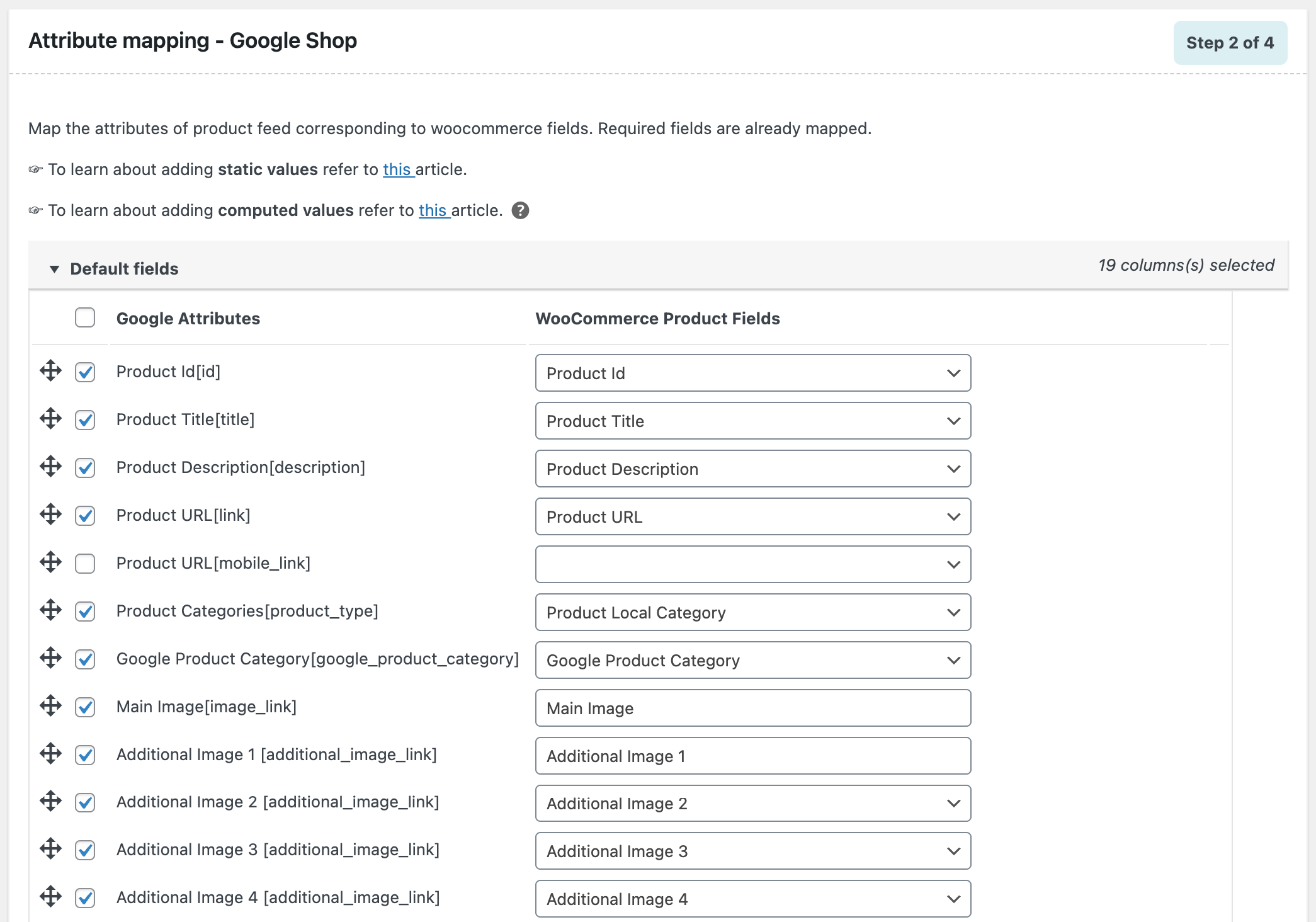
- Map product attributes: Depending on the sales channel (Google Shopping, Facebook, Bing, etc.), you may need to match your WooCommerce product fields (like Title, Price, SKU, Brand) to the channel’s required attributes. The WebToffee plugin makes this easy by letting you assign or even create custom mappings.
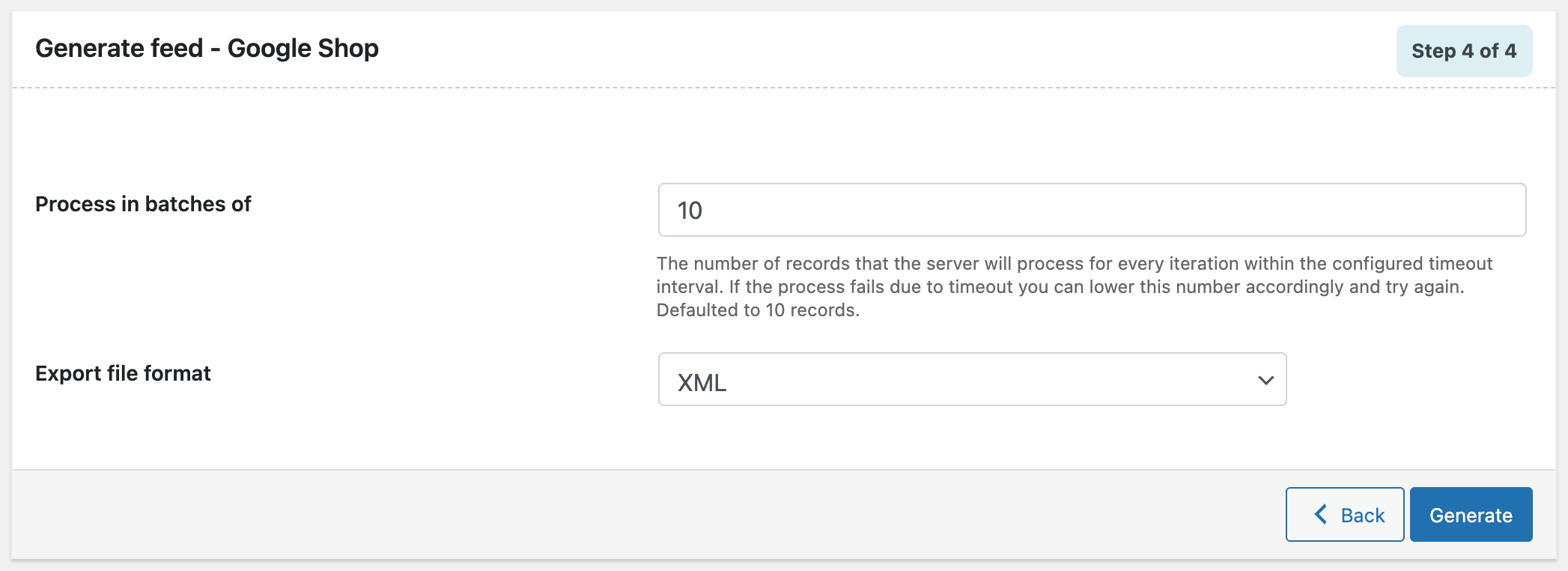
- Generate the file: Once the mappings are ready, click Generate Feed. The plugin will produce a feed file in your chosen format, such as CSV, XML, or TXT, based on the channel’s requirements.
- Check the output: You can preview the feed to ensure only the intended products appear and that all attributes are properly formatted.
With this step complete, your feed is ready to be uploaded manually to your sales channel, or you can set up an automated sync so updates happen without extra effort.
Real-World Use Cases of Advanced Filtering
Advanced filtering isn’t just a technical feature; it’s a tool that solves everyday eCommerce challenges. By applying the proper rules, you can keep your feeds clean, focused, and aligned with your marketing goals.
Let’s look at a few examples.
| Use Case | Rule Example | Benefit |
|---|---|---|
| Exclude Low-Stock Items | If stock is less than 2 → Exclude | Prevents wasted ad spend on products that may sell out quickly and avoids customer frustration. |
| Filter by Price | If price is greater than 100 → Exclude | Tailors your feed for budget shoppers or promotional campaigns with price caps. |
| Highlight Top Performers | If total sales is less than 10 → Exclude | Focuses your ads on products with proven sales history, boosting overall performance. |
| Promote Seasonal Collections | If category contains “Winter Collection” → Include | Ensures only seasonal or campaign-specific items appear in the feed. |
| Maintain Compliance | If GTIN is empty → Exclude | Keeps feeds compatible with channels like Google Shopping that require GTINs. |
| Filter by Size/Variation | If size is equal to XL → Exclude | Removes variations that are often out of stock, preventing duplicates or wasted clicks. |
This approach gives you surgical precision, ensuring every product in your feed is there for a reason. Whether you’re targeting seasonal promotions, optimizing for profitability, or cleaning up poor performers, advanced filtering makes it possible.
Conclusion
Advanced filtering elevates your WooCommerce product feeds from ordinary lists to strategic marketing assets. Rather than sending every product to every channel, you can selectively highlight items that truly deserve attention based on stock levels, pricing, categories, performance, or any custom criteria you set. The result? Cleaner feeds, more effective ads, and a smarter use of your budget.
The true power of advanced filtering, however, lies in its flexibility. You can start off with the basics, like removing out-of-stock products or low-priced items, and gradually develop more complex rules as your campaigns progress.
Consider it an ongoing process, not just a one-time setup. Regularly test, adjust, and refine your filtering logic. What works for a holiday campaign may not be suitable for evergreen promotions. By experimenting, you’ll find new ways to boost click-through rates, increase conversions, and ultimately grow your store’s revenue.


Subcribe to our newsletter





