
Share:


Table of Contents
Backing up WooCommerce PDF invoices to Dropbox is essential for ensuring the security and accessibility of important financial records. Utilizing a specialized plugin, such as WebToffee's WooCommerce PDF Invoices, allows for automated invoice generation and secure cloud storage, protecting against data loss and facilitating compliance with tax regulations.
- Automated PDF invoice generation ensures that all order documents are created without manual intervention.
- Cloud backups to Dropbox provide an additional layer of security against server failures and accidental deletions.
- The WebToffee plugin allows customization of invoice templates, enhancing brand representation and compliance with tax requirements.
- Users can easily connect their Dropbox account to the plugin, streamlining the backup process for invoices, packing slips, and credit notes.
- Testing the backup connection ensures reliability before depending on it for real orders, minimizing the risk of missing documents.
- The plugin supports bulk export of existing invoices, allowing users to manually back up older records not automatically captured.
A PDF invoice plugin can automatically generate invoices for your WooCommerce orders. But if you store those PDFs only on your website’s hosting server, a server failure, accidental deletion, or incomplete site migration could leave you without access to important financial records.
Those lost documents can create serious compliance issues down the line. Tax authorities like the IRS require businesses to retain tax records for at least three years, and longer in many circumstances or international jurisdictions.
Backing up WooCommerce PDF invoices locally or to cloud storage gives you an additional copy of your invoice records, keeping them always accessible.
The WebToffee WooCommerce PDF Invoices, Packing Slips and Credit Notes plugin lets you automate PDF invoices for WooCommerce orders and automatically back them up to Dropbox. In this guide, we’ll show you how to connect Dropbox, choose which documents to back up, and verify that your uploads are working.
Once you generate PDF invoices in WooCommerce, keeping backup copies helps you access those records when you need them. The WebToffee plugin lets you export invoices as a ZIP file, which you can download and store on your computer.
Cloud storage offers another way to maintain your archive. With automatic Dropbox, Google Drive, and FTP/SFTP backups, you can save copies outside your website without repeating the export and download process.
Backing up your WooCommerce PDF invoices helps you:
- Protect your records: Keep separate copies in case server failures, accidental deletions, or security breaches affect documents stored on your website.
- Simplify accounting: Keep invoices available for bookkeeping, tax preparation, and audit requests.
- Access and share documents: With Dropbox and Google Drive, you can retrieve invoices from different devices and share relevant folders with your accountant or bookkeeper.
Can WooCommerce Back Up Invoices on Its Own?
No. WooCommerce stores order data in your database and doesn’t generate PDF invoices or save them to cloud storage. You need an invoice plugin to create the PDFs and a cloud connection to copy them off your server.
WebToffee’s WooCommerce PDF Invoices plugin lets you set up automatic Dropbox backups in a few steps.
The WebToffee WooCommerce PDF Invoices plugin creates and manages every order document your store needs. The free version covers invoices, packing slips, and shipping labels, while the premium version adds advanced customizations, credit notes, and cloud backups, among other features.
To set up automatic invoice backups to Dropbox:
Step 1: Install and Activate the PDF Invoice Plugin
- Download the plugin ZIP file from your My Account page on WebToffee.
- In your WordPress dashboard, go to Plugins > Add New > Upload Plugin.
- Choose the ZIP file and click Install Now, then Activate the plugin.
Step 2: Automate Woo PDF Invoice Creation
- Go to Invoice/Packing > Invoice and open the General tab.
- Turn on Enable Invoice so you can print, download, and email invoices.
- In Automate invoice creation, select the order statuses that will automatically create an invoice when the order transitions to that status.
- In Attach the invoice PDF to selected WooCommerce emails, choose the order emails that should auto-attach the invoice.
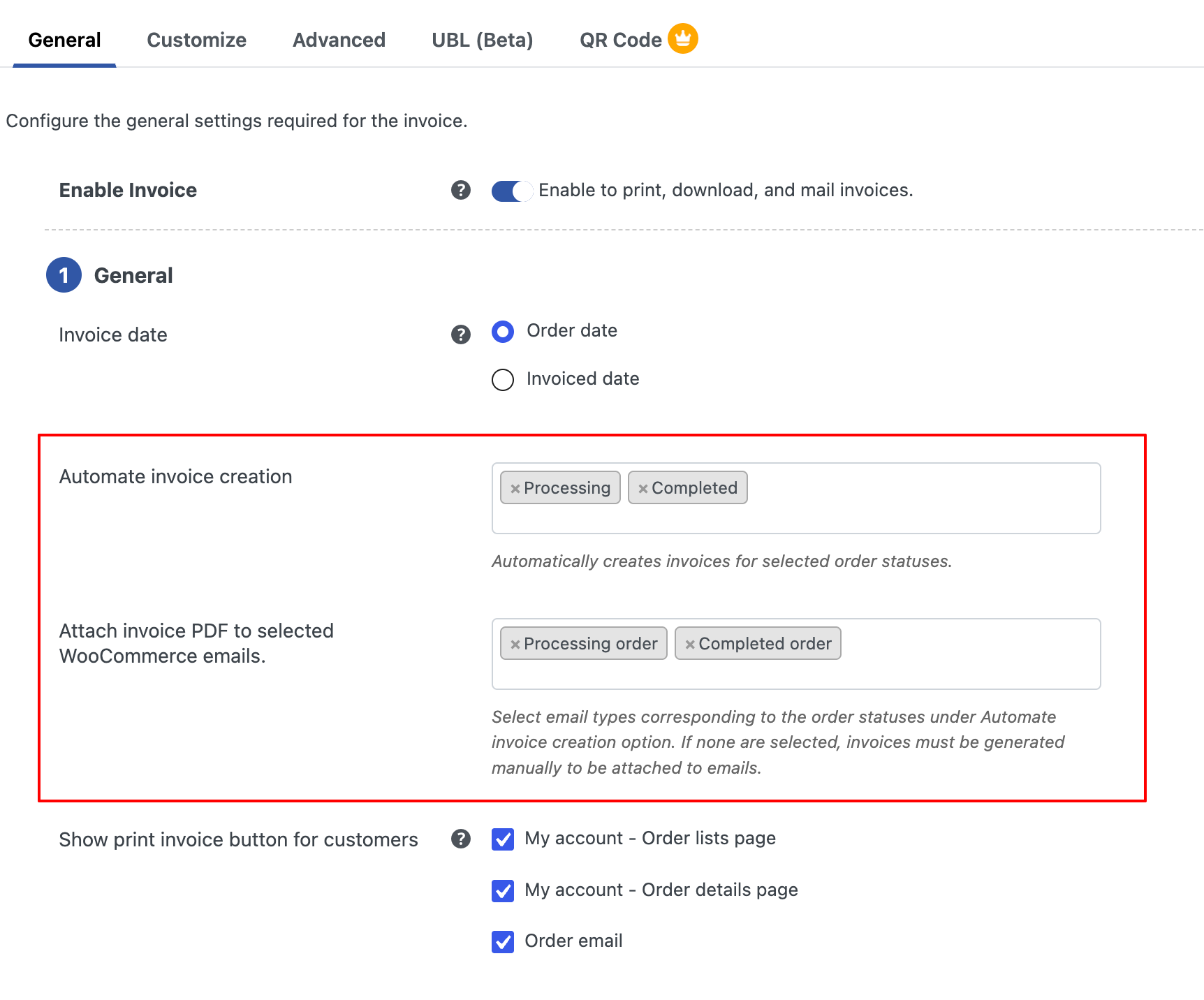
- Click Update Settings.
Step 3: Create a Dropbox App
Next, the plugin needs permission to write files to your Dropbox account. You grant it by creating a small app in the Dropbox developer console.
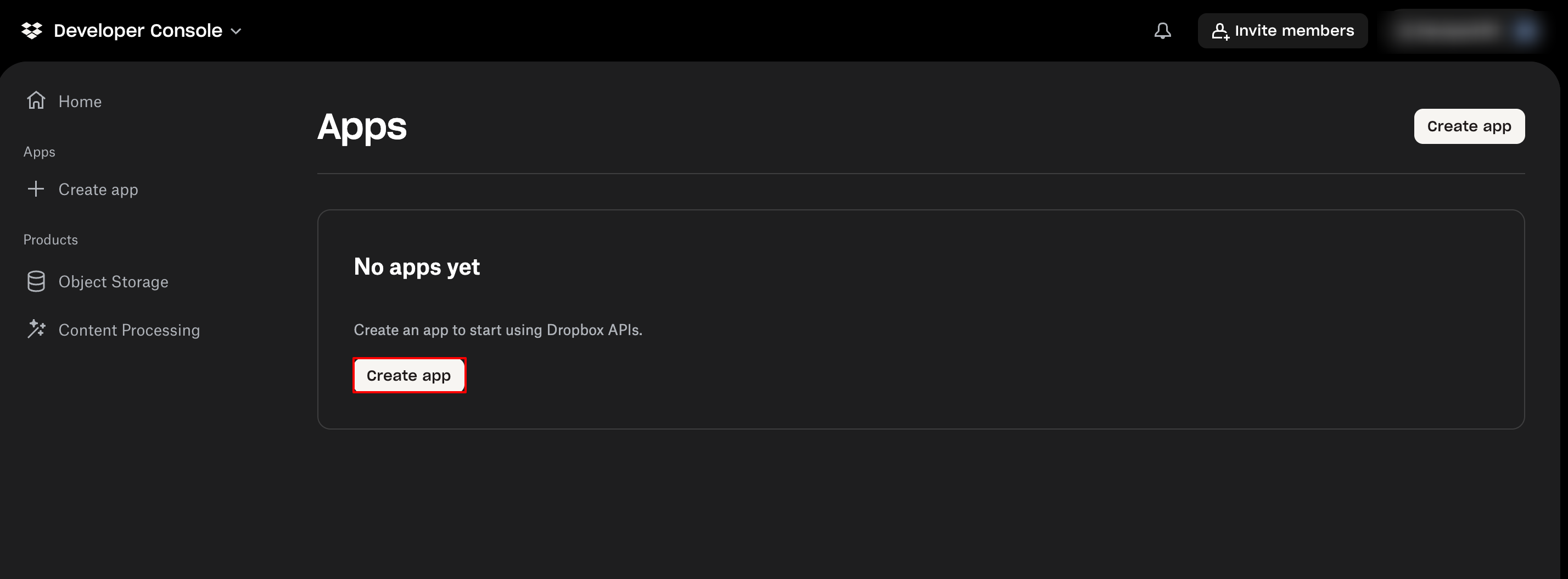
- Sign in to the Dropbox App Console and click Create app.
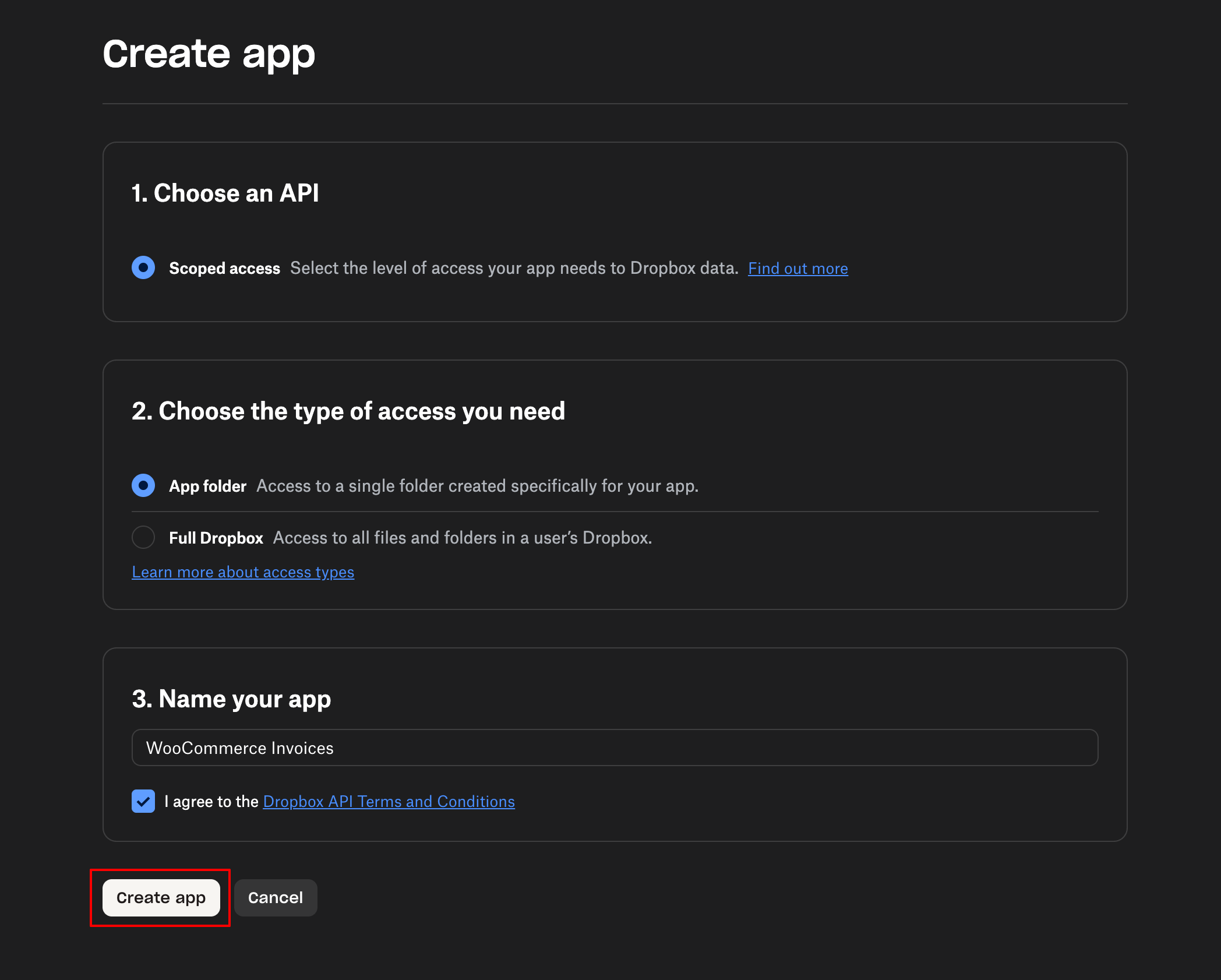
- Under API, select Scoped access. Choose your access type:
- App folder (Recommended): Restricts the plugin to Apps > [Your App Name], keeping your personal files isolated.
- Full Dropbox: Allows the plugin to write to any folder in your account.
- Name your app (e.g., WooCommerce Invoices) and click Create app.
- Navigate to the Permissions tab:
- Check files.content.write (to upload PDFs).
- Check files.content.read (to check existing files and prevent duplicates).
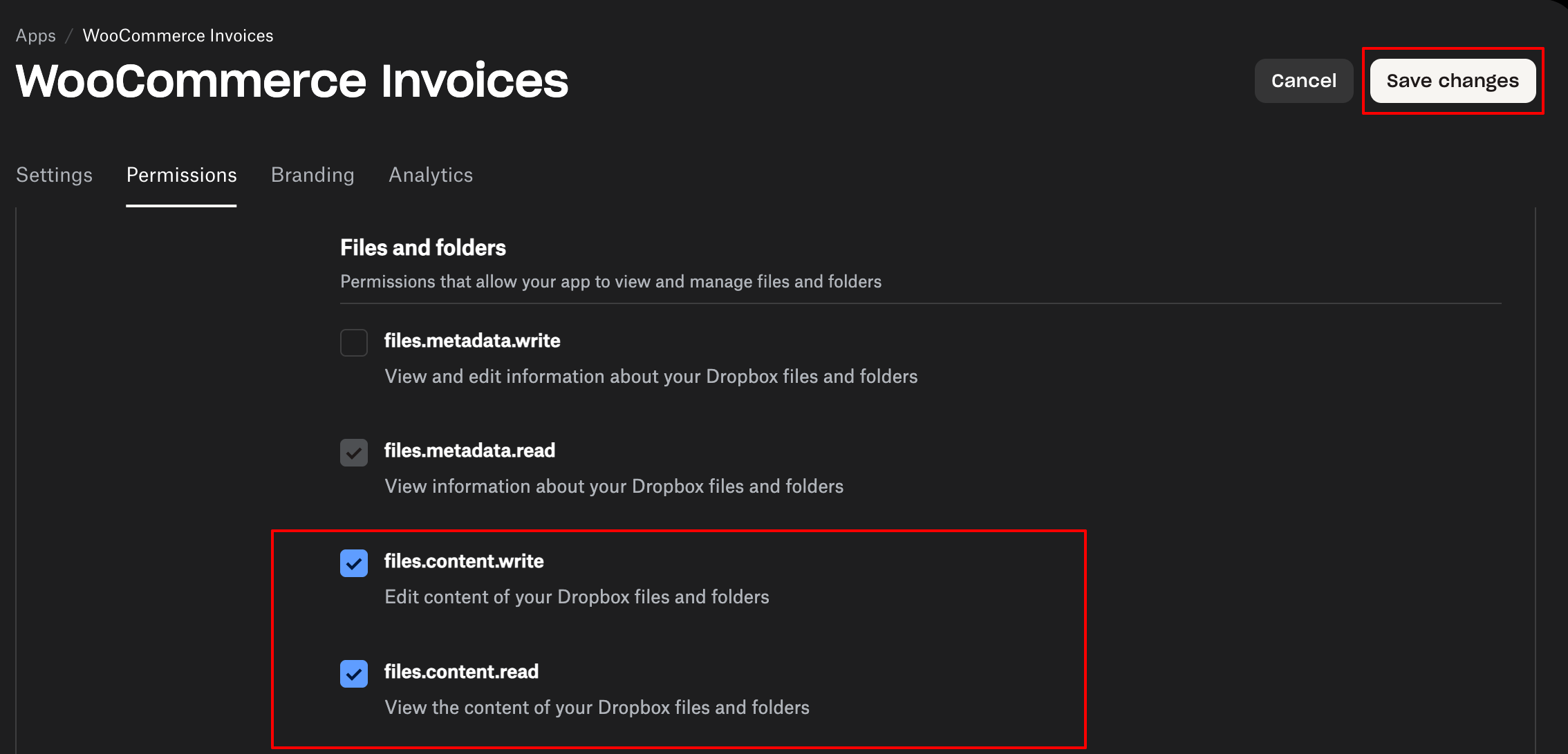
- Click Save changes to save your permissions.
- Return to the Settings tab to copy your App Key and App Secret.
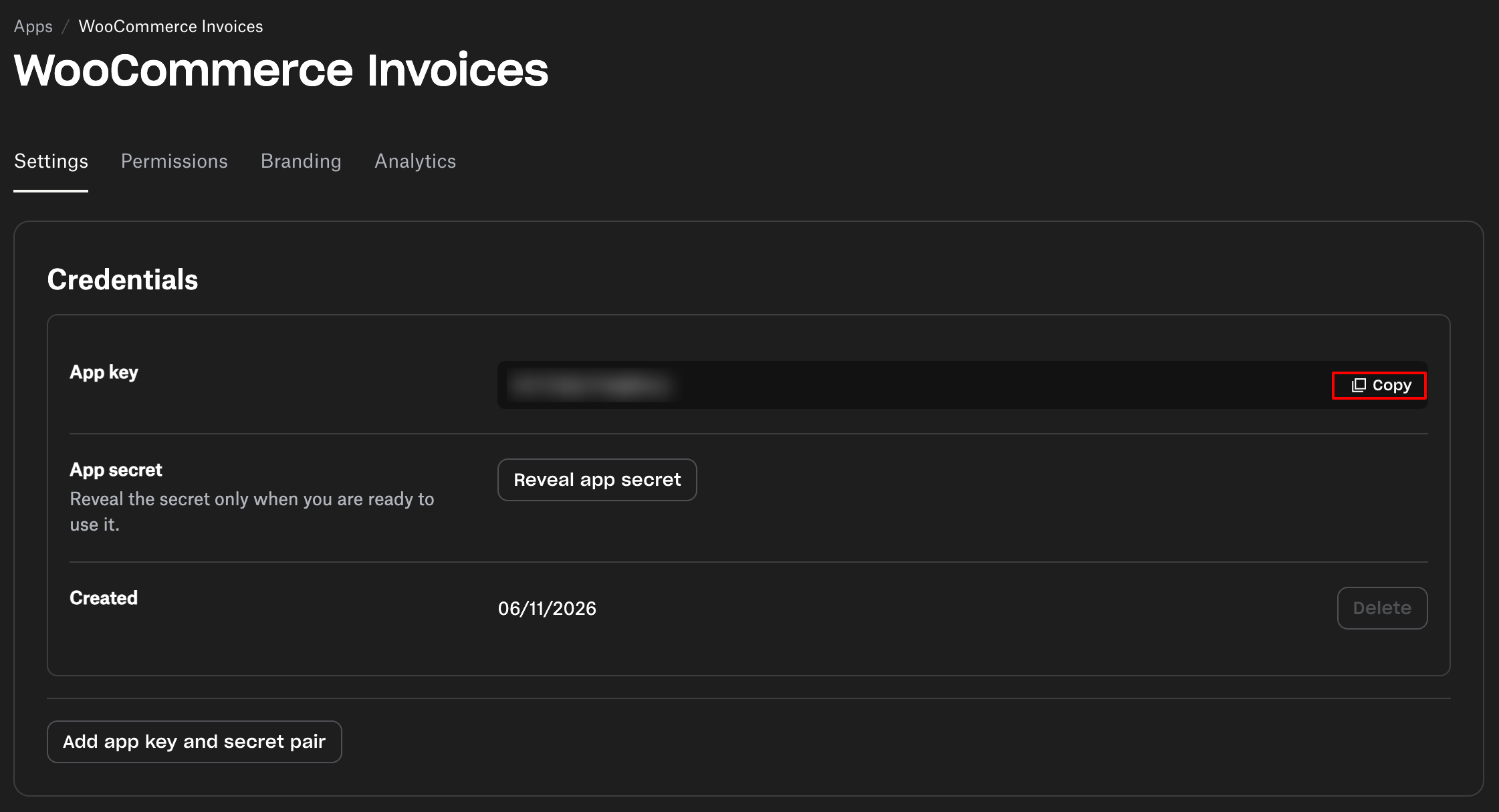
Step 4: Connect Dropbox and Configure Automatic Backups
With your app credentials ready, you can now link Dropbox to the plugin.
- Go to Invoice/Packing > General Settings and open the Cloud Storage tab.
- Turn on the Enable cloud storage integration option.
- Select Dropbox in the Cloud Storage Provider dropdown.
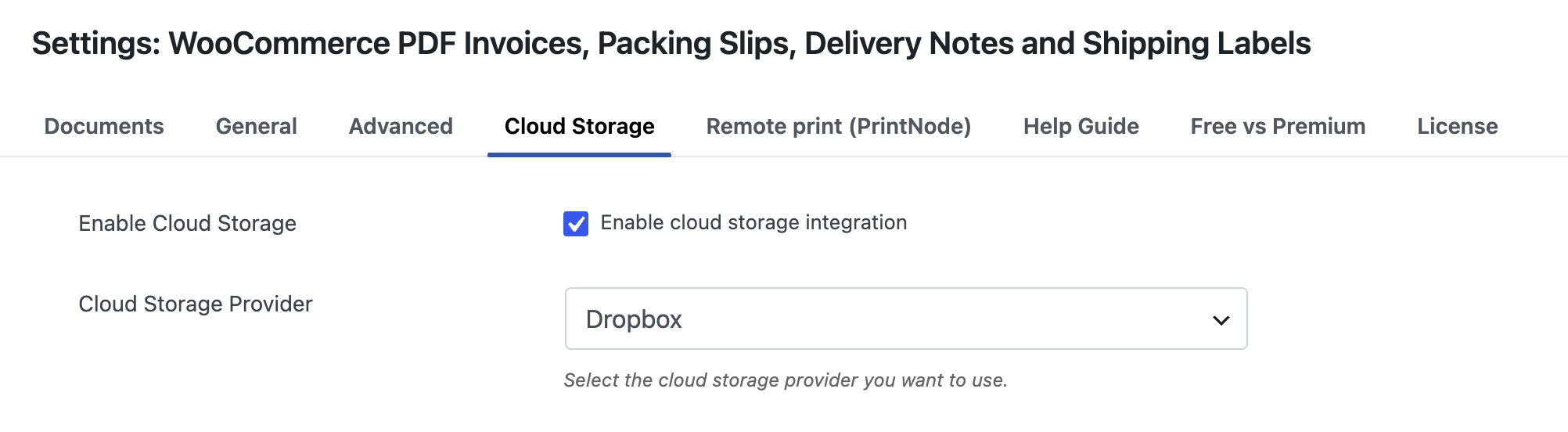
- Paste your keys into the App key and App secret fields.
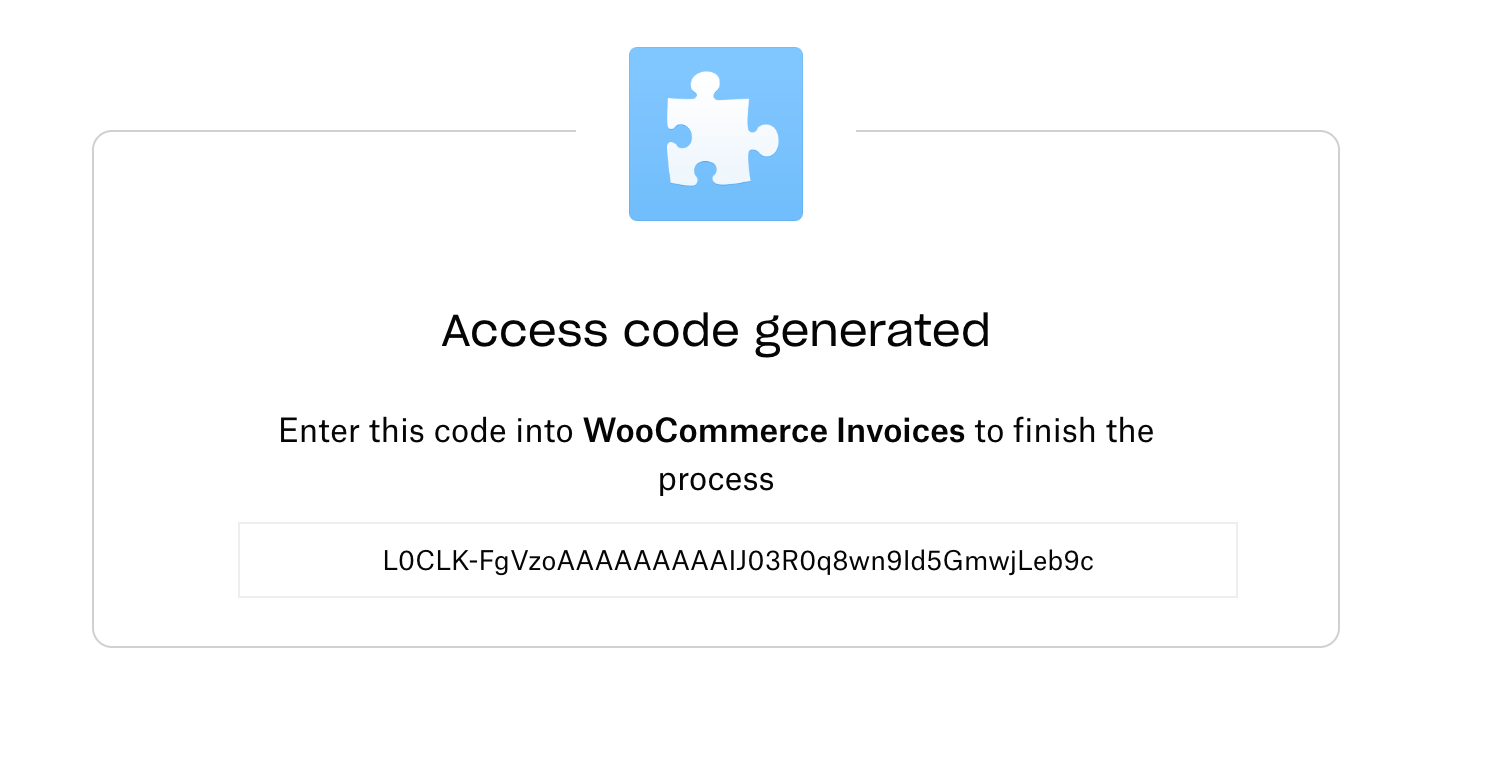
- Click the Dropbox Access Code link below the App secret field, approve the request in Dropbox, and copy the code it shows.
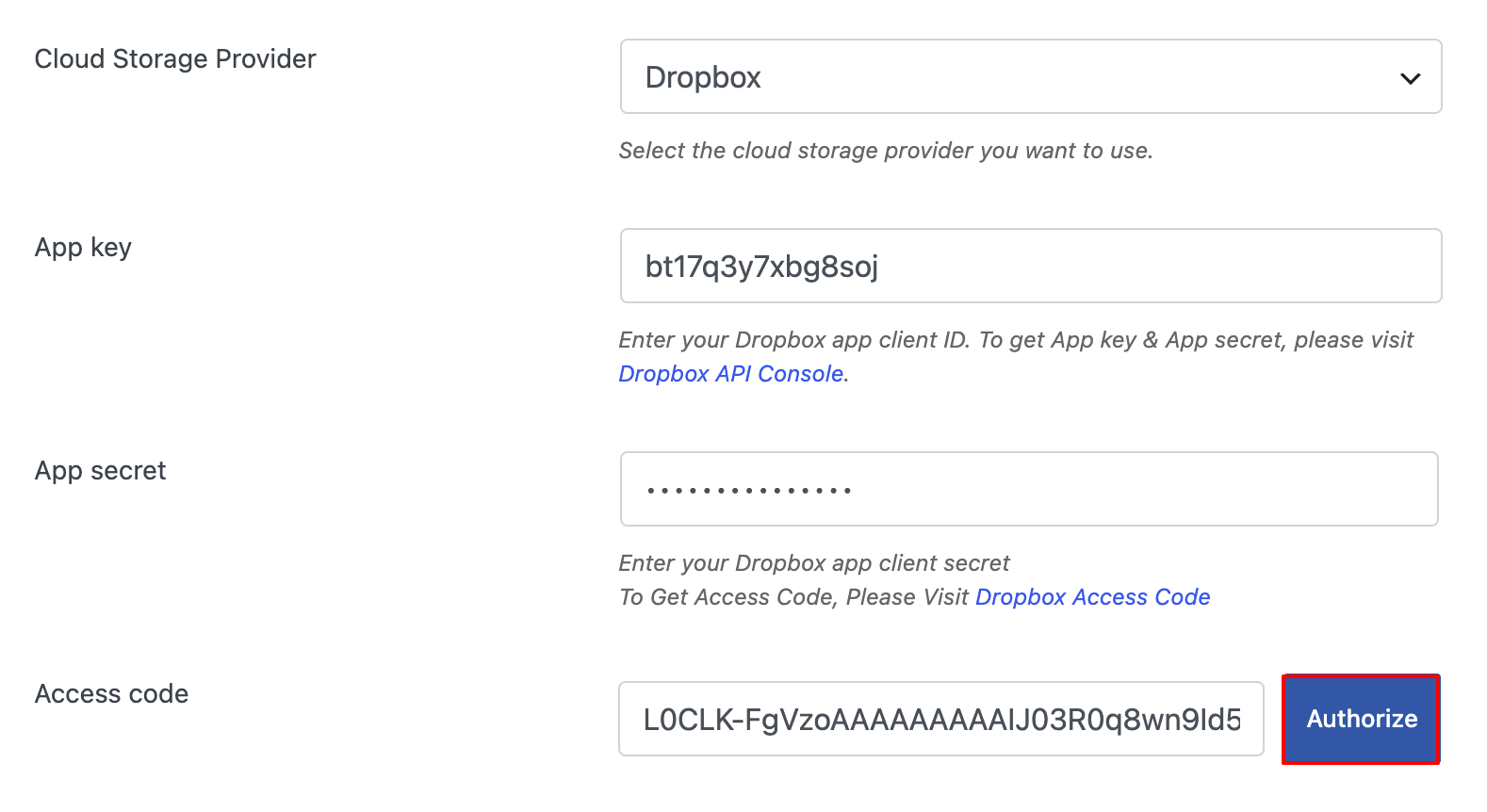
- Paste the code into Access code and click Authorize.
- Under Document types to upload, select the files you want backed up.
- Enter a path in the Upload Folder field. The default is /Documents; a clearer name such as /Invoices makes the files easier to find.
- Click Update Settings.
Step 5: Test the Backup (Optional)
A quick test confirms the connection before real orders depend on it.
- Place a test order.
- Open your Dropbox upload folder and check for the new invoice PDF.
- If the file is missing, check the files.content.write permission and authorize again with a new access code.
Once the test file appears, every new invoice follows the same path without any additional work from you.
Cloud backups are one part of managing your invoice records. WebToffee’s PDF Invoices plugin also helps you customize and organize WooCommerce documents from your WordPress dashboard.
Key Features of the invoice plugin include:
- Automate document creation: Generate PDF invoices, packing slips, shipping labels, delivery notes, and credit notes for your WooCommerce orders.
- Customize your invoices: Edit invoice templates to reflect your branding and add relevant VAT, GST, and other tax details.
- Custom invoice numbering: Set custom invoice number sequences to keep your records consistent and easier to track.
- Add payment links: Let customers access the payment page directly from their invoice PDF.
- Export invoices in bulk: Download multiple PDF invoices as a ZIP file for accounting or local storage.
- Automate remote backups: Send document copies to Dropbox, Google Drive, or an FTP/SFTP server to keep an archive outside your website.
Together, these features reduce repetitive document tasks and help you keep invoice records organized and accessible.
No. Cloud storage is part of the premium WooCommerce PDF Invoices, Packing Slips and Credit Notes plugin. The free version generates invoices, packing slips, and shipping labels, but it does not upload them.
Yes. The plugin has Google Drive and FTP/SFTP backups alongside Dropbox. Choose your provider in the Cloud Storage tab and fill in the credentials it requests.
No. The plugin uploads a document at the moment it creates the PDF, so older invoices stay where they are. Use the bulk export option to download them as a ZIP file and add them to your cloud folder manually.
Yes. In the “Document types to upload” settings, you can choose invoices, packing slips and credit notes. Select any combination, and the plugin uploads each type to the same folder.
Backing up your WooCommerce PDF invoices to Dropbox keeps a separate copy of your records accessible outside your website. It also makes sharing documents with your accountant or bookkeeper easier.
With the WebToffee plugin, you automate invoice creation, connect a Dropbox app, and choose which documents to upload. After a quick test, every new invoice lands in your cloud folder on its own.
Ready to stop saving invoices by hand? Get the WebToffee PDF Invoices, Packing Slips and Credit Notes plugin and set up your automatic WooCommerce PDF invoice backups in a few minutes.


Subcribe to our newsletter