


Share:


Table of Contents
Running a sale in your WooCommerce store? Here’s how you can quickly bulk edit WooCommerce products and their prices using the Product Import Export Plugin for WooCommerce.
If you are running a WooCommerce store, you know it’s crucial to constantly seek out new ways to attract customers, ramp up sales, and keep your brand fresh in their minds. And honestly, nothing does the trick quite like a perfectly timed sale or promotion. Sales help you clear out old inventory, reward loyal customers, and create excitement around your products.
Every successful sale hinges on one thing: accurate, timely price updates. Adjusting prices accurately and on time is key to running smooth promotions and ensuring customers see the right discounts at checkout. But with large catalogs, manual edits are slow, error-prone, and make running big promotions stressful.
That’s why in this guide, we’ll show you how to bulk edit WooCommerce products and their prices efficiently using the Product Import Export Plugin for WooCommerce. This way, you can edit and update hundreds of prices in just a few clicks, so you can spend less time managing spreadsheets and more time running a successful sale.
Key Takeaways:
- Running timely promotions helps attract customers, boost sales, and clear out old inventory.
- Updating product prices correctly and on time ensures smooth promotions and a better shopping experience.
- Using the Product Import Export Plugin for WooCommerce lets you update hundreds of prices in just a few clicks, reducing manual effort and errors.
When you’re planning a sale, updating product prices is one of the most critical tasks on your list. Here’s why they’re essential:
1. Efficiency and Speed
Running a sale often means adjusting prices for dozens or even hundreds of products. Manually changing each one can take hours and slow down your workflow. Bulk editing lets you change all your prices in just a few clicks, saving valuable time and allowing you to focus on other parts of your sale, like marketing or customer engagement.
2. Consistency Across Your Store
When prices are updated manually, it’s easy to miss a few products or make small errors that confuse customers. Bulk updates ensure consistent pricing across categories and product types, maintaining a smooth shopping experience and keeping your store’s credibility intact.
3. Scalability for Growing Stores
As your WooCommerce store expands, managing products individually becomes nearly impossible. Bulk editing tools are built to scale with your store, allowing you to manage price changes for hundreds or thousands of products without breaking a sweat. It’s the smarter, long-term approach to managing stores efficiently.
4. Quick Post-Sale Cleanup
Once your sale ends, you’ll need to reset prices back to normal. Doing that manually can take as long as setting up the sale itself. With bulk editing, you can revert all prices back in minutes, ensuring your store returns to regular pricing instantly and hassle-free.
The Product Import Export Plugin for WooCommerce lets you bulk edit WooCommerce products to modify their prices for both simple and variable products. For this, we will be using the premium version of the plugin.
The plugin allows you to export your entire product catalog, make quick updates in a spreadsheet, and then re-import the data. Whether you’re preparing for a big sale or updating prices across your store, this method ensures consistency and efficiency every time.
Here’s a quick overview of how the process works:
- Export your products into a CSV, XML, TSV, XLS, or XLSX file format.
- Update the exported file with your new prices.
- Re-import the file to automatically update the prices in your WooCommerce store.
In the following steps, we’ll walk you through each part of the process in detail so you can confidently bulk edit WooCommerce products in minutes.
A. Export Products from Your WooCommerce Store
Step 1: Choose Product as Post Type
After you have installed and activated the Product Import Export plugin, navigate to your WordPress dashboard and then,
- Go to WebToffee Import Export (Pro) > Export.
- From the list of options, select Product as the post type you want to export.

- Proceed to the next step.
Step 2: Choose the Export Method
When exporting products using the plugin, you’ll get two export options: Quick Export and Advanced Export. Each serves a different purpose depending on how much control you need.
Quick Tip: If you’re planning a major sale and need to update only certain items like products from a specific category, use Advanced Export. For small stores or quick price adjustments, Quick Export works just fine.
Here, let’s choose the Advanced Export option so you can see how to fully customize your export file.

Step 3: Filter the Products You Want to Export
Now it’s time to narrow down exactly which products you want to export. The Product Import Export Plugin provides a range of flexible filtering options, so you don’t have to export your entire product catalog every time. This not only saves time but also makes your price update process cleaner and more efficient.
You can apply multiple filters to target specific products that need price adjustments.

Step 4: Map & Reorder Columns
In this step, you can customize how your export file looks. Simply select the product data columns you want (like name, SKU, or price), rename them with custom labels, and reorder the columns by dragging and dropping.
This gives you full control over your file’s layout, making it easier to organize, share, or re-import later.

Step 5: Export Your Products
Now it’s time to generate your export file.
Set the file name, choose your file format (CSV, XML, TSV, XLS, or XLSX), and define batch size for large catalogs to prevent timeouts. You can also pick a delimiter (comma by default) and set the export location to Local to download the file.
Once configured, click Export.
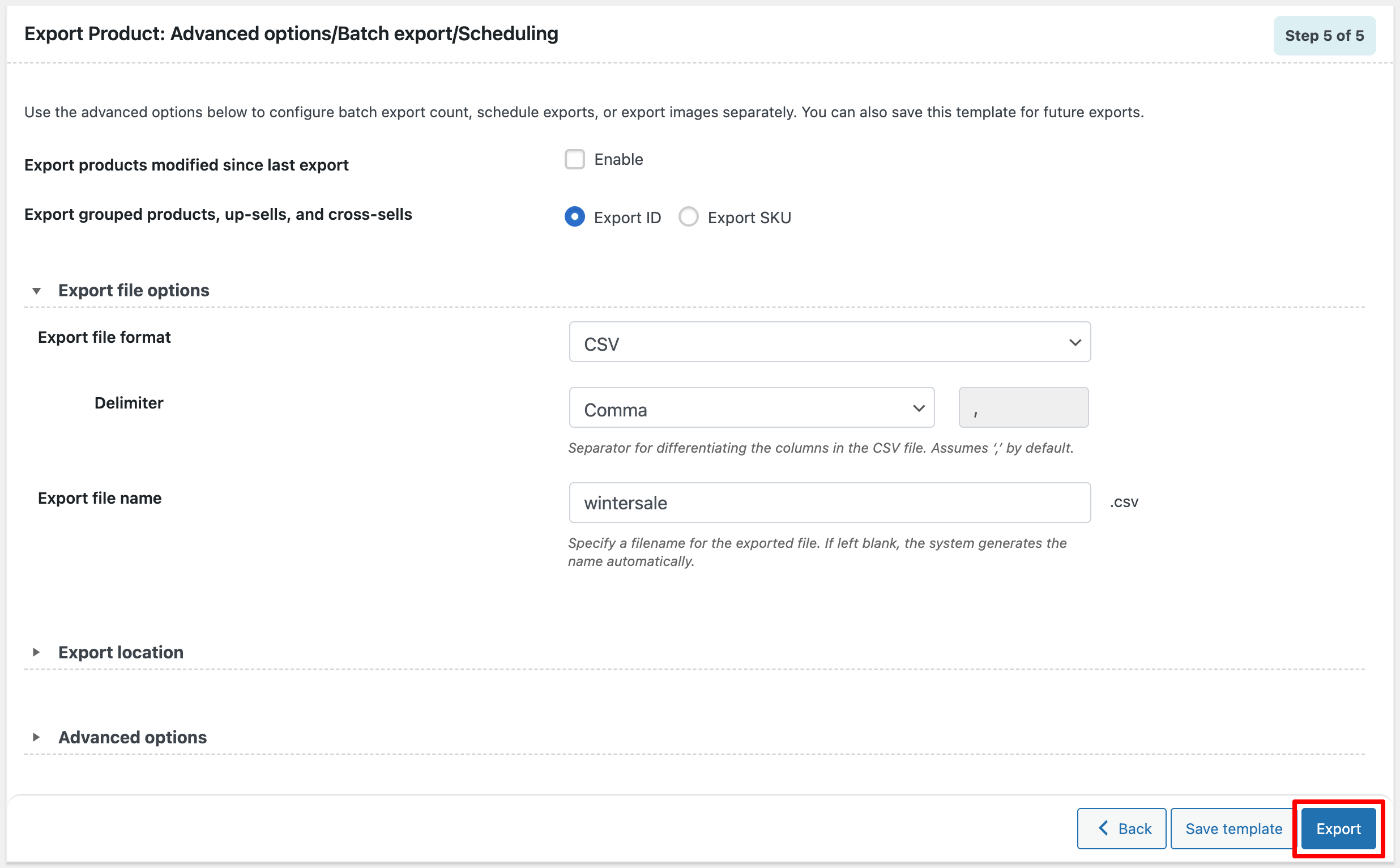
Once the export is complete, you can simply download the product file to your system.
B. Edit Product Prices in the Exported File
Once you’ve exported your products, the next step is to edit the prices in the exported file. Open the file in your preferred spreadsheet editor, such as Microsoft Excel or Google Sheets, to make the necessary changes.
You’ll see columns for key product details like Product Name, SKU, Regular Price, and Sale Price. From here, you can:
- Adjust regular or sale prices for your products.
- Apply discounts or percentage reductions for specific items.
- Update prices for both simple and variable products, ensuring all variations are correctly modified.

If you only want to update certain items, focus on those specific rows (as highlighted in the image). After making your edits, save the file in the same format (e.g., CSV or XLSX) to prepare it for re-import.
This step ensures your updated pricing data is clean, accurate, and ready to be applied to your WooCommerce store.
C. Import the Edited File Back into WooCommerce
Now that your product prices have been updated and saved, it’s time to bring those changes back into your WooCommerce store. The Product Import Export Plugin makes this process quick and hassle-free.
Here’s how to do it:
Step 1: Select Products As the Post Type to Import
To get started with the import:
- From your WordPress dashboard, go to WebToffee Import Export (Pro) > Import.
- From the options, choose Product as the post type you want to import.

- Proceed to the next step.
Step 2: Choose an Import Method
Next, select how you would like to import your products.
You can use Quick Import for a fast, hassle-free upload, perfect if you’re re-importing a file exported with the same plugin, as it automatically maps and updates data. Alternatively, choose Advanced Import if you need more control, such as mapping fields or applying filters before importing.
Let’s select Advanced import. Upload the updated CSV file, select the delimiter that separates columns (usually a comma), and then click Map Import Columns to match your CSV fields with WooCommerce product fields.

Step 3: Map Import Columns
In this step, you need to map the standard, meta, attributes, taxonomy, and hidden meta fields in WooCommerce with the respective columns from your CSV, XML, or XLSX file. This ensures that all your product data, from basic details to custom metadata, is imported correctly into WooCommerce.

Step 4: Configure Advanced Import Options
Before finalizing the bulk price update, the plugin provides several advanced settings that let you fine-tune how the price changes are applied across your WooCommerce products.
One important setting to pay attention to here is the If product exists in the store option.
- Select Update for this setting to ensure that the existing products in your store have their prices updated according to the data provided in your import file.
- Next, review and configure the remaining settings as needed. Once everything is set, click Import/Schedule > Import to start the process.
The plugin will then bulk edit your WooCommerce products with the pricing data from your CSV file.

Once the import finishes, your WooCommerce product prices will be updated automatically based on the data in your CSV file.

You can then quickly verify the changes by checking the product list or individual product pages in your store. This ensures that all price adjustments, whether increases, decreases, or bulk modifications, are accurately reflected in your catalog, saving you time and effort in managing pricing updates manually.

Best Practices for Managing WooCommerce Sales Efficiently
Running a successful sale requires more than just lowering prices; it’s about planning, precision, and presentation. Here are a few simple yet effective tips to help you manage your WooCommerce sales more efficiently:
Schedule Price Updates in Advance
Plan your sales in advance to avoid last-minute rushes. By scheduling your price updates in advance, you can ensure that your discounts go live exactly when you want, making them perfect for flash sales, seasonal events, or holiday promotions. Some plugins even let you automate this process, so your sale starts and ends automatically.
Always Back Up Your Store
Before making any bulk changes, it’s crucial to back up your WooCommerce store. This ensures that if anything goes wrong during the import or update process, you can easily restore your site to its previous state without losing any data.
Test on a Few Products First
Before applying price changes across your entire catalog, test the process on a few sample products. This helps confirm that your import settings, file mapping, and data formatting are correct, reducing the risk of pricing errors when performing the full update.
Use Sale Badges and Countdown Timers
Make your discounts stand out! Adding sale badges and countdown timers creates a sense of urgency and helps customers instantly recognize which items are on sale. This not only improves visibility but also increases conversions.
Conclusion
Running a sale shouldn’t mean spending hours editing product prices one by one. Bulk editing makes the whole process faster, easier, and far more accurate. With just a few simple steps, you can adjust prices across your entire store, keep everything consistent, and focus on what really matters: selling more.
The Product Import Export Plugin for WooCommerce takes the hassle out of managing sales. You can export your products, edit prices in a spreadsheet, and import them back in minutes.
Ready to make your next sale effortless? Try the WebToffee Product Import Export Plugin and bulk edit your WooCommerce prices with just a few clicks.


Subcribe to our newsletter





