Share:


Table of Contents
Looking for a faster way to manage order updates in WooCommerce? Using bulk edit tools, you can bulk update orders in WooCommerce, saving hours of manual work and making it easier to stay on top of your store’s operations.
WooCommerce lets you handle basic bulk actions out of the box, like changing order statuses using checkboxes in the orders list. However, it falls short when it comes to editing specific order details, such as updating shipping information, custom fields, or adding notes across multiple orders at once. That’s where a dedicated plugin comes in, giving you the control and flexibility to bulk update order data efficiently.
In this guide, we’ll show you how to use a plugin to streamline bulk order updates, saving time, reducing manual effort, and making order management far more efficient.
Key Takeaways:
- Most WooCommerce store owners periodically update their order data in bulk for various reasons, such as updating pricing, changing order status, or modifying shipping addresses.
- Manually updating a large number of orders requires time and resources, and can lead to data errors during the transfer process.
- Dedicated plugins, like WebToffee’s Order Import Export plugin, help manage and update order data in bulk efficiently and accurately.
Updating WooCommerce orders in bulk can save you time and make it easier to modify several orders simultaneously. Here are a few typical situations where a bulk update might be necessary:
- Pricing Changes: When running promotions or sales, you can easily update order prices in bulk to show the discounted amounts. If product costs have increased or tax rates have changed, you can adjust the order totals accordingly.
- Order Status Changes: Bulk updates are especially beneficial when you want to change the status of several orders simultaneously, like moving them from processing to shipped. They can also be used to update refunds or cancellations.
- Shipping Address Corrections: If you’ve found many orders with incorrect shipping addresses or if customers have relocated, you can make bulk updates and change the shipping addresses across all applicable orders.
- Product Changes: If a product has been discontinued or if a product variation was mistakenly assigned to orders, you can update its details in all related orders.
- Coupon Applications: If you want to apply a coupon code to several orders that were made before the coupon became available, you can perform a bulk update.
Note: Bulk updating orders can save time, but it’s important to proceed carefully as errors can have serious consequences. To stay safe, use a trusted plugin designed for bulk order edits.
If you want to export WooCommerce orders without plugin support, it’s worth knowing that WooCommerce already includes a basic bulk action feature for managing orders.
To update order statuses in bulk:
- Go to WooCommerce > Orders.
- Select the orders you want to update using the checkboxes.
- Choose an option from the Bulk actions dropdown (e.g., Change status to Processing or Completed).
- Click Apply.

This method works well for simple status changes. However, it doesn’t allow you to edit other order details like billing/shipping information, custom fields, or order notes.
For more advanced bulk updates, you’ll need a dedicated plugin like the WebToffee Order Import Export Plugin. Let’s explore how to do that next.
For deeper edits like adjusting order totals, fixing shipping addresses, updating billing details, or reformatting dates across hundreds of orders, the WebToffee Order Import Export Plugin lets you bulk update any order field using a CSV-based transform workflow.
Here’s how it works:
What You Need Before You Start
- A CSV of your existing orders exported using the same WebToffee plugin (this ensures all column headers map correctly on re-import)
- The WebToffee Order Import Export Plugin installed and active on your store. If not yet installed, go to Plugins > Add New, search for Order Import Export Plugin for WooCommerce, and activate it.
Once you have the export file ready, let’s see how we can import it using the import export plugin.
Step 1: Select Order as Post Type for Import
Once the plugin is installed and activated,
- Navigate to WebToffee Import Export (basic) > Import.
- As a first step to import order data, select Order as post type you want to import.

Step 2: Upload Your CSV and Choose Advanced Import
- Choose Advanced Import as the import method. This way, you can filter, map columns, and customize other advanced options.
- Next, upload the CSV file of the Order list and click the Map Import Columns button.

Step 3: Map Columns & Update Order Field Values
In this step, we’ll map the columns to import and use the transform option to change/edit any columns.
Note: The columns get automatically mapped if the input file has matching header names. You can easily view the mapped columns by scrolling through the drop-down menu.

When you click the pencil-shaped icon next to the file column, a pop-up will appear, allowing you to enter a value for the order fields.

The supported operators are as follows:
- Expression: The field value can be changed by using any of the operators +, *, /, -, (), &, @, or string constants.
Eg: [{order_total}+10] - Input file columns: Select the column that needs to be changed from the dropdown.
Output/ Preview: A sample value will be generated based on the first record from the input file.
For example, if the order total is 90.00 initially and 10 is added to it, the sample value for the order total is 100.00.

Note: Columns with no values in the input file may cause syntax errors if used in an expression.
Below are some options for changing the order field values using the Transform option, along with examples:
1. Change Order Status Across All Orders
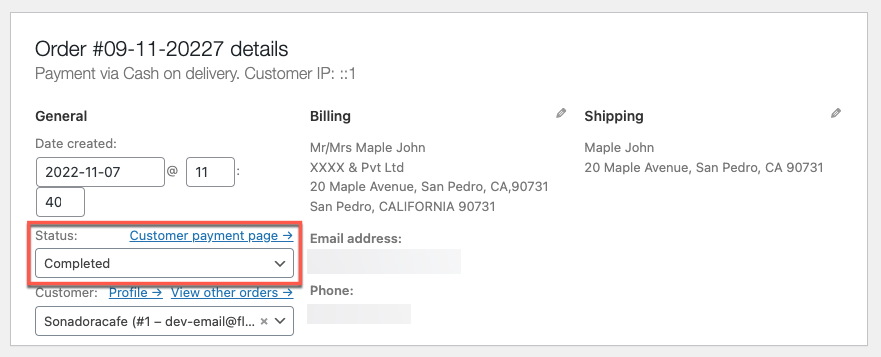
For example, let’s say you wish to change the Order Status to Completed.
Enter ‘Completed’ in the Order Status row under the transform option and click Apply as shown below:

Upon import, the status of the order will be changed to Completed. The modified status gets imported as shown below:
2. Add Any Required Value to the Field
For example, let’s say you wish to increase the shipping total by 10. Enter ‘+10’ in the Shipping Total row’s transform option.
Eg: [{shipping_total}+10]
If you hadn’t assigned a shipping total before exporting, you can add the value to your shipping total.

The modified value upon importing is shown below:
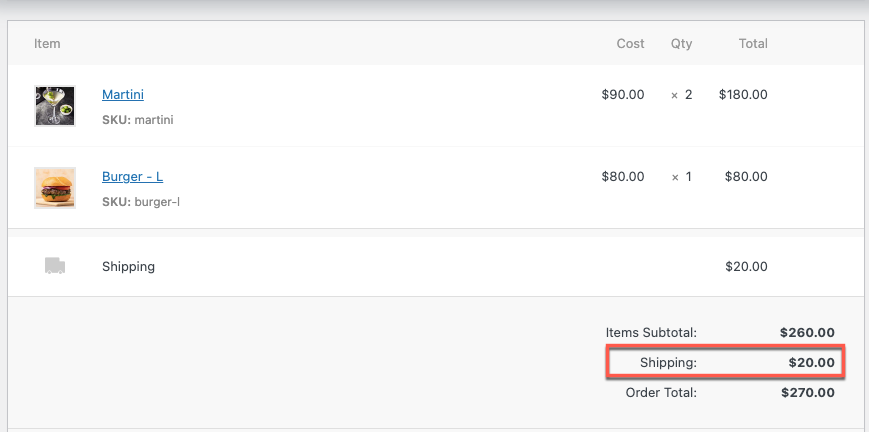
Added Value (10.00 + 10)
3. Reduce Any Required Value to the Field
For example, if you want to reduce the order total by 5, enter “-5” in the Order Total field under the transform option like this:
Eg: [{order_total}-5]

The modified value upon importing is shown below:
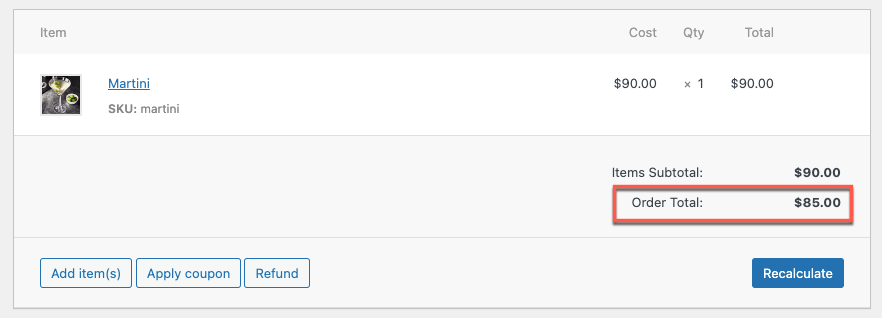
Reduce by Value(90.00-5)
4. Reformat Order Dates
To import it into your online store, the date format must match WooCommerce’s format (yyyy-mm-dd H:i:s, e.g., 2016-07-13 4:24:25).
Make sure the dates in your CSV file follow this format. You can also use the transform option to convert your dates to WooCommerce format. Dates in PHP format in the CSV can also be converted into WooCommerce formats.
The following are a few formats:
- dd/mm/yy H:i
- mm/dd/yy H:i:s
- yy/mm/dd H:i:s
- yy/dd/mm H:i:s
Note: The transform option and CSV file must use the same date format.
For Example:
Let’s say you wish to change an order date in the dd/mm/yy H:i format. As illustrated below, on the Order Date row, place @ dd/mm/yy H:i using the transform option:

The imported order date is adjusted as indicated below:
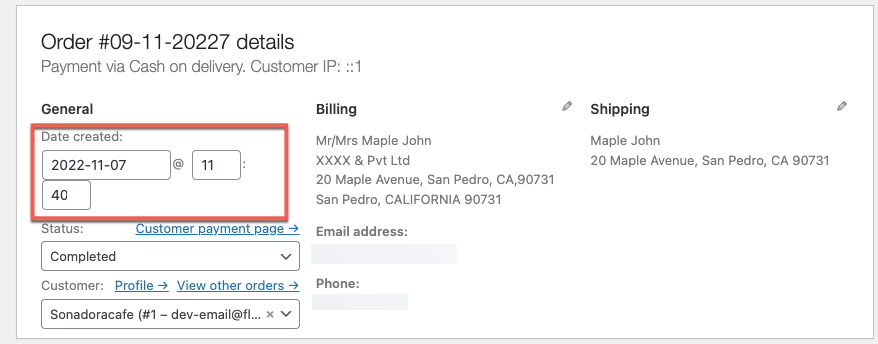
The updated date and time is 2022-11-07 at 11:40
5. Append Text to a Field
For example, if you want to add “Pvt Ltd” to the Billing Company, simply go to the Billing Company row, click the pencil icon at the end, and type “&Pvt Ltd” as shown below.

The modified company data upon importing is adjusted as indicated below:
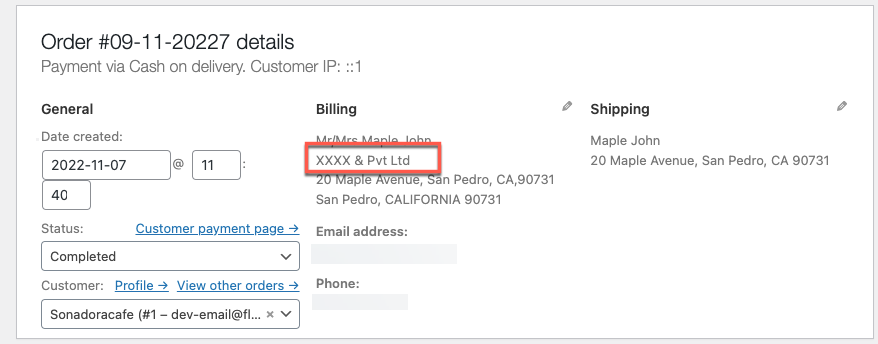
The appended value is XXXX &Pvt Ltd
6. Prepend Text to a Field
For example, if you want to add “Mr/Mrs” before the billing name, go to the billing name row and use the transform option. Simply type “Mr/Mrs [your billing name]” as shown below.

The modified billing name upon importing is adjusted as indicated below:
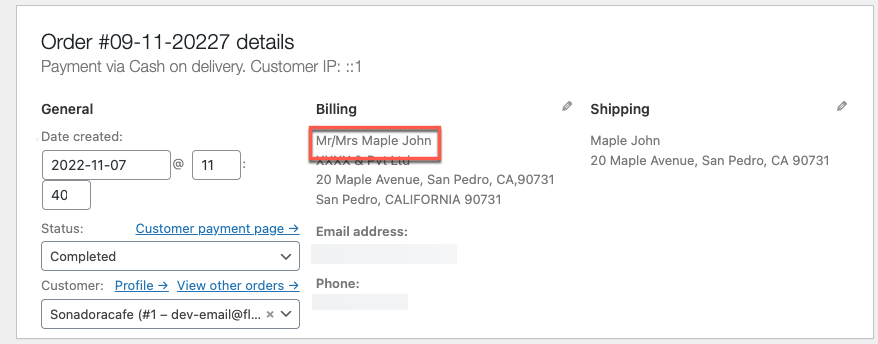
The appended Billing name will be Mr/Mrs. Maple John.
The Pro version of the WooCommerce order import export plugin unlocks a powerful set of premium features that go beyond the basic version, designed to simplify order migration, bulk updates, and automation.
With this version, you can:
- Effortlessly migrate WooCommerce orders to and from your store.
- Import and export orders in multiple formats, including CSV, XML, TSV, and Excel.
- Bulk update existing orders during import. Ideal for modifying statuses, customer info, or shipping details.
- Customize exports using advanced filters to export only specific orders.
- Map and reorder columns to match your desired file structure.
- Automate import/export tasks with Server Cron for hands-free scheduling.
- Access developer logs for quick and easy debugging of failed order operations.
- Enjoy seamless compatibility with popular third-party WooCommerce plugins.
Yes, you can bulk edit any WooCommerce order fields you wish without any restrictions.
Unfortunately, there’s no direct undo button. It’s recommended to back up your order data or export a copy before performing any bulk updates, so you can restore it if needed.
Changing order status via bulk action can trigger WooCommerce’s status notification emails (e.g., a “completed” email to the customer). If you want to update silently, disable order notification emails temporarily under WooCommerce > Settings > Emails before running the bulk action.
No, when you import your order data back into WooCommerce, only the fields you modified will be updated. All other fields will stay the same.
Yes, when you use the Transform option, a sample value is created based on the first record from the input file. This allows you to see a preview of the changes.
Our expert support team, with decades of experience in WordPress and WooCommerce data management, is here to assist. Contact us, and we’ll guide you every step of the way.
There’s no hard limit, but performance may vary based on your hosting environment and the size of your file. For large-scale updates, it’s best to update them in batches or increase server resources.
With the WooCommerce Order Import Export plugin, managing and updating your orders has never been simpler. Whether you’re moving data, adjusting field values, or making sure everything is formatted correctly, the Transform option provides you with complete control, making it easier than ever to bulk update orders in WooCommerce with precision and ease.
You can effortlessly customize imports, modify information, and even convert the dates of your orders. The automatic column mapping saves you time, making the process smoother and more efficient.
The Order Import Export plugin mentioned in this article has a premium version with advanced features. You can check it out to learn more about its capabilities.
Hope this article has guided you in the right direction. If you have any questions, please comment below, and we’ll be happy to assist you.


Subcribe to our newsletter