Share:


Table of Contents
Migrating WooCommerce orders can seem straightforward, but ensuring accuracy is key to maintaining your store’s data integrity. Here’s how to move your orders safely and efficiently between stores.
WooCommerce order migration involves exporting orders from one store and importing them into another without losing important data such as customer details, product information, order status, and transaction history. Store owners typically migrate WooCommerce orders when moving to a new site, creating backups, or consolidating multiple stores.
While WooCommerce provides a default export option, a successful order migration requires more than just transferring a file. Customers, products, and store settings must be properly aligned to avoid issues like missing product links, guest orders, or incomplete order data.
In this guide, we’ll show you how to migrate WooCommerce orders using both the default WordPress export tool and the WooCommerce Order Import Export plugin. We’ll also cover the key checks to help you move orders accurately and efficiently.
Key Takeaways:
- Efficient migration is crucial for stores to ensure uninterrupted order management and customer experience.
- WordPress has a built-in tool for exporting WooCommerce orders, making it ideal for basic migrations, but it lacks the advanced features that dedicated plugins can offer.
- Specialized WooCommerce plugins for order export and import make the migration process easier by enabling bulk transfers with little effort, all while maintaining data accuracy across different sites.
Things to Consider Before Migrating WooCommerce Orders
Before migrating WooCommerce orders from one store to another, it’s important to take a few precautions to avoid data loss or migration errors.
- Back up both the source and destination stores: Always create a full backup of both stores before starting the migration. This ensures you can quickly restore your data if something goes wrong during the process.
- Ensure WooCommerce versions are compatible: Check that both stores are running compatible versions of WordPress and WooCommerce. Version mismatches can sometimes cause issues with order data, fields, or plugin compatibility.
- Check if customer accounts exist on the destination site: Orders are usually linked to customer accounts. If the destination store does not have the same customer records, some orders may appear as guest orders or may not map correctly.
- Verify product IDs and SKUs match between stores: Products in orders are often matched using product IDs or SKUs. If the products in the destination store have different identifiers, imported orders may not link correctly to the corresponding products.
- Test migration with a small set of orders first: Before migrating all orders, run a test import with a small number of orders. This helps you confirm that the mapping works correctly and that all order details appear properly in the new store.
When you migrate WooCommerce orders, you’re not just exporting data or importing a file; you’re essentially moving your store’s order history from one place to another.
The process becomes much easier when you think of it as a simple flow:
- First, you export orders from your current (source) store
- Then, you import those orders into your new (destination) store
Let’s walk through the entire process step by step so you don’t have to piece things together yourself.
Step 1: Export Orders from Your Source Store
Start on your existing WooCommerce store. This is where your current order data lives.
There are two ways to export orders from here:
Option A: Using the Default WordPress Export Tool
You can export WooCommerce orders without plugin support by using WordPress’s default export tool. The tool exports all the data regarding orders in the store to an XML file that you can save to your computer.
Note that this method provides no options for data mapping and customizations.
To export orders via this method,
- Go to Tools > Export on your WordPress dashboard.
- Select Orders and click the Download Export File button.

However, this method is quite limited. You won’t be able to:
- Choose specific fields or columns
- Filter orders (by date, status, etc.)
- Customize the structure of the export
So if you’re dealing with a large store or need a clean, ready-to-import file, this can quickly become inconvenient.
Option B: Using a Plugin (Recommended for Migration)
To gain more control over the export process, using a dedicated plugin such as Order Export & Order Import for WooCommerce is often a better option. Unlike the default WooCommerce tools that offer only basic export functionality, this plugin provides more flexibility and control when handling order data.
With this plugin, you can:
- Export orders in batches, making it easier to handle large volumes of data without affecting store performance.
- Filter orders based on different criteria, such as order status, date range, customers, payment methods, or products.
- Rename and reorder columns in the export file to match the format required for migration or reporting.
- Select specific order fields so that only the relevant data is exported.
Using a specialized plugin helps simplify the migration process, saves time on data management, and ensures that only the necessary order details are transferred to the new WooCommerce store.
Step 2: Prepare and Export Your Order Data (On Source Store)
Once you’ve decided to use the plugin, here’s how to proceed. You can export WooCommerce orders with this plugin in a few simple steps. Let’s look at this in detail.
Step 1: Install & Activate Order Export for WooCommerce Plugin
First, you must install and activate the plugin on your WordPress website from which you export orders.
For this,
- Go to Plugins > Add New from your WordPress dashboard.
- Search for the “Order Import Export” plugin by WebToffee.
- Once found, click on Install Now. Then, Activate the plugin.

Step 2: Choose Order as Post Type for Export
The Order Import Export plugin lets you export various post types, including orders and coupons. Since we are exporting orders,
- Navigate to WebToffee Import Export (Basic) > Export on your WordPress dashboard.
- Select Order as a post type.
- Proceed to the next step.

Step 3: Choose an Export Method
You can export orders in different ways. The method you select depends on your requirements. There are two available options: Quick export and Advanced export.
Quick Export – The Quick export option lets you export the basic order data in just a single click, making it ideal for users who want a fast, no-setup export. This option includes all the commonly required order fields and does not require configuring filters, column selections, or mapping settings.
If you select this option, you can either
- Export orders directly by clicking Export on the same page.
- Click the button Advanced options/Batch export to move to step 5 of the export process (bypassing steps 3 and 4).
From there, you can fine-tune your export by applying filters, selecting specific fields, customizing column mapping, or defining batch export settings. This feature gives you the convenience of starting with a quick setup while still retaining access to advanced customization options when needed.

Advanced Export – The advanced order export option in the plugin enables you to set up filters to export order data selectively. In addition to filters, this advanced export provides several column selections and advanced options.

Let’s select Advanced export and proceed to the next step.
Step 4: Filter Order Data for Export
Here, you can set up filters to export only the order data you want in your export file.
The plugin provides several order data filters, such as the number of orders to export and the number of orders (from the beginning) to skip. The filters also let you export the details of individual orders by order ID. Other filters include purchased products, customers, order status, coupons, etc.
Since you are exporting for migration purposes, you may not want to apply filters and export all the order details. In that case, you may proceed to the next step.

Step 5: Map and Rearrange Export Columns
With this option, you can set up custom column names for your CSV file and connect the column with the respective default fields in WooCommerce. You can also drag and re-order the positioning of the columns from here for the corresponding change to reflect in the export file.

Once you have set up the required configuration, proceed to the next step.
Step 6: Batch Export and Other Advanced Options
In this step of the export process, you have the option to fine-tune your export settings by configuring several additional parameters. These advanced configurations allow you to customize how the orders are exported so that the resulting CSV file matches your specific data requirements.
- You can choose to exclude orders that have already been exported, which is especially useful for ongoing or scheduled workflows where you want to avoid exporting duplicate data.
- Another important setting you can configure here is how line items, the products associated with each order, should appear in the exported file. Depending on your needs, you may want line items displayed in separate columns, combined into a single row, or arranged across multiple entries.
- You can also modify the delimiter to ensure compatibility with different spreadsheet tools, accounting systems, or third-party platforms that require a particular delimiter format
Quick Tip: Save your export settings as a template for quick reuse during frequent exports.
Once this is up, click Export to export and download the order details as a CSV file.

The premium version of this plugin offers more advanced options to migrate WooCommerce orders.
After you export your WooCommerce orders, the next step in the migration process is to import the file to the new location. This involves uploading the exported order data file to the target WooCommerce site or platform, which will be integrated into the existing database.
Using the same Order Export & Order Import for WooCommerce plugin, you can import the exported WooCommerce order data into the new platform or site to complete the migration. So now, let’s look into how you can import WooCommerce orders.
Step 3: Import Orders into Your Destination Store
Now it’s time to move to your new WooCommerce store (the destination store). This is where all the order data you exported earlier will be brought in.
Once your destination store is ready, you can use the plugin to import WooCommerce orders using the CSV file you exported earlier. Similar to the export process, the import tool offers multiple options, including batch import for handling large datasets, quick import for a fast setup, advanced import for detailed control, and the ability to reuse pre-saved templates for repeated migrations.
Here’s how you can go about it:
Step 1: Select Order as Post Type for Import
- Go to WebToffee Import Export (Basic) > Import from your WordPress dashboard.
- Select Order as the post type.
- Proceed to the next step.

Step 2: Choose Advanced Import Method
There are two import methods available: Quick import and Advanced import.
The quick import option lets you import all the data in the CSV file with just a single click. With the advanced import option, you can select the columns to be imported, adjust the column mapping, update existing orders, update stock details, and more.
- Select Advanced import.
- Drag and drop or upload the exported order file.
- Proceed to the next step.

Step 3: Map Order Import Columns
Now, map the columns in the export file to the corresponding fields in your WooCommerce store for easy migration.

Proceed to the next step.
Step 4: Import WooCommerce Orders
The following options will help you set the batch import count and update existing orders.
You can also save the current import setting as a template for quick reuse.
Click the Import button to start the import process. The import duration will depend on the size of the import file.

After importing, you can view the import log, which shows the number of successful and failed imports (if any).
Note: If the import fails due to a timeout, lower the batch count and try again.
Once you migrate WooCommerce orders, your store is fully set up with all the essential order data on the new platform. Having this data intact is vital for a smooth transition, allowing you to continue processing orders without any interruptions.
With everything in place, you’re ready to confidently operate your WooCommerce store on the new platform, knowing that order management and customer service can proceed without any hitches.
Step 4: Verify the Migrated Orders
Once the import process is complete, it’s important to verify that all your orders have been migrated correctly. This step ensures your store data is accurate and ready for normal operations.
1. Check the Total Number of Orders
Start by confirming that the number of orders in your destination store matches your source store.
- Go to WooCommerce > Orders
- Compare the total order count with your old store
If the numbers match (or are very close, depending on filters used), your migration is likely successful.
2. Spot-Check Individual Orders
Next, open a few orders at random and review their details carefully. Pay attention to:
- Customer information (name, email, billing/shipping address)
- Products and line items (correct items and quantities)
- Order totals (subtotal, taxes, discounts, final total)
- Order status (completed, pending, etc.)
- Payment method and transaction details
This helps ensure that not just the order count, but the data integrity is intact.
3. Review Recently Imported Orders
Sort orders by date or ID to quickly locate the newly imported ones. This makes it easier to verify that:
- Orders appear in the correct sequence
- No unexpected gaps exist
- Recent or important orders are present
When importing or exporting WooCommerce orders, you may occasionally encounter issues during the migration process. Understanding these common problems can help you troubleshoot them quickly and ensure that your order data is transferred correctly.
1. Missing products in imported orders
Sometimes, imported orders may appear without the associated products. This usually happens when the product IDs or SKUs in the destination store do not match those in the source store. To avoid this issue, ensure the products already exist in the destination store and that their IDs or SKUs are consistent before importing orders.
2. Customer data not matching
Orders are often linked to customer accounts. If the customer records do not exist in the destination store, the imported orders may appear as guest orders or may not map correctly to existing users. Importing customer data beforehand or ensuring customer emails match can help resolve this issue.
3. Incorrect order totals
Order totals may sometimes appear incorrect after migration. This can happen if certain data fields, such as taxes, shipping charges, or discounts, are not mapped properly during the import process. Double-check the field mapping settings in your import tool to ensure all order-related values are correctly included.
4. Duplicate orders
Duplicate orders can occur if the same order file is imported multiple times or if the plugin cannot properly match existing orders during the import. To prevent this, use unique identifiers such as order IDs and review the import settings to ensure duplicates are skipped or updated instead of recreated.
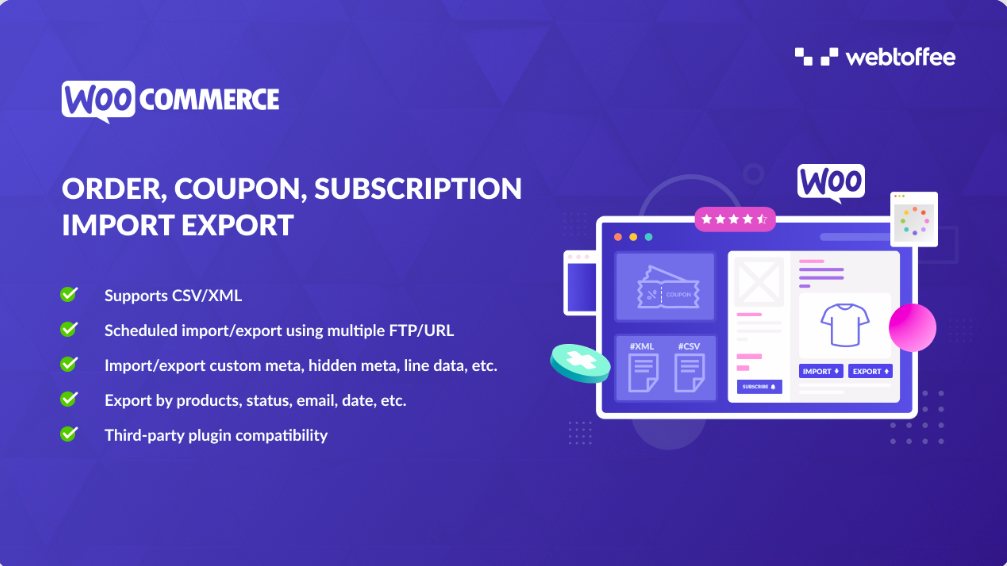
The WooCommerce order export import plugin enables you to migrate WooCommerce orders to and from multiple file types, such as CSV, XML, TSV, and Excel. This plugin also allows you to schedule the order export using multiple FTP/URL profiles; bulk modify data using import rules, and more.
You can also get several additional filter options, such as payment and shipping methods, vendor email addresses, etc., to narrow the export list further. Moreover, the plugin enables you to import and export WooCommerce coupons and subscriptions in addition to orders.
Key Features:
- Offers various methods for migrating orders.
- Bulk update WooCommerce orders.
- Schedule imports and exports via Server Cron.
- Automate import/export tasks.
- Developer logs for easy troubleshooting.
- Compatible with major third-party plugins.
For many businesses, including WooCommerce stores, order import and export may have to be done regularly. Using the technique mentioned above, you can easily migrate WooCommerce orders.
Even though you can export your WooCommerce orders with the default tools in WordPress, it doesn’t offer much space for customization. But your order data migration requirements might not always follow a linear ‘export all’ pattern. You might need filters to extract the required data, tools to help change the column mapping, and more. This is where a free customization plugin like WooCommerce order import export can help.
We hope you found this article interesting. Please let us know what you think in the comments below.
Also Read: Bulk Edit/Update WooCommerce Orders
Yes. While orders can be migrated independently, it’s best to migrate customers and products first so order relationships such as customer IDs and product IDs remain intact. Without this, orders may import as guest checkouts or without line items.
If enabled, stock quantities will update when orders are imported, especially if the orders are marked as completed or processing. You can disable stock updates during import under advanced settings.
The premium version allows scheduling exports at hourly, daily, or weekly intervals. This is useful for continuous migration, syncing, or backups.
Yes. As long as product IDs/SKUs and customer emails match between the systems, you can merge order data from multiple stores into a single WooCommerce site.


Subcribe to our newsletter