


Share:


Table of Contents
Want to build a customer email list from your WooCommerce orders? Exporting email addresses from completed orders can help you run targeted campaigns, improve customer retention, and grow your marketing efforts more effectively.
If you run a WooCommerce store, your completed orders are more than just sales records — they’re a goldmine of customer data. Every completed order includes a customer email address that you can use for follow-up campaigns, loyalty offers, win-back sequences, and more.
But WooCommerce doesn’t make it easy to pull that list out of the box. The built-in analytics export gives you a basic CSV, but it’s limited in what it includes and how you can filter it. That’s where a free plugin comes in.
In this guide, we’ll walk you through exactly how to export the email addresses from your completed WooCommerce orders into a clean CSV file using the free Order Import & Order Export for WooCommerce. Whether you’re building an email list, syncing with Mailchimp, or just want a backup of your customer data, this tutorial has you covered.
Key Takeaways:
- By exporting WooCommerce order emails, you can create a database of your customers’ emails, which will help you offer discounts, send marketing emails, newsletters, and more.
- The WebToffee Order Import Export plugin allows you to export WooCommerce order emails to a spreadsheet file easily.
Exporting order emails in WooCommerce is valuable for marketing, analysis, and day-to-day operations. It helps you engage customers through targeted campaigns, segment your audience, and reconnect with inactive users. It also provides useful insights into sales trends, customer behavior, and product performance. With this data, you can offer personalized discounts and build effective loyalty programs.
In addition, it improves customer support by giving quick access to order history. It also helps meet legal, auditing, and compliance requirements by maintaining reliable transaction records.
Pro Tip: Export your WooCommerce order emails weekly or monthly to easily keep records for bookkeeping or compliance purposes.
You can export WooCommerce orders and other order-related data using the ‘Order Import Export’ plugin. Order emails (billing and/or shipping) can also be exported individually using this plugin.
To export the completed order emails with the free ‘Order Import Export’ plugin for WooCommerce,
Step 1: Install & Activate Order Import Export for WooCommerce Plugin
To install a plugin in your WordPress admin console,
- Go to Plugins > Add New.
- Search for the plugin ‘Order Import Export’.
- Install and Activate the plugin.

Did You Know?
The free Order Export & Order Import for WooCommerce plugin has over 50,000 active installations, with an average rating of 4.7 out of 5 stars on WordPress.org.
Step 2: Choose Order as Post Type for Export
- On the dashboard, navigate to WordPress Import Export (Basic) > Export.
- Select the post type as Order.
This lets you specify that you only require the data about the purchase orders in the export CSV file, as this plugin also lets you export coupon data.

Step 3: Select Advanced Export Method
By default, the plugin facilitates order export via two methods. Quick export and Advanced export.
- Choose Advanced export.
The advanced order export method offers several customization and configuration options, including filters and the selection of export file columns. These options can filter out the completed orders and required columns.

Step 4: Filter Order Export Data
- Go to the Order status field and choose Completed from the list.
This will remove orders with any other statuses from the export list.

Step 5: Map & Reorder Order Export Columns
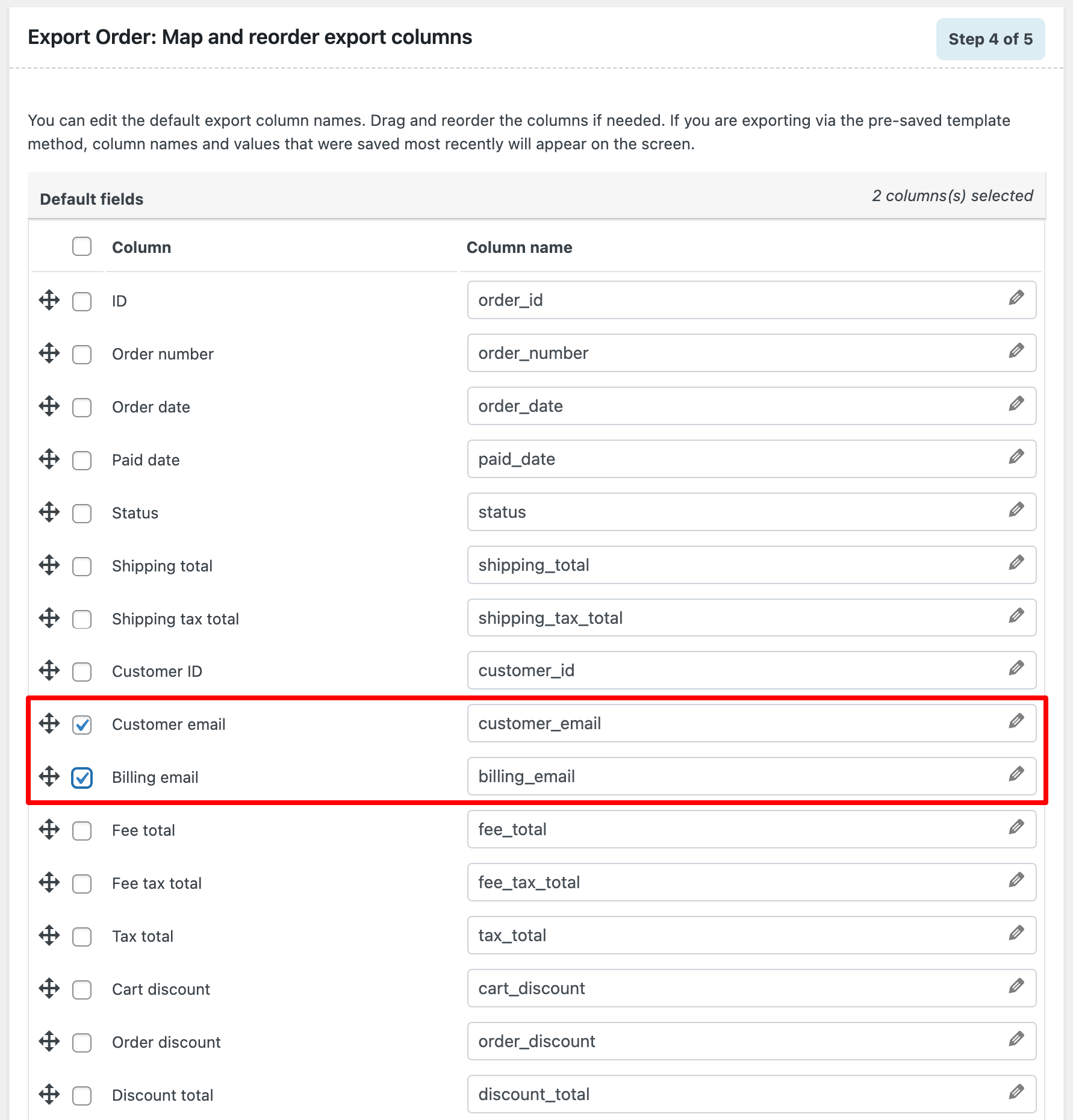
You can select which order data you want to export from here.
Note: All the fields on this page will be selected by default. You can unselect all these fields by checking and unchecking the column heading checkbox.
You can check the email address fields once you have unchecked all other fields.
- Since we must export the email addresses from the completed orders, select Customer email and Billing email from the list.
If you like, you can edit the Column name field to change the corresponding column names in the export file.
Step 6: Export Order Emails
Here, you can configure a couple of options for the final export.
- Mark the Exclude already exported checkbox to exclude previously exported orders.
- You can also select whether to exclude Line items or not.
- Next, change the configurations of your export file, such as the number of orders to be exported in a single batch or the delimiter used in the CSV file.
- Once you have selected the configurations, click Export.
This will initiate the download of a CSV file.
Note: If the export fails due to a timeout, lower the batch count from its default value and try again.

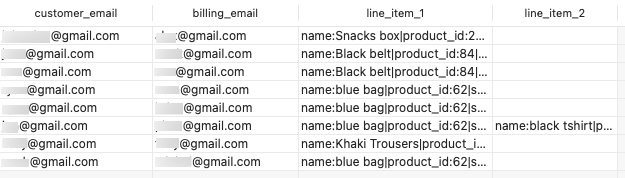
The downloaded file will have two columns, billing and customer email addresses, in addition to the order items. If you do not require the order items field, you can delete it by editing the CSV file.
Here is a sample CSV file with the emails of a few completed orders.
Now, let’s consider the scenario in which you must export your orders, their email addresses, and their purchase history.
Sometimes, you may need to export WooCommerce Orders with customers’ email addresses and purchase histories for various reasons, such as marketing or accounting. Let’s see how to do this.
To begin, follow the usual steps: select Orders as the post type, choose your preferred export method, and apply any necessary filters to narrow down the data you want to export.
In the mapping and column reordering step, you can choose the specific fields to export, including customer email and purchase history. Let’s jump straight into how to set that up.
Map & Reorder Columns for Order Export
Here are the steps to select and organize WooCommerce order fields before exporting.
- All order fields are selected by default for export. To remove any fields before exporting, uncheck the corresponding checkboxes.
- Use the drag-and-drop feature to rearrange the column order as you want them to appear in the exported file.
- You can simply toggle the checkboxes for all the fields, including customers’ email addresses, order fields, and purchase history-related fields like order total, payment method, etc., to be exported.

Proceed to the next step for advanced export options.
Let’s leave the rest as default and proceed to export. This will then export all your orders, along with the customers’ email addresses and purchase histories.
- Click the Download file button to save the order export file in your local storage.
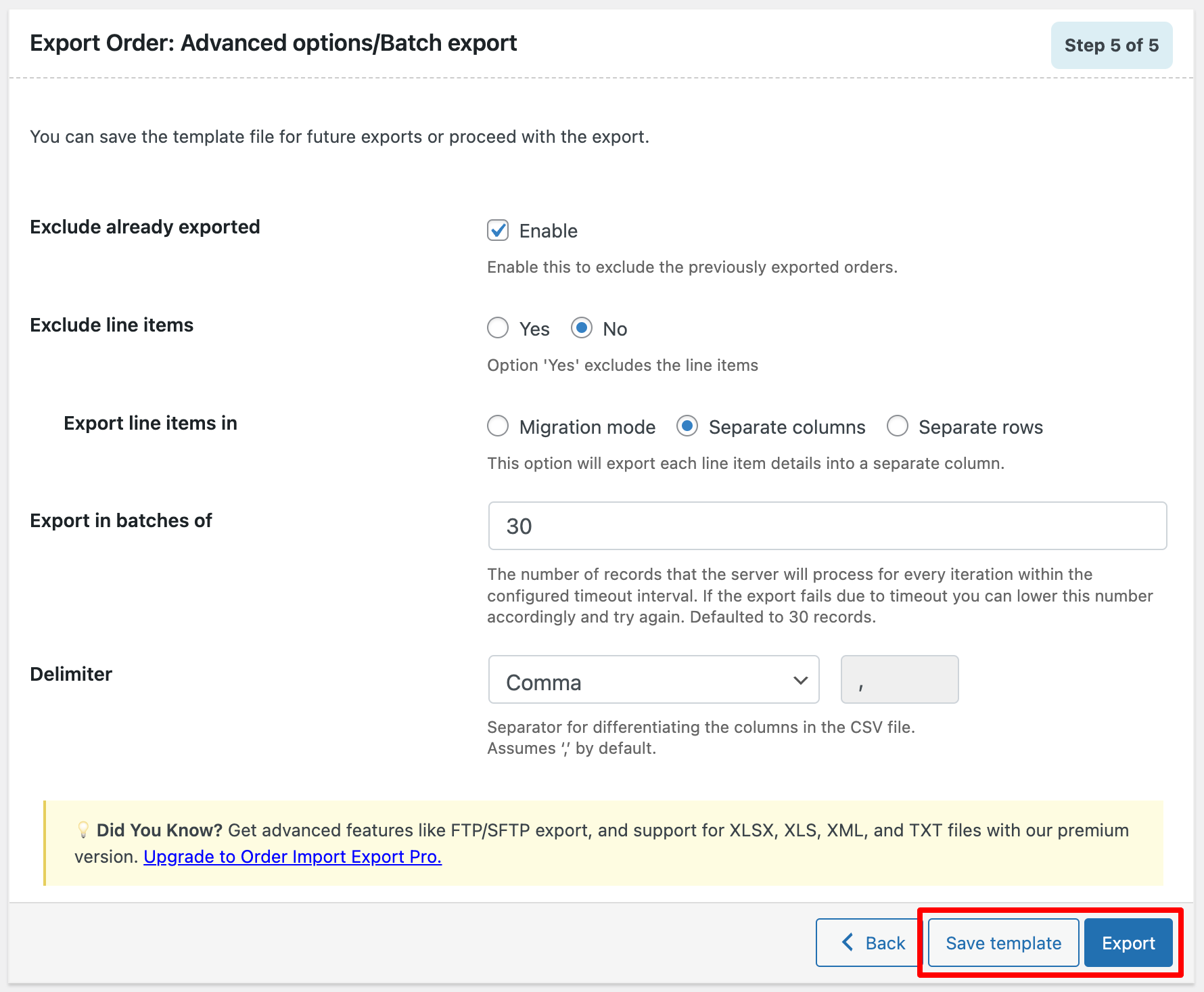
Pro tip: You can save these order export settings by clicking Save template, making future exports faster and hassle-free.

The premium version of the WooCommerce order import export plugin has all the features of the free version in addition to several advanced configurations. For instance, using this version, you can get the email addresses of the product vendors whose products are being sold through your website. You can use this information to analyze the most profitable vendors, strike new deals, and more.
You can even include custom and third-party plugin fields in your WooCommerce store to the export file with this plugin. For example, if you are asking for additional email addresses from customers using a custom plugin, you can add this field to your export file using this plugin.
Other notable features include:
- Import and export WooCommerce coupons and subscriptions
- Schedule automatic exports with Server Cron
- Keep track of debug logs
- Export orders to XML, XLS, and XLSX files in addition to CSV
- Advanced filter options like payment methods, shipping addresses, etc.
Yes, using the advanced export method, you can filter orders by date range to export emails from a specific period.
The free version of the WebToffee Order Export plugin supports manual exports only. For scheduled, automatic exports (daily, weekly, or monthly), you’ll need the premium version, which supports Server Cron-based scheduling.
You can set it to automatically export completed order emails every week and deliver the file via FTP or email. This is ideal for stores that need regular email list updates for ongoing marketing campaigns.
Yes. Guest orders in WooCommerce still capture a billing email address at checkout. The WebToffee Order Export plugin includes guest order emails in the export by default when you select the Billing email field. However, guest orders won’t have a “Customer email” (account-level email) since no account was created.
Make sure you include the Billing email column in your export mapping to capture all emails, including those from guest buyers.
Yes. The plugin provides date range filters. Set the Order Date field with a start date and end date to export only orders placed during that period. This is useful for monthly marketing campaigns, quarterly reports, or seasonal promotions.
You can combine the date filter with the order status filter (e.g., Completed orders from January to March only) for more precise results.
Yes, with a minor step. Most email marketing platforms accept CSV imports. After exporting your order emails, open the CSV and ensure the email column header matches what your platform expects (usually “Email” or “Email Address”).
WooCommerce stores two separate email fields: Customer email (tied to the user account, found under the user profile) and Billing email (entered at checkout for each order). For logged-in customers, these are usually the same. But for guest checkouts or when a customer updates their account email, they can differ.
For marketing purposes, the billing email is more reliable since it’s the address the customer actively provided for that specific transaction. For account-related communication, use the customer’s email. When in doubt, export both columns and cross-reference.
Unlike the complete order export with the default WordPress tool, you require custom-built export plugins to help you selectively export the required amount of data regarding your orders.
The order import export plugin we mentioned in this article offers several filters and configurations. You can filter out the billing and customer email addresses, as well as the purchase history associated with the completed orders in your store.
Was this article of interest to you? Do let us know what you think in the comments below.

Got any query? Please leave a comment or reach out to our support
Got any query? Please leave a comment or reach out to our support

Subcribe to our newsletter


Comments (2)
Najmul
October 18, 2023
If I export orders then customer order details will remove from WooCommerce panel and pixel?
Vineetha
October 19, 2023
Hi Najmul,
Thanks for reaching out!
No, the plugin won’t be removing any kind of exported data.