
Share:


Table of Contents
In this article, we will discuss how to export orders from WooCommerce with just the WooCommerce plugin installed on your WordPress website.
Exporting WooCommerce orders helps you move store data into spreadsheets, accounting tools, migration systems, reporting dashboards, and backup files. Whether you want a simple CSV report or an XML export for site migration, WooCommerce gives you a few ways to get started.
The right export method depends on what you want to do with the order data. WooCommerce includes basic export options for CSV and XML, while a dedicated order export plugin gives you more control over filters, columns, order fields, and export formats.
Key Takeaways:
- WooCommerce’s built-in feature allows you to export orders directly from your WordPress dashboard without extra tools.
- While convenient, WooCommerce’s export feature has limitations that may require the use of dedicated plugins.
- Free plugins like WebToffee’s Order Import and Export plugin give you more options in exporting your orders, making the process highly efficient and accurate.
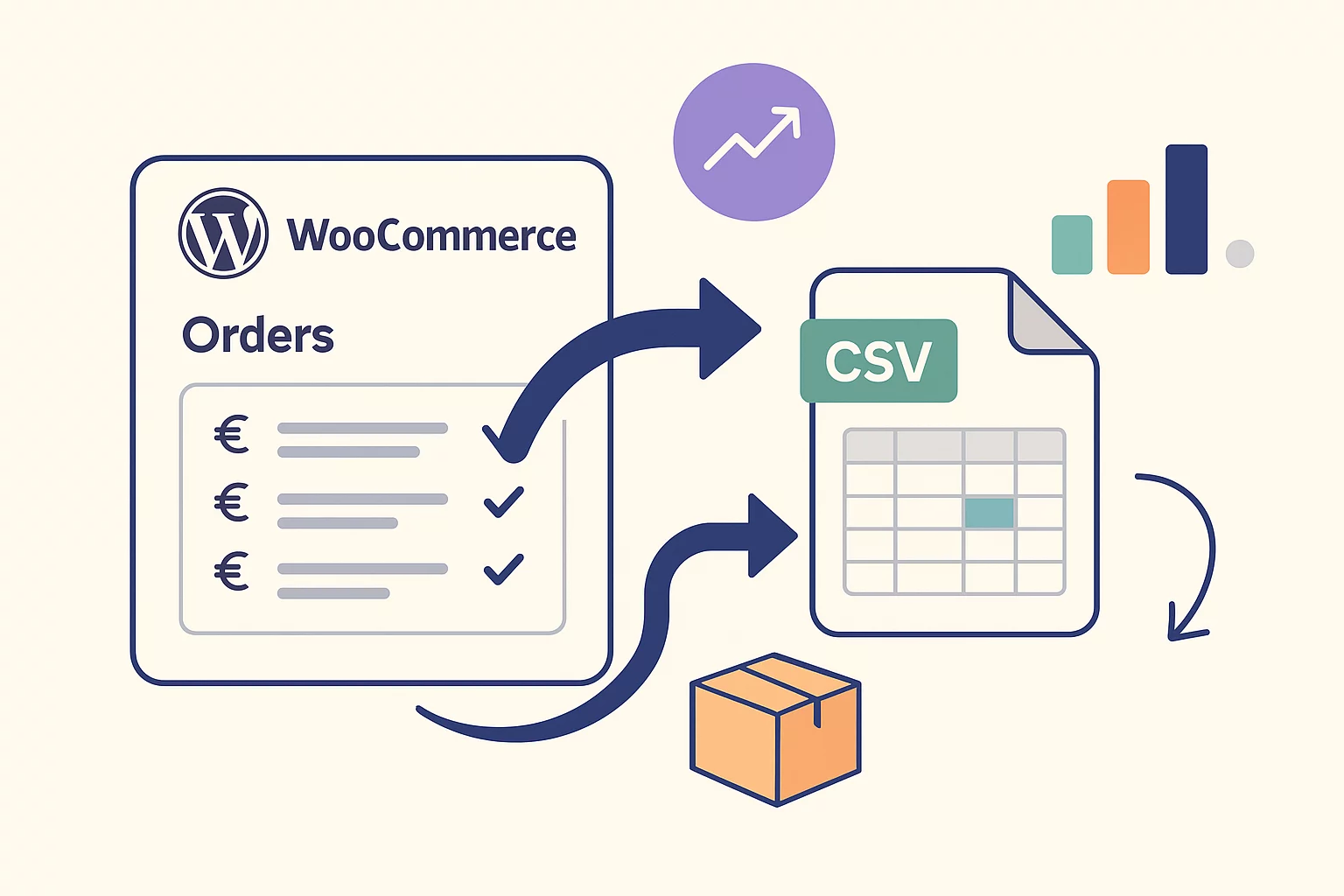
Exporting WooCommerce orders isn’t just about moving data. It helps you manage, analyze, and safeguard your business operations more effectively. Here are some common use cases:
- Accounting & Tax Reporting: Easily share order data (totals, taxes, payments) with accountants and generate accurate financial reports.
- Backup & Migration: Create a secure backup or move your store data to another platform or hosting environment.
- Team & Stakeholder Sharing: Share order data with marketing teams, partners, or investors without giving admin access.
- Sales & Customer Analysis: Analyze trends, top customers, and product performance using tools like Excel or Google Sheets.
CSV is the most practical format for most WooCommerce order exports. It works well for spreadsheet analysis, accounting, reporting, and sharing order data with your team.
You can export WooCommerce orders to CSV in two ways:
- Use WooCommerce’s built-in Reports/Analytics export for basic order reports.
- Use WebToffee’s Order Import Export plugin for detailed order-level CSV exports with filters and column selection.
Before You Begin:
- Make sure you have a recent backup of your store
- Ensure your store has existing orders (exports will be empty otherwise)
- Confirm your WooCommerce version (Analytics requires 4.0+)
Export WooCommerce Orders as CSV Using WooCommerce Reports
WooCommerce allows you to export order data directly from the built-in Reports section. This method is useful if you need a summary of orders for a specific period without installing an additional plugin.
Step 1: Go to WooCommerce Reports
- For this, log in to your WordPress dashboard and navigate to WooCommerce > Reports.

The Reports section displays a report overview of your store’s orders, including total sales, net sales, number of orders, and average order value.
Step 2: Choose a Date Range & Filters
At the top of the page, you’ll see a date filter. You can select:
- Last 7 days
- Last month
- This year
- Custom date range
Within the orders section, you can find various subsections like Sales by Product, Sales by Category, Coupons by Date, and Customer downloads.

Step 3: Export Orders to a CSV File
Once your filters and date range are set:
- Click the Export CSV button near the top of the orders report to generate a CSV file containing your order data.

You can open the CSV in Excel, Google Sheets, or other spreadsheet tools. From here, you can analyze sales, sort by customer, view totals, and share reports with your team.
The CSV export from WooCommerce Reports typically includes summary order data such as:
- Order count and totals
- Number of orders
- Gross sales
- Net sales amount
- Shipping costs
- Tax amounts
- Coupon amount
- Refund amount

However, this method is limited if you need full order-level details such as line items, SKUs, quantities, billing fields, shipping fields, custom checkout fields, or selected order metadata.
How to Export WooCommerce Orders to XML
XML is useful when you want to export WooCommerce order data in a format that WordPress can use for import/export workflows. This is different from CSV or Excel exports, which are better suited for spreadsheets and reporting.
Export Orders Using the WordPress Export Tool
WordPress includes a built-in export tool that can export WooCommerce orders as an XML file. Here’s how to do it:
Step 1: Log in to the WordPress Dashboard
- Open your WordPress dashboard and navigate to – Tools > Export.
This is the global export option available in the WordPress Tools menu. You can export all data with a single click by selecting the ‘All content’ option.
Step 2: Export Orders
Select Orders from the list and click ‘Download Export File’.

There you go. Your WooCommerce orders will be exported into an XML file and ready for use. Now, let’s examine why this method might not be the best choice for exporting your order data.
Note: The WordPress Tools XML export does not include product names or quantities, only order metadata. If you need line-item detail without a plugin, use the WooCommerce Reports CSV method instead.
WooCommerce and WordPress include basic export options, but they may not be enough for detailed order management.
The main limitations include:
- Limited format options: The WordPress export tool exports orders as XML. WooCommerce Reports exports basic report data as CSV.
- No advanced order selection: Default tools do not provide enough control to export orders by specific customer, product, or custom criteria.
- Limited order fields: Built-in exports may not include all billing fields, shipping fields, line items, SKUs, quantities, or custom metadata.
- No scheduled exports: You cannot automatically export orders on a recurring schedule using the default tools.
- Limited column control: You cannot easily rename, reorder, remove, or customize export columns.
- No batch export settings: Large stores may need batch export options to avoid timeout issues.
When You Might Need a Plugin Instead
While WooCommerce’s built-in export tools work for basic needs, they can be limiting for more advanced use cases. A dedicated plugin is helpful when you need:
- Multiple File Formats: Export orders in formats like Excel (XLS/XLSX), PDF, or JSON. Not just CSV/XML
- Advanced Filtering: Export specific orders based on date, status, product, or custom criteria
- Automation: Schedule exports and send them automatically via email or cloud storage
- Custom Data Export: Include custom fields, subscriptions, or additional order details
Now, let’s look into how we can export orders with one such plugin.
The WebToffee Order Import Export plugin helps you export WooCommerce orders to CSV with more control than WooCommerce’s built-in export options.
Step 1: Install WebToffee Order Import Export Plugin
- From your WordPress dashboard, go to Plugins > Add New.
- Search for the ‘Order Import and Order Export for WooCommerce’ plugin by WebToffee.
- Install and activate the plugin.

Step 2: Choose Order as Post Type to Export
- Navigate to WebToffee Import Export (Basic) > Export.
- Select Order as the post type to export.
- Proceed to the next step.

Step 3: Select the Advanced Export Method for Exporting Orders
You can select either Quick Export or go for Advanced Export.
Quick export provides a basic export of all essential fields, while advanced export offers detailed filtering, column selection, and additional options.
- Let’s select Advanced Export and proceed to the next step.

Step 4: Filter Order Data for Export
The below options will help you filter the order data for export. If you don’t need any filtering options, you can skip this option.

Step 5: Reorder Export Columns
You can rename and reorder the columns in the export file and choose the order fields you want to export from here.
For example, select the Customer email column here if you want to export customer email with the order data.

Step 6: Export Selected Orders to CSV
- Enable the Exclude already exported checkbox to exclude previously exported orders.
- You can choose how the order items appear on the exporting CSV. They can be in single columns, separate columns, or separate rows.
- When you manage bulk orders, you can choose to export in batches using the Export in batches of option. Set the export batch count according to your requirements.
Note: If the export fails due to a timeout, reduce the batch count and try again.
- Select how you want to differentiate the columns by choosing the Delimiter.
- Click on Export to complete the setup.

- Once the export is complete, a pop-up titled Export file processing completed will appear, with a download button.
- Click on the Download file button to download the exported WooCommerce Order file.
If you choose Quick Export in Step 3, you can skip steps 4, 5, and 6. However, this export method does not allow you to make selective exports.
Now that you’re familiar with exporting store orders, let’s explore some top plugins that can make the process easier and more reliable.
The best method to export WooCommerce orders depends on your specific use case. Use the table below to quickly find the right option:
| Your Situation | Best Method |
|---|---|
| Need a quick backup before migrating | WordPress Export Tool (XML) |
| Need to export orders to a spreadsheet (CSV) | Need to export orders to a spreadsheet (CSV) |
| Need to filter orders by date or status | WooCommerce Reports / Analytics |
| Need detailed line-item data (SKU, quantity, product name) | Use WebToffee’s free plugin |
| Need to schedule automatic exports | Use WebToffee’s free plugin |
| Need custom fields or billing/shipping details | Use WebToffee’s free plugin |
Let’s now look at some of the best WooCommerce import and export plugins that can help you manage your store’s data more efficiently.
1. Order, Coupon, Subscription Export Import for WooCommerce
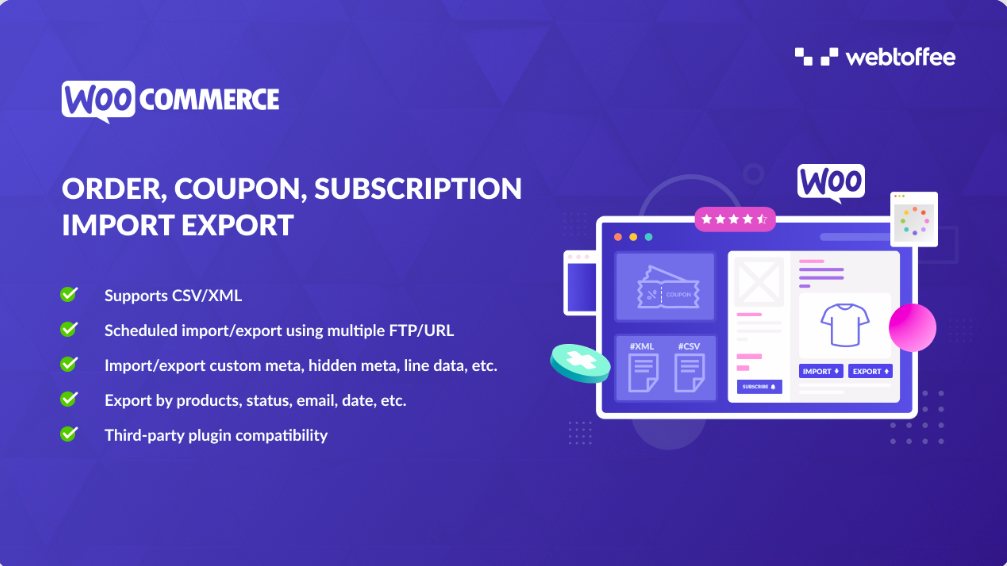
The name of this plugin explains what it does. The premium version of this WooCommerce order export import plugin lets you import and export WooCommerce orders, coupons, and subscriptions. It supports both XML and CSV files. You can schedule the import-export actions using multiple FTP/URL.
It allows you to export WooCommerce orders based on product, status, email, date, and more. This plugin also allows you to edit or update existing orders in bulk.
2. Import Export Suite for WooCommerce
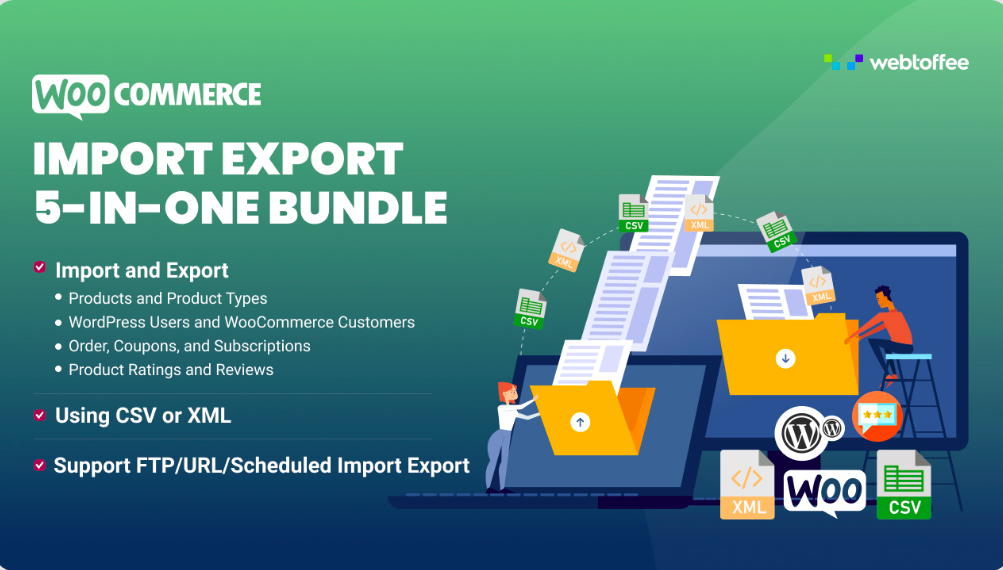
If you need an all-in-one suite for WooCommerce import-export, this is the right plugin for you. The plugin helps with any import or export functionality for your WooCommerce store.
It helps import or export:
- Products of all product types
- WordPress users and WooCommerce customers
- Order, coupon, and subscriptions
- Product ratings and reviews
This Import Export Suite plugin supports various product types and file formats, including CSV and XML. It facilitates an effortless migration of your WooCommerce store data. This is a premium plugin and requires an annual subscription plan.
3. Advanced Order Export For WooCommerce

Advanced Order Export For WooCommerce is a free plugin that allows you to export WooCommerce orders easily. It supports multiple file formats, such as CSV, XLS, XML, and JSON. The plugin lets you export order data, customer details (shipping and billing), product attributes, and coupon details.
4. WooCommerce – Store Exporter
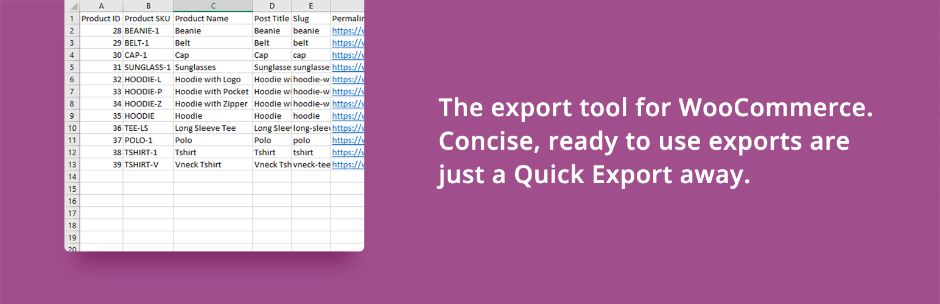
WooCommerce—Store Exporter is a free plugin that allows you to import and export WooCommerce store data easily. It allows you to export WooCommerce products, orders, categories, tags, users, and other store details into Excel spreadsheets.
You can use various export filters to specifically export orders by product, product category, order status, customer, etc.
5. Order Export for WooCommerce

The Order Export for WooCommerce plugin helps you export WooCommerce orders into Excel (XLS, XLSX) or CSV formats. It is available for free in the WordPress plugin library.
It offers a simple export tool to export WooCommerce data easily. The intuitive drag-and-drop interface makes it easy to use for beginners.
You can export WooCommerce orders to CSV from WooCommerce > Reports by selecting a date range and clicking Export CSV. For detailed order-level data, use WebToffee’s Order Import Export plugin, select Order as the export post type, choose the required filters and columns, and download the CSV file.
Yes, if you’re using a plugin like WebToffee’s Order Import Export plugin, you can also import orders from a CSV file. This is especially useful when migrating sites or restoring backups.
Sometimes, formatting issues can occur due to delimiters or encoding. Make sure to choose the correct delimiter (comma, semicolon, etc.) and save the file as UTF-8 if you’re seeing odd characters.
To export WooCommerce orders to Excel, you can either export the orders as a CSV file and open it in Microsoft Excel or use the premium version of WebToffee’s order export plugin, which supports Excel file formats. CSV is Excel-compatible and works well for sorting, filtering, and analyzing WooCommerce order data. If you need detailed order fields or a dedicated Excel export option, refer to this guide on exporting WooCommerce orders to Excel.
The default export doesn’t include granular product details. To include SKUs, variations, or quantity ordered, use our advanced export plugin and enable those fields during column selection.
To export a specific WooCommerce order, use an export plugin that supports filters. With WebToffee’s Order Import Export plugin, you can filter orders by criteria such as order date, status, customer email, or order-related fields, then export only the matching order data as a CSV file.
Summing Up
This article aims to inform you that WordPress has a default option for exporting WooCommerce store orders, and you can also use the same tool to import orders. However, you’ll need a dedicated plugin to export WooCommerce orders to get the most out of order exporting.
We hope you will find the right plugin for your needs from the list provided in this article.
If you liked reading this article, please share your feedback in the comments.


Subcribe to our newsletter