Share:


Table of Contents
Exporting WooCommerce orders to Excel makes it simple to manage, analyze, and report on your data. Although WooCommerce’s built-in export feature is restricted to XML, utilizing a plugin allows for a smooth export to Excel. This article will walk you through the quick steps to export your orders efficiently using a plugin.
Exporting WooCommerce orders to Excel is a game-changer for managing and analyzing your store’s data. While WooCommerce has many built-in features, it has some limitations when exporting orders in various file formats.
To address this issue, a third-party plugin like Order, Coupon, Import Export for WooCommerce can be helpful. This plugin enhances WooCommerce’s functionality by allowing you to export order data in several formats, including Excel.
In this article, we’ll walk you through the simple steps to export your WooCommerce orders directly to Excel, giving you easy access to organize, analyze, and manage your order data like a pro.
Let’s begin!
Key Takeaways:
- Exporting WooCommerce orders to Excel provides a flexible way to manage data, making tracking sales, modifying inventory, and creating financial reports simpler.
- The default XML export format in WooCommerce can be limiting; however, a third-party plugin allows for exporting orders in Excel format, enhancing usability.
- The Order, Coupon, Import Export for WooCommerce plugin streamlines the process of exporting orders to Excel, ensuring efficient data access and organization.
Exporting WooCommerce store orders to Excel offers several advantages for managing and analyzing your business data.
- Customizable Reports: With Excel, you can create personalized reports by filtering, sorting, and grouping data according to specific criteria such as order date, customer, product category, and total amount.
- Easy Filtering and Sorting: Quickly filter and sort orders based on various criteria, such as date, customer, product, or order status, to locate specific information easily.
- Data Visualization: You can use Excel’s robust charting features to visualize trends, patterns, and key performance indicators (KPIs) from your order data.
- Customer Insights: Examine customer order history to gain insights into preferences, identify repeat customers, and enhance shopping experiences.
- Sharing & Collaboration: Sharing and collaborating on exported order data in Excel format is straightforward, allowing stakeholders and team members to access the most up-to-date insights.
- Data Backup: Ensure a secure backup of your order data in Excel format for future reference or in case of system failures.
Did You Know? 81% of businesses still use Excel spreadsheets to manage their data.
Now that you know the numerous advantages of using spreadsheets like Excel for managing your store orders, let’s explore how you can export WooCommerce orders without plugin limitations by using a dedicated solution that makes transferring your order data into an Excel file quick and effortless.
For your order exports, we will use the premium version of the Order, Coupon, Import, and Export for WooCommerce. This plugin will export your WooCommerce Orders to an Excel file.
Step 1: Install & Activate WooCommerce Order Export Plugin
First, you must purchase, install, and activate the premium version of the Order, Coupon, Import, and Export for WooCommerce.
Refer to this documentation to learn more about installing the plugin.
Once you have downloaded the plugin file,
- Go to Plugins > Add New from your WordPress dashboard.
- Click on Upload Plugin and then upload the plugin zip file.
- Then, Install and Activate the plugin.

Step 2: Select Order as Post Type to Export
After you have installed the plugin,
- Go to Webtoffee Import Export (Pro) > Export from your WordPress dashboard,
- Select Orders as the post type.
- Click Step 2: Select an export method button.

Step 3: Choose Advanced Export Method
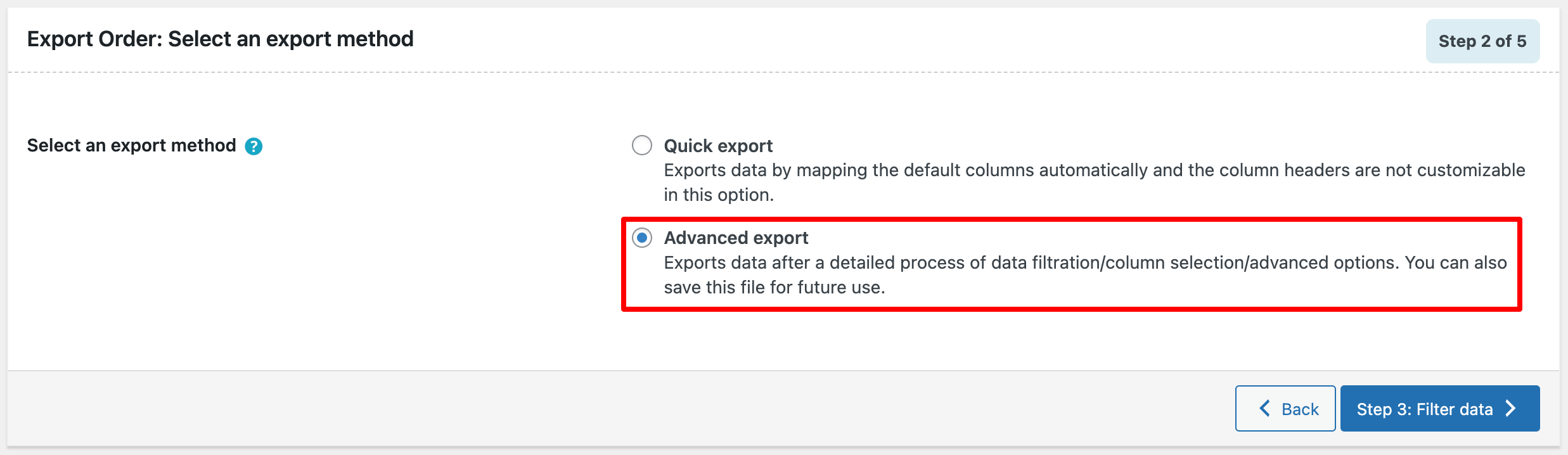
Here, select the Advanced export option. This will take you through a detailed process of filtering, column selection, and advanced options required for your export.
Step 4: Filter Order Data
In this step, you can filter the data you want to export as per the criteria by clicking the drop arrow sign.

After the necessary changes, click Step 4: Map and reorder export columns button.
Step 5: Map and Reorder Order Export Columns
Here, you can select, rename, and reorder the product data columns in the Excel file. However, if you are satisfied with the default settings, you can proceed to the next step.

Step 6: Configure Advanced Export Options
In this step, you must specify the file format along with other advanced options to export the order data file.
- Select XLS as the export file format.
- After the necessary changes, click Export.

You can directly download the .xls file to your computer.

Here’s a preview of the downloaded Excel file.

Similarly, you can import Orders to your WooCommerce store from an Excel file.
Here are some other top-rated plugins for your consideration when exporting WooCommerce orders.
These are some of the best free plugins for exporting WooCommerce orders.
1. Advanced Order Export For WooCommerce
The Advanced Order Export For WooCommerce plugin allows you to export WooCommerce orders together with any attached custom fields. You can choose from many export formats, including CSV, XLS, XML, and JSON.
2. Order Export For WooCommerce
This free WordPress export orders plugin enables you to export orders from WooCommerce stores simply. You can easily open WooCommerce order data in Excel by downloading it as .csv files.
3. WooCommerce – Store Exporter
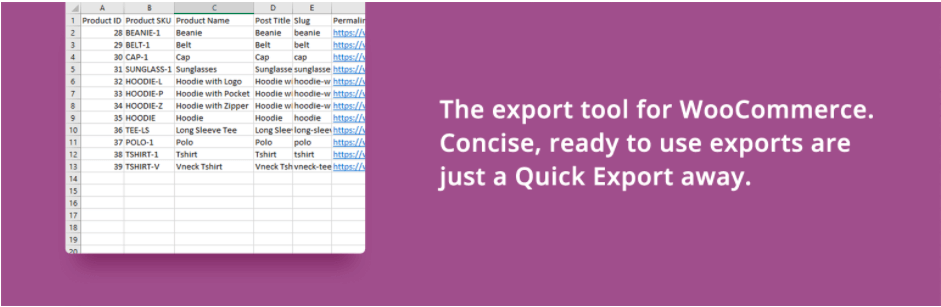
The free WooCommerce export plugin WooCommerce – Store Exporter enables you to export several sorts of WooCommerce data, including Products, Orders, Categories, and Tags.
4. Products, Orders & Customers Export for WooCommerce

Our final free WordPress plugin is Products, Orders & Customers Export for WooCommerce. You can export data in XML or CSV formats using this plugin. Additionally, you can choose from more than 100 fields to include in your exported report.
eCommerce store owners need to export data regularly for various reasons. With its built-in export and import features, WooCommerce is highly beneficial.
However, there are situations when you may require a set of multiple file formats, including the .xls format, to allow the import and export of confidential data. In such a situation, using a reputable third-party plugin would be a good idea, and the WooCommerce order export plugin we discussed is ideal for this purpose.
Additionally, a free version of this plugin, offering basic order export capabilities, is available in the WordPress plugin directory.
We hope you found this article helpful! Feel free to leave any questions or feedback in the comments, and we’ll get back to you shortly.


Subcribe to our newsletter