
Share:


Table of Contents
Attaching PDF gift cards to WooCommerce emails enhances the gifting experience by providing recipients with a tangible, ready-to-print card instead of just a code. This functionality not only adds perceived value to the gift but also allows for more versatile delivery options, making it essential for any online store that offers gift cards.
- PDF gift cards can be easily attached to WooCommerce emails using the WebToffee Gift Cards plugin and the mPDF add-on.
- The setup process involves installing the necessary plugins, configuring gift card options, and enabling PDF attachments in email settings.
- Users can customize gift card code formats, usage rules, and delivery methods to suit their store's needs.
- Recipients receive a professional-looking PDF that can be printed or forwarded, enhancing the overall gifting experience.
- Testing the setup ensures that the PDF attachment functions correctly and meets customer expectations before going live.
- This feature significantly improves customer satisfaction by providing a more personal and convenient gifting solution.
Most WooCommerce gift cards reach customers as a code inside an email. That works until someone wants to print the gift card and hand it over in person.
Attaching the gift card as a PDF fixes that. The recipient gets a ready-to-print file in their inbox, and the buyer has something that actually feels like a gift.
This guide shows you how to attach PDF gift cards to WooCommerce emails using WebToffee Gift Cards for WooCommerce, and how to test that it works before your customers see it.
Step 1: Install WebToffee Gift Cards and the mPDF add-on
After purchasing WebToffee Gift Cards for WooCommerce, download the plugin ZIP file from your WebToffee My Account page.
- In your WordPress dashboard, go to Plugins → Add New → Upload Plugin.
- Upload the ZIP file, click Install Now, then Activate.
- Install and activate the WebToffee mPDF add-on the same way. This add-on generates the PDF file, and the PDF option stays unavailable until it’s active.
Step 2: Set Up the General Gift Card Options
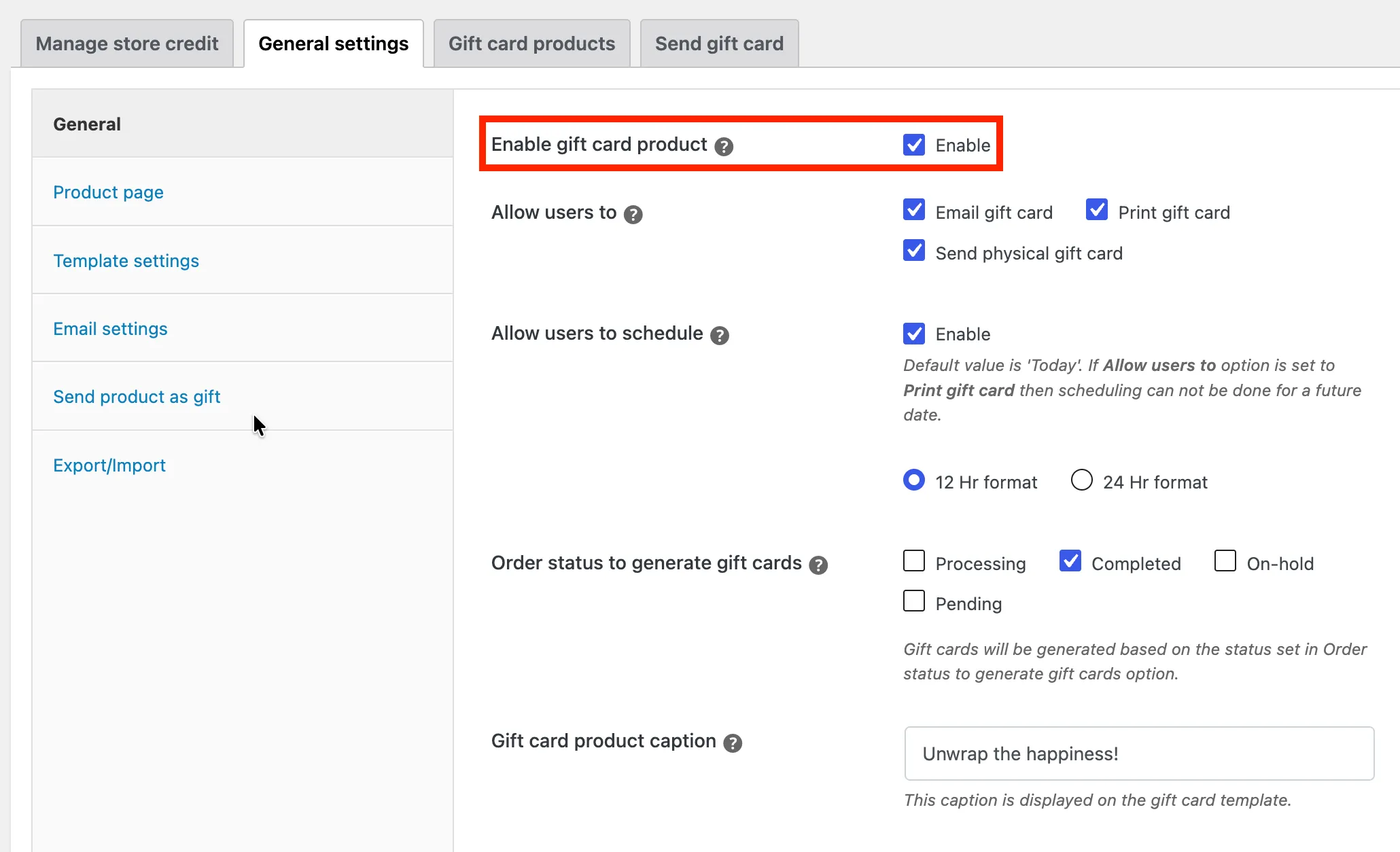
Go to Gift Cards → General settings → General and configure the basics:
- Enable gift card product: Enable this so customers can buy gift cards from your store.
- Allow users to: Choose how buyers can deliver a gift card. The options are Email gift card, Print gift card, and Send physical gift card. For PDF delivery, keep Email gift card enabled. Turn on Print gift card too if you want buyers to print the card themselves.
- Allow users to schedule: Lets buyers pick a delivery date and time, in 12-hour or 24-hour format. Buyers who choose Print gift card can’t schedule it for a future date.
- Order status to generate gift cards: Choose the order status that triggers gift card creation. Completed is the safest choice for most stores. If your orders usually stay in Processing, either add that status here or remember that gift cards won’t be generated until you mark the order Completed.
- Gift card product caption: A short line that appears on the gift card template, such as “Unwrap the happiness!” Keep it brief, because it will show on the printed card.
Step 3: Choose Your Gift Card Code Format
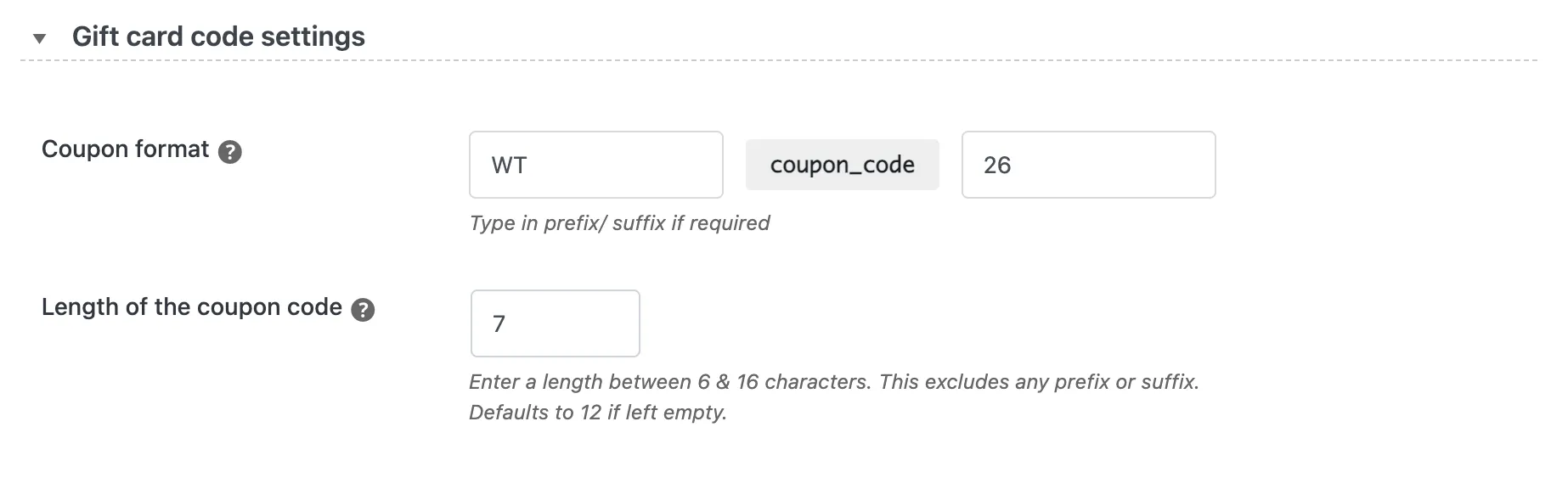
Scroll down to Gift card code settings:
- Coupon format: Add a prefix, a suffix, or both around the generated code. For example, a prefix of WT and a suffix of 26 create codes like WT-XXXXXXX-26, making your gift cards easy to recognize at checkout.
- Length of the coupon code: Enter a length between 6 and 16 characters. The prefix and suffix don’t count toward this. If you leave it blank, the code defaults to 12 characters.
Shorter codes are easier to type from a printed card, so 7 to 10 characters is a sensible range for PDF gift cards.
Step 4: Set the Gift Card Usage Rules
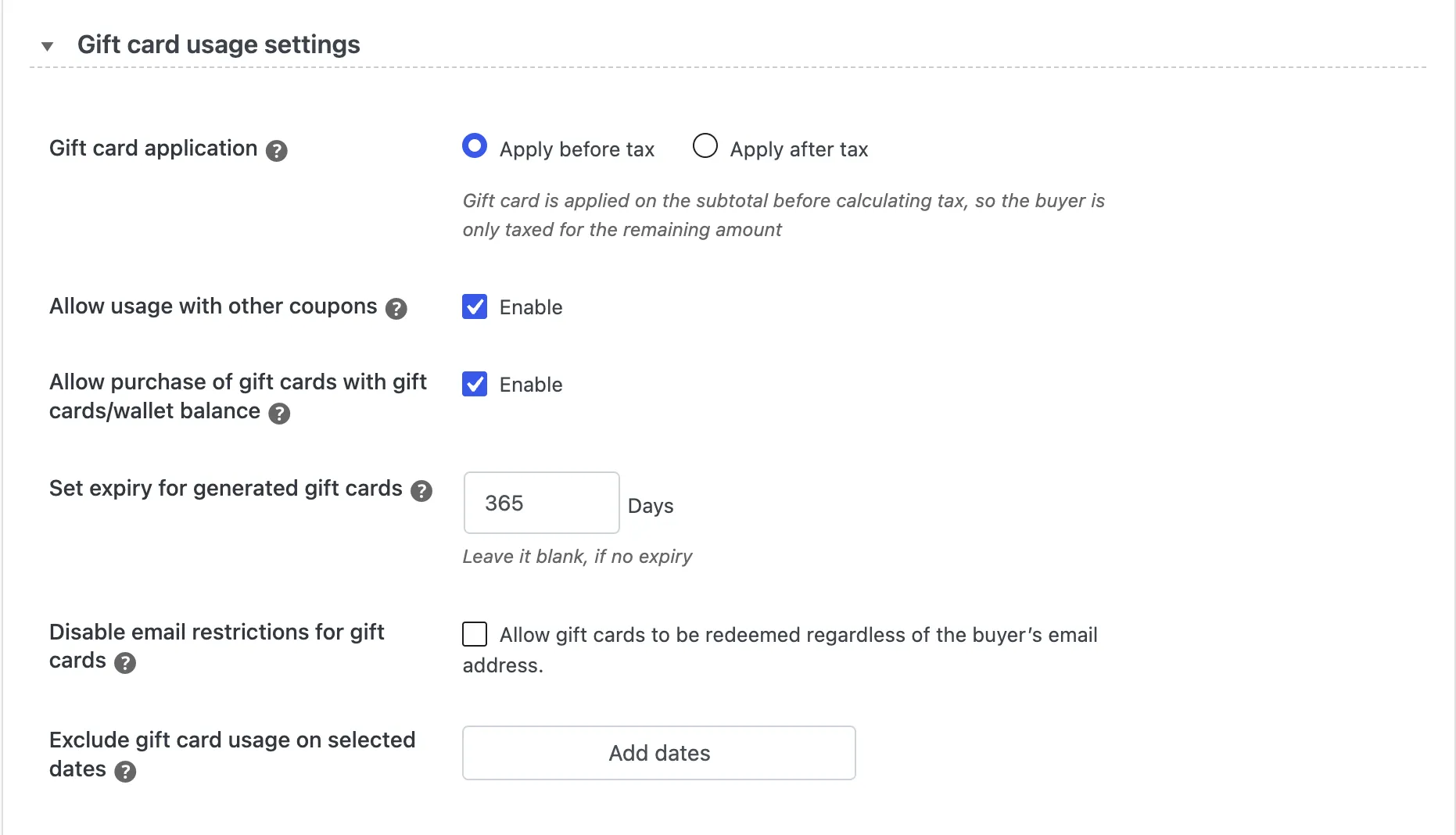
Next, open Gift card usage settings. These rules decide how the gift card behaves at checkout:
- Gift card application: Choose Apply before tax or Apply after tax. With Apply before tax, the gift card comes off the subtotal, so the buyer pays tax only on the remaining amount.
- Allow usage with other coupons: Lets customers combine a gift card with other discount codes.
- Allow purchase of gift cards with gift cards/wallet balance: Decide whether customers can buy new gift cards using an existing gift card or store credit.
- Set expiry for generated gift cards: Enter the validity in days, for example, 365. Leave it blank if gift cards shouldn’t expire. Check your local gift card laws before you set an expiry.
- Disable email restrictions for gift cards: When ticked, anyone holding the code can redeem it, regardless of the buyer’s email address. This matters for printed gift cards, because whoever receives the card in person may check out with a different email.
- Exclude gift card usage on selected dates: Block redemption on specific dates, such as during a flash sale.
Step 5: Enable the PDF Attachment In Email Settings
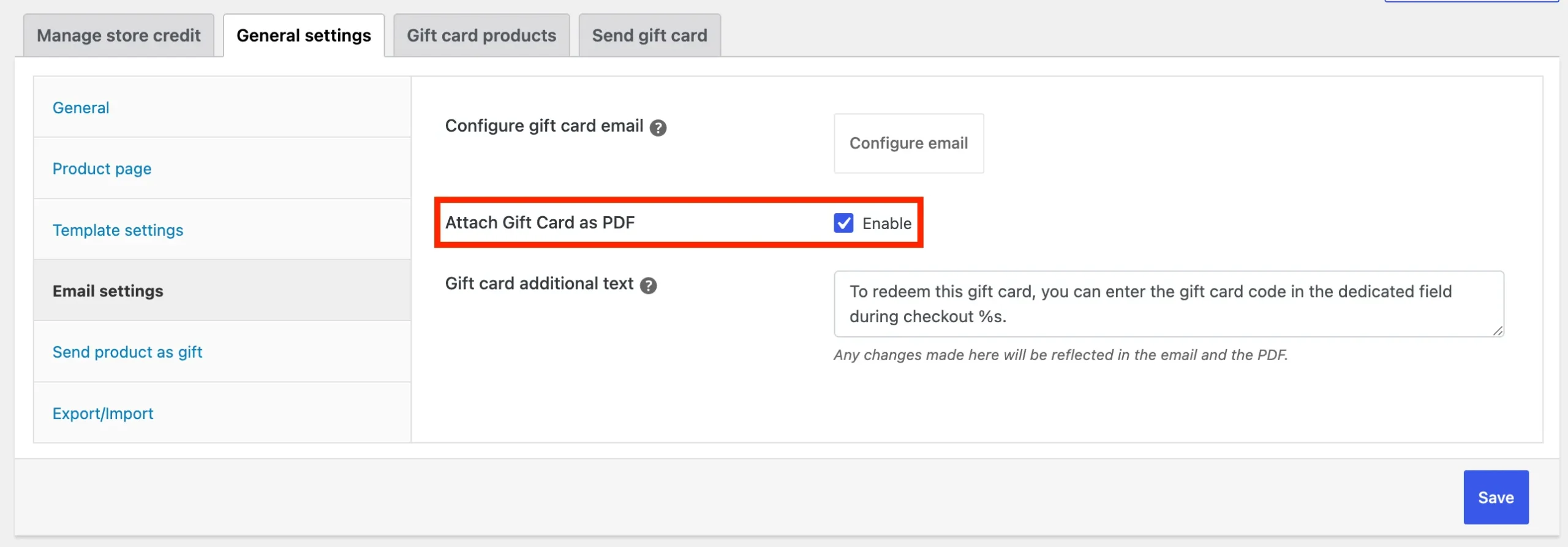
Now go to Gift Cards → General settings → Email settings:
- Click Configure email if you want to adjust the gift card email itself.
- Tick Enable next to Attach Gift Card as PDF.
- Edit the Gift card additional text if needed. This is the redemption instruction shown to the recipient, and changes here appear in both the email and the PDF. Keep the %s placeholder in the text so it still displays correctly.
- Click Save.
From now on, every gift card email includes the gift card as a PDF attachment that the recipient can print or forward.
Does WooCommerce support PDF gift cards by default?
No. WooCommerce doesn’t include gift cards out of the box, so you need a gift card plugin for WooCommerce. WebToffee Gift Cards for WooCommerce creates the gift card, and the mPDF add-on generates the PDF that gets attached to the email.
Why can’t I enable the Attach Gift Card as PDF option?
The mPDF add-on probably isn’t active. The PDF option stays unavailable until the add-on is installed and activated. Activate it from Plugins, then return to Gift Cards → General settings → Email settings.
Can customers schedule a PDF gift card for a later date?
Yes, for emailed gift cards. Enable Allow users to schedule so buyers can choose a delivery date and time. Buyers who pick the Print gift card option can’t schedule it for a future date.
Attaching PDF gift cards to WooCommerce emails makes gifting more convenient for customers who want something they can print and hand over in person. Instead of relying on an email with a redemption code, recipients get a ready-to-print gift card they can use whenever they’re ready to shop.
With WebToffee Gift Cards for WooCommerce and the mPDF add-on, you can automatically attach PDF gift cards to emails, customize redemption instructions, and set up delivery and usage rules to suit your store.
Once everything is configured, send a test gift card to confirm that the PDF attachment looks right and the redemption code works. That way, your customers get a smooth gifting experience from purchase to redemption.


Subcribe to our newsletter