


Share:


Table of Contents
Automating withdrawal approvals, refunds, and restocking in WooCommerce is essential for compliance with EU Directive 2023/2673, which mandates a seamless withdrawal process for online shoppers. Leveraging the WebToffee EU Withdrawal Button plugin streamlines this workflow, significantly reducing the manual effort involved in processing customer requests and ensuring timely compliance with refund deadlines.
- The WebToffee EU Withdrawal Button plugin automates the entire withdrawal process, from eligibility checks to refunds and inventory updates.
- Automated eligibility checks filter out ineligible requests based on customizable criteria, such as withdrawal periods and product types.
- Order statuses automatically change upon submission and approval of withdrawal requests, keeping the fulfillment team informed.
- Automatic refunds and restocking features eliminate manual intervention, ensuring that approved items are promptly returned to inventory.
- Detailed logging of each request provides an audit trail, enhancing transparency and accountability for customer interactions.
- Configurable email notifications keep team members updated on new withdrawal requests without frequent dashboard checks.
Since EU Directive 2023/2673 took effect on June 19, 2026, online stores selling to EU customers must add a withdrawal option. Shoppers now need an easily accessible way to withdraw from their orders.
When you get a handful of requests a month, approving each one, issuing the refund, and restocking the item by hand is fine. At a few hundred, it eats up your week, and missing the 14-day refund deadline becomes a compliance risk.
That’s why we’ve built withdrawal automation into our EU Withdrawal Button plugin for WooCommerce.
In this article, we’ll explain how to automate withdrawal approvals, refunds, and restocking on your WooCommerce store.
Let’s get started.
The WebToffee EU Withdrawal Button plugin lets you automate the withdrawal workflow for your WooCommerce store from submission to refund without your manual effort. Here’s what you can automate:
Eligibility Checks
Before a request even reaches you, the plugin filters out the ones that shouldn’t exist. You set a withdrawal period using a custom number of days or presets like 2, 7, 14, or 30 days, and choose which order statuses start the countdown, such as Order created or Completed. The button only shows up for orders still inside that window.
You can also block products that aren’t eligible. Under Rules & Exclusions, you can exclude product types like virtual or downloadable items, specific categories, and individual products. So a customer can’t file a withdrawal for a digital download you’ve already delivered.
Order Status On Submission
The moment a request comes in, the order needs to reflect it. With “Change order status on submission” turned on, the order automatically moves to a status you pick, such as “Withdrawn,” as soon as the request is received. Your fulfillment team sees the change right away and doesn’t ship something the customer has already backed out of.
Withdrawal Approvals
This is where most of the time savings happen. The Pro version of the EU Withdrawal button plugin includes an “Auto-approve requests” option, and you can apply it to all items or set a custom scope based on product types, categories, or specific products.
For example, you could auto-approve withdrawals for low-value accessories while keeping high-ticket electronics in manual review. If you leave auto-approval off, requests sit in the Requests tab until you review them.
Order Status On Approval
You can also set the order to change to a different status once a request is approved, like a custom status you use for processed returns. That keeps your order list clean and makes it easy to separate pending withdrawals from completed ones.
Refunds
Manual refunds are where things slip, especially when your support inbox is full. Turning on “Automatic refunds” issues a WooCommerce refund automatically when a request gets approved. Pair this with auto-approval, and eligible requests get refunded without anyone logging in.
Restocking
Approved withdrawals should put items back into sellable inventory. With “Restock items” enabled, approved items return to your stock automatically. No more products showing as out of stock while they’re sitting in your returns pile.
Notifications
You can add one or more recipient email addresses to get notified about new requests, and set a customer contact email that’s shown to customers if their request is rejected. Your team stays in the loop without checking the dashboard every hour.
Request Logging
Every automated action leaves a record. Each request has a status timeline showing the trail from submission to approval or rejection, with who acted and when, plus an activity log that works as a full audit trail. If a customer or regulator ever asks what happened with a withdrawal, you have the answer ready.
Make sure you have installed the pro version of WebToffee EU Withdrawal button plugin to configure automated workflow for withdrawals.
Step 1: Set Up the Withdrawal Request Form
First, decide where customers submit withdrawal requests and which orders qualify.
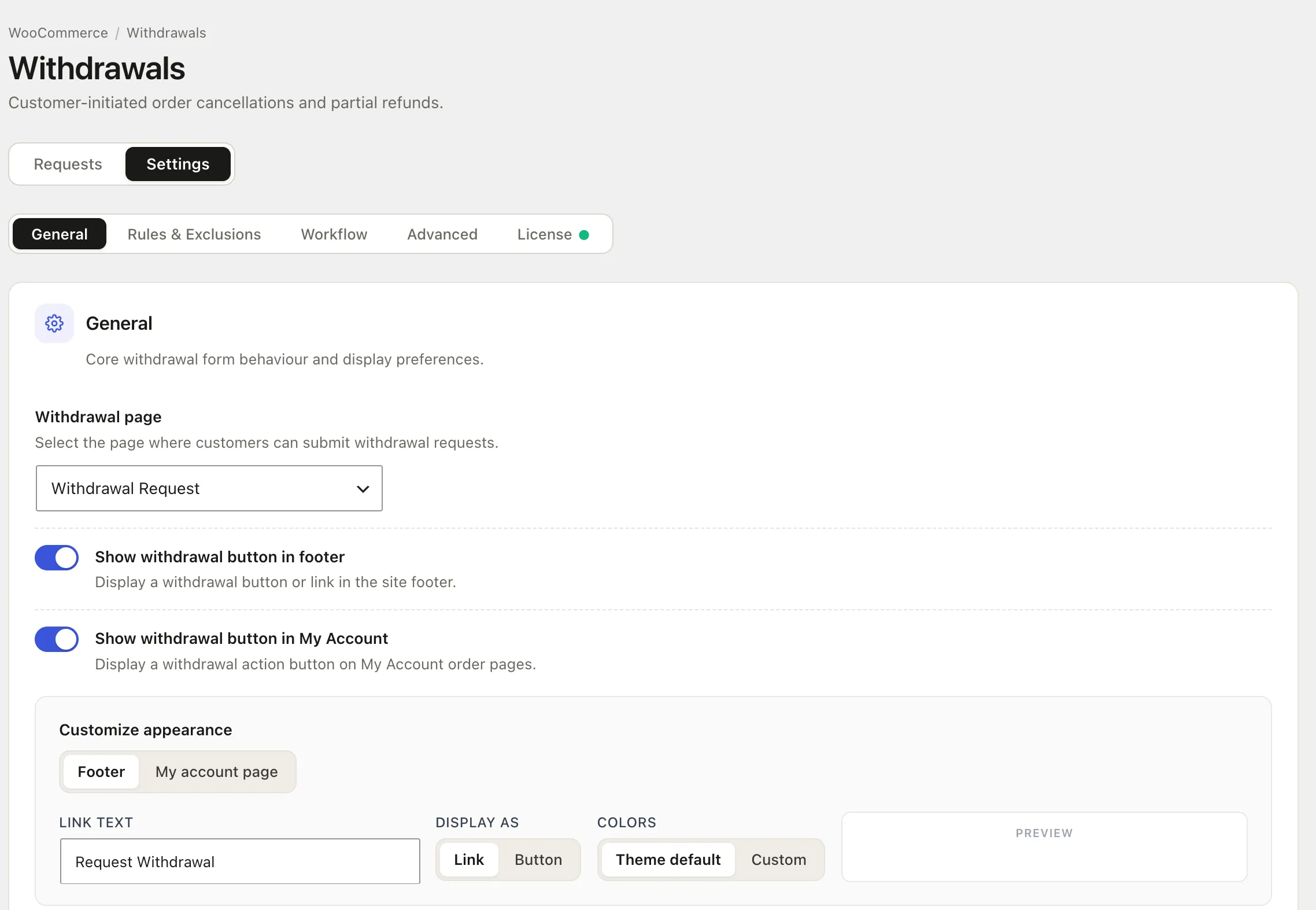
- Go to WooCommerce → Withdrawals, open the Settings tab, and select General.
- Under Withdrawal page, choose the page that will hold the withdrawal form (for example, “Withdrawal Request”).
- Toggle on Show withdrawal button in footer to add a withdrawal link or button to your site footer.
- Toggle on Show withdrawal button in My Account to add a withdrawal action to customers’ order pages.
- Under Customize appearance, select Footer or My account page to style each placement separately:
- Enter the Link text customers will see (for example, “Request Withdrawal”).
- Under Display as, pick Link or Button.
- Under Colors, keep Theme default or switch to Custom to match your branding.
- Check the Preview box to see how it looks before saving.
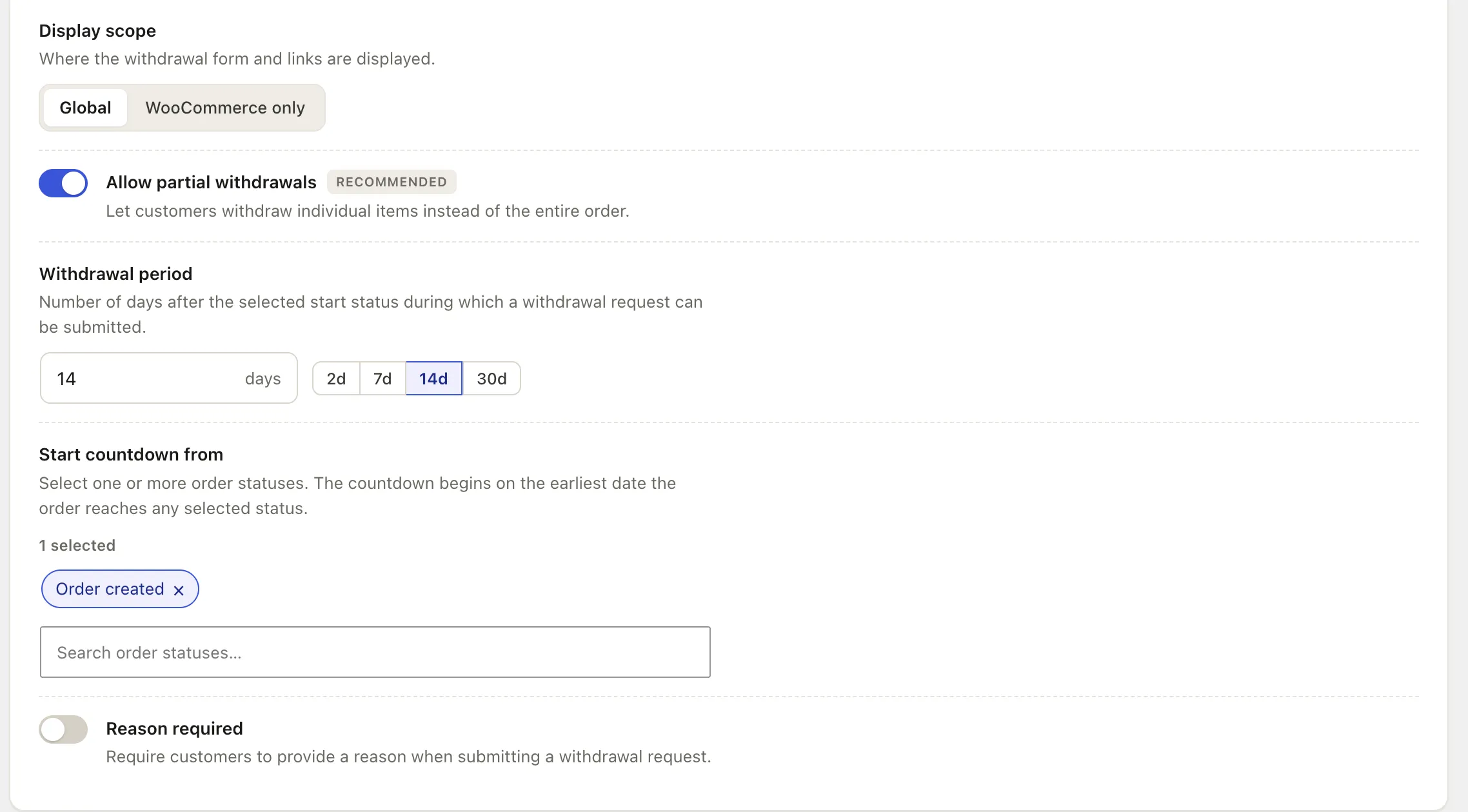
- Under Display scope, choose Global to show the withdrawal form and links site-wide, or WooCommerce only to limit them to store pages.
- Toggle on Allow partial withdrawals so customers can withdraw individual items instead of the full order. This one’s marked recommended, and for good reason: a customer returning one item out of five shouldn’t have to cancel the whole order.
- Under Withdrawal period, enter the number of days customers have to submit a request, or click a preset (2d, 7d, 14d, or 30d). Stick with at least 14 days to meet the EU minimum.
- Under Start countdown from, search for and select the order status that starts the clock, such as Order created. If you pick more than one, the countdown begins on the earliest date the order reaches any of them.
- Optionally, toggle on Reason required to make customers explain why they’re withdrawing. It adds a small step for the shopper, but the data helps you spot product or sizing issues behind recurring withdrawals.
- Save your changes.
Step 2: Configure the Withdrawal Workflow
This is where you set up the automation itself.
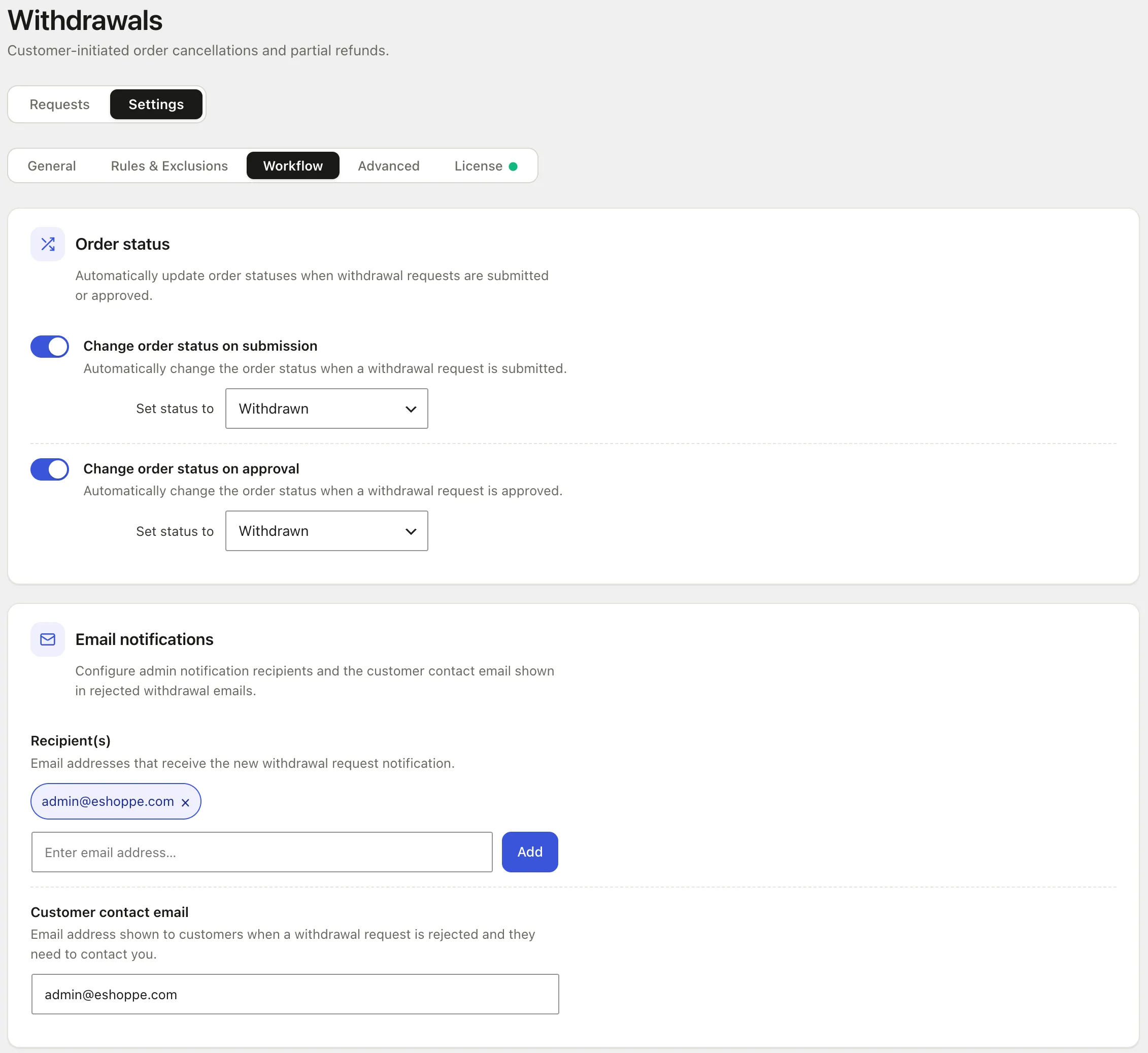
- In WooCommerce → Withdrawals → Settings, open the Workflow tab.
- In the Order status section, toggle on Change order status on submission, then use Set status to to pick the status an order moves to when a request comes in (for example, Withdrawn).
- Toggle on Change order status on approval and choose the status from Set status to. You can use Withdrawn again, or pick a separate status if you want to tell pending and approved withdrawals apart in your orders list.
- In the Email notifications section, type an address under Recipient(s) and click Add. Repeat for every team member who should get new withdrawal request alerts.
- Under Customer contact email, enter the address customers see in rejection emails when they need to reach you.
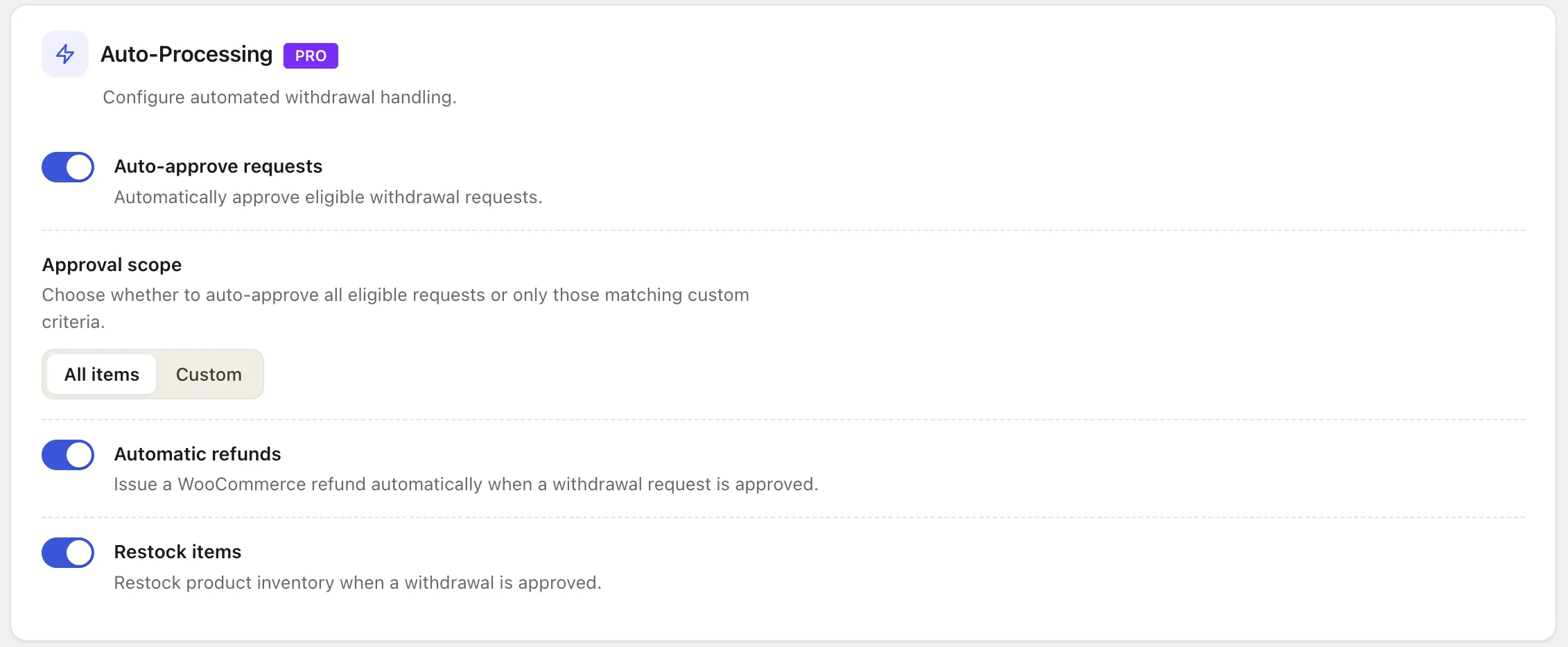
- In the Auto-Processing section (PRO), toggle on Auto-approve requests to approve eligible withdrawal requests automatically.
- Under Approval scope, choose All items to auto-approve every eligible request, or Custom to auto-approve only requests that match criteria you set.
- Toggle on Automatic refunds to issue a WooCommerce refund as soon as a request is approved.
- Toggle on Restock items to add withdrawn products back to inventory on approval.
- Save your changes.
Managing withdrawal requests manually can become time-consuming as your WooCommerce store grows. Automating approvals, refunds, and restocking helps reduce repetitive tasks, prevent delays, and keep the withdrawal process running smoothly.
With the WebToffee EU Withdrawal Button plugin, you can automate the entire workflow, from checking withdrawal eligibility to processing refunds and updating inventory. You can also choose which requests to approve automatically and which ones need manual review.
By setting up these automations, you can save time, reduce errors, and make it easier to manage customer withdrawals while meeting EU withdrawal requirements.


Subcribe to our newsletter


