


Share:


Table of Contents
Web accessibility ensures that all users, regardless of their abilities, can effectively navigate and interact with websites. For WordPress site owners, utilizing the right accessibility plugins is crucial not only for compliance with regulations like the ADA and EAA but also for enhancing user experience and SEO performance. Accessibility plugins can identify and rectify issues, making websites more inclusive and user-friendly.
- Accessibility plugins are essential for meeting legal requirements and improving user experience for all visitors.
- There are three main types of accessibility plugins: checkers, enhancers, and overlays, each serving different functions.
- Effective accessibility improvements can positively impact SEO by enhancing site structure and usability.
- Regular manual testing and audits are necessary, as plugins alone cannot guarantee full compliance or fix all accessibility issues.
- The choice of plugin should align with specific needs, such as scanning for issues, fixing code, or providing user interface adjustments.
- Combining different types of plugins can optimize accessibility efforts, but care must be taken to avoid conflicts between multiple visitor widgets.
Web accessibility means ensuring every visitor can browse, read, and buy from your site, whether they use a screen reader, navigate with a keyboard, or need larger text and higher contrast. For WordPress site owners, the right accessibility plugins can handle much of that work, but only if you know what they can and can’t fix.
With regulations like the European Accessibility Act (EAA) and the Americans with Disabilities Act (ADA), website accessibility has become an important legal consideration for online businesses. The EAA has applied to online stores serving EU customers since June 28, 2025, and ADA-related website lawsuits continue to target US businesses every year.
Accessibility improvements can also support SEO by encouraging better website structure and usability. While Google doesn’t use accessibility compliance as a direct ranking factor, practices such as descriptive image alt text, clear heading structures, and mobile-friendly layouts can benefit both accessibility and search visibility.
In this article, we compare the 10 best WordPress accessibility plugins, covering what each one does, where it falls short, and how to choose the right one for your website.
Not every WordPress accessibility plugin works the same way. Most fall into one of three groups, and knowing the difference saves you from installing a visitor toolbar when your store really needs a scanner.
- Accessibility checkers scan your pages and flag issues like missing alt text, low color contrast, empty buttons, and skipped heading levels. They show you what’s wrong, but you still have to fix it.
- Accessibility enhancers address common accessibility issues by modifying page markup, styles, or behavior. Depending on the plugin, they can add skip links, improve keyboard focus visibility, and provide missing labels without requiring manual theme edits.
- Accessibility overlays add a floating button that lets visitors adjust text size, spacing, contrast, and animations. They make browsing more comfortable for some users but don’t repair the code underneath. A widget won’t make an unlabeled checkout field readable for a screen reader user.
| Type | What it does | What it can’t do | Use it when |
| Accessibility Checkers | Finds detectable issues page by page | Fixes issues on its own or catches every problem | You want to know where your store stands |
| Accessibility Enhancers | Patches common code gaps automatically | Fix custom components, content quality, or checkout logic | Your theme has small, common accessibility gaps |
| Accessibility Overlays | Gives visitors display controls | Repair markup or make a site compliant | You want extra comfort options on top of real fixes |
Here are the 10 WordPress accessibility plugins worth considering for your store, each with its type, pricing, and best use case.
1. Accessibility Tool Kit by WebToffee
Accessibility Tool Kit is an all-in-one WordPress accessibility plugin that combines an accessibility checker, code-level fixes, a visitor toolbar, and an accessibility statement generator. The plugin helps identify and address accessibility issues related to WCAG 2.1 Level A and AA, Section 508, and WAI-ARIA best practices. Unlike standalone accessibility overlays, it also includes scanning and code-level fixes.
The checker runs from your WordPress dashboard. You pick any public page or URL, scan it in both desktop and mobile viewports, and get a summary of issues like missing alt text, low color contrast, improper heading hierarchy, and unlabeled form fields. The dynamic fixes add skip-to-content links, visible focus indicators, labeled form and search fields, link-opening notices, and mobile-friendly zoom, all through simple toggles with no code editing.
On the front end, the accessibility toolbar lets visitors adjust font size, switch color contrast modes, and view the site in greyscale. The statement generator helps you publish an accessibility statement in line with laws like the EAA and ADA. Scanner assets load only on demand for admins, which keeps pages light for shoppers. Content-level work, like writing accurate alt text, still needs a human review.
2. WebYes WP Accessibility Checker
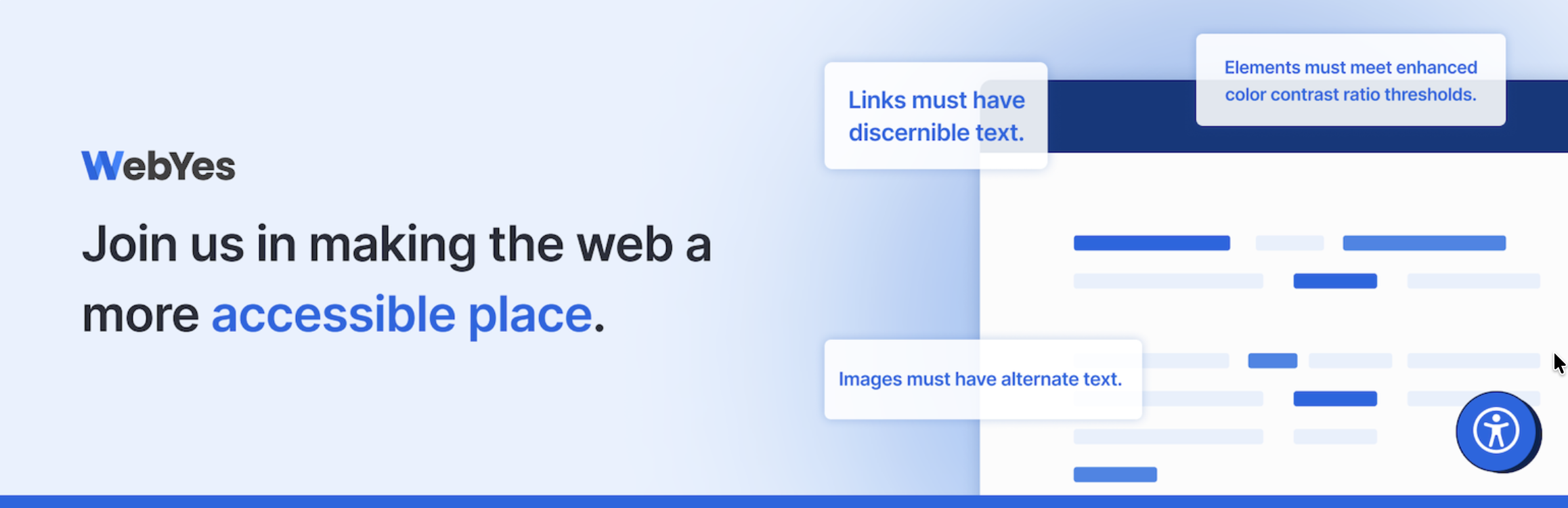
WebYes WP Accessibility Checker is an accessibility checker plugin for WordPress that scans your pages and highlights WCAG and ADA issues right on the front end of your site. Instead of sending you to an external tool, it marks problems directly on the page, so you can see exactly where each fix is needed.
The checker flags incorrect heading order, elements with poor color contrast, ambiguous link text, input fields without labels, and images missing alt text. It also includes an experimental screen reader simulation that shows what a screen reader would announce when you hover over an element. To fix an issue, you right-click the highlighted element, inspect it, and update the code or attributes on the spot.
By default, the checker is visible only to administrators, and you can extend access to editors or custom user roles from the settings. Since it loads nothing on the front end for regular visitors, your shoppers never see it, and your page speed stays untouched. Keep in mind that it covers the most common accessibility gaps, so it works best as a quick first check before a deeper audit.
3. AccessiYes Accessibility Widget by CookieYes
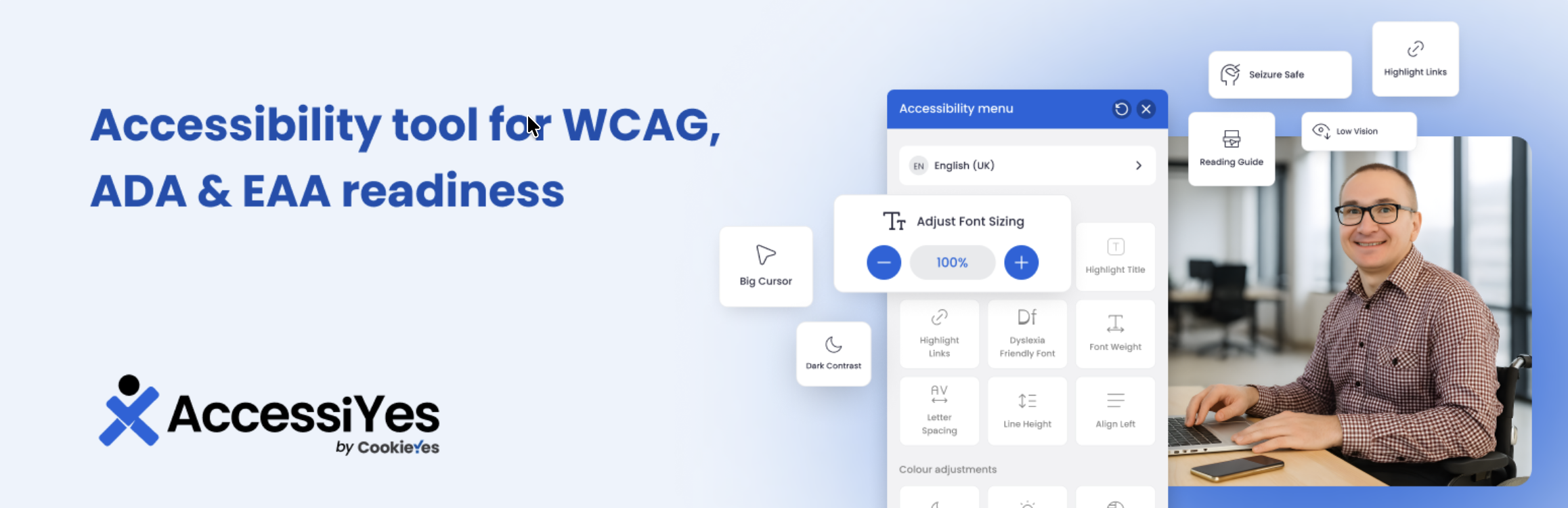
AccessiYes Accessibility Widget is a lightweight accessibility widget plugin from CookieYes that adds an accessibility overlay to your WordPress site. Visitors open it to adjust how your site looks and behaves based on their needs, and it works independently of the CookieYes consent platform.
Content adjustments include font size controls, dyslexia-friendly fonts, font weight, letter spacing, line height, text alignment, and options to highlight titles and links. Color options cover dark mode, light mode, high contrast, low saturation, high saturation, and monochrome views. Navigation tools add a reading guide, pause animations, a big cursor, a page reader, mute sounds, and a keyboard shortcut (Alt+A or Option+A) to open the widget without a mouse. Preset profiles apply combinations of settings for visual, cognitive, or motor needs in one click.
Admins can choose which modules appear, customize the widget’s color, size, and position, and create or link an accessibility statement inside the widget. The plugin supports over 50 languages and doesn’t track or store user data. Like any overlay, it improves the browsing experience but doesn’t fix issues in your site’s underlying code, and CookieYes notes that it doesn’t guarantee WCAG, ADA, or EAA compliance.
4. Equalize Digital Accessibility Checker
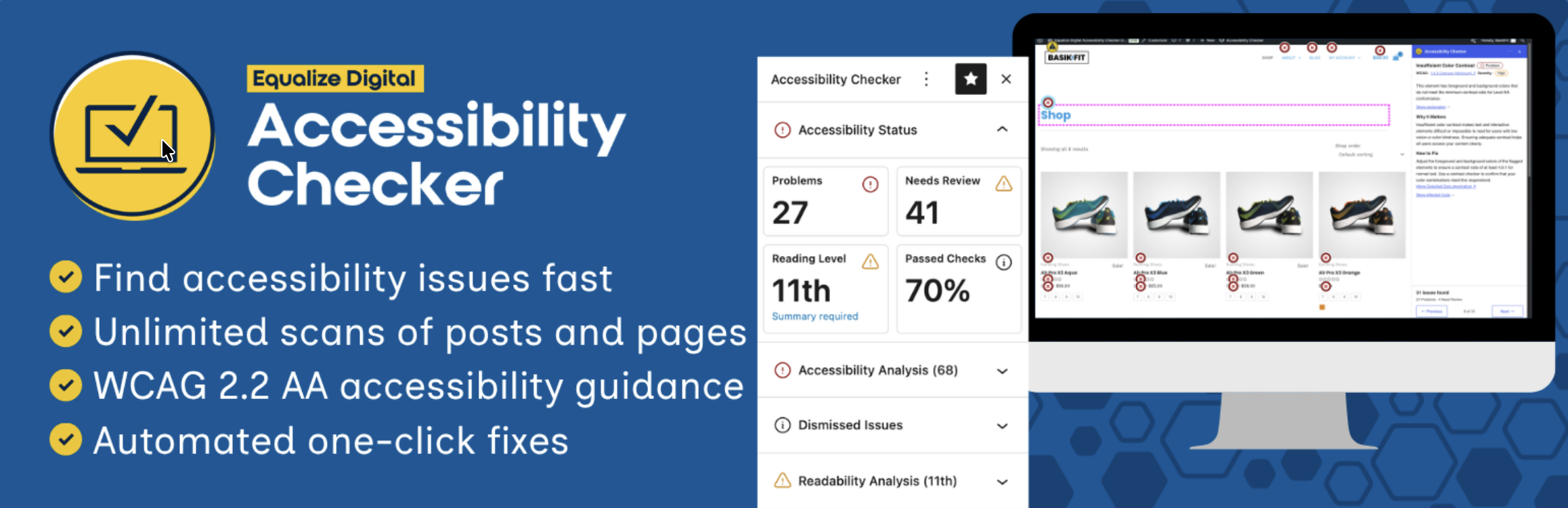
Equalize Digital Accessibility Checker is an accessibility checker plugin that finds issues inside your WordPress editor while you work. It scans posts and pages every time you save or publish, shows problems directly in the editor, and offers a front-end view that outlines the exact elements needing attention.
The plugin runs over 40 automated checks based on WCAG 2.2, and every issue links to documentation explaining the problem and how to fix it. Scans run on your own server, so there are no external APIs and no limits on the number of pages you can scan. It also includes readability analysis, a simplified summary option for WCAG reading level guidance, an accessibility statement generator, and the ability to dismiss reviewed issues with notes.
Beyond scanning, you can switch on automated fixes such as skip links, focus outlines, labels for comment and search fields, missing lang attributes, scalable viewports, and warnings for links that open in new tabs. It doesn’t add a widget or toolbar to your front end. For store owners, note that the free version scans posts and pages only, while WooCommerce products and other custom post types are covered in the Pro version.
5. Web Accessibility by Elementor (formerly Ally)
Web Accessibility by Elementor, formerly known as Ally, is an accessibility plugin that brings a page scanner, a visitor-facing usability widget, and an accessibility statement generator into one install. It works on any WordPress site, not only those built with Elementor.
Its Accessibility Assistant scans individual URLs on demand and detects 180+ common violations based on WCAG 2.1 AA, including missing alt text, form validation problems, unlabeled dynamic content, table issues, and incorrect page structure. Issues are grouped by type and severity, with step-by-step guidance for fixing them manually and AI-powered suggestions on supported plans. A visual dashboard tracks your progress across scans.
The usability widget gives visitors contrast modes, font resizing, a readable font, line height and text alignment controls, a reading guide, underlined links, image hiding, and animation pausing. You can customize the widget’s icon, colors, position, and which features show on mobile or desktop. To use the plugin, you need to connect an Elementor account, since it relies on a third-party service operated by Elementor. Elementor also states that the plugin isn’t a substitute for a thorough accessibility audit.
6. WP Accessibility by Joe Dolson
WP Accessibility by Joe Dolson is an accessibility enhancer plugin that fixes common accessibility problems in WordPress themes with very little setup. It focuses on the gaps themes often leave behind, and every feature can be switched off to suit your theme.
On the theme side, it adds skip links with custom targets, missing language and text direction attributes, visible keyboard focus outlines, and labels on standard search and comment form fields. It also adds post titles to “read more” links, removes tabindex from focusable elements, and removes zoom restrictions so visitors can resize pages. For content, it can strip title attributes from images, remove target attributes from links, and add long descriptions to images.
The plugin also includes tools to help you spot issues, such as missing alt text enforcement while editing, a Media Library view of images without alt text, a color contrast tester, and diagnostic CSS. An optional front-end toolbar offers font resizing and high contrast for visitors. The plugin is upfront that it isn’t intended to make your site compatible with any accessibility guideline on its own.
7. Accessibility Widget by OneTap
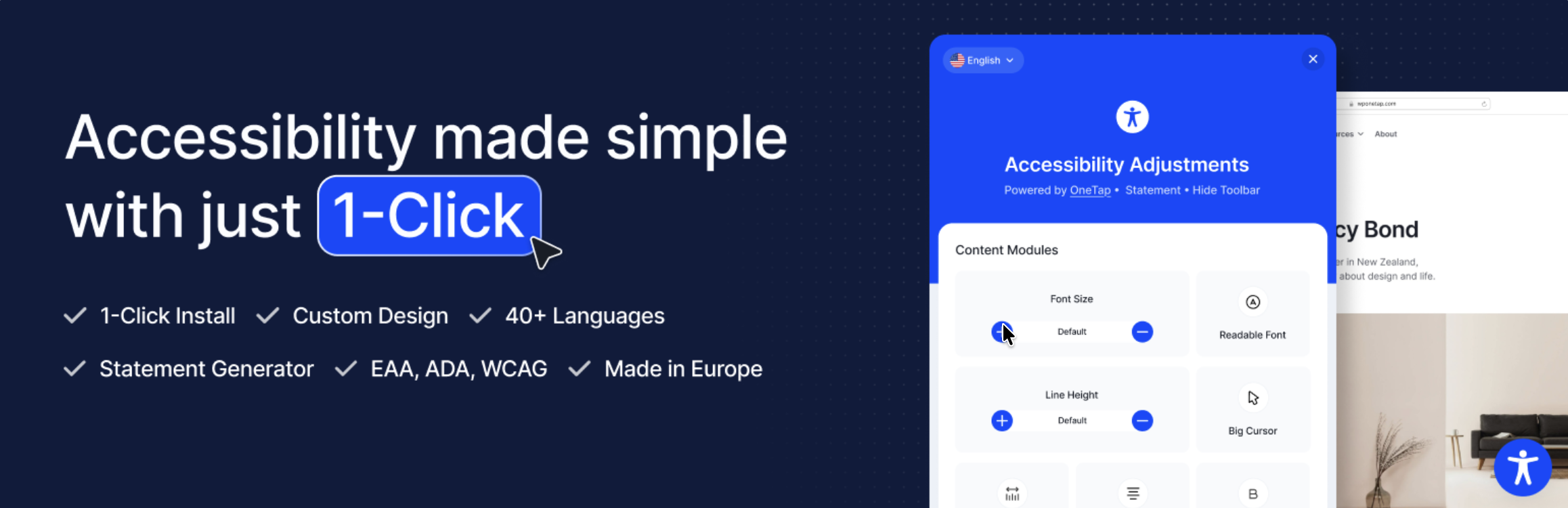
Accessibility Widget by OneTap is a one-click accessibility toolbar plugin. It installs without an account or setup, adds a floating accessibility icon to your site, and supports 44 languages, so visitors can use it in their own language.
The toolbar covers content options like font size, line height, letter spacing, font weight, text alignment, readable font, highlighted links, and a big cursor. Color options include light contrast, high contrast, and monochrome. Orientation tools add a reading line, a reading mask, hide images, highlight content, and stop animations, which also pauses animated GIFs and autoplaying YouTube or Vimeo embeds. Extras such as dark contrast, text-to-speech, keyboard navigation, and preset profiles are part of OneTap Pro.
Admins can enable or disable individual modules, choose which languages appear, adjust the toolbar position separately for desktop, tablet, and mobile, and customize the icon. It also includes an accessibility statement generator and collects no user data. As a widget, it helps visitors adjust their view of your store but doesn’t repair accessibility issues in your theme’s code.
8. Accessibility by AllAccessible
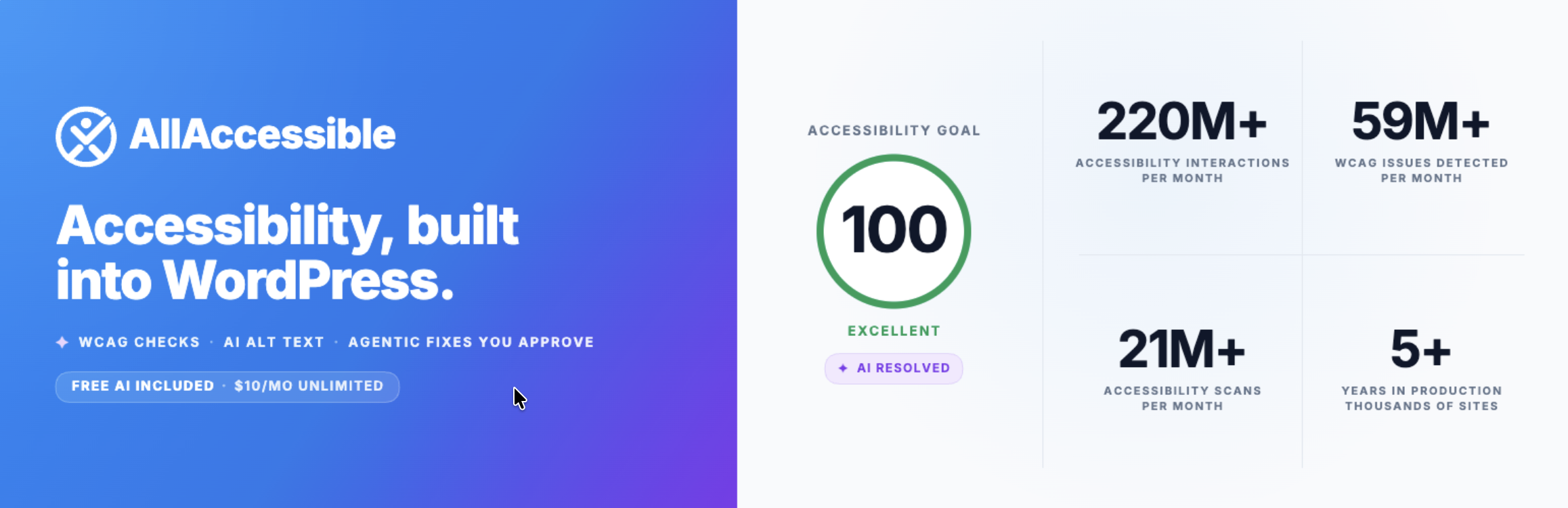
Accessibility by AllAccessible is a WordPress accessibility plugin that pairs a customizable visitor widget with in-dashboard accessibility scoring. Visitors can adjust content, color, orientation, and design settings from the widget, while site owners track accessibility without leaving WordPress.
Inside the admin, it adds a per-page accessibility score in the post editor, a score column on your Posts and Pages lists, and a “Scan this page” option in the admin bar. Scans check pages against WCAG 2.0, 2.1, and 2.2 success criteria. Its AllAccessible AI feature drafts alt text and suggested fixes for detected issues, and nothing goes live until your team reviews and approves each change.
You can customize the widget’s color, size, position, icon, and shape, and choose the language it opens in. The widget itself runs in the visitor’s browser, while scanning and AI features require an AllAccessible account and connect to AllAccessible’s service. AllAccessible describes the plugin as a tool to help you improve and monitor accessibility, not a guarantee of legal outcomes.
9. Accessibility by UserWay
Accessibility by UserWay is an accessibility widget plugin that adds UserWay’s Accessibility Widget to your WordPress site. It aims to give visitors a simpler browsing experience and references WCAG 2.1, ATAG 2.0, EN 301 549, ADA, and Section 508 requirements.
The widget modifies site elements it identifies as non-compliant, including elements that may block keyboard-only navigation. Setup is straightforward: install and activate the plugin, then sign up from the Settings > UserWay page. You’ll receive login instructions by email to manage the widget, so creating an account is part of the process.
UserWay’s listing makes strong claims, including protection from accessibility lawsuits, which no widget can guarantee. Some WordPress.org reviewers also mention a persistent admin banner and a keyboard shortcut that conflicts with Firefox’s view-source shortcut. Treat it as a visitor-facing layer and pair it with a checker and manual testing.
10. Web Accessibility by accessiBe
Web Accessibility by accessiBe is a plugin that connects your WordPress site to accessWidget, accessiBe’s AI-powered accessibility service. Once installed, you sign up or log in to accessiBe from inside the plugin and select the domain you want to activate it on.
accessiBe says accessWidget runs an automated audit of your site’s code and applies session-based remediations, scanning inaccessible elements every 24 hours without touching your source code. The goal is to make your site work better with screen readers and keyboard navigation. Visitors also get an accessibility interface for increasing font size, changing font types, adjusting color contrast, and stopping animations.
From the plugin, you can customize accessWidget and set up an accessibility statement. Before choosing it, know that every feature depends on the accessiBe service, and the product is marketed around ADA compliance. Reviews on WordPress.org are mixed, with some users reporting that the widget added complexity for screen reader users. As with any overlay, use it alongside real code fixes and manual testing, not instead of them.
Here’s a quick side-by-side view of all 10 WordPress accessibility plugins to help you narrow down the right fit for your store. Ratings and active installations are from WordPress.org as of October 2026.
| Plugin | Type | Key features | WordPress.org rating | Active installations | Best for |
| Accessibility Tool Kit | Checker + fixer + widget | Dashboard page scanner, code-level fixes, visitor toolbar, statement generator | 4.8/5 | 1,000+ | All-in-one setup without an overlay |
| WebYes WP Accessibility Checker | Checker | Front-end issue highlighting, heading and contrast checks, missing label and alt text flags, screen reader simulation | No ratings yet | 10+ | Quick on-page checks by admins |
| AccessiYes Accessibility Widget | Widget | Content, color, and navigation adjustments, preset profiles, page reader, statement | 4.8/5 | 20,000+ | Feature-rich visitor controls |
| Equalize Digital Accessibility Checker | Checker + fixer | In-editor scans, 40+ WCAG 2.2 checks, automated fixes, readability analysis | 4.9/5 | 10,000+ | Content teams checking pages as they publish |
| Web Accessibility by Elementor | Checker + widget | URL scanner for 180+ issues, guided fixes, usability widget, statement | 2.9/5 | 500,000+ | Sites wanting scanning and a widget together |
| WP Accessibility | Fixer + toolbar | Skip links, focus outlines, form labels, alt text tools, contrast tester | 4.8/5 | 60,000+ | Fixing common theme accessibility gaps |
| Accessibility Widget by OneTap | Widget | 44 languages, reading line and mask, stop animations, statement generator | 4.9/5 | 60,000+ | Multilingual stores needing a quick toolbar |
| Accessibility by AllAccessible | Widget + scoring | Per-page scores, admin bar scans, AI-drafted fixes with approval | 5/5 | 2,000+ | Tracking accessibility scores inside WordPress |
| Accessibility by UserWay | Widget | Visitor accessibility widget, element modifications, account-based management | 4/5 | 80,000+ | Stores already using UserWay |
| Web Accessibility by accessiBe | Widget (connected service) | accessWidget interface, automated audits every 24 hours, statement setup | 4.1/5 | 10,000+ | Stores already using accessiBe |
Even the best WordPress accessibility plugin can only fix markup it can detect and patch. Many barriers that cost stores sales live in dynamic store flows, and they require hands-on testing. Before you call your store accessible, check these areas yourself:
- Keyboard-only checkout: Put your mouse aside and try to add a product to the cart, apply a coupon, and place an order using only the Tab, Enter, and arrow keys. If focus disappears or jumps around, keyboard-only shoppers will get stuck.
- Payment gateway fields: Card fields from Stripe, PayPal, and other gateways often load inside iframes. Plugins can’t change that code, so test that each field is labeled and reachable by keyboard.
- Error messages: When a shopper enters an invalid email or misses a required field, the error should be announced to screen readers and clearly tied to the field, not shown in red text alone.
- Product variation selectors: Size and color dropdowns or swatches need clear labels so screen reader users know what they’re choosing.
- Popups and modals: Exit-intent popups and quick-view windows should move focus inside when they open, trap it there, and return it when closed.
- Cookie banners and widgets: Make sure your consent banner, whether from WebToffee’s GDPR Cookie Consent or another plugin, stays keyboard-reachable and doesn’t overlap your accessibility widget or live chat button.
Can a WordPress plugin make your store ADA or EAA compliant?
No. A plugin can help you find issues, fix common code gaps, and give visitors display controls, but no plugin can make a store compliant on its own. Under the EAA, online stores serving EU customers have needed to meet its accessibility requirements since June 28, 2025, with the harmonized standard EN 301 549 built on WCAG 2.1 AA. In the US, ADA lawsuits against online businesses typically point to WCAG as the benchmark.
Both look at the real shopping experience, which includes your theme, content, checkout flow, and third-party tools. Use plugins to support the work, then back them up with manual testing and, if legal risk is a concern, advice from an accessibility professional or legal counsel.
Which is the best WordPress accessibility plugin?
It depends on what your store needs. If you want scanning, code-level fixes, and a visitor toolbar in one plugin, Accessibility Tool Kit covers all three. If your team publishes content often, Equalize Digital Accessibility Checker flags issues right inside the editor. For visitor-facing controls only, a widget like AccessiYes or OneTap works well.
Do accessibility overlays work?
Overlays help some visitors adjust text size, contrast, and motion to suit their needs. However, they don’t repair the code underneath, so issues like unlabeled form fields or broken keyboard navigation remain. Treat an overlay as an extra layer, not your main fix.
Will an accessibility plugin slow down my store?
It depends on the plugin. Checkers like Equalize Digital and WebYes WP Accessibility Checker load nothing for regular visitors, while widgets add front-end scripts. Test your key pages with Google PageSpeed Insights before and after installing any plugin.
Can I use more than one accessibility plugin?
Yes, but choose carefully. A checker paired with a fixer works well together. Avoid running multiple visitor widgets at once, since overlapping toolbars and keyboard shortcuts can confuse shoppers and make your site harder to use.
Choosing the right WordPress accessibility plugin depends on what your website needs. Some plugins help identify accessibility issues, others fix common code-level problems, while accessibility widgets give visitors more control over their browsing experience.
For an all-in-one solution, Accessibility Tool Kit by WebToffee combines accessibility scanning, automated fixes, and visitor-friendly controls.
However, installing an accessibility plugin alone doesn’t guarantee WCAG, ADA, or EAA compliance. Regular accessibility audits, manual testing, and improvements to your website’s content and checkout experience are equally important.
Start by identifying the accessibility barriers on your website, choose a plugin that addresses those needs, and continue testing to make your WordPress site more accessible to everyone.


Subcribe to our newsletter


