


Share:


Table of Contents
The blog explains how to exclude best selling products from WooCommerce coupon discounts. It also covers how to set WooCommerce coupon restrictions for specific products or categories.
WooCommerce discount coupons are a proven way to boost conversions! But when applied without limits, they can chip away at your margins. That’s why knowing how to set WooCommerce coupon restrictions is essential to maintain profitability, especially when it comes to high-demand or best-selling products.
Here, we will explore how to exclude specific products, categories, or sale items from coupon discounts in WooCommerce, ensuring your most valuable products retain their full price. Whether you want to prevent coupons on bestsellers, avoid offering discounts for select categories, or create custom coupon rules, we’ll walk you through it all.
Key Takeaways
- Exclude specific WooCommerce products or categories from coupon discounts to protect high-margin or best-selling items.
- Prevent coupons from being applied to sale items or select products to avoid excessive discounts.
- Use advanced WooCommerce discount rules to control where and when discounts apply across your store.
Want to know how to restrict WooCommerce coupon the smart way? Let’s jump in.
Use Case: Consider you have a coupon “Get50OFF,” which offers a 50% discount on all products in a specific category. But what if some products in that category have a cost price higher than 50% of their selling price? If the coupon is applied to these products, the result would be a loss for you.
That’s why it’s wise to exclude certain products from WooCommerce discount coupons. This approach allows you to create as many discount coupons as you want while ensuring that specific high-cost products remain unaffected.
Keeping some products discount-free is a simple way to maintain profitability during holiday seasons. It prevents a significant profit drop and helps you earn more without compromising too much during sales.
There can be several reasons for excluding WooCommerce products from discount coupons. It can be due to economic constraints, overlapping offers, unsustainable offers, and more.
Striking a balance between sales volume and revenue is much harder to achieve, especially if there is a huge drain in profits due to coupon discounts. Excluding certain products from WooCommerce coupons helps you establish the right balance between sales volume and revenue.
Here’s how you can do that.
- On your WordPress admin console, go to Marketing > Coupons.
- Click on the coupon from which products are to be excluded. This will open the coupon configuration page.
- Go to the Usage restriction tab under the Coupon data widget.
- Select the products that you want to exclude under the option Exclude products.
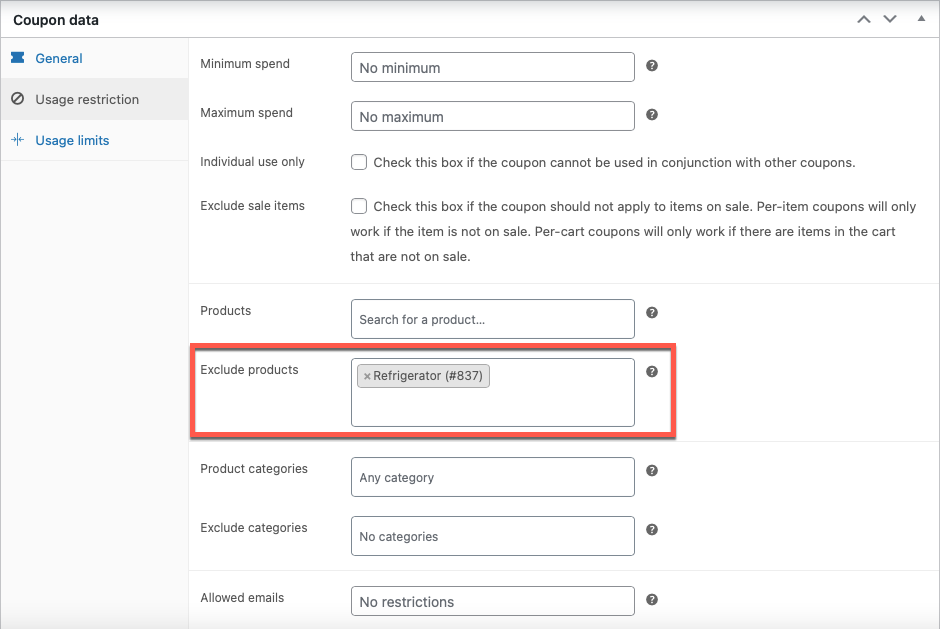
- Click on Publish to save the changes made.
In addition to excluding selected individual products, you may also exclude specific product categories as a whole from a coupon. Use the option Exclude categories under the same tab to configure this.
You can use this category exclusion to exclude specific categories of products from the coupon. For example, you can exclude all products in the “tropical clothing” category while running coupon sales for winter clothing.
You may also use the exclude option to exclude specific subcategories. For example, if you want to offer the coupon to all users purchasing from the category “Clothing”, but don’t want to include the subcategory “Pants” in this offer.
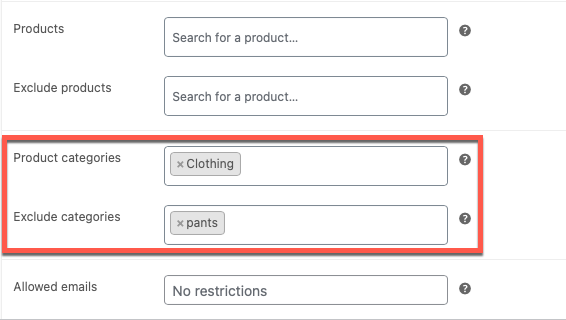
Here, the coupon can be used for all products in the ‘clothing’ category except the ones in the ‘pants’ category.
Pro Tip: Exclude products from coupons using code snippet. If you’re comfortable with PHP, you can programmatically exclude specific products from WooCommerce coupon discounts using a custom snippet.
Since coupons are an important factor that directly influences sales, not employing coupons is ill-advised. The next best thing that you can use is to control how and when the coupon can be used.
However, to gain such close control over the coupons, you will need to use a third-party plugin. Smart Coupons for WooCommerce is a freemium WooCommerce coupon plugin that would allow you to create, and manage coupons in WooCommerce.
Now let’s look into some of the situations where you may have to strictly restrict the use of discount coupons using the advanced coupon system.
1-Restrict The Use Of Multiple Coupons
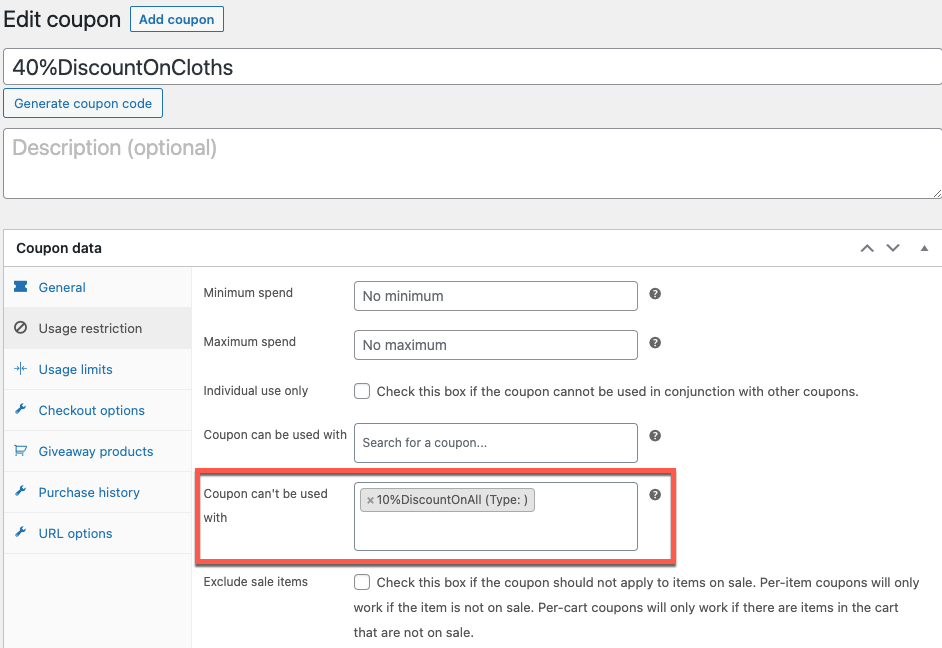
If your store has multiple coupons, then there is a chance that a customer may qualify for more than one coupon. This can have serious effects on the sales-profit balance. For example, if you have a ‘10% discount on all products’ and a ‘40% discount on all clothes’, a customer buying a cloth can avail of both these discounts. This can create a drop in revenue.
You can rectify this problem by disabling coupon stacking, that is prevent the ‘40% discount on all clothes’ coupon to be used with other coupons in your store. To do this, the premium version of the WooCommerce smart coupons plugin has to be installed and activated on your WordPress admin console.
- Go to Smart Coupons > All coupons.
- Select the coupon that you want.
- Go to Coupon data > Usage restriction.
- Select the coupon that you don’t want to use with the current coupon under the option Coupon can’t be used with.
- Click on Update to update the changes.
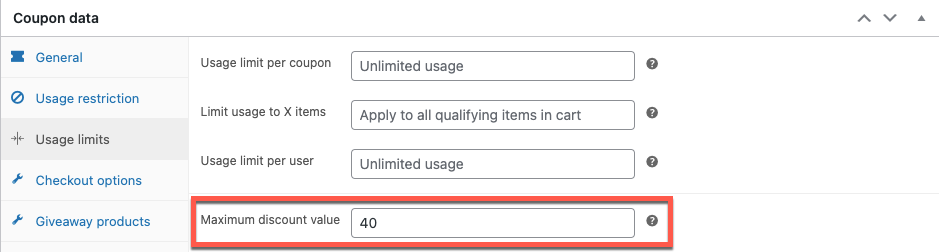
Even if you have highly restricted coupons with product exceptions, they may sometimes not be enough. For instance, in the previous example, to give a 40% discount, the marked price should be at least 40% above the cost price. A good way to restrict the drain of such large discounts is by setting a discount limit. For example, ‘40% discount up to $40’. This would help to maintain the discount-price balance.
To set this up, the free WooCommerce coupon plugin has to be installed and activated on your WordPress admin console to access this feature.
- Go to Marketing > Coupons.
- Click on the coupon that you want to edit.
- The discount limit can be set up for percentage discounts, so make sure the Discount type under Coupon data > General is Percentage discount.
- Now go to Usage limits and enter the Maximum discount value.
- Update the settings to save the changes.
In the Usage restriction settings, you can limit the coupon eligibility to specific users by entering their email addresses in the Allowed emails field.
It indicates if a coupon is applicable to a particular product in the cart. This filter is triggered during the validation process where the developers can enforce additional conditions or modify the existing ones.
You can display WooCommerce discount coupons on product pages using a shortcode or a custom message field to highlight available discounts on the product page.
To exclude a product from a discount code in WooCommerce, go to Marketing > Coupons and edit the coupon. Under the Usage restrictions tab, use the Exclude products field to select the items you don’t want the coupon to apply to. You can also exclude entire product categories using the Exclude categories field. This helps ensure discounts are only applied where intended and protects specific product margins.
Coupon discounts are undoubtedly one of the most common marketing strategies used in WooCommerce. The coupon discounts attract new users to your store and help you retain your existing customers. Coupon discounts provide the incentive that your customers need to complete the purchase.
Coupons are even employed to bring back customers who leave by abandoning their carts. However, applying discounts to all products is not always economically viable. You may have to restrict its application with various tools and settings. One such restriction is excluding products from WooCommerce coupons. You can set it up with the default coupon features available in WooCommerce.
With that we have come to the end of this guide on how to exclude product from WooCommerce coupons. Hope you found the article insightful, let us know your thoughts in the comments below.

Got any query? Please leave a comment or reach out to our support
Got any query? Please leave a comment or reach out to our support

Subcribe to our newsletter


Comments (2)
Andy
December 10, 2025
Hi. How can I disable a quantitative discount, if a discount coupon is used on a specific product? Thanks!
Sanjai Valsan
December 13, 2025
Hi Andy,
Thank you for reaching out,
Currently, Smart Coupons doesn’t support disabling a quantity-based discount when a discount coupon is applied to a specific product. This combination isn’t possible with the existing options.