


Share:


Table of Contents
Want your WooCommerce offers to stand out on Google Shopping? A Google Shopping Promotions Feed helps you display discounts, coupon codes, free shipping, and other special offers directly on your product listings, making them more noticeable to shoppers before they even visit your store.
Getting shoppers to notice your products on Google is not always about having the lowest price or the best product image. Sometimes, a clear offer such as “15% off,” “Free shipping,” or “Buy one, get one free” is enough to make your listing stand out and earn the click. That’s why understanding Google Shopping Promotions Feed and setting one up correctly can give your store a real edge.
Whether you’re new to Google Merchant Center or a WooCommerce store owner ready to run your first sale, this guide covers everything: what a promotions feed is, how to set one up manually through Google’s built-in tools, and how to automate the process using the WebToffee WooCommerce Product Feed plugin.
Key Takeaways:
- Discounts, coupon codes, and limited-time offers help your products stand out in competitive eCommerce spaces, making shoppers more likely to click and buy.
- Google displays promotional tags right next to your product listings, boosting visibility and attracting buyer attention instantly.
- Using a structured promotions feed, created easily with the WooCommerce Product Feed plugin, you can tell Google exactly what offers you’re running, get them approved, and start driving more sales.
A promotion feed is a structured file that sends discount, coupon, free shipping, BOGO, or gift offer details to a shopping platform such as Google Merchant Center. In Google Shopping, a promotion feed works alongside your product feed to display special offer labels on eligible product listings.
This file includes information such as the type of promotion, the discount amount, when it runs, and which products it applies to.
Note: Google Merchant Center recently renamed “Feeds” to “Data sources” in its interface. So a Google promotions feed may also appear as a promotions data source, promotion source, or promotions source inside Merchant Center.
Promotions Feed vs. Product Feed: What’s the Difference?
It’s easy to confuse the two, but they serve different purposes:
- Product Feed: Contains detailed information about your products – titles, descriptions, prices, images, availability, and more. This is what powers your ads and listings on Google Shopping.
- Promotions Feed: Contains details about the offers that apply to those products, like “10% off,” “Free shipping,” or “Spend $50 and save $10.”
Your promotions feed doesn’t replace your product feed; instead, it enhances your existing listings by adding attractive promotional labels that encourage shoppers to click.
Note: This article is about the Promotions Feed only. If you’re looking to set up your main product feed, see our guide to WooCommerce Google Product Feed. New to product feeds entirely? Start with What Is a Product Feed – All You Need to Know.
Types of Promotions You Can Add
Google supports several kinds of promotions, including:
- Discounts (percentage or fixed amount)
Example: “Get 15% off your entire order” - Buy One, Get One (BOGO) deals
Example: “Buy 2, get 1 free” - Free gifts
Example: “Free mug with every purchase” - Free shipping
Example: “Free shipping on all orders over $49” - Purchase-based incentives
Example: “Save $10 when you spend $100”
These promotions can apply to all products in your feed or only to specific items. It all depends on how you set up the feed.
How Promotions Appear in Google Shopping
Once your promotions feed is approved, Google adds small but powerful promotional tags to your product listings. These tags can appear:
- Under your product image in Google Shopping ads
- On free shopping listings in search results
- In product knowledge panels and other Google surfaces
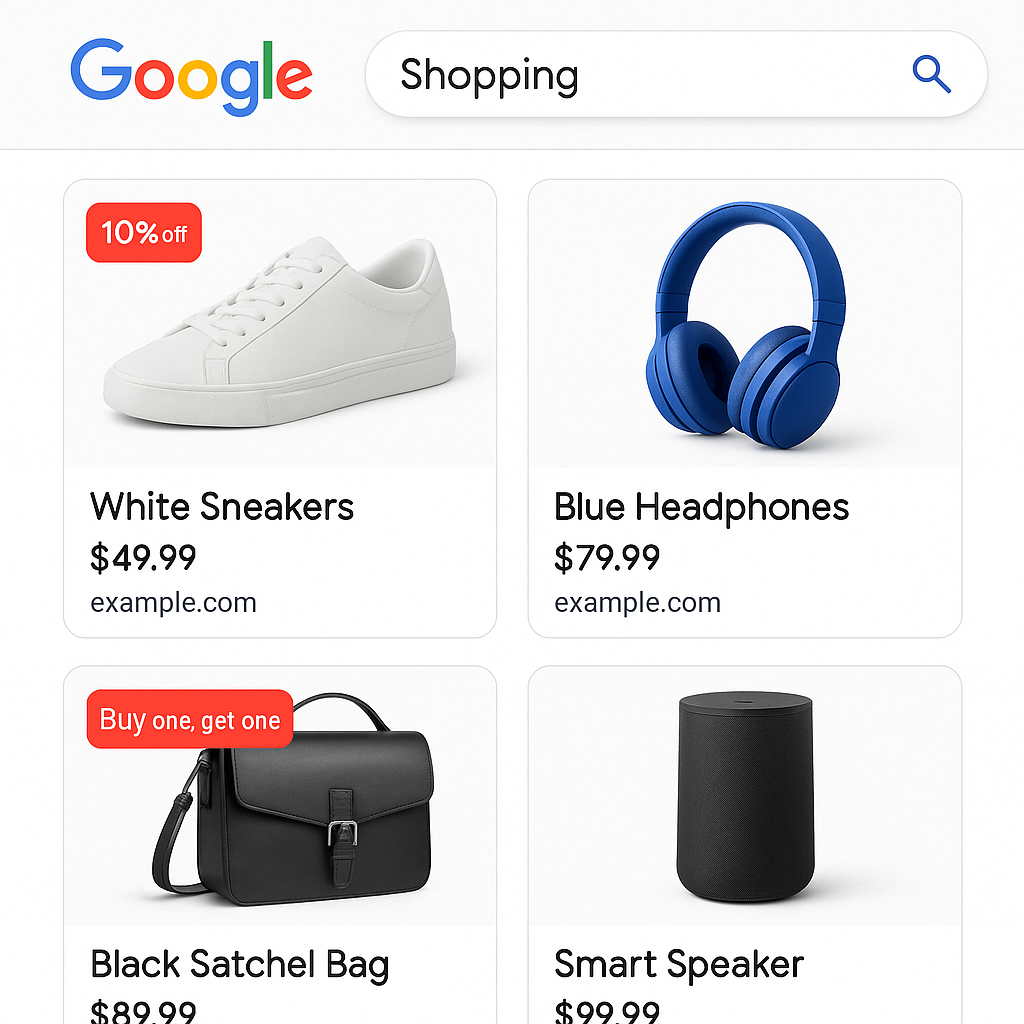
For example, a shopper browsing for shoes might see:
- “15% off with code SAVE15”
- “Free shipping available.”
- “Buy one, get one 50% off.”
These eye-catching labels stand out immediately and can significantly increase the likelihood of clicks and conversions.
Ways to create a Google promotions feed
There are three ways to get your promotions into Google Merchant Center. Choose the method that fits your setup:
Option 1: Google Promotions Builder (best for small numbers of promotions). Google’s built-in tool inside Merchant Center lets you create promotions one at a time without any file. It’s the simplest option if you’re running a handful of offers. Go to Marketing > Promotions, click the blue plus button, and follow the prompts.
Option 2: Upload a promotions feed file (best for large or recurring promotions). Create a TSV, XML, or Google Sheets file containing all your promotion data and upload it to Merchant Center. This is the method covered in the step-by-step walkthrough below — and the approach that tools like the WebToffee plugin automate for WooCommerce stores.
Option 3: Third-party partner integration (WooCommerce and Shopify stores). If you use WooCommerce or Shopify, you can connect a plugin or app that generates and syncs your promotions feed automatically. This is the most hands-off option for ongoing promotions. The rest of this guide covers exactly how to do this with the WebToffee WooCommerce Product Feed plugin.
Prerequisites Before Creating a Google Promotions Feed
Before you start building and uploading your Google Promotions Feed, there are a few important requirements to check off. Making sure everything is properly set up not only speeds up the approval process but also helps your promotions run smoothly without unexpected disapprovals.
1. A Google Merchant Center Account
To use Google Promotions, you must have an active and fully set up Google Merchant Center (GMC) account. This includes:
- Adding your business name and contact information
- Verifying and claiming your website URL
- Ensuring your product feed is already active and approved
- Following all Merchant Center guidelines
If your regular product feed isn’t approved, your promotions won’t show, since promotions must be attached to active products.
2. Promotion Eligibility & Policy Compliance
Not all stores or promotions are automatically eligible. Google has strict rules to ensure customers receive accurate, trustworthy promotions.
Key eligibility requirements:
- Your store must comply with all Google Shopping policies
- The promotion must offer real value (not misleading or inflated discounts)
- The promotion details must match what users see on your website
- The offer must be available to all users (no restricted audience)
- Promotions must run during the valid date range specified
- Minimum spends, coupon codes, and terms must be clearly stated
Common reasons for disapproval include unclear terms, invalid coupon codes, or promotions that don’t match the landing page.
3. Linking Google Ads and Merchant Center (Optional but Helpful)
Google Promotions can work without Google Ads, especially for free product listings. However, if you want your promotions to appear in Shopping ads or Performance Max campaigns, then it’s helpful (sometimes required) to link your Google Ads account to Merchant Center.
This lets Google automatically sync promotions with your active ad campaigns, ensuring your discounted products get maximum visibility.
4. Setting Up Verified Business Information
Before you submit promotions, Google needs to verify your business is legitimate and trustworthy.
This usually involves:
- Adding business contact information
- Providing customer support details
- Confirming shipping and return policies
- Completing identity verification (if requested)
Merchant Center may require additional verification steps depending on your region.
Note: To officially use the feature, the Promotions program must be available and activated in your Merchant Center interface. If the program is not available in your region, you may need to request access or wait until Google expands support.
Creating a Google Promotions Feed: Step-by-Step Guide
Before you upload anything to Google Merchant Center, you first need to organize your promotion details in a structured feed. This promotions feed tells Google exactly what offer you’re running, when it’s valid, and which products it applies to. Preparing this information correctly is crucial. Google relies on this data to review and approve your promotions quickly.
When you’re using the WebToffee WooCommerce Product Feed Plugin, much of this process becomes easier. The plugin provides guided options to help you enter your promotion details, map required fields, and automatically export the promotions feed in the correct format.
Let’s see how it’s done,
Step 1: Install and Activate WebToffee Product Feed Plugin
Log in to your WebToffee account and go to the My Account section. Download the plugin ZIP file from your list of purchased products.
- Then, from your WordPress dashboard, go to Plugins > Add Plugin.
- Click Upload Plugin at the top of the page and select the ZIP file you downloaded earlier.
- Click Install Now to start the installation.
- Once the installation completes, click Activate to enable the plugin on your site.

Step 2: Create a New Google Promotions Shopping Feed
From your WordPress dashboard, go to WebToffee Product Feed > Create new feed
- Under Channel, select Google Promotions from the list of supported sales channels. The plugin will automatically load all required and optional Google Promotions attributes for you.
- Select the Country where you want your promotions to appear on Google.
- Enter a clear File name for the feed, such as “Google Promotions Feed.”
- Set an Auto-refresh interval (daily, twice daily, weekly, etc.) to keep your feed updated automatically.
- Choose a Cron Type:
- WordPress Cron – Easiest option and ideal for most stores
- Server Cron – Recommended for large catalogs or high-traffic stores for more reliable scheduling

Step 3: Filter Products for Google Promotions Feed
The WebToffee Product Feed plugin gives you full control over which products are included in your Google Promotions feed. This is especially useful when your promotion applies only to certain products rather than your entire catalog.
Basic Filtering Options
Use these filtering tools to include or exclude the right products:
- Filter by Categories or Tags: Select the product categories or tags that the promotion should apply to. Example: Include only “Summer Collection” or “Sale” tagged items.
- Exclude Products: Manually remove individual products that should not participate in the promotion.
- Out-of-Stock Products: Enable this option to automatically remove unavailable products. This ensures Google won’t reject your promotion for linking to unavailable items.
- Product Variations: Decide if sizes, colors, or other variable product versions should be part of the promotion.
- Product Type: Include or exclude product types such as simple, variable, grouped, or external products.

Advanced Filtering (Conditional Logic)
For more precise targeting, use Advanced Filtering to create custom rules:
- Click Advanced Filtering in the feed setup.
- Add conditions using “if–then” logic.
Example rule: If the product price is below $20, Then exclude it from the promotions feed.

This level of filtering ensures you include only products that align with your promotional strategy and avoid applying discounts to low-margin or non-promotional items.
Step 4: Map Google Promotions Attributes to WooCommerce Fields
In this step, the plugin helps you connect Google’s required promotion attributes with the appropriate values from your WooCommerce store.
Most essential fields are auto-mapped, and you can easily adjust or assign static values as needed. Here’s how each key attribute works inside the plugin:
promotion_id
A unique identifier for each promotion (e.g., SUMMER_SALE_2025). The plugin lets you:
Enter this as a static value, or map it from a custom field if your promotions have dynamic IDs.
product_applicability
Choose whether your promotion applies to: ALL_PRODUCTS, or SPECIFIC_PRODUCTS
If you select specific products, you can precisely control them using the plugin’s Basic or Advanced Filtering options.
Offer_type
Use this attribute to specify whether a coupon code is required for customers to redeem the offer. Enter one of the supported values directly as a static value in the field:
- no_code – No coupon code is required; the offer is applied automatically.
- generic_code – A single coupon code is shared and used by all customers. (If you select this option, you must also provide a value for generic_redemption_code.)
This setting determines how customers access the promotion and ensures WooCommerce handles the redemption rules correctly. Keep in mind that all shipping-related promotions must include a valid coupon code, and free shipping offers must include a coupon code that customers manually apply. Otherwise, WooCommerce will treat free shipping as a standard service instead of a promotional discount.
long_title
This is the user-facing description that appears on Google Shopping. Example titles:
- “Save 20% on All Summer Clothing.”
- “Free Shipping on Orders Over $49”
You can type this as static text, or combine it with product fields if you want more dynamic titles.
promotion_effective_dates
Set the exact start and end of the promotion using Google’s ISO format: 2025-05-01T00:00:00/2025-05-10T23:59:59
You can enter the date range manually or map it from custom metadata if you manage promotion dates at the product level.
redemption_channel
Specify where the promotion can be redeemed:
- ONLINE – most common for Google Shopping
- IN_STORE
- ONLINE_INSTORE
Add this as a simple static value.
By completing these mappings, you ensure Google receives all the required promotion information in the correct format.

- Once done, proceed to the next step.
For more information, check out Google Merchant Center’s promotion data specification.
Step 6: Generate Google Shopping Promotions Feed
You’re now ready to generate your Google Promotions feed using all the configuration settings, filters, and attribute mappings you’ve set up in the previous steps. This final step creates the actual feed file that you will submit to Google Merchant Center.
Select a Batch Count
In the Process in batch of option, choose how many products the plugin should process at a time.
- If you have a large catalog, a smaller batch count helps prevent server timeouts.
- If you’re unsure, stick with the plugin’s recommended default.
Choose Export File Format
Google Promotions accepts multiple formats, but the most commonly used format is TSV, as it is simple, clean, and fully compatible with Google’s requirements.
- Set Export file format to TSV (or XML if preferred).
The plugin will automatically structure the file according to Google’s Promotions Feed specifications.
Generate Google Shopping Promotions Feed
Review your filters, attribute mappings, and overall configuration.
- Click Generate Feed.
The plugin will begin processing your products in batches based on the batch count you selected. Once completed, the feed will be created successfully.

Once the feed has been generated successfully, the plugin will display a confirmation message such as “Feed generated successfully!” This means your Google Promotions compatible feed file is now ready to use.

From here, you have several options:
- Download the Feed: Download the generated TSV/XML file to your device if you want to review it or submit it manually to Google Merchant Center.
- Edit Feed Configurations: If you need to adjust anything, such as promotion details, mappings, filters, or scheduling, you can return to the configuration steps and update them at any time.
- Manage Feeds: Open the Manage Feeds section to view all your existing feeds, check feed status, update auto-refresh schedules, or regenerate feeds whenever required.
You’ll then see a Feed URL generated by the plugin.
Click the Copy URL button to copy the direct feed link generated by the plugin. This is the URL you’ll submit inside Google Merchant Center, allowing Google to access your Promotions feed automatically and keep it updated.
Uploading Google Promotions Feed to Google Merchant Center
To make your promotions appear on Google Shopping, you need to upload your Google Promotions feed to Google Merchant Center. This allows Google to fetch your promotion details, validate them, and link them with the products in your product feed. Once submitted, Google will review your promotions for policy compliance, and approved offers will start showing across Shopping ads and free listings.
Follow these steps to upload and connect your promotions feed:
Step 1: Activate Google Promotions Feature
- Log in to your Google Merchant Center account.
- In the left navigation menu, click Settings (gear icon) and select Add-ons.
- Under the Discover tab, locate the Promotions add-on card and click Add.

Step 2: Upload the Feed to Merchant Center
Once activated, you can set up promotions right away. Follow these steps to upload your promotions feed to Google Merchant Center.
- From your Merchant Center left navigation menu, go to Marketing > Promotions.
- Click on the Promotions tab.
- Click Add promotions button at the top right and select Add promotion source.

Next in the Add promotions section,
- Select Add promotions from a file tab.
- Paste the feed URL you just copied into the Enter a link to your file field.
- Click Continue to submit the feed.
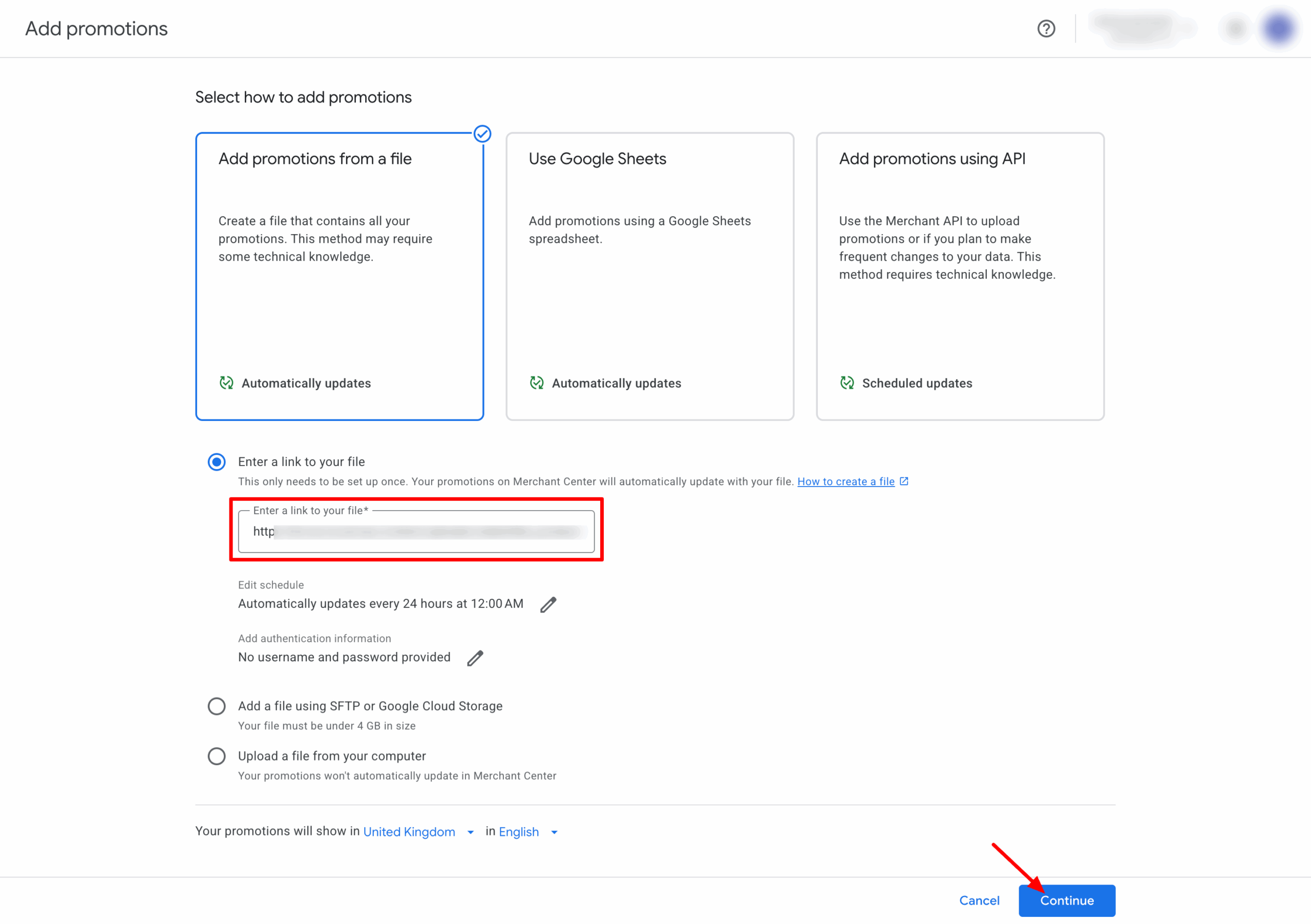
Once the feed is uploaded, it is registered. Google will begin processing the feed. You can check the status in the Promotions sources tab.
Google’s review process (Policy and Validation) can take up to 24 hours. Once the promotion is live on your website, Google testers will verify that the discount/offer works correctly at checkout.
Note: It is highly recommended to upload your promotions at least 2-3 business days before they are scheduled to go live to allow for policy review time.
For additional details, refer to Google Merchant Center’s help documentation on submitting promotions data sources.
Common Google Promotion Feed Errors & How to Fix Them
As mentioned before, Google performs two key checks: Policy Review and Validation Review. If something is missing or incorrect, your promotion may get flagged. Here are the errors you might encounter and what to do:
1. Invalid or Missing Required Attributes
Error examples:
- Missing promotion_id
- Incorrect date format for promotion_effective_dates
- Missing long_title
Fix: Double-check that all mandatory fields are correctly filled and follow Google’s exact formatting.
2. Promotion Title Not Clear
Google requires a descriptive, specific long title.
Fix: Rewrite vague titles (e.g., “Sale”) to something more specific, like “15% off Summer Collection.”
3. Mismatched Promotion Dates
Dates must be formatted exactly like:
2025-05-01T00:00:00/2025-05-10T23:59:59
Fix: Ensure the correct ISO format and that start/end times match your website’s promotions.
4. Landing Page Doesn’t Show the Offer
Google validates your website to confirm the promotion is real.
Fix: Make sure your website displays the same discount, coupon code, and date range as in your feed.
5. Invalid or Non-Working Coupon Code
If your promotion uses a coupon code but it doesn’t work at checkout, it will be rejected.
Fix: Test the coupon code on your store before submitting.
6. Applying Promotions to Out-of-Stock Products
This can cause validation failure.
Fix: Use your plugin’s filters to exclude out-of-stock products.
No. Promotions do not affect how your products rank in Google Shopping results. They only add a promotional label to your existing listings.
Promotions must expire within 183 days (about six months) of the start date. Promotions without an end date or with end dates beyond this window will be disapproved.
Yes. Promotions offered only to first-time customers are permitted under Google’s policies.
Google promotions do not directly improve Shopping ranking positions. However, they can make your listings more attractive, improve visibility, increase click-through rate, and encourage more conversions.
You can have up to 500 live promotions at one time across your Merchant Center account.
They’re the same thing. Google rebranded “Feeds” to “Data sources” in Merchant Center to reflect the fact that Google now also pulls product data directly from your website, not just from files you upload. Your promotions feed is registered as a promotions data source. The underlying format and submission process are unchanged.
Conclusion
A well-optimized Google Promotions Feed can be a game-changer for your online store. By displaying eye-catching offers like discounts, free shipping, or BOGO deals directly in Google Shopping results, you instantly boost your product visibility, attract more clicks, and increase the likelihood of conversions.
Setting up promotions doesn’t have to be complicated. With a clear plan, the right data structure, and consistent updates, you can create promotions that Google approves quickly and customers love engaging with. And if you’re looking to simplify the entire process, tools like the WebToffee WooCommerce Product Feed plugin make generating and automating your promotions feed effortless.
Now that you understand how powerful and accessible Google Promotions can be, it’s the perfect time to start implementing them for your store. Whether you’re launching your first promotion or scaling ongoing campaigns, your next high-performing offer is just a feed away.


Subcribe to our newsletter





