


Share:


Table of Contents
You can create and print shipping labels in WooCommerce using a shipping labels plugin such as WebToffee’s WooCommerce Shipping Labels plugin. After installing the plugin, configure the label size, layout, and order details. Then customize the shipping labels template and generate shipping labels from the WooCommerce Orders page. Once generated, you can print shipping labels individually or in bulk for faster order fulfillment.
In this guide, you will learn how to create shipping labels, customize shipping label templates, and print shipping labels in WooCommerce using a dedicated shipping labels plugin.
Key takeaways
- WooCommerce doesn’t offer built-in features for creating or printing shipping labels.
- A WooCommerce shipping labels plugin helps you create, generate, and print shipping labels directly from orders.
- You can customize shipping labels templates to include order details, addresses, and branding.
- Shipping labels can be printed individually or in bulk to speed up order fulfillment.
- Auto-generated shipping labels help reduce shipping errors and improve delivery accuracy.
A shipping label in WooCommerce is a document attached to a package that helps carriers route and deliver the shipment to the correct recipient. It contains essential shipping information that allows logistics providers to identify, track, and transport the package.
What Information Does a Shipping Label Contain?
A shipping label includes details such as the recipient’s address, sender’s address, tracking number, barcode, shipping method, and order reference. Carriers scan this information at different checkpoints to move the package through the delivery network.
Accurate shipping labels are essential for smooth order fulfillment. Even small mistakes in the address or tracking details can lead to shipping delays, failed deliveries, or returned packages.
To create and print shipping labels in WooCommerce, you can use the WebToffee WooCommerce Shipping Labels plugin. The plugin lets you generate shipping labels, customize label templates, and print labels directly from WooCommerce orders.
First, install the free WooCommerce Shipping Labels plugin. While the free version allows you to create shipping labels, the premium version unlocks advanced customization features.
After installing the free plugin, install and activate the premium WebToffee Shipping Labels plugin on your WordPress website.
Now follow the below steps to create and print shipping labels in WooCommerce.
- Step 1: Set up shipping labels in WooCommerce
- Step 2: Customize the WooCommerce shipping labels layout
- Step 3: Print shipping labels from WooCommerce Orders
Let’s look at each step in detail.
Step 1: Set Up Shipping Labels in WooCommerce
From the WordPress dashboard, Go to Invoice/Packing > Shipping Label.
You can configure the general settings required for generating shipping labels.

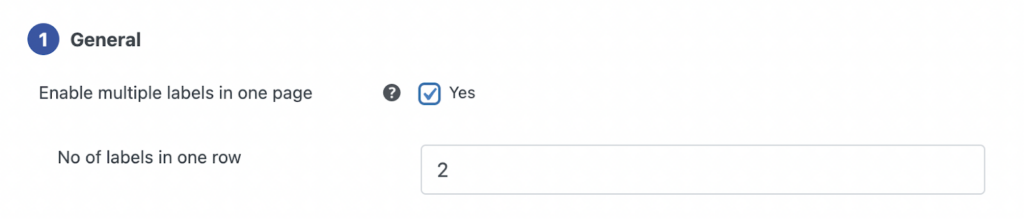
- Enable multiple labels in one page – Choose yes to generate multiple labels on one page itself. When enabled, you will get an option to input the number of labels in a row.
- Shipping label size: Allows you to set the size of the shipping label. You can choose between either full page or custom.
- Full Page: This option allows you to print shipping labels which will be spread over the full page. The printing depends on the browser printing option.
- Custom: This option prints shipping labels in the desired size. You can configure custom shipping label size of your own by entering size values in terms of width and height (inches).

- Order meta fields: Allows you to add additional order meta fields in the shipping label. You can select a field from the list of default fields or click the Add/Edit order meta field button to create custom meta fields by providing a custom name and the respective meta key for the field. The order meta keys can be found in the custom field section in the WooCommerce Order page of a product.
- Show ‘Print Shipping Label’ button for selected order statuses: Adds print shipping label button to the order email for chosen status from the drop-down as shown below.
- After the changes you made, press the Update Settings button.
A sample order email with the ‘print shipping label’ button is given below.

Step 2: Customize WooCommerce Shipping Label Layout

- In the Customize tab, select create a new template, you can choose any templates from the pop-up menu.
- On the right-hand side, you can change the look and feel of the shipping label layout by enabling or disabling the template elements and by changing their configurations.
- On the left-hand side, you see the live preview of the changes you made. After the changes press the Save button.
Note: You can also switch to the code editor to make advanced shipping label customizations beyond what’s possible in the visual editor. When editing through the code editor, refer to the Help Guide under Invoice/Packing > General Settings >Help Guide for details on placeholders, alternate classes for RTL support, and other references.
For more advanced customization options, explore WebToffee’s Shipping Label Customizer Bundle, which adds a block-based editor alongside the visual and code editors, offering a more intuitive way to customize WooCommerce shipping labels.
- Make the necessary modifications to the layout and save it.
- After saving, activate the template to use it further for your shipping label.
Step 3: Print Shipping Labels in WooCommerce
You can directly print the shipping label by navigating to WooCommerce > Orders > Select the specific order > Invoice/Packing meta box.

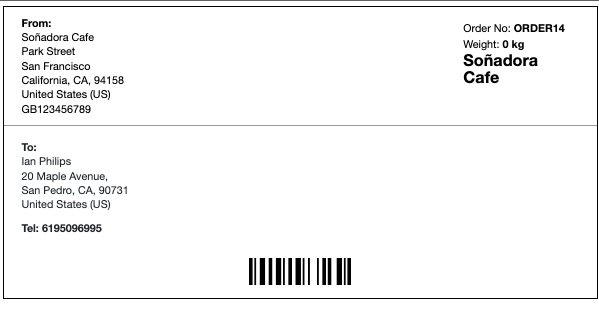
The printed shipping label is shown below:
Bulk Print Shipping Labels in WooCommerce
If you need to print shipping labels for multiple orders at once, the shipping label plugin also supports bulk shipping label printing. Go to WooCommerce > Orders, select the orders you want to process, open the Bulk actions dropdown, and choose Print Shipping Label. WooCommerce will then generate shipping labels for all selected orders so you can print them together and speed up order fulfillment.
You have now successfully created and printed shipping labels in WooCommerce using a shipping labels plugin. This setup allows you to auto-generate shipping labels quickly and print them from WooCommerce orders, making order fulfillment faster and more organized.

The WooCommerce Shipping Labels, Dispatch Labels, and Delivery Notes plugin is one of the best shipping label generator plugins for WooCommerce stores. As the name suggests, this plugin enables you to create, customize, and print shipping labels, dispatch labels, and delivery notes – all the documents you need to ensure a smooth shipping and delivery process.
The plugin includes pre-built shipping label templates that you can use immediately or customize based on your store’s requirements. You can also include important order and product details such as order meta fields, product attributes, and shipping information directly on the labels.
With support for automatic generation and bulk printing, the plugin helps WooCommerce stores manage shipping documents more efficiently and speed up WooCommerce order fulfillment.
WebToffee offers a complete suite of invoice and order document plugins to help you simplify invoicing, shipping, and order management in WooCommerce. Each plugin is designed to save time and enhance your store’s workflow.
- WooCommerce PDF Invoices: Automatically generate, email and print invoices, packing slips, and credit notes for every order.
- WooCommerce Address Labels: Easily create and print multiple address labels to speed up your packaging and dispatch process.
- WooCommerce Picklists: Generate organized picklists for your WooCommerce orders, making order fulfillment faster and more accurate.
- WooCommerce Proforma Invoices: Create professional proforma invoices for price estimates with just a few clicks.
- Customizer for WooCommerce PDF Invoices: Personalize your PDF invoices and other documents using an intuitive customization tool built specifically for WebToffee’s invoice plugins.
- QR Code Add-on for WooCommerce PDF Invoices: Add scannable QR codes to your WooCommerce invoices for quick access to order details and secure verification.
Frequently Asked Questions
To print shipping labels in WooCommerce, install a shipping labels plugin such as the WebToffee WooCommerce Shipping Labels plugin. After installing the plugin, go to WooCommerce > Orders, select the order, and click Print Shipping Label from the order panel.
You can create shipping labels in WooCommerce by using a dedicated shipping labels plugin. After installing the plugin, configure the shipping label settings, customize the label template, and generate shipping labels from the WooCommerce orders page.
Yes, WooCommerce allows you to print shipping labels in bulk using a shipping labels plugin.
Most online stores use a thermal printer for shipping labels because it prints labels quickly without requiring ink or toner. Thermal printers are widely used for generating 4 × 6 shipping labels.
Shipping labels often use thermal printers because they produce durable labels that are resistant to smudging and fading. Thermal printing is also faster and more cost-efficient.
Shipping labels play an important role in ensuring accurate and timely order deliveries. By generating clear and properly formatted shipping labels, WooCommerce stores can reduce fulfillment errors and improve the overall shipping process.
With the WooCommerce Shipping Labels plugin, you can easily create, customize, and print shipping labels in WooCommerce from your orders. The plugin also supports additional documents like dispatch labels and delivery notes, helping you organize shipping operations more efficiently.
If you want to explore more customization options, check out our guide on how to customize WooCommerce shipping labels.
Thanks for reading!


Subcribe to our newsletter


