



Share:


Table of Contents
Invoices offer an excellent opportunity to boost brand visibility and recognition. Learn how to add logos to WooCommerce invoices.
Your company’s logo represents your brand’s identity, making it easy for customers and shoppers to recognize your brand from your competition. So, it is important to promote your brand logo on various marketing materials such as brochures, web pages, booklets, and invoices.
Invoices are important documents in an eCommerce business. Whether you send out a printed invoice or share a PDF invoice, most customers will have a look at it to learn about tax details, payment terms, etc.
By adding your logo to invoices, you turn these essential documents into a subtle yet effective branding tool. Each invoice serves as a touchpoint to reinforce your brand identity, helping your business stand out and stay memorable to customers. This simple addition can create a cohesive and professional impression, enhancing trust and recognition.
In this article, we will show you how to add your logo to WooCommerce invoices.
Let’s get started.
Key Takeaways:
- Adding your logo to WooCommerce invoices enhances brand visibility, builds trust, and strengthens your professional image.
- It helps differentiate your business from competitors and reinforces brand recognition over time.
- The free WebToffee WooCommerce PDF Invoices plugin allows easy logo integration, along with basic customization options.
Top Reasons to Add Your Logo to WooCommerce Invoices
Let’s look at some of the top reasons why you should add your logo to your invoices:
1. Improve Your Brand Reputation
A strong reputation is essential for building trust with your customers. An invoice without a logo is like a business card without a name- missing a critical element of identity.
Your logo instantly communicates who you are and adds a professional touch to your invoices. This is especially crucial in B2B transactions, where buyers often scrutinize every detail to ensure credibility. A professional invoice with your logo helps clients easily identify your business, reinforcing their confidence in your brand.
2. Gain a Competitive Edge
In competitive markets, branding can make or break customer loyalty. Including your logo on invoices provides a subtle but effective branding opportunity, ensuring your business stands out even after the sale is completed.
For freelancers and small businesses, adding a logo to invoices elevates your brand’s image and sets you apart from competitors who might neglect this detail. For corporate clients, this reinforces a professional identity that builds trust over time.
Take advantage of every branding opportunity, from your initial email to the final invoice. If your competitors aren’t branding their invoices, this simple addition can give you a clear edge in retaining customers and creating a lasting impression.
3. Showcase Professionalism
Incorporating your logo into your invoices sends a clear message: you’re serious about your business. Nearly all established companies include logos on their invoices because it reflects professionalism and attention to detail.
This isn’t just about aesthetics; it’s about showing your customers that you value every aspect of their experience with your business. A well-branded invoice is more likely to instill trust, making customers confident in continuing their relationship with your company.
4. Improve Brand Recognition
Consistency is key to strong branding. When your logo is featured on all customer-facing materials, such as brochures, emails, websites, and invoices, it reinforces your brand identity. Over time, this consistency makes your business easier to remember and recognize.
Even for something as routine as an invoice, a professionally designed logo can leave a lasting impression, reminding your clients of your quality and reliability. This is particularly valuable in long sales cycles, common in B2B environments, where repeated exposure to your brand can influence purchasing decisions.
5. Enhance Customer Experience
Adding your logo to invoices creates a cohesive and polished experience for your customers. It aligns with their expectations of dealing with a professional business, making transactions feel smoother and more trustworthy.
Whether you’re sharing a digital PDF or handing over a printed invoice, branded invoices ensure your customers feel confident and connected to your business, boosting satisfaction and loyalty.
Follow the below steps to add a logo to your WooCommerce invoices.
Step 1: Install WebToffee WooCommerce PDF Invoices Plugin
To add a logo to WooCommerce invoices, you’ll need the free version of WebToffee WooCommerce PDF invoice plugin.
- From your WordPress dashboard, go to Plugins > Add New.
- Search for the WebToffee WooCommerce Invoices plugin.

- Once you find the plugin, install and activate the plugin on your WordPress website.
Step 2: Enable WooCommerce Invoices
Navigate to the Invoice/Packing from the WordPress dashboard.
The plugin allows you to configure different document types relevant to your WooCommerce store. By default, you will be taken to the Documents window as shown below (the free plugin is activated in this example).

- The different types of documents supported by the plugin are listed in the Documents tab.
- Enable the Invoice toggle button.
Step 3: Add Logo to WooCommerce Invoices
From the General Settings window, navigate to the General tab, as shown in the image below. Here, you can configure details for all document types.

- Enter the company name and upload your company logo. (please refer to the above screenshot)
- You can add other details and configure other options.
- After making the necessary changes, click on Update Settings to save the changes.
Step 4: Customize Logo Appearance in WooCommerce Invoices
You can control the logo width and height and add any extra details. You can modify its font size and head color.

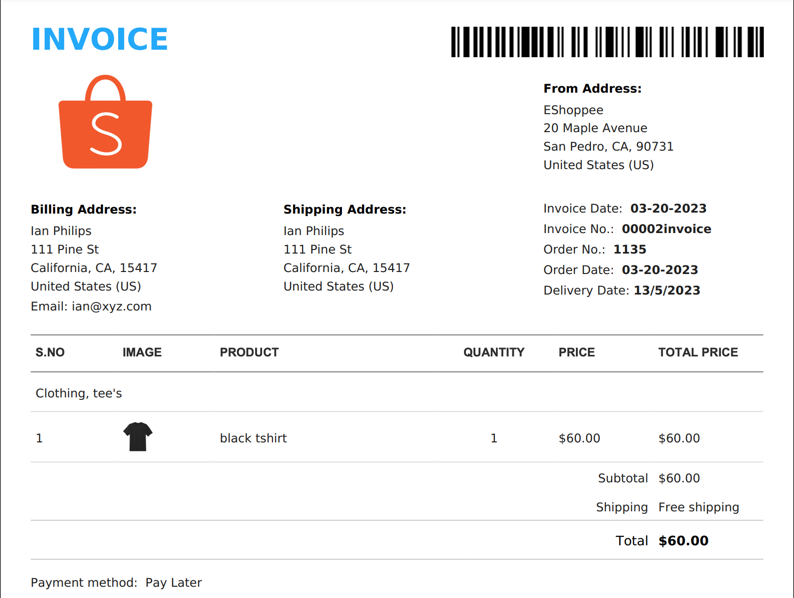
A sample invoice with the logo will be as shown below:
The free WooCommerce PDF Invoice, Packing Slip, Delivery Notes, and Shipping Labels plugin provides essential features to streamline the creation of order and shipping documents for your business.
However, to fully customize these documents to meet your specific organizational needs, you may require advanced features, which are available in the premium versions of this plugin.
The plugin has five distinct premium variations, each designed to support different types of documents. These premium options include:
- WooCommerce PDF Invoices, Packing Slips and Credit Notes
- WooCommerce Shipping Labels, Dispatch Labels and Delivery Notes
- WooCommerce Picklists Plugin
- WooCommerce Proforma Invoices Plugin
- WooCommerce Address Labels
The advantage of these premium variants is that you only need to purchase, install, and activate the plugin you require.
Though the free version already offers logo addition functionality, the premium version of the invoice plugin would have to be used if you want to add additional elements like a tracking number, payment link, or others to the invoice document.
Frequently Asked Questions
WooCommerce, by default, doesn’t offer many options to customize your invoices. To customize WooCommerce invoices, install and activate the WebToffee WooCommerce PDF Invoices Plugin. If you want advanced customization options like a block-wise code editor and more premium templates, you can upgrade to the premium WebToffe PDF Invoice plugin with Customizer Add-on.
For a more in-depth guide on customizing WooCommerce invoices, be sure to check out our detailed tutorial.
Adding your logo to WooCommerce invoices enhances brand visibility, builds trust with customers, and reinforces your professional image. It helps differentiate your business from competitors and improves brand recognition over time.
The free WebToffee WooCommerce PDF Invoices Plugin allows you to easily add your logo to invoices and make basic customizations, such as adjusting the invoice layout and adding text fields. It helps you create a more professional and branded invoice document.
No, you can add a logo using the free version of the WebToffee WooCommerce PDF Invoices Plugin. However, if you require more advanced customization features or additional document types, upgrading to the premium version is recommended.
Conclusion
Adding your company logo to WooCommerce invoices is a simple yet powerful way to boost your brand visibility and professionalism. By turning your invoices into a subtle branding tool, you not only enhance brand recognition but also build trust and credibility with your customers.
Whether you’re a small business or an established company, incorporating your logo on invoices creates a cohesive and memorable experience for your clients.
With the free WebToffee WooCommerce PDF Invoices plugin, adding your logo is quick and easy, allowing you to customize and elevate your brand’s presence right from the start. For those looking for even more advanced customization options, the premium plugin offers additional features to tailor your invoices to your exact business needs.
Start leveraging your invoices as a branding asset today. By making this small change, you’ll leave a lasting impression on your customers and stand out from the competition.

Got any query? Please leave a comment or reach out to our support
Got any query? Please leave a comment or reach out to our support

Subcribe to our newsletter





Comments (2)
Trev
November 11, 2020
I have followed the steps, however the plugin is not allowing me to add my logo or any other photo to the invoice.
Mark
November 12, 2020
Please contact support with the logo url and a sample invoice from your site.